You check into a hotel, pick "Hotel_Guest" from the Wi-Fi list, and a page asks for your room number and surname. At the airport the login page wants a phone number and sends you a code by text message. Once you are online, the question is simple: can the hotel, the café or whoever runs the network see which sites you open, and can they read what you type?
This post lists what the owner of a public network can and cannot see, how open, WPA2, WPA3 and Enhanced Open networks differ, how fake "evil twin" hotspots work and why login pages ask for your phone number. Then come the settings worth changing on an iPhone, an Android phone and a Windows laptop, what a VPN and a proxy change, and a decision table.
What counts as public Wi-Fi?
Public Wi-Fi is any wireless network you share with strangers: in a hotel, café, airport, train, library or shopping centre. Some are open and need no password. Others have a password printed on a card at the counter. In both cases the network belongs to someone else, and everyone in the building can join it.
Many of these networks put a captive portal in front of the internet. That is the web page that opens by itself after you join and asks you to accept the terms, enter a room number or confirm a phone number. Until you finish it, the network blocks everything else. Behind the portal there is often an outside company that runs the hotspot system for the business, so "the network owner" can mean two parties.
What can the owner of a public Wi-Fi network see?
Everything you send passes through their router. The real question is how much of it they can read, and on a modern phone the answer is: much less than most people fear.
| What | Can the network owner see it? | Why |
|---|---|---|
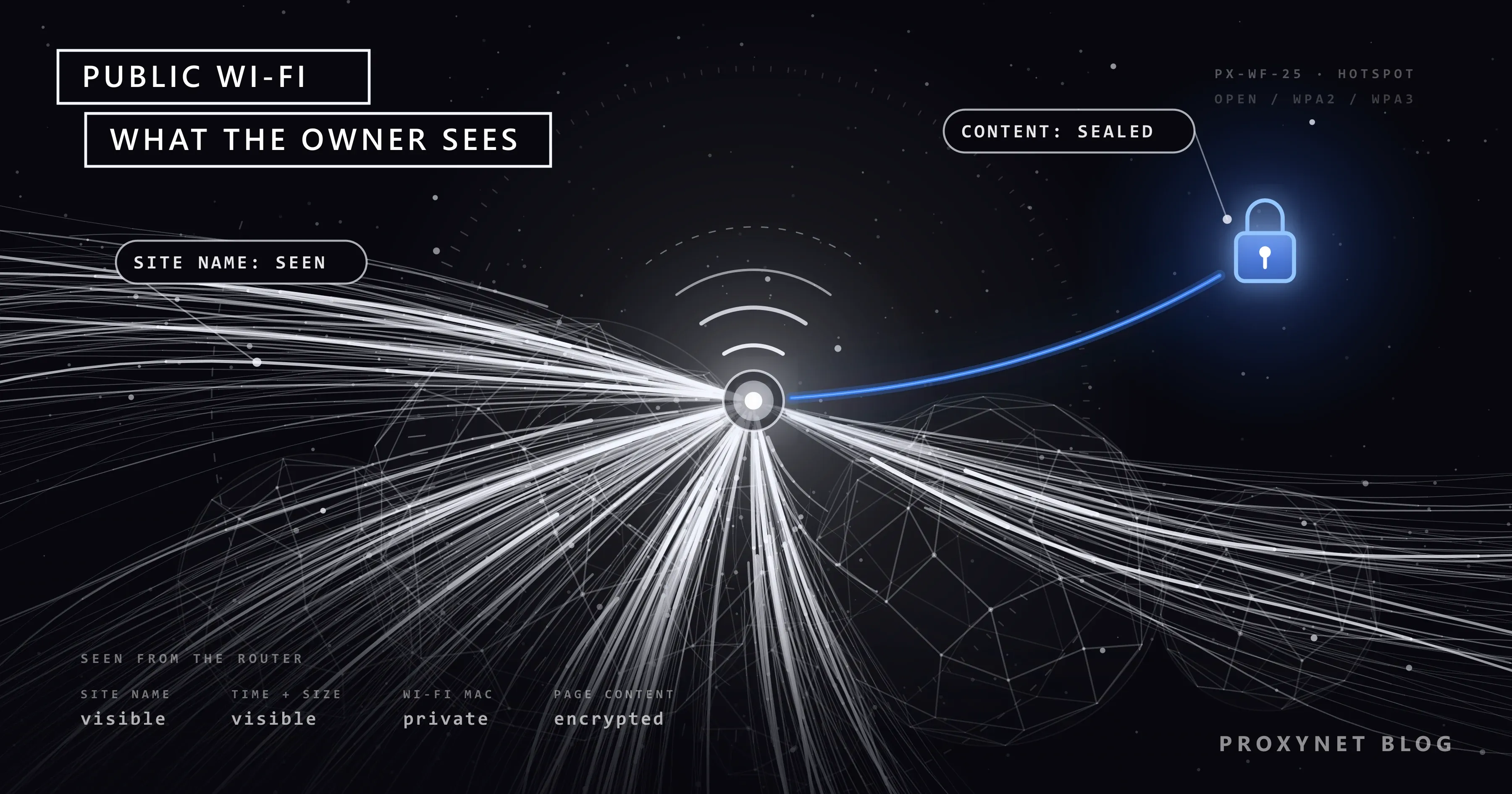
Names of the sites and services you connect to (bank.example) | Usually yes | They appear in address lookups (DNS) and at the start of each encrypted connection |
| The server addresses you connect to | Yes | The router needs them to deliver your traffic |
| When you are online and how much data you use | Yes | Every connection passes the router with a time and a size |
| Your device's Wi-Fi (MAC) address, sometimes a device name | Yes, but often a private address | iPhone and Android show each network a separate address by default |
The full address of a page on an HTTPS site (/account/statements) | No | Everything after the site name is encrypted |
| What you type into an HTTPS search engine | No | The search words are part of the encrypted address |
| Passwords, messages and card numbers on HTTPS sites and in apps that encrypt | No | Encrypted between your device and the service |
| The content of pages on sites without HTTPS | Yes | Nothing is encrypted |
| Photos and files stored on your phone | No | Unless you send them or leave a sharing feature open to everyone |
In practice, the hotel can build a list like "at 21:14 this device connected to a bank, then spent forty minutes on a video service". It cannot see the balance you checked or which video you watched. The address in the fourth row is explained in our MAC address guide, and the lookups in the first row in our DNS guide.
How does your traffic cross a public network?
Here is what happens between joining the network and seeing a page, and where each item in the table comes from:
- Your phone joins the network. It introduces itself with a Wi-Fi hardware address (MAC address), and the router gives it a local IP address. Recent phones show each network a different, private MAC address, so the café does not see the same identifier the hotel saw last week.
- The login page appears. Until you accept the terms, enter a code or confirm your phone number, the router lets through only that page. When you finish, it marks your device as allowed and starts a session.
- Your phone looks up the site's address. When you type
bank.example, the phone asks a DNS server which IP address belongs to that name. Unless your phone or browser encrypts this lookup, the question and the answer cross the network readable. Android's help page notes that its Private DNS setting protects these lookups and nothing else. - An encrypted connection opens. The first message of an HTTPS connection names the site you want, and in most connections that name is still readable. RFC 9849, published in March 2026, describes Encrypted Client Hello, an extension that hides it, but it works only where both the site and the browser support it. After this greeting, everything is encrypted.
- The router forwards and records. Your traffic leaves through the business's own internet line, so the sites you visit see the hotel's public IP address, not your home one. The router can log when your device connected, to which addresses, and how much data moved.
Open, WPA2, WPA3 or Enhanced Open: does the password matter?
The lock icon next to a network name means the radio link between your device and the access point is encrypted. What that protects you from depends on the type of network.
| Network type | How you join | What the Wi-Fi encryption does | Can the owner still see the list above? |
|---|---|---|---|
| Open | No password | Nothing is encrypted over the air; people nearby with the right tools can capture it | Yes |
| Enhanced Open (OWE) | No password | Each device gets its own key, which stops people nearby from simply listening in | Yes |
| WPA2-Personal | Shared password | The radio link is encrypted; everyone who has the password is on the same network | Yes |
| WPA3-Personal | Shared password | The radio link is encrypted, and the password is better protected against guessing | Yes |
Wi-Fi Enhanced Open was introduced by the Wi-Fi Alliance for exactly the café and airport case: it encrypts each user's connection without a password. It does not prove who runs the network, though. WPA3-Personal sets up the connection in a new way (called SAE) that better resists password guessing, even when the password is weak.
Keep one fact in mind: Wi-Fi encryption ends at the router, and the owner of the router sits on the other side of it. No Wi-Fi setting hides anything from the owner. The password only decides who else can join. A captive portal does not add encryption either; an open network with a login page is still an open network.
What is an evil twin hotspot?
An evil twin is a hotspot that someone sets up with the same name as a real one, such as "Airport Free WiFi" or the name of the café. Phones recognise saved networks mainly by name and security type. For an open network there is nothing else to compare, so a phone that once joined the real network may join the copy on its own.
Whoever runs the copy becomes the network owner and sees the same list a hotel would. HTTPS still keeps your bank session unreadable to them. What they can do is show you their own login page and see what you give it. Watch for these signs:
- The login page asks for your email or social media password, or for card details, to "verify" you.
- The page asks you to install a profile, a certificate or an app before you can browse. A certificate installed this way can let the network open your encrypted traffic; we explained how that works in What Is a MITM Proxy?.
- Your browser shows a certificate warning on a site that normally opens without one.
Ask the staff for the exact network name, and prefer a network whose password is handed out at the counter over an open one with a similar name.
Why does the Wi-Fi login page ask for your phone number?
Sometimes the reason is marketing: the business wants to send you offers. In some countries it is the law. In Türkiye, Law No. 5651 obliges businesses that offer internet access to the public to keep access records, and the regulation on collective internet use providers sets out the details. Providers in public areas must identify users by text message or a similar method. They must also store, for two years, the local IP address given to each device, the start and end time of use, the device's MAC address and the destination IP addresses.
Two things follow from this. The text-message code ties your session to your phone number, so public Wi-Fi in Türkiye is not anonymous. And the log holds addresses and times, not the contents of your encrypted pages. Rules differ elsewhere: a hotel abroad may ask for a room number, an email address or nothing at all. Enter your number only on the real portal of the business, since an evil twin can collect numbers too.
Does HTTPS make public Wi-Fi safe?
For the content of what you do, mostly yes. That is why the US Federal Trade Commission now writes that connecting through public Wi-Fi is usually safe, given how widely encryption is used. HTTPS encrypts everything between your browser and the site: pages, forms, passwords and cookies. That includes the cookie that keeps you signed in, so nobody on the same network can copy it; these cookies now get stolen mostly by malware on your own device or through fake login pages, as What Is Session Hijacking? explains.
The padlock means the connection is encrypted to a server that holds a valid certificate for that name. It does not mean the site is honest. The same FTC page points out that on a scammer's site your data is encrypted all the way to the scammer. Three habits cover most of the gap:
- Read the name in the address bar, not only the padlock.
bank.example.login-check.netis not your bank. - Never click past a certificate warning on public Wi-Fi. Many large sites use HSTS, a rule that tells browsers to connect to them only over HTTPS. On those sites the browser does not even offer a way past the warning. What the warning means, and why a hotel or café login page can trigger it, is explained in Your Connection Is Not Private Error: Causes and Fixes.
- Let the browser insist on HTTPS. In Chrome on Android, tap More > Settings > Privacy and security, and under "Security" turn on Always use secure connections. Chrome then switches addresses to HTTPS and warns you before it opens a site that does not support it.
Is it safe to use your banking app on public Wi-Fi?
The connection to your bank is encrypted like any HTTPS site. The hotel sees that you talked to your bank, not what you did there. The practical risks sit elsewhere:
- Fake login pages. A page or text message that looks like your bank is a bigger threat than the Wi-Fi itself. Open the bank's app directly instead of a link.
- The bank's own fraud checks. The hotel's internet address is new to your bank and may be in another city or country. The bank may ask for extra verification or block the login. We explained why in Why Your Bank Flags a Login from an Unusual Location.
- Weak account protection. Turn on two-factor authentication, so a stolen password alone is not enough.
For banking and payments, use mobile data or your own hotspot when you can. HTTPS does not fail on hotel Wi-Fi, but your own connection removes the fake-hotspot and fake-portal risks in one step.
Which phone and laptop settings help on public Wi-Fi?
The menu names below come from Apple, Google and Microsoft help pages. Some Android makers place these settings elsewhere; the search box at the top of the Settings app finds them.
iPhone
- Keep the private address on. Go to Settings > Wi-Fi, tap the More Info button next to the network, then Private Wi-Fi Address. Apple's help page says the iPhone picks Rotating by default on networks with weak or no security, changing the address every two weeks, and Fixed on WPA2 or stronger. Leave it on unless a network refuses to work with it.
- Stop joining networks on its own. In Settings > Wi-Fi, tap Edit to see known networks, tap More Info next to one, and turn off Auto-Join. To remove it completely, tap Forget This Network, then Forget (Apple's steps).
- Close AirDrop to strangers. In Settings > General > AirDrop, choose Receiving Off or Contacts Only.
Android
- Check the random address. Android 10 and later use a randomized MAC address by default. You can see it in Settings > Network & internet > Internet: tap the settings icon next to your network and scroll to Randomized MAC address.
- Forget networks you no longer use. In Settings > Network & internet > Internet, touch and hold a saved network and tap Forget (Google's steps).
- Limit Quick Share. Search for "Quick Share" in Settings, tap Who can share with you and choose Your devices or Contacts.
Windows laptop
- Use the public network profile. Windows 11 marks a new network as public by default, which hides your PC from other devices on it and turns off file and printer sharing. To check, go to Settings > Network & internet > Wi-Fi, select the network, and under Network profile type choose Public network (Recommended) (Microsoft's steps).
On every device, keep the operating system and the browser updated. Updates close the security holes that someone on the same network could otherwise try to use.
Does a VPN make public Wi-Fi safe?
A VPN encrypts all traffic between your device and the VPN server, including the name lookups and the site names from the table above. The hotel then sees only that your device talks to one server, when, and how much. How a VPN works is covered in our VPN guide.
It has limits. A VPN hides the content, not the fact that a VPN is in use. It does not stop you typing a password into a scam site. And it moves the view rather than removing it: the VPN provider now sees the names the hotel would have seen, so it has to be a provider you trust. It can usually connect only after you finish the hotel's login page, since until then the network blocks everything else. Some sites also react to VPN addresses with extra checks, as covered in VPN or Proxy Detected.
What does a proxy change on public Wi-Fi?
A proxy is a server that fetches sites on your behalf, so the sites see its address instead of yours (What Is a Proxy Server and How Does It Work?). On a hotel network, be precise about what that changes:
- An HTTP or SOCKS5 proxy does not encrypt anything by itself. The connection from your device to the proxy crosses the hotel network as it is.
- HTTPS sites stay encrypted end to end. Through the proxy, your browser builds the same encrypted connection with the site, and the proxy passes along bytes it cannot read. The proxy neither weakens nor adds to what HTTPS already protects.
- Site names can still be read on the way. To open that tunnel, the browser tells the proxy which site it wants, and with HTTP and SOCKS5 proxies that request is not encrypted. Whether name lookups also go through the proxy depends on the app; our WebRTC and DNS leak guide shows how to check.
- Your proxy login can be read too. The SOCKS5 username and password method sends the password in cleartext, and RFC 1929, which defines it, advises against it where traffic can be captured. The login of a plain HTTP proxy is encoded, not encrypted.
- Do not whitelist the hotel's address. If you authorise your proxy by IP address, remember that the guests usually leave through the same public IP, so all of them would be allowed in.
Some setups also encrypt the leg to the proxy itself (a TLS connection to the proxy), so check how yours works before you count on it. A proxy's real job is different: it decides which address, country and city a browser or app appears from. A Residential Proxy, for example, gives it the address of a home internet connection in the city you choose. For protecting a whole device on an untrusted network, a VPN is the tool. The full comparison is in Proxy vs. VPN.
Is your phone's hotspot safer than public Wi-Fi?
For the local part, usually yes. The network is yours, protected by a password only you know, and no strangers are on it. Your traffic then goes through your mobile carrier, which sees roughly what any internet provider sees.
On an iPhone, go to Settings > Personal Hotspot and turn on Allow Others to Join. On Android, swipe down from the top of the screen and tap the Hotspot tile. Check your data allowance first, and roaming charges abroad; Google's help page notes that some carriers limit tethering or charge extra for it.
Situations where public Wi-Fi needs extra care
- Banking while travelling. A new network in a new country can trip your bank's checks; Banking App Not Working Abroad? lists the fixes.
- Private browsing on a shared network. A private window changes nothing the network owner sees, as explained in our incognito mode guide.
- Testing your own services from outside. Security teams check how their login pages and APIs look from other networks and countries; see our data security page.
- Knowing which address sites see. On hotel Wi-Fi, sites get the hotel's address; How to Change Your IP Address explains the layers of addresses.
Common mistakes
- Joining the first open network whose name looks familiar.
- Typing an email or social media password into a Wi-Fi login page.
- Clicking "Proceed" past a certificate warning.
- Installing a profile or certificate just to get online.
- Assuming a Wi-Fi password makes the network private from its owner.
- Leaving auto-join on for every café and hotel network you have ever used.
- Believing an HTTP or SOCKS5 proxy encrypts the connection.
- Adding the hotel's public IP address to a proxy whitelist.
Decision guide
| Need | Recommendation |
|---|---|
| News, maps, messaging, social media | Public Wi-Fi is fine; confirm the network name with the staff |
| Banking and payments | Mobile data or your own hotspot, with two-factor authentication on |
| Hiding site names from the network owner | A VPN from a provider you trust |
| Choosing the country a browser or app appears from | A proxy, knowing it is not a security tool on its own |
| An open network you cannot confirm | Do not join; use your hotspot |
| A laptop in a café | Public network profile, updates installed |
| A hotel network you will not use again | Forget it when you leave |
Frequently asked questions
Is public Wi-Fi safe with a VPN?
Safer for privacy from the network owner: the hotel sees only that you use a VPN, when and how much. The VPN provider now sees what the hotel would have seen. A VPN does not protect you from fake login pages or scam sites, so the other habits in this post still apply.
Is public Wi-Fi safe on an iPhone?
About as safe as on any up-to-date phone. The iPhone uses a private Wi-Fi address that changes every two weeks on open networks, and apps and sites encrypt their traffic. Turn off Auto-Join for open networks you no longer use and set AirDrop to Contacts Only or Receiving Off.
Can hotel Wi-Fi see what I search for?
On an HTTPS search engine, no. The hotel can see that you connected to the search engine, but the words you typed travel inside the encrypted part of the address. On a site without HTTPS, the whole address, search words included, is readable.
Can someone on the same Wi-Fi get into my phone?
It is unlikely from sharing the network alone, as long as the phone is updated and sharing features are limited. The risks that remain usually involve a step by you: a fake page you type into, a file you accept, or a profile you install. On a laptop, the public network profile hides it from other devices.
Does incognito mode hide my browsing from the Wi-Fi owner?
No. A private or incognito window only stops history and cookies from being saved on your device. The network sees the same site names and addresses as in a normal window. The details are in our incognito mode guide.
Is it legal to use a VPN or proxy on hotel Wi-Fi?
In most countries using a VPN or a proxy is legal in itself, but the rules differ from country to country, and the hotel's terms of use still apply. We collected the rules by country in Is Using a VPN or Proxy Legal?.
Summary
On public Wi-Fi, the network owner sees which sites you connect to, when, and how much data you use; in Türkiye that log is kept for two years. HTTPS keeps pages, passwords and messages unreadable, so everyday use is usually safe. The real risks are fake hotspots, login pages that ask for too much, and certificate warnings clicked away. Keep the private address on, turn off auto-join, bank over mobile data, and use a VPN you trust to hide site names. A proxy does a different job: it sets the address and location sites see, and our proxy services let you choose it by country and city.