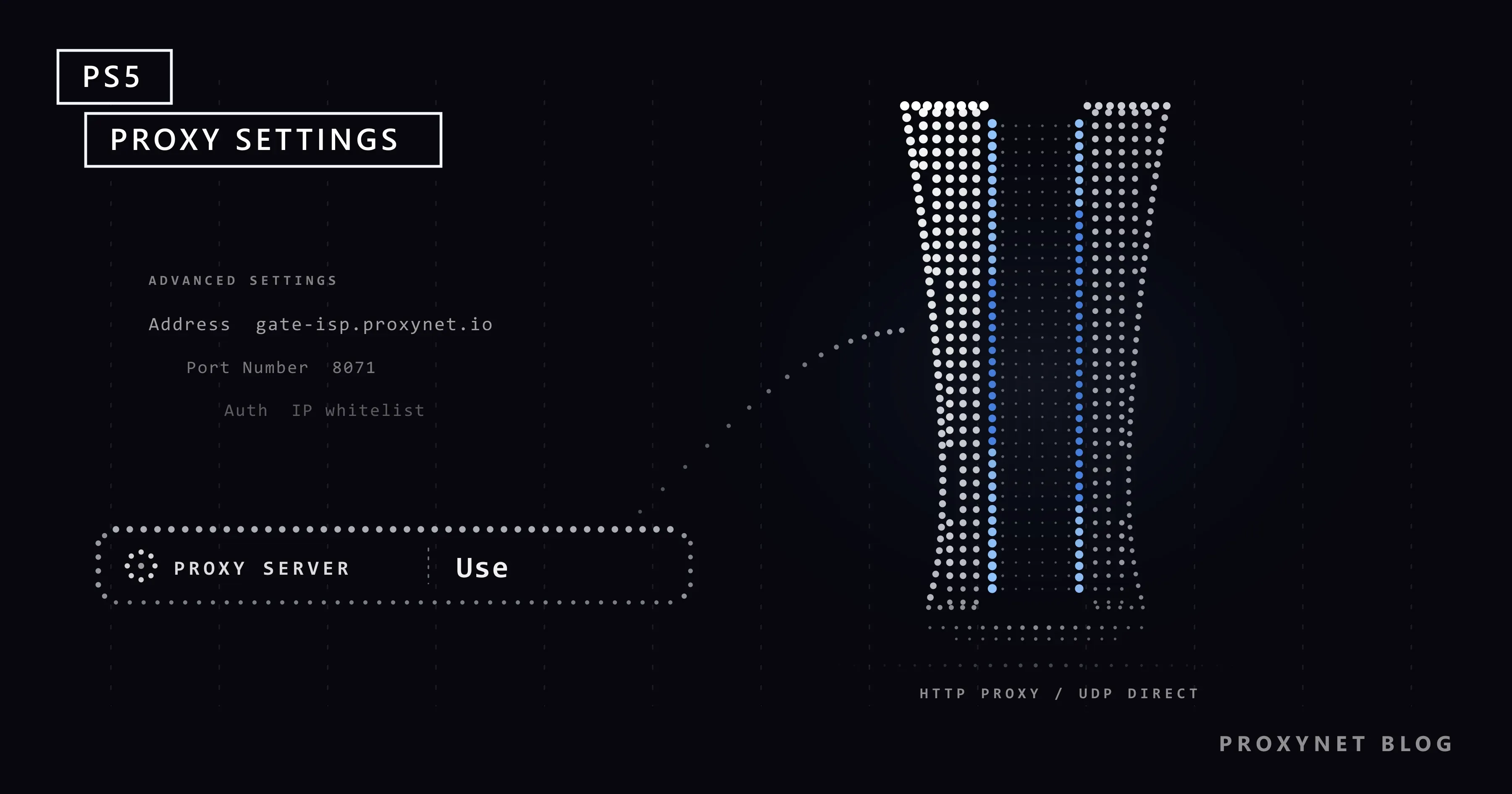
Your dormitory or office network only lets devices online through a proxy, or you have a proxy of your own and want the console to use it. On a PS5 there is no proxy entry in the main Network menu. The setting sits inside the advanced options of a single connection and asks for very little: where the proxy is and which port it listens on.
This guide first creates a matching proxy in the Proxynet panel, then walks through the console screen by screen to the fields where the address and port go. The console has no field for a username and password, so the panel part includes IP whitelisting, which lets your home connection in by its address. After the setup we cover what the setting carries and what it never touches (UDP traffic, NAT type, ping). No code or terminal is needed.
What does a proxy server do on a PS5?
A proxy server makes connections on behalf of another device: the console hands its request to the proxy, the proxy contacts the service and passes the answer back. The service sees the proxy's IP address, the number that identifies a connection on the internet, instead of your home's.
The PS5 setting is for an HTTP proxy, the common kind that browsers and most devices use. For an encrypted https:// address the console asks the proxy to open a tunnel with a request called CONNECT, and the data passes through without the proxy reading it, as RFC 9110, the HTTP standard, describes. Both plain and encrypted web requests travel over TCP, the way of sending data that waits until every piece has arrived.
Why would you use a proxy on a PS5?
The honest reasons have nothing to do with speed or another country's store:
- A network that requires one. Some dormitories, hotels and offices only let devices online through a proxy, and the network administrator gives you the address and port.
- One known exit address. With a static proxy, the console's web requests always leave from the same IP, which helps when your own network rules or logs expect a fixed address.
- Seeing what your console contacts. A Proxynet gate's Logs tab shows the domain, time and result of every connection.
- Troubleshooting a download path. If downloads stall on your provider's route, a different path for a while shows whether the route is the problem.
It is not a tool for lower ping, another region's prices or catalogue, or hiding from other players. If your network administrator already gave you an address and port, skip to step 9.
How do you create a proxy for your PS5 in the Proxynet panel?
Start in the panel: before you touch the console you need a host name, a port and your home IP on the whitelist. A static ISP proxy suits the console best: one IP address that does not change for as long as you renew it, with traffic that is not billed by the gigabyte. The price for your account tier is on the ISP Proxy page.
The steps below cover only the choices that matter for a PS5; every screen of the order is explained in Create and Set Up an ISP Proxy. Each proxy order in the panel is called a gate.
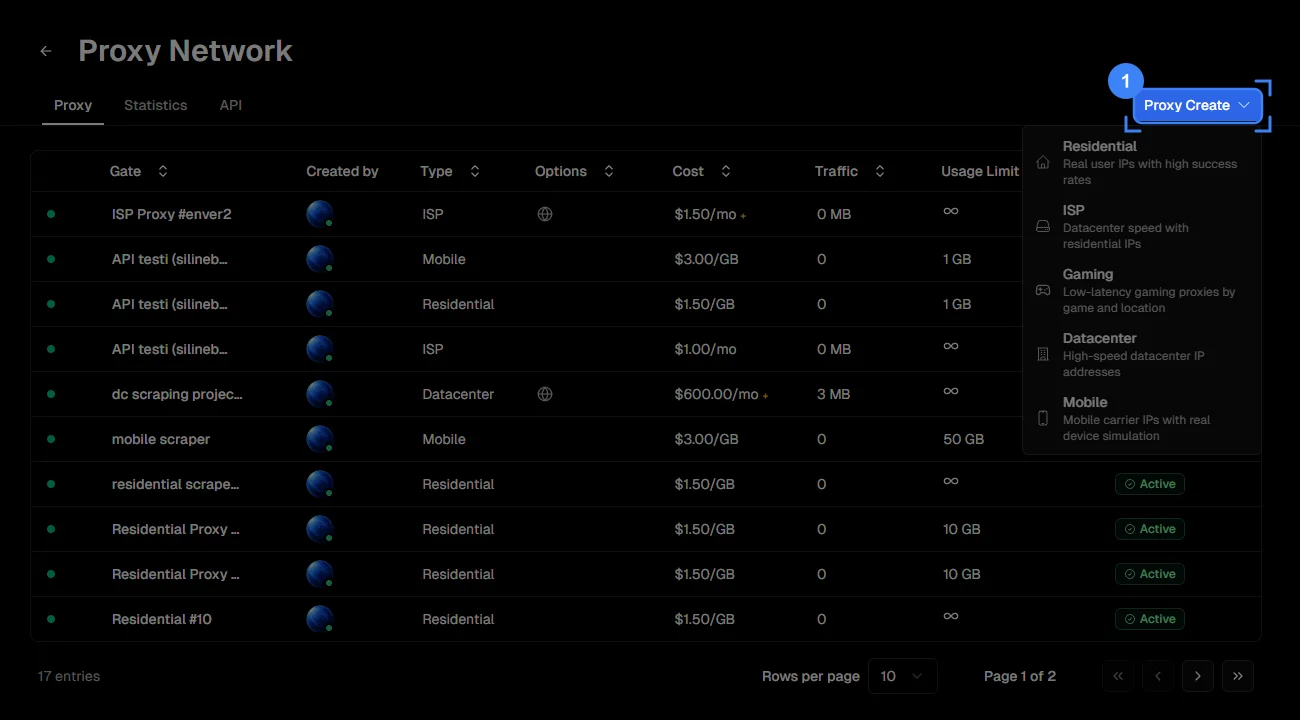
Step 1: Open the Proxy Create menu
Switch to the Proxy tab and click the blue Proxy Create button in the top right.
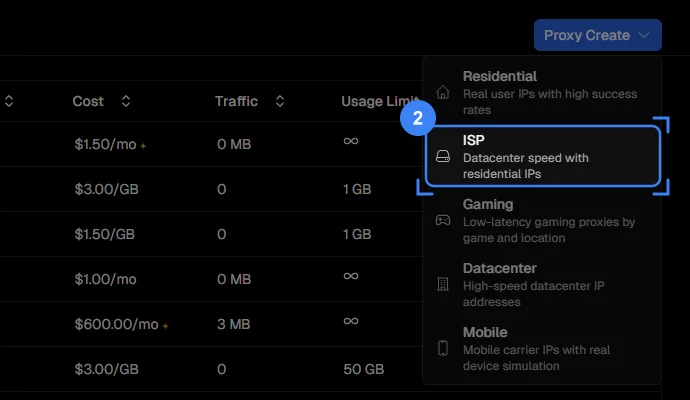
Step 2: Choose ISP
Click ISP, the second of the five proxy types.
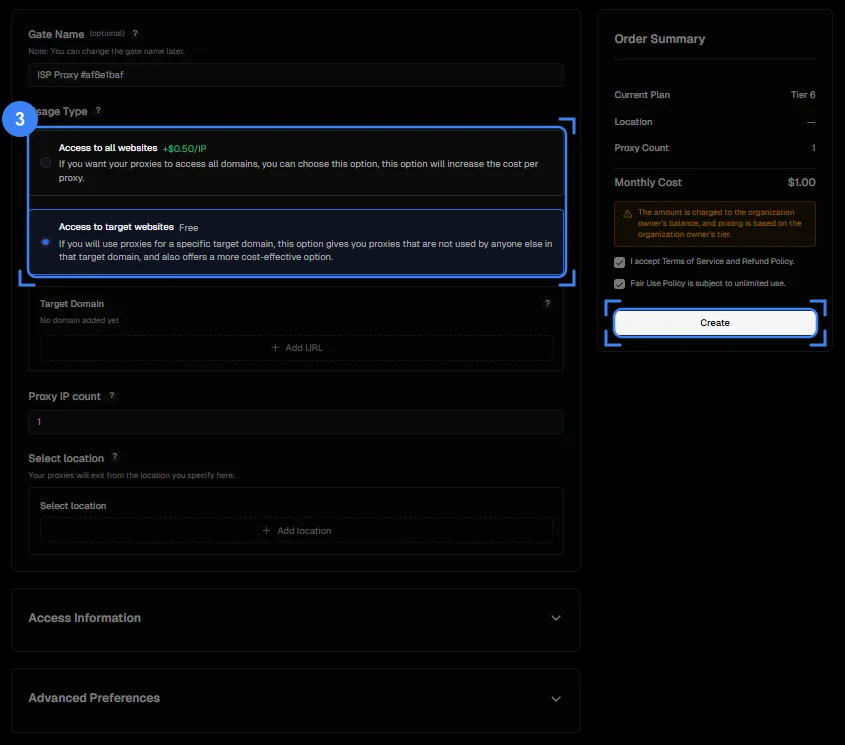
Step 3: Choose Access to all websites
On the Create Gate page, select the first Usage Type option, Access to all websites. The console talks to many different addresses, while an IP bought with Access to target websites works only on the one domain you add. The screenshot shows the target option selected; for a PS5, pick the first one. It is a paid add-on per IP.
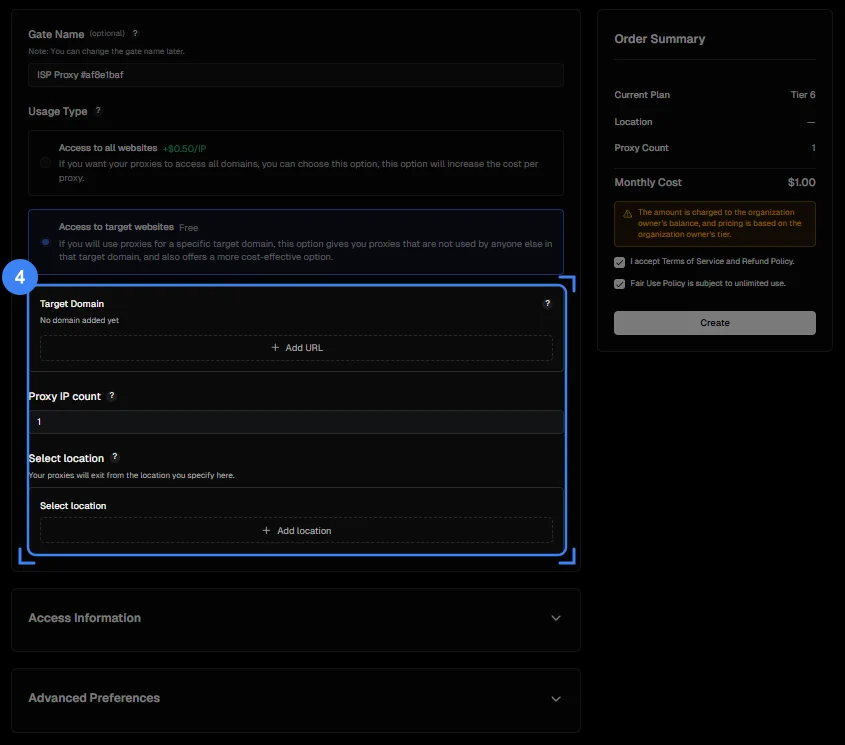
Step 4: Set one IP and open the country list
Enter 1 in Proxy IP count, then click Add location under Select location.
Step 5: Pick a country close to you and create the gate
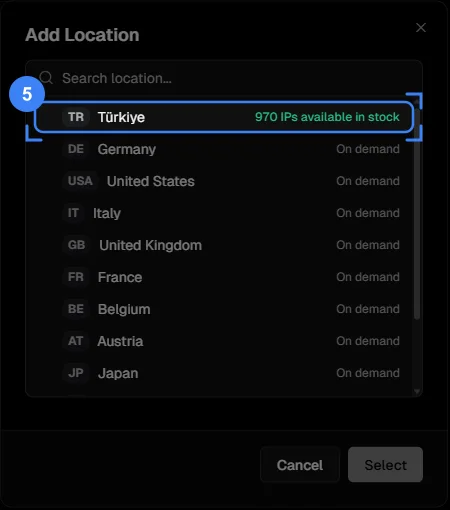
In the Add Location window, choose your own country or the nearest one, so the extra stop stays short. IPs available in stock means immediate delivery; On demand means the IP is allocated after you order. Press Select, tick the two boxes on the Order Summary card and press Create.
Step 6: Note the hostname in Access Details
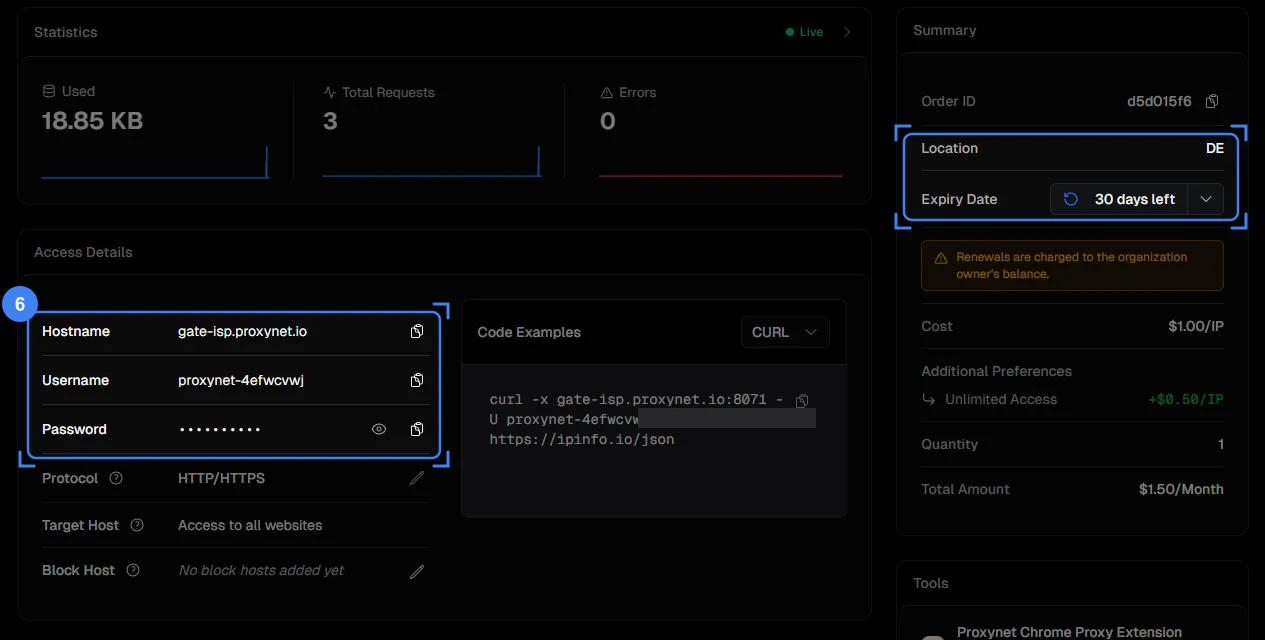
The gate's page opens on Access Details. The Hostname (gate-isp.proxynet.io) goes into the console's Address field. Leave Protocol on HTTP/HTTPS and check that Target Host reads Access to all websites.
Step 7: Add your home IP to IP Whitelist
On the same Access Details tab, click the pencil icon on the IP Whitelist row and add your home connection's public IP; the next section shows how to find it. The step 6 screenshot predates this row, so it does not appear there.
Step 8: Take the port from Proxy List
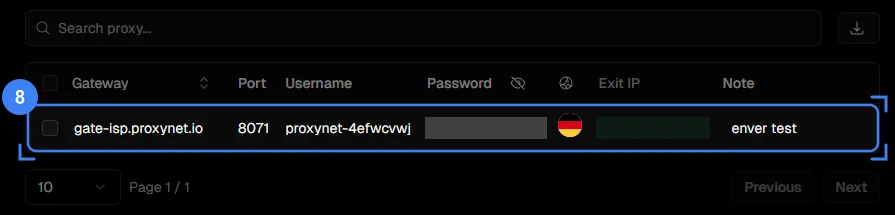
On the Proxy List tab, the number in the Port column goes into the console's Port Number field. Exit IP is the address services will see.
How do you whitelist your home connection?
IP whitelisting means the proxy accepts connections from listed addresses without a password. The console reaches the proxy through your router, so the address to add is your home's public IP: the one address your provider gives the router, shared by every device at home.
- On a phone or computer on the same Wi-Fi as the console, open a "what is my IP" page. The phone must be on Wi-Fi, not mobile data, with any VPN off.
- If the page shows two addresses, take the IPv4 one, four numbers separated by dots. The console reaches the gate over IPv4.
- In Access Details, click the pencil icon on IP Whitelist and add the address. The list holds up to 10 addresses.
- Keep the hostname and port at hand; the console comes next.
Your home address can change. Many providers hand out a new public IP after a modem restart, and the proxy then stops recognising the console; add the new address and remove the old one.
Shared addresses make whitelisting unreliable. Some providers put many subscribers behind one public IP, a setup called carrier-grade NAT (CGNAT); whitelisting it would let all of them use your proxy. What Is CGNAT? shows how to tell; if you are behind one, ask your provider for a public IPv4 address first.
How do you set up the proxy on the PS5, screen by screen?
With the hostname, port and whitelisted IP ready, move to the console. The images below are simplified drawings of the PS5's English interface, with the item to select framed in blue and numbered like the steps; on a console set to another language the same rows appear in the same order. Sony's guide to setting up an internet connection lists the items under Advanced Settings: IP address, DHCP Host Name, DNS, MTU, Proxy and, on the CFI-7000 model group only, Multi Linking Operation.
Step 9: Open Settings
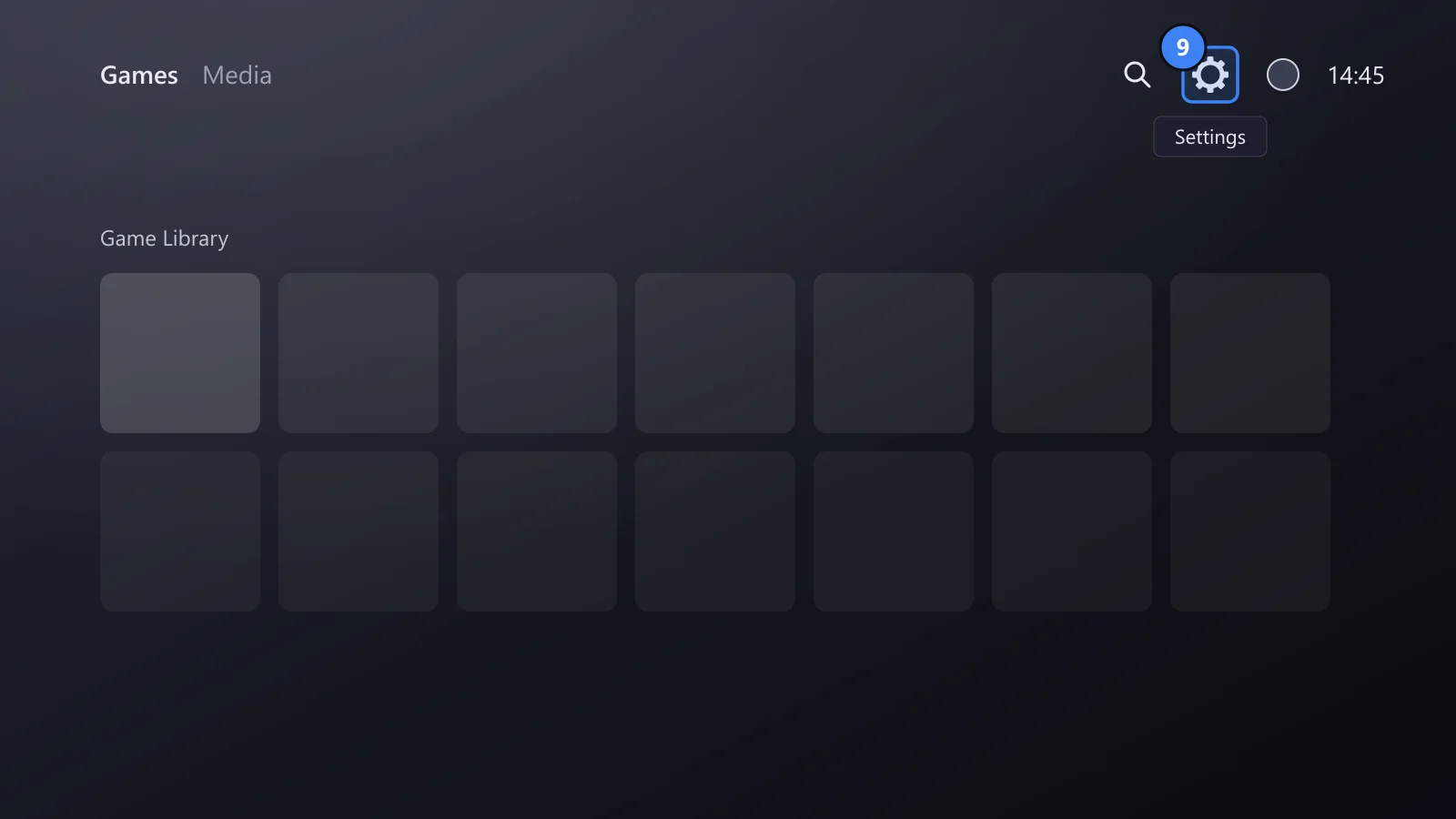
On the home screen, select the gear icon in the top right.
Step 10: Select Network
In the Settings list, select Network.
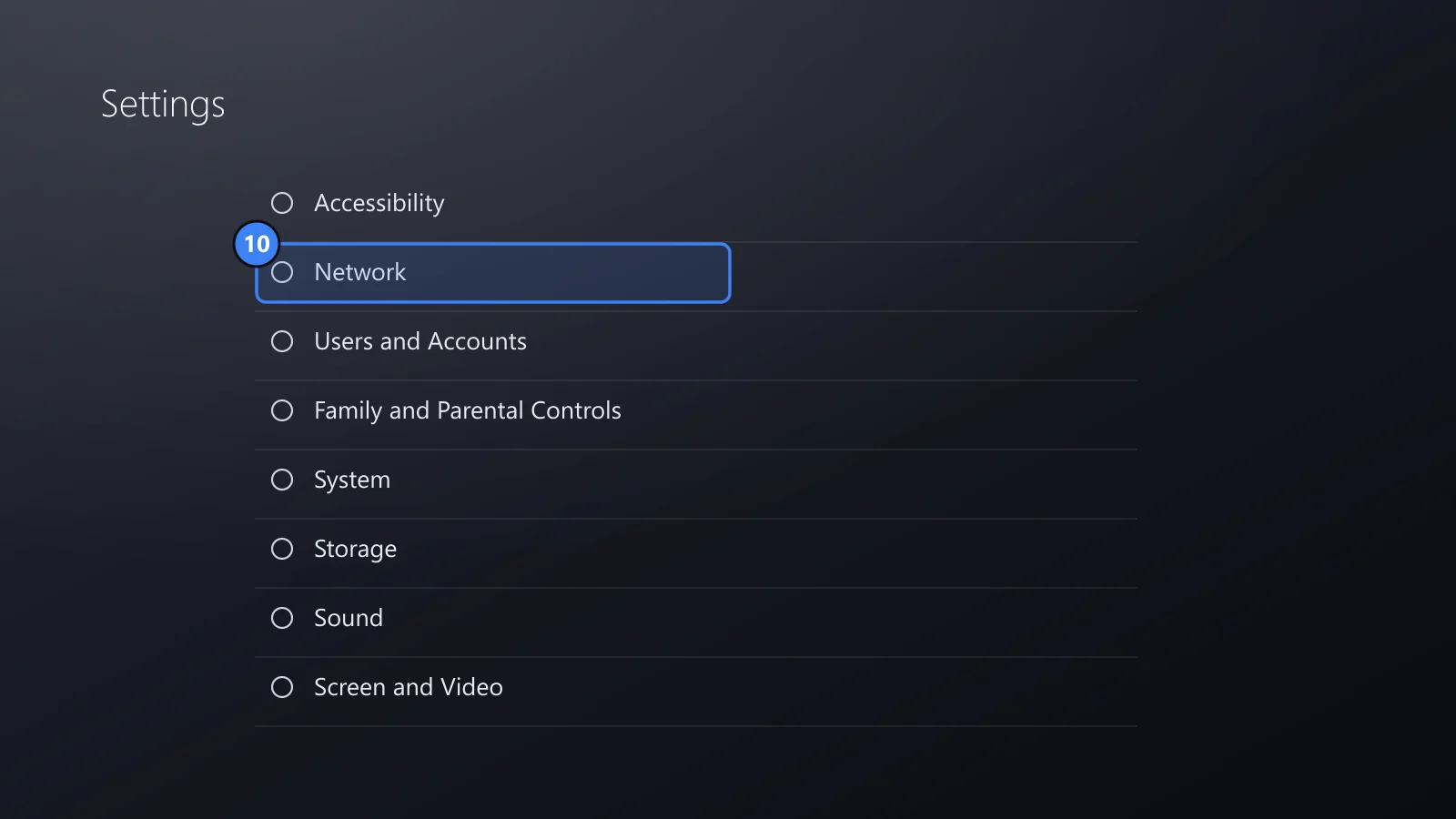
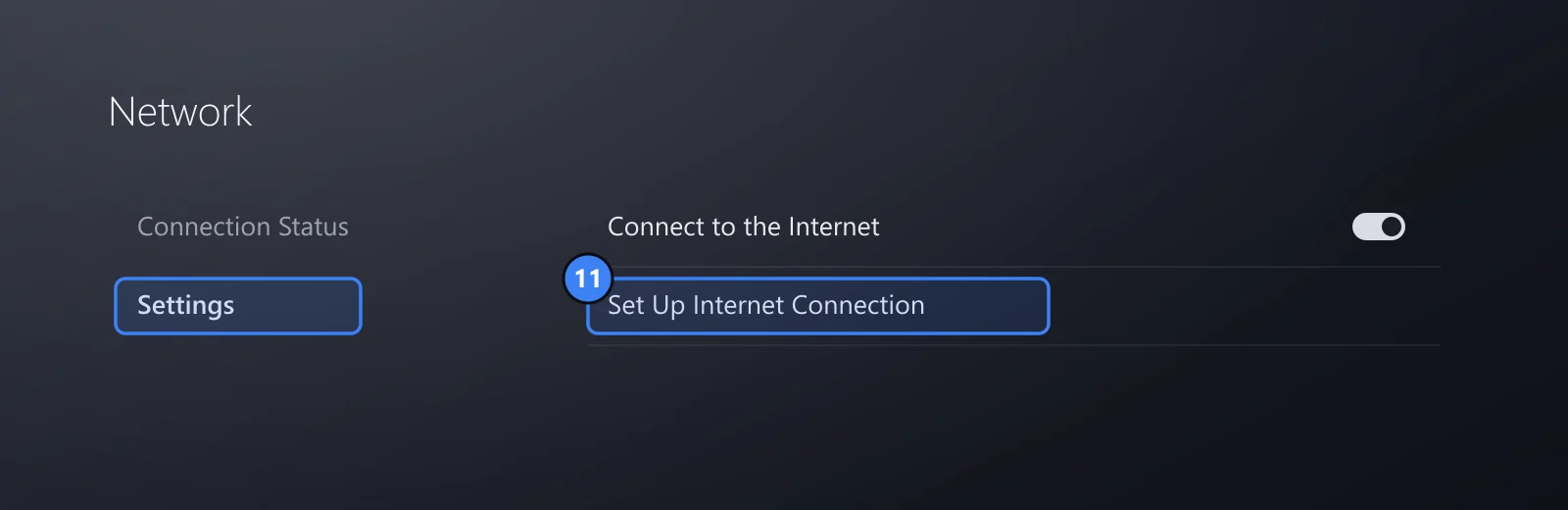
Step 11: Open Set Up Internet Connection
In the Network menu, select Settings on the left, then Set Up Internet Connection on the right.
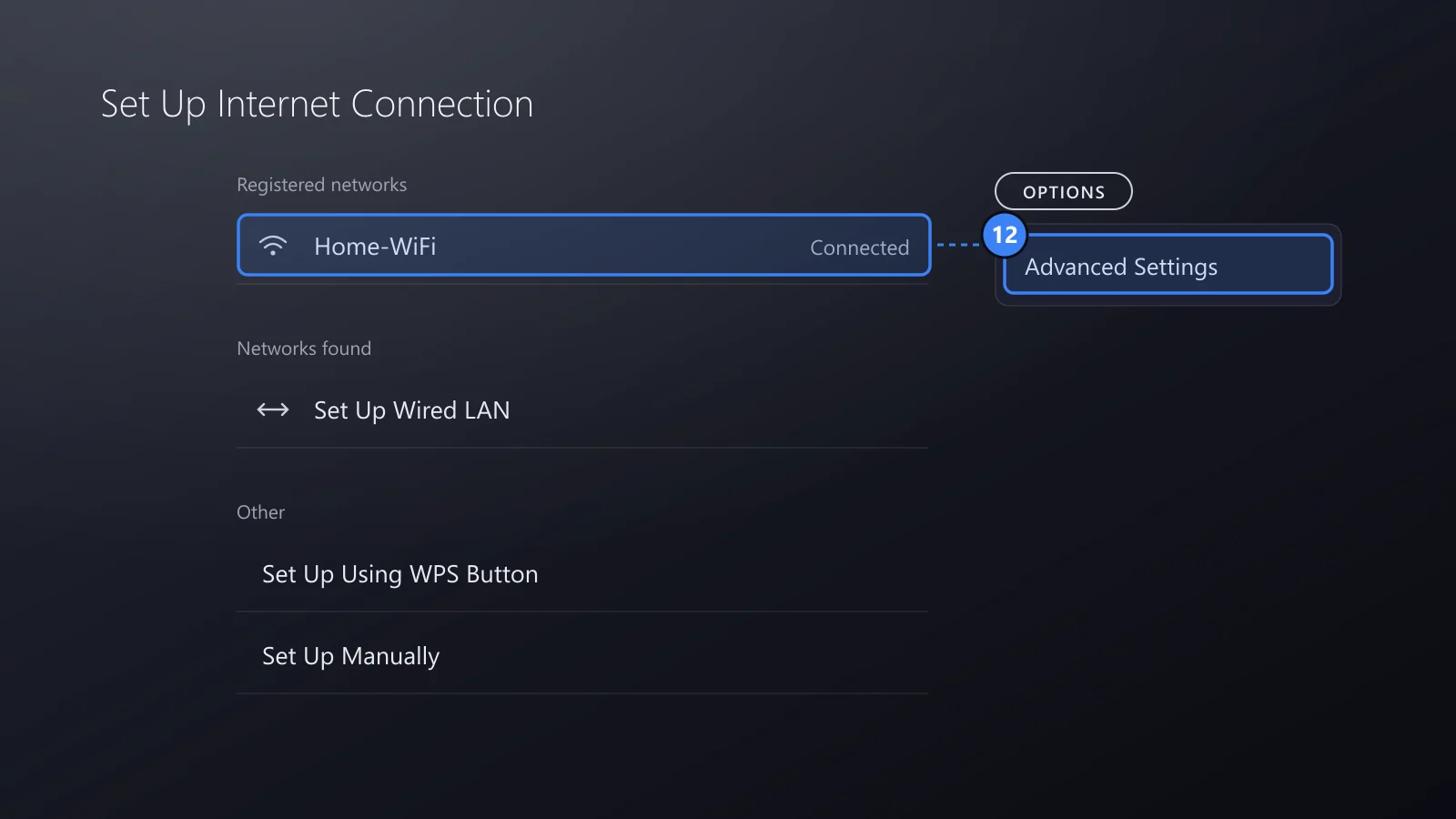
Step 12: Open Advanced Settings for your network
Under Registered networks, highlight the Wi-Fi network the console uses, press the OPTIONS button on the controller and select Advanced Settings. On a cable connection, select Set Up Wired LAN instead, or Set Up Manually and then Use a LAN Cable; both lead to the same list of settings.
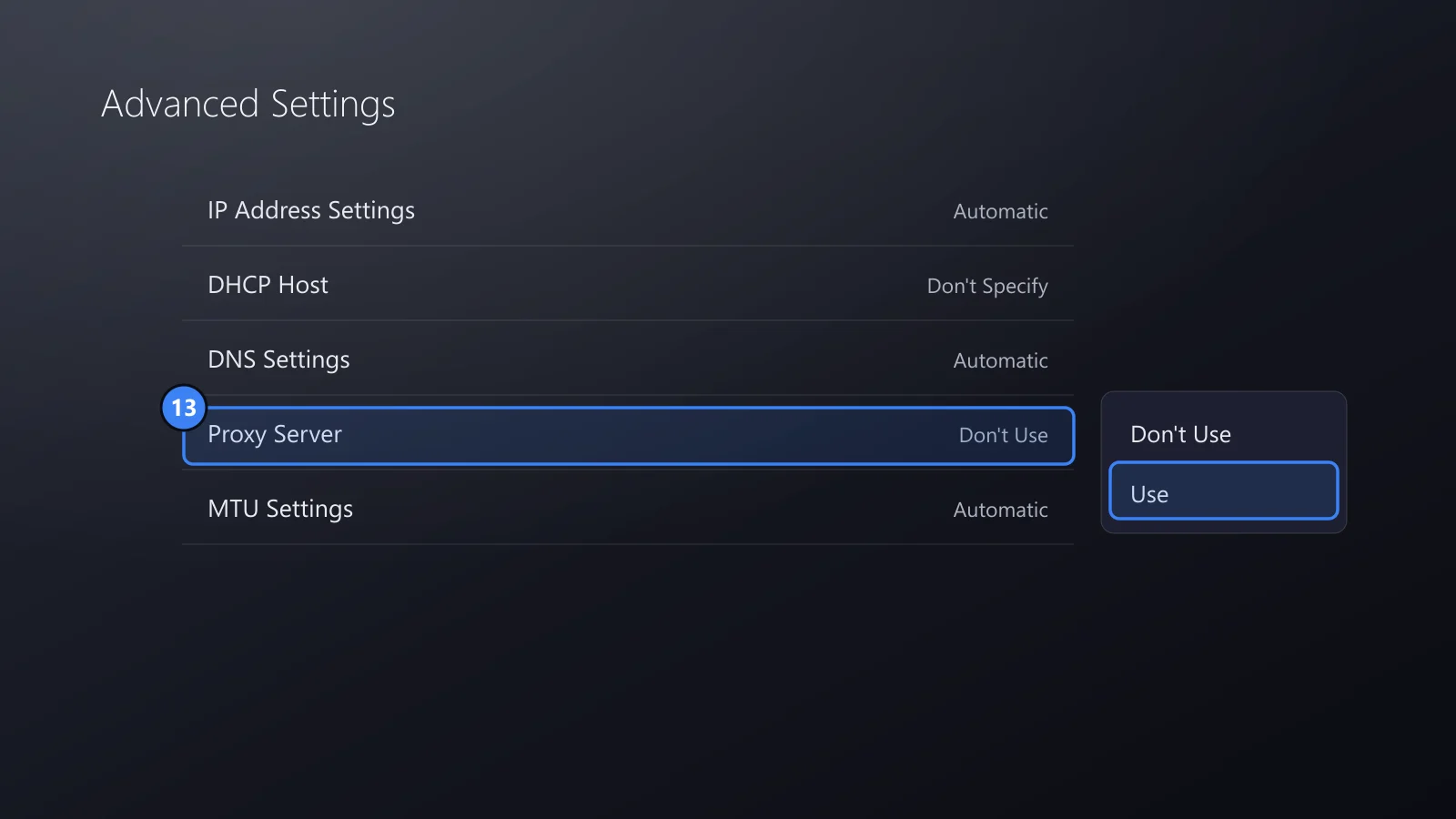
Step 13: Set Proxy Server to Use
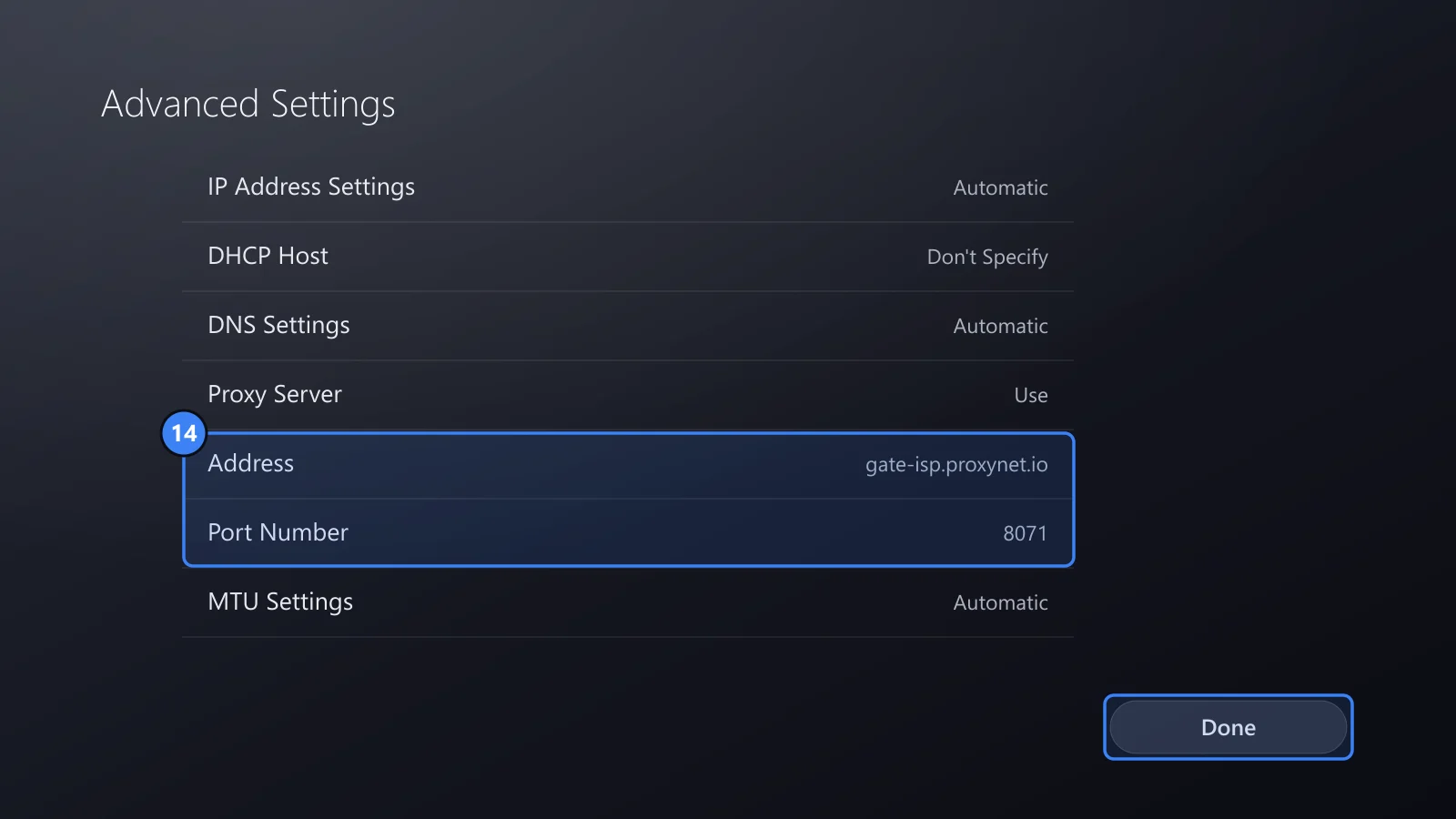
Leave IP Address Settings, DHCP Host, DNS Settings and MTU Settings on their current values. Select Proxy Server, which reads Don't Use, and choose Use.
Step 14: Enter the address and port number
Two new rows appear under Proxy Server. Enter gate-isp.proxynet.io in Address and the port from step 8 in Port Number, then press Done. The console reconnects, and the network should read Connected again.
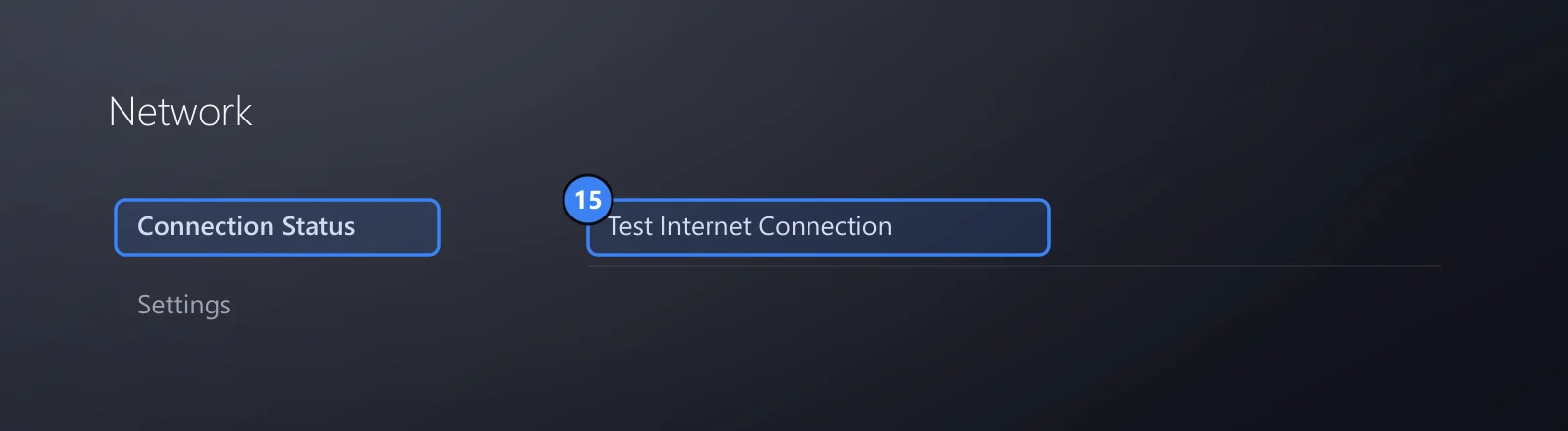
Step 15: Test the connection
Go to Settings > Network > Connection Status > Test Internet Connection. Then open the gate's Logs tab in the panel: new rows from the time of the test prove the traffic went through the proxy.
The proxy is saved with the connection you set it on. If you move the console to another Wi-Fi network or to a cable, repeat steps 12 to 14 there.
What goes into the address and port fields?
| Field | What to enter | Example |
|---|---|---|
| Address | The proxy's host name or IP address, without http:// or a slash | gate-isp.proxynet.io |
| Port Number | The number the proxy listens on | The Port column in Proxy List |
| Username and password | No field on the console | Whitelist your home IP |
If your details read gate-isp.proxynet.io:8071, the part before the colon is the address and the number after it is the port. The console cannot talk to a SOCKS5 proxy, so take the HTTP port when a service offers both; every Proxynet product accepts HTTP connections, as our HTTPS Proxy page explains.
What does the PS5 proxy carry, and what does it not?
The proxy carries the TCP connections that follow the setting, and nothing that travels over UDP. UDP sends packets without waiting for confirmation, which suits live game data and voice, and an HTTP proxy has no way to carry it. Sony's connection troubleshooting pages list UDP ports 3478, 3479 and 49152-65535 among those a PS5 uses, so part of the console's traffic always leaves your home directly.
| Traffic | Through the proxy? | Why |
|---|---|---|
| Web requests (HTTP) that follow the setting | Yes | The proxy forwards them |
| Encrypted connections (HTTPS) that follow the setting | Yes, as a tunnel | CONNECT tunnel; the proxy does not read the content |
| Online play and voice chat over UDP | No | An HTTP proxy cannot carry UDP |
| Incoming connections to the console | No | A proxy only handles connections the console starts |
| Services that ignore the setting | No | Sony does not document which ones follow it |
Sony does not say which services on the console honour the setting, and we will not guess. The gate's Logs tab answers it for your own console: each row is one connection that went through the proxy, with its domain.
A proxy does not change your NAT type, which describes how easily connections from outside reach your console and depends on your router and provider, as What Is NAT Type? explains. Nor does it lower ping: every connection makes an extra stop, so the delay can only stay the same or grow.
Sony's PlayStation Terms of Service (last revised April 2026) do not mention proxies or VPNs. They do expect your account to carry the country you actually live in, and what you can use depends on that country; a proxy changes neither.
Why does the PS5 not connect through the proxy?
| Symptom | Likely cause | Fix |
|---|---|---|
| The connection test fails once the proxy is on | Wrong address or port, or your home IP is not whitelisted | Compare with Hostname and Proxy List; check your current public IP is on the list |
| It worked until the modem restarted | Your home public IP changed | Add the new address to IP Whitelist |
| Sign-in works, but downloads are slow | Every download now detours through the gate | Use a gate near you, or turn the proxy off for large downloads |
| No new rows in the Logs tab | The console is not using the proxy | Check Proxy Server on the connection in use (Wi-Fi or cable) |
| It stopped after about a month | The gate expired | Renew it and turn on Auto Renewal |
| Some services load, others fail | Target Host shows a single domain | Order a gate with Access to all websites |
| Nothing works at all | Unknown | Set Proxy Server back to Don't Use |
If the test still fails with the proxy off, the problem is elsewhere; check your router and Sony's status page.
Common mistakes
- A SOCKS5 port. The console only works with HTTP proxies.
http://in the address field. The field takes the host name alone.- The wrong IP on the whitelist. A phone on mobile data shows its carrier's address, and an IPv6 address will not match.
- Access to target websites. The console needs many domains, not one.
- Forgetting the setting. Leaving a network that required a proxy? Set Proxy Server back to Don't Use.
Decision guide
| Your situation | What to do |
|---|---|
| Your dormitory, hotel or office network requires a proxy | Enter the address and port the administrator gives you |
| You want the console's web traffic on one fixed address | Static ISP gate, Access to all websites, home IP whitelisted |
| Your proxy only works with a username and password | Whitelist your home IP; the console cannot send a username and password |
| Your home IP is shared (CGNAT) | Ask your provider for a public IPv4 address first |
| You want lower ping or an open NAT type | No proxy; look at your router and provider |
| Something stopped working | Set Proxy Server back to Don't Use |
Frequently asked questions
Should I use a proxy server on my PS5?
Most home users should not; the console works without one and that is the default. Use a proxy when your network requires it or when you want the console's web traffic to leave from one known address.
Does a proxy server improve PS5 speed, ping or NAT type?
No. A proxy adds a stop on the way, and NAT type depends on your router and provider. Online play and voice over UDP do not pass through the console's proxy at all.
Can I use a SOCKS5 proxy on PS5?
No. The console's proxy setting is for HTTP proxies. On a Proxynet gate, the Protocol row in Access Details shows HTTP/HTTPS by default.
Can I enter a username and password for a proxy on PS5?
No, there is no field for them. Add your home connection's public IP to the proxy's IP whitelist instead, and update it when your home address changes.
How do I turn off the proxy server on PS5?
Go to Settings > Network > Settings > Set Up Internet Connection, highlight your network, press the OPTIONS button and select Advanced Settings. Set Proxy Server to Don't Use, press Done, and run Test Internet Connection.
Is it against PlayStation's rules to use a proxy?
The PlayStation Terms of Service we read on 11 October 2026 do not mention proxies or VPNs. Your account carries the country you live in, and a proxy does not change it; use the setting for network reasons, not to get around region rules.
Summary
Set up the panel first: a static ISP gate with Access to all websites, its hostname and port, and your home IP on the whitelist. Then on the console: Settings > Network > Settings > Set Up Internet Connection, OPTIONS button, Advanced Settings, Proxy Server set to Use, the host name in Address, the port in Port Number, Done. The setting carries the HTTP and HTTPS connections that follow it and leaves UDP, NAT type and ping untouched; it works as long as your home address is not a shared CGNAT one. For your console or other devices, see our proxy services.