You set up parental controls on your home router, or the IT desk at your school asks you to register your laptop, and the form wants a "MAC address". The router's admin page lists every connected device with a code such as 00-00-5E-00-53-1A. Then you look up your phone's MAC address in its settings and it does not match the code the router shows. Nothing is broken: phones and computers now use a different address on each Wi-Fi network.
This post explains what a MAC address is, what its two halves mean and what it does on a home network. It compares it with an IP address, answers whether websites can see it and shows where to find it on Windows, Mac, iPhone, Android and the router. It ends with private addresses, MAC filtering, common mistakes and a decision table.
What is a MAC address?
Every device that joins a network has a small piece of hardware for it, called a network adapter. The Wi-Fi chip in your phone is one; the Ethernet port on your laptop is another. A MAC address (Media Access Control address) is the address of that adapter. The manufacturer writes it into the adapter at the factory, which is why it is also called the physical or hardware address.
A device has one MAC address per adapter. A laptop with Wi-Fi and an Ethernet port has two, and an iPhone lists its Wi-Fi address and its Bluetooth address separately.
The IP address and the MAC address answer two different questions. The IP address tells the internet which home the data should go to. The MAC address tells the router which device inside that home should get it.
What does a MAC address look like?
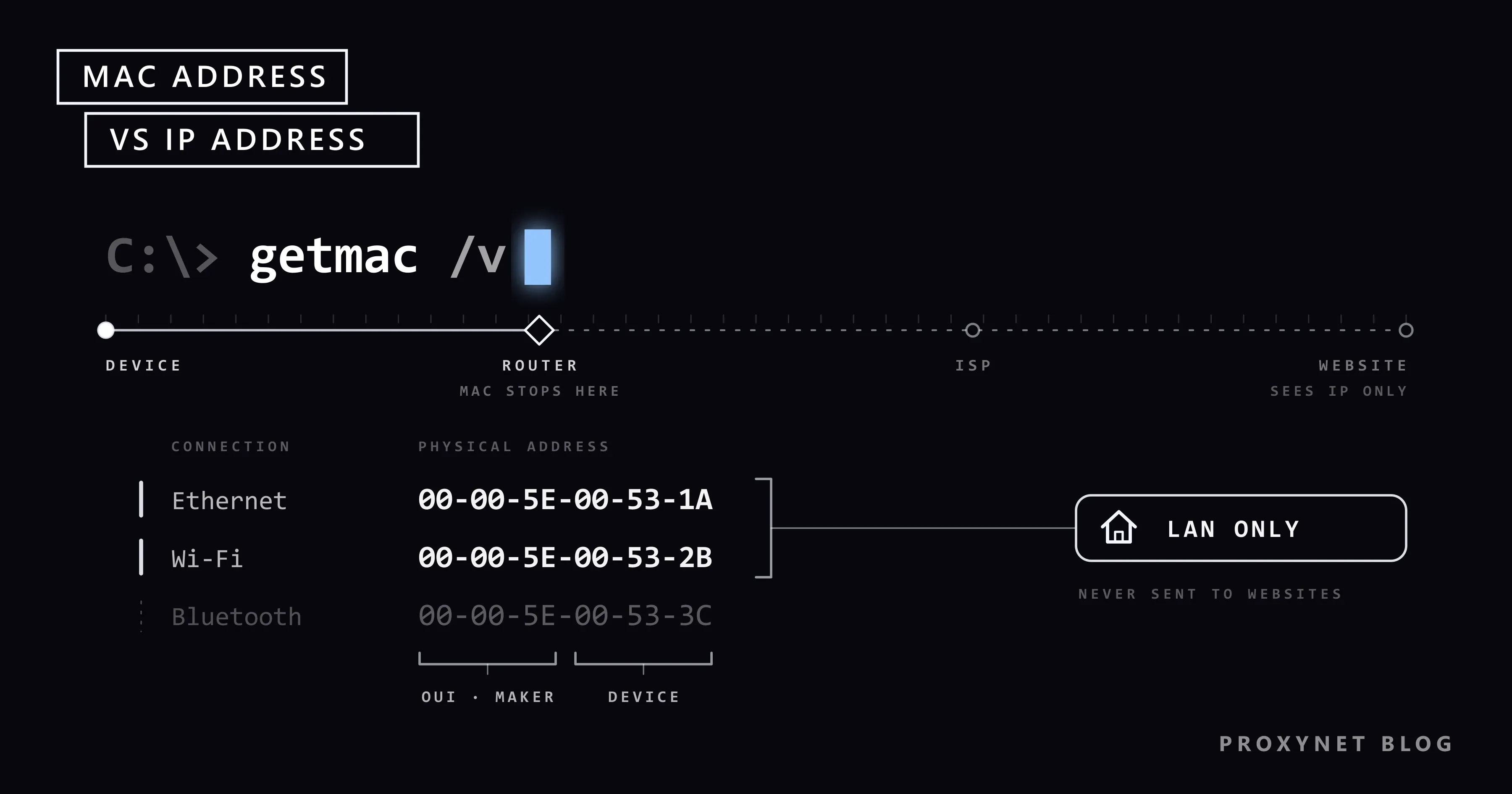
A MAC address is 48 bits long, written as 12 hexadecimal characters (the digits 0 to 9 and the letters A to F) in six pairs. Windows separates the pairs with hyphens (00-00-5E-00-53-1A); Mac, iPhone, Android and most routers use colons (00:00:5E:00:53:1A). Upper-case and lower-case letters mean the same thing. The example address in this post comes from a block that RFC 9542 reserves for documentation, so it belongs to no real device.
What do the two halves mean?
The first three pairs are the OUI (Organizationally Unique Identifier), a manufacturer code. The IEEE, the standards body behind Ethernet and Wi-Fi, assigns these codes to companies and publishes who holds which one. According to the IEEE Registration Authority, the company then adds 24 bits of its own, the last three pairs, so that each adapter it makes gets its own address. RFC 9724, the IETF's report on randomized and changing MAC addresses, describes the same split. This is how some routers can show a brand name next to a device in their list.
One exception is worth knowing. When the second character of the address is 2, 6, A or E (for example 02:… or DA:…), one bit marks the address as locally administered: it was set by software, not at the factory. The private Wi-Fi addresses that phones and computers use are of this kind, so a manufacturer lookup finds nothing for them.
What is a MAC address used for?
- Delivering data inside the network. Every piece of data sent over Wi-Fi or Ethernet carries the MAC address of the sender and of the receiver. Your router uses it to hand each reply to the right device.
- The list of connected devices. The router's admin page lists devices by name, local IP and MAC address. It is the simplest way to see what is on your Wi-Fi.
- A fixed local address. The router hands out local addresses through DHCP, the system that gives each device an address when it joins. You can tell it to give a printer or a game console the same local IP every time; this DHCP reservation recognises the device by its MAC address.
- Parental controls. Time limits and filters in router apps are often tied to a device's MAC address.
- Registration lists. Some school, dormitory and office networks only admit devices whose MAC address has been registered.
How does a MAC address work when you open a website?
Follow one request from your laptop to a website and you can see where the MAC address stops:
- You type a site's name. Your laptop finds the site's IP address and sees that it is not on your home network, so the data has to go to the router first.
- The laptop knows the router's local IP (often
192.168.1.1) but also needs its MAC address. It asks every device on the network: "Who has 192.168.1.1?" This is ARP (Address Resolution Protocol), described in RFC 826 in 1982. The router answers, and the laptop stores the answer in a small table so it does not have to ask again. - The laptop puts the data in an envelope, called a frame. The outside says "from my MAC address to the router's MAC address"; inside is the IP packet addressed to the website.
- The router removes the envelope, replaces your local IP with the public IP your internet provider gave it, and sends the packet down the provider's line in a new envelope with its own address.
- Every link on the way repeats this with a new pair of MAC addresses. When the packet reaches the website, it carries your public IP and no trace of your laptop's MAC address.
- The reply comes back to your public IP, and the router delivers it to your laptop's MAC address.
MAC address vs IP address: what is the difference?
| MAC address | Local IP address | Public IP address | |
|---|---|---|---|
| What it identifies | One network adapter in a device | A device inside your home network | Your whole home connection |
| Example | 00-00-5E-00-53-1A | 192.168.1.23 | 203.0.113.45 |
| Format | 12 hexadecimal characters in six pairs | Four numbers from 0 to 255 (IPv4) | The same, or a longer IPv6 address |
| Who assigns it? | The manufacturer, or the device itself for private addresses | The router at home | Your internet provider |
| Where does it work? | Only on the same local network | Only inside your home | Across the whole internet |
| Does it change? | The factory address does not; private addresses can | When the router hands out addresses again | On most home lines, from time to time |
| Do websites see it? | No | No | Yes |
| How do you change it? | Private address setting on the device | Router or device settings | Provider, VPN or proxy |
Whether your public IP changes depends on your line, as covered in Static IP vs Dynamic IP; on some lines many customers share one public IP, which is explained in What Is CGNAT?. The two kinds of IP address are the subject of What Is an IP Address?.
Can websites see your MAC address?
No. Your device's MAC address only travels as far as the first box on the way, which at home is your router. Websites, the servers behind your apps and "what is my IP" sites never receive it; they see your public IP address.
Who can see it:
- Your router, and whoever runs the network you are on, such as a hotel, a café or your office.
- Other devices on the same network, because questions like the ARP example above go to everyone.
- Anyone nearby with a Wi-Fi receiver, even before you connect. A phone or laptop that searches for networks sends out signals that contain a MAC address. Microsoft's Wi-Fi help page notes that shopping malls and stores may use it to follow a device's movement.
Two more details. On Android 10 and later, ordinary apps cannot read the phone's factory MAC address; the Android developer documentation reserves that for management apps set up by an organisation. And in the early years of IPv6, some devices built part of their public IPv6 address from their MAC address, so it did reach websites. RFC 8064 recommends against this, and most current systems use random temporary IPv6 addresses for outgoing connections, as described in RFC 8981.
What websites do see is your IP address, which reveals your provider and a rough location (Why Is My IP Location Wrong?), plus details of your browser (What Is Browser Fingerprinting?). So if you want websites to see a different address or location, change the IP address, not the MAC. A Residential Proxy gives the browser or app you choose an IP address from a home connection in the country and city you pick; your MAC address stays inside your home either way.
How to find your MAC address
Windows 11
- Open Settings > Network & internet.
- Select Wi-Fi and then the network you are connected to, or select Ethernet for a cable connection.
- Scroll down to Physical address (MAC).
This is the same page that shows your IPv4 address, as Microsoft's network settings page describes.
Mac
- Choose Apple menu > System Settings and click Network in the sidebar.
- Click the connection you use (for example Wi-Fi), then click Details.
- Click Hardware. The MAC address line shows the address of that adapter.
iPhone and iPad
Go to Settings > General > About and scroll down to the Wi-Fi address. This is the phone's own address, listed next to the serial number and the Bluetooth address. If Private Wi-Fi Address is on for your home network, which is the default, your router sees a different address.
Android
On Google Pixel phones, Google's help page gives two places:
- Settings > About phone, then scroll down to Wi-Fi MAC address. This is the phone's own address.
- For the address used on one network (Android 10 and later): Settings > Network & internet > Internet, tap the settings icon next to your network and scroll down to Randomized MAC address.
Other brands name these menus differently. If you cannot find them, type "MAC" into the search box at the top of Settings.
Router or modem
The router's own MAC address is usually printed on the label on its bottom or back, near the Wi-Fi name and password. It also appears in the router's admin page, which you open by typing the router's address, such as 192.168.1.1 or 192.168.0.1, into a browser. On TP-Link routers, for example, the TP-Link FAQ points to the Status page, LAN section. The same admin page usually has a device list with the MAC address of every connected phone and computer.
Advanced: list every MAC address with one command
On Windows, one command lists all network adapters at once. Type cmd into the Start menu, open Command Prompt and run:
getmac /vThe Physical Address column holds the MAC address of each adapter. This is the output from one of our Windows 11 computers, with the real address replaced by a documentation example:
Connection Name Network Adapter Physical Address    Transport Name
=============== =============== =================== ==========================================================
Ethernet        Realtek PCIe Gb 00-00-5E-00-53-1A   \Device\Tcpip_{...}
The column names stay in English even when Windows is set to another language. The options are listed on Microsoft's getmac reference page.
What are private and random MAC addresses?
A factory address that never changes makes a device easy to follow. Apple's private Wi-Fi address page puts it plainly: if a device uses the same Wi-Fi address on every network, network operators and other observers can link that address to the device's activity and location over time. So phones and computers now make up a separate address for each network, known as a private or randomized MAC address.
- iPhone, iPad and Mac. The setting is Private Wi-Fi Address (iOS 14 and later; on a Mac, macOS Sequoia 15 and later). From iOS 18 it has three options: Off uses the hardware address; Fixed keeps one private address on that network and is the default on networks with WPA2 or stronger security; Rotating switches to a new private address every two weeks and is the default on networks with weak or no security. On an iPhone: Settings > Wi-Fi, tap the More Info button next to the network, then Private Wi-Fi Address. On a Mac: System Settings > Wi-Fi, Details next to the network.
- Android. Since Android 10, phones use a randomized MAC address by default, a different one for each network, shown on that network's settings screen.
- Windows 11. Settings > Network & internet > Wi-Fi > Random hardware addresses turns it on for all networks. For one network, open Manage known networks, choose the network and turn the option on there. Microsoft notes that this works only if the Wi-Fi hardware supports it.
A private address can get in the way of features that recognise a device by its MAC address: a fixed local IP, parental controls, or a network that only admits registered devices. Apple's iPhone guide names two of these itself: parental controls, and networks that must recognise the phone as authorised to join. For your home router, Fixed is usually enough: the phone keeps one private address there, and you register the address the router's device list shows. Where a network insists on the hardware address, turn the private address off for that network only.
Changing your MAC address has no effect on what websites see, because they never saw it. At most your device gets a new local IP, since the router may treat it as a new device.
Is MAC filtering a good way to protect your Wi-Fi?
MAC filtering is a router setting that lets only listed MAC addresses join. It sounds like a lock, but Apple's guide to recommended router settings says to leave it disabled and not to rely on it. MAC addresses can easily be copied or changed, so an outsider can join with an address from your list, and the filter does nothing to stop others on the network from watching traffic. With private addresses, it can also lock out your own phone.
The protection that works is the security mode and the password. The same Apple guide recommends WPA3 Personal, or WPA2/WPA3 Transitional for older devices, with a strong password.
When do you need your MAC address?
- Giving a printer or console a fixed local address. You add its MAC address to the router's reservation list. Addresses that change and addresses that stay are compared in Static IP vs Dynamic IP.
- Clearing an "IP address conflict" warning. The router's device list pairs every local IP with a MAC address, which helps you find the device that clashes. Setting the local address on a computer is covered in How to Change Your IP Address.
- Logging in to hotel or café Wi-Fi again. Some login pages remember a device by its MAC address, so a rotating private address can bring the page back. What the network owner can see is covered in Is Public Wi-Fi Safe?.
- Choosing a tool that changes what websites see. A VPN and a proxy both change your IP address, not your MAC address; which fits which job is in Proxy vs VPN.
Common mistakes
- Mixing up "MAC" and "Mac". A MAC address has nothing to do with Apple's Mac computers. Every phone, laptop, TV and console that goes online has one.
- Typing the About-screen address into the router. With a private address on, the router sees a different one. Copy the address from the router's device list, or on Android from Randomized MAC address. For parental controls, Google advises adding both addresses.
- Resetting network settings and losing parental controls. Apple notes that after an erase or a network settings reset, the device uses a new private address the next time it joins. Rules tied to the old address stop applying.
- Trying to hide the MAC address from websites. They never receive it. A tool that only changes the MAC address changes nothing a website sees.
- Copying the Bluetooth address instead of the Wi-Fi one. Both appear on the same About screen of an iPhone.
Decision guide
| Your need | What to do |
|---|---|
| The router or a parental control app asks for your phone's MAC address | Set Private Wi-Fi Address to Fixed for that network and use the address the router lists |
| A school, dorm or office network only admits registered devices | Turn the private address off for that network and register the hardware address |
| More privacy on public Wi-Fi | Keep private addresses on; Rotating on an iPhone |
| A printer or console should keep the same local IP | Add a DHCP reservation for its MAC address in the router |
| Identify an unknown device on your Wi-Fi | Look up the first half in the IEEE list; a second character of 2, 6, A or E means a private address, so check your own phones first |
| Keep strangers off your Wi-Fi | WPA3 or WPA2 with a strong password, not MAC filtering |
| Websites should see a different address or location | Change the IP address with a proxy or VPN; the MAC address plays no part |
Frequently asked questions
Can two devices have the same MAC address?
Factory addresses are designed to be unique: each manufacturer code belongs to one company, and the company gives each adapter its own second half. Because software can set any address, two devices can still end up with the same one. On the same network the router then cannot tell them apart, and both connections become unreliable.
Does a MAC address show my location?
Not to websites, which never receive it. The address itself holds only a manufacturer code, no location. The privacy concern is local: people nearby can see the address in Wi-Fi signals and recognise the same device from place to place, which is what private addresses prevent.
Is a MAC address the same as the IMEI or the serial number?
No. The IMEI identifies a phone on the mobile network, the serial number identifies the device for its manufacturer, and the MAC address identifies the Wi-Fi or Ethernet adapter on a local network. An iPhone's About screen lists all three separately.
Can someone hack my device if they know my MAC address?
The address alone gives no access to your device. What it allows is copying: someone can give their own device your address to get past a MAC filter, which is why a filter is no substitute for a Wi-Fi password.
Does a VPN or a proxy hide my MAC address?
There is nothing to hide: websites never see the MAC address in the first place. A VPN or a proxy changes the IP address that websites see. On your own network, the router still sees your device's MAC address, or its private address, as before.
Does changing my MAC address change my IP address?
Not the public one; websites keep seeing the address your provider gave your router. The local IP may change, because the router can treat a new MAC address as a new device. To change the address websites see, use the methods in How to Change Your IP Address.
Summary
A MAC address is the hardware address of a network adapter: 12 characters in six pairs, with a manufacturer code in the first half. It only works inside your local network, where the router uses it to deliver data, reserve local addresses and apply parental controls, and it never reaches the websites you visit. Phones and computers now use a private MAC address on each Wi-Fi network, so the address your router lists may differ from the one in your settings. MAC filtering is weak protection; a strong Wi-Fi password is the real lock. If what you want to change is the address websites see, or the country and city it comes from, that is the IP address, which our proxy services let you choose.