You join the free Wi-Fi in a hotel lobby and open your email. Instead of the inbox, Chrome shows a red warning: "Your connection is not private", a line saying attackers might be trying to steal your information, and a code such as NET::ERR_CERT_COMMON_NAME_INVALID. At home the same site opened an hour ago. Is the site hacked, the laptop broken, or the hotel network to blame?
This guide explains the warning in each browser, what the code means, how to tell whose problem it is, and the usual causes: the clock, Wi-Fi login pages, antivirus, work networks and broken certificates.
What does "Your connection is not private" mean?
Every site whose address starts with https:// shows your browser a certificate. Think of it as the site's ID card: it names the site, has an expiry date and is signed by a certificate authority (CA), a company that browsers trust to check who owns a domain. If the card checks out, you see the page; if not, this warning.
The check runs before any of your data leaves the device, so the warning does not mean something was already stolen. It means the browser cannot promise that the encrypted line really ends at the site you typed. A plain http:// page has no certificate to check; Chrome marks it "Not secure" in the address bar instead, a different warning covered in Connection Is Not Secure in Chrome: Meaning and What to Do.
How does the warning look in each browser?
The Chrome and Firefox texts below come from the browsers' own current text files. Edge is built on Chrome's engine and shows the same codes.
| Browser | Heading on the screen | Where the code is |
|---|---|---|
| Chrome | "Your connection is not private" (tab: "Privacy error") | Under the explanation, such as NET::ERR_CERT_DATE_INVALID |
| Edge | "Your connection isn't private" | Same place, same codes as Chrome |
| Firefox | "Be careful. Something doesn't look right." (tab: "Warning: Security Risk") | After you click Advanced |
| Safari | "This Connection Is Not Private" | No code like Chrome's |
Older Firefox versions say "Warning: Potential Security Risk Ahead". Apple's page on Safari security warnings lists related messages ("Not Secure", "This Connection Is Not Secure") and names an expired or illegitimate certificate as one cause.
When Chrome can name the cause, it shows a special screen instead:
- "Your clock is behind" or "Your clock is ahead": the device's date is wrong.
- "An application is stopping Chrome from safely connecting to this site": software is opening encrypted traffic.
- "Connect to Wi-Fi": you have not finished the network's login page.
How does the browser check a certificate?
The check takes a fraction of a second on every secure site:
- The browser connects to the server and asks for an encrypted connection (TLS, the technology behind the padlock).
- The server sends its certificate, usually with one or two "intermediate" certificates that link it to a CA.
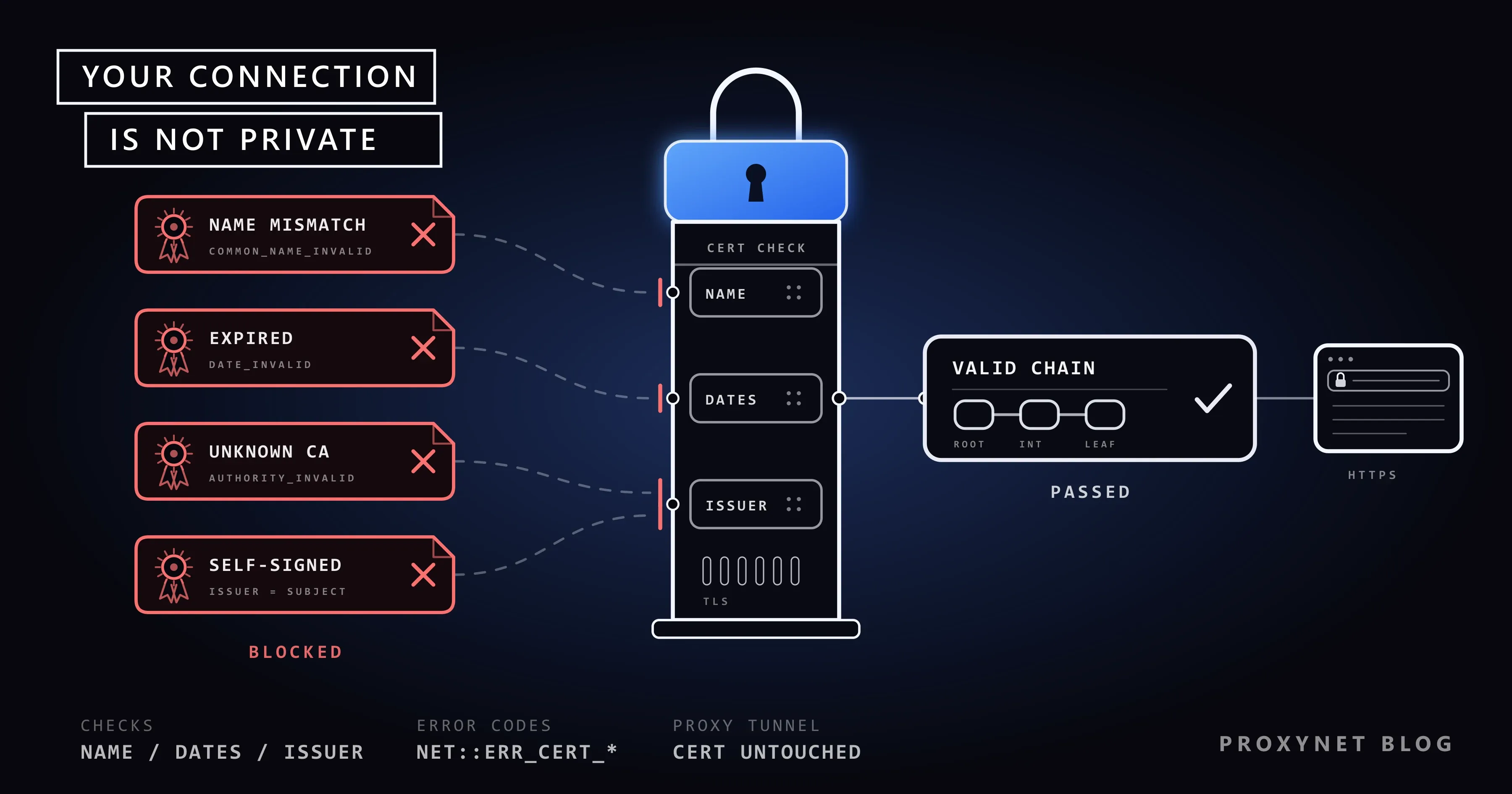
- Name. The names in the certificate must cover the address in the bar.
- Dates. Today's date, as your device's clock reports it, must fall inside the validity period.
- Issuer. The chain of signatures must end at a root certificate the browser or operating system trusts, and the CA must not have withdrawn (revoked) the certificate.
- All three pass: padlock and page. One fails: the warning, and nothing is sent.
Step 4 depends on your clock, not the site's. Step 5 is where antivirus programs, office networks and attackers show up, because reading encrypted traffic forces them to present a certificate of their own.
What does the code at the bottom of the screen mean?
The code names the failed test. The numbers come from Chromium's network error list, the source code behind Chrome and Edge, whose notes also list the causes summarised here.
| Chrome and Edge | Firefox | What failed | Check first |
|---|---|---|---|
NET::ERR_CERT_DATE_INVALID (-201) | SEC_ERROR_EXPIRED_CERTIFICATE | Expired, or not yet valid, by your clock | Your date and time |
NET::ERR_CERT_AUTHORITY_INVALID (-202) | SEC_ERROR_UNKNOWN_ISSUER | Issuer not trusted, or self-signed | Antivirus, work network, then the site |
NET::ERR_CERT_COMMON_NAME_INVALID (-200) | SSL_ERROR_BAD_CERT_DOMAIN | Issued for a different name | Wi-Fi login page, then the address |
NET::ERR_CERT_REVOKED (-206) | SEC_ERROR_REVOKED_CERTIFICATE | The issuer withdrew it | Nothing on your side; wait |
| "An application is stopping Chrome…" | MOZILLA_PKIX_ERROR_MITM_DETECTED | Software re-signs traffic | Antivirus or network filter |
Is the problem on your side or the site's?
One question sorts most cases: does every secure site warn, or only one?
- Open two or three big sites you trust. If all of them warn, the cause is your device or network; read the clock, Wi-Fi and antivirus sections.
- If only one site warns, open it on your phone with Wi-Fi off. Mobile data is a different network, with a different clock and software.
- Same warning on the phone: the site's certificate is broken; nothing on your side will fix it.
- No warning on the phone: the trouble is in the Wi-Fi or in software on the computer. Another device on the same Wi-Fi tells the two apart.
If the heading is "This site can't be reached" instead, the connection failed before any certificate was checked; This Site Can't Be Reached explains those codes.
Why does a wrong date or time cause this warning?
Certificates are valid for a set period. If your device thinks it is 2019, a certificate issued last month looks as if it comes from the future; if the clock runs years ahead, every certificate looks expired. Let the device take its time from the internet:
- Windows 11 and 10: Start > Settings > Time & language > Date & time, then turn on Set time automatically (Microsoft's steps).
- Mac: in Date & Time settings, turn on the option to set time and date automatically.
- iPhone and iPad: Settings > General > Date & Time, then Set Time Automatically (Apple's steps).
- Android: in the Clock app, More > Settings > Change date and time, then Automatic date and time (Google's steps). Menus differ slightly between brands.
Then restart the browser. An older desktop that loses the time at every shutdown usually needs a new motherboard battery.
Why does it appear on hotel, café or airport Wi-Fi?
Many public networks hold you on a login page until you accept their terms, and until then they answer every request themselves. If the first page you open is a secure site, the browser receives the network's page with the network's certificate, and you see NET::ERR_CERT_COMMON_NAME_INVALID or Chrome's "Connect to Wi-Fi" screen.
Finish the login first: press Connect on Chrome's screen or tap the sign-in notification your device shows, then reload. If every site still warns after you have signed in, the network may be intercepting traffic; do not type passwords there. See also Is Public Wi-Fi Safe?.
How do antivirus and work networks trigger it?
Antivirus "HTTPS scanning"
Some security programs scan encrypted pages by putting their own root certificate on your computer and re-signing every site's certificate. When the program is outdated or has lost that certificate, every secure site warns; Chrome's special screen names antivirus, firewall, and web-filtering or proxy software as programs that can cause it. The feature is often called "web scanning", "HTTPS scanning" or "SSL scanning".
- Update the security program and restart the computer.
- If the warning stays, pause only the scanning feature, reload, then turn it back on.
- If pausing it helped, contact the program's support or reinstall it. Do not leave protection off.
Work and school networks
Companies, schools and some dormitories inspect encrypted traffic on purpose, to filter sites and catch malware. In this TLS or SSL inspection, a network device opens the connection, checks it and re-encrypts it with the organisation's own certificate. Managed computers have that certificate; your own phone or laptop does not, so every secure site warns.
That is the network working as designed, not a fault to work around. Ask the IT department how personal devices should connect. Their certificate, if they offer it, lets the network read that device's encrypted traffic, so decide knowingly and remove it when you leave. The mechanism is in What Is Deep Packet Inspection?.
When is it the website's fault?
If one site warns on every device and network, its certificate is the problem: it expired, it covers example.com but not www.example.com, the server does not send the intermediate certificates, or it is self-signed. Mozilla's page on Firefox security warning codes gives the same advice: contact the site owner, go back, or visit another site.
You cannot fix someone else's certificate; wait a few hours or tell the site through its official social media account. When the certificate is revoked, or the site uses HSTS (a rule that allows only a valid secure connection), Chrome offers no way forward at all.
If the site is a development server on your own computer, the right fix is a locally trusted certificate, for example one made with mkcert, not clicking through the warning.
Is it safe to continue to the site anyway?
For banking, email, shopping, social media and any page with a login or payment form: no. A page that looks right can still belong to someone else. Mozilla's help page notes that legitimate public sites will not ask you to add a security exception, and Apple's says never to enter a password or card number on a site with this warning. Use Back to safety in Chrome or Go back (Recommended) in Firefox.
What does a proxy have to do with this warning?
A normal proxy neither causes this warning nor fixes it. For a secure site, the browser asks the proxy for a tunnel with a CONNECT request, and the HTTP standard, RFC 9110, says the proxy then does only blind forwarding of data in both directions; SOCKS5 proxies relay the same way. The certificate check still happens between your browser and the site, and the proxy moves encrypted bytes it cannot read or change.
Proxynet's gateway works exactly like this, whether you use an HTTPS Proxy in a browser or a Residential Proxy to check how your own site looks from other countries. You install no certificate from us.
The warning does appear around proxies when something in the path decrypts traffic:
- Free web proxy sites show the page under their own address and can read what you type; see Are Free Proxies and Web Proxy Sites Safe?.
- Free proxy or VPN apps that ask you to install a certificate are asking to read your encrypted traffic.
- Debugging tools such as Charles, Fiddler and mitmproxy decrypt on purpose; if their certificate is removed while the system still sends traffic to them, every site warns. What Is a MITM Proxy? covers them.
- Corporate inspection, described above.
The rule: never install a root certificate that a proxy, VPN, website or "fix" app asks for, unless it comes from your own company's IT department. If a proxy fails to connect at all, Chrome shows a different code; see How to Fix err_tunnel_connection_failed or Proxy Server Not Responding.
Is "This site can't provide a secure connection" the same error?
No. That heading with ERR_SSL_PROTOCOL_ERROR (-107), often with "example.com sent an invalid response.", means the encrypted connection could not be set up, so the certificate was never judged. It is a failure of the handshake, the opening exchange where both sides agree on encryption, not of trust. The two most common causes are security software or a network device interfering with the handshake, and a misconfigured site, such as one that speaks plain HTTP on its secure port. A related code, ERR_SSL_VERSION_OR_CIPHER_MISMATCH (-113), appears when a site offers only old versions such as TLS 1.0 or 1.1. What to check on your device and network, and what to fix if the site is yours, is in How to Fix err_ssl_protocol_error in Chrome and Edge.
Common mistakes
- Clicking past the warning on a login or payment page.
- Switching antivirus off and forgetting it. Pause only the scanning, only for a test.
- Installing a certificate a site or app asks for. It hands over the key to your encrypted traffic.
- Clearing cache and cookies again and again. The certificate check does not use them.
Decision guide
| Situation | What to do |
|---|---|
| "Your clock is behind" or "ahead" | Turn on automatic date and time |
| Every site warns on hotel or café Wi-Fi | Finish the login page, then reload |
| "An application is stopping Chrome…" | Update the antivirus; test with HTTPS scanning paused |
| Every site warns on work or school Wi-Fi, own device | Ask IT; do not get around the inspection |
| One site warns everywhere | The site's certificate; wait or contact the site |
| An app asks you to install a certificate | Refuse, unless it is your company's IT |
Frequently asked questions
What does NET::ERR_CERT_AUTHORITY_INVALID mean?
Chrome or Edge could not trace the certificate back to a certificate authority your device trusts. The site signed its own certificate, uses an issuer the browser does not know, or something in between, such as antivirus scanning or network inspection, replaced the certificate.
Does "Your connection is not private" mean I have been hacked?
No. The browser refused to connect before sending your data. Most cases turn out to be a wrong clock, a Wi-Fi login page or security software, but never type a password while the warning is on screen.
Why does every website say my connection is not private?
Then the cause is on your side: the device's date, a Wi-Fi network that wants you to sign in, antivirus that scans encrypted traffic, or a network that inspects it. One site's broken certificate cannot affect other sites.
Why does the warning appear on my phone but not on my computer?
When only the phone shows it, the usual cause is an old phone that no longer gets updates and does not know newer certificate authorities, or a wrong date on the phone. The reverse case points to the network or the computer: a phone on mobile data skips the Wi-Fi's login page and inspection and rarely runs HTTPS scanning.
Can a VPN or proxy fix this warning?
No. A normal proxy or VPN carries the encrypted connection without touching the certificate, so a broken certificate stays broken through any route. A service that asks you to install a certificate is a reason to stop using it.
Is it ever safe to continue to the site?
Not with a login, a payment or personal data. The only sensible case is your own test server, and even there a trusted local certificate is the better fix.
Summary
"Your connection is not private" means the certificate failed a check on its name, dates or issuer. If every site warns, check your clock, the Wi-Fi login page, antivirus scanning and work or school inspection; if one site warns everywhere, the site must fix its certificate. Never continue on pages that ask for passwords or payments. A normal proxy tunnel never touches the certificate; our proxy page explains the proxy types and what each is for.