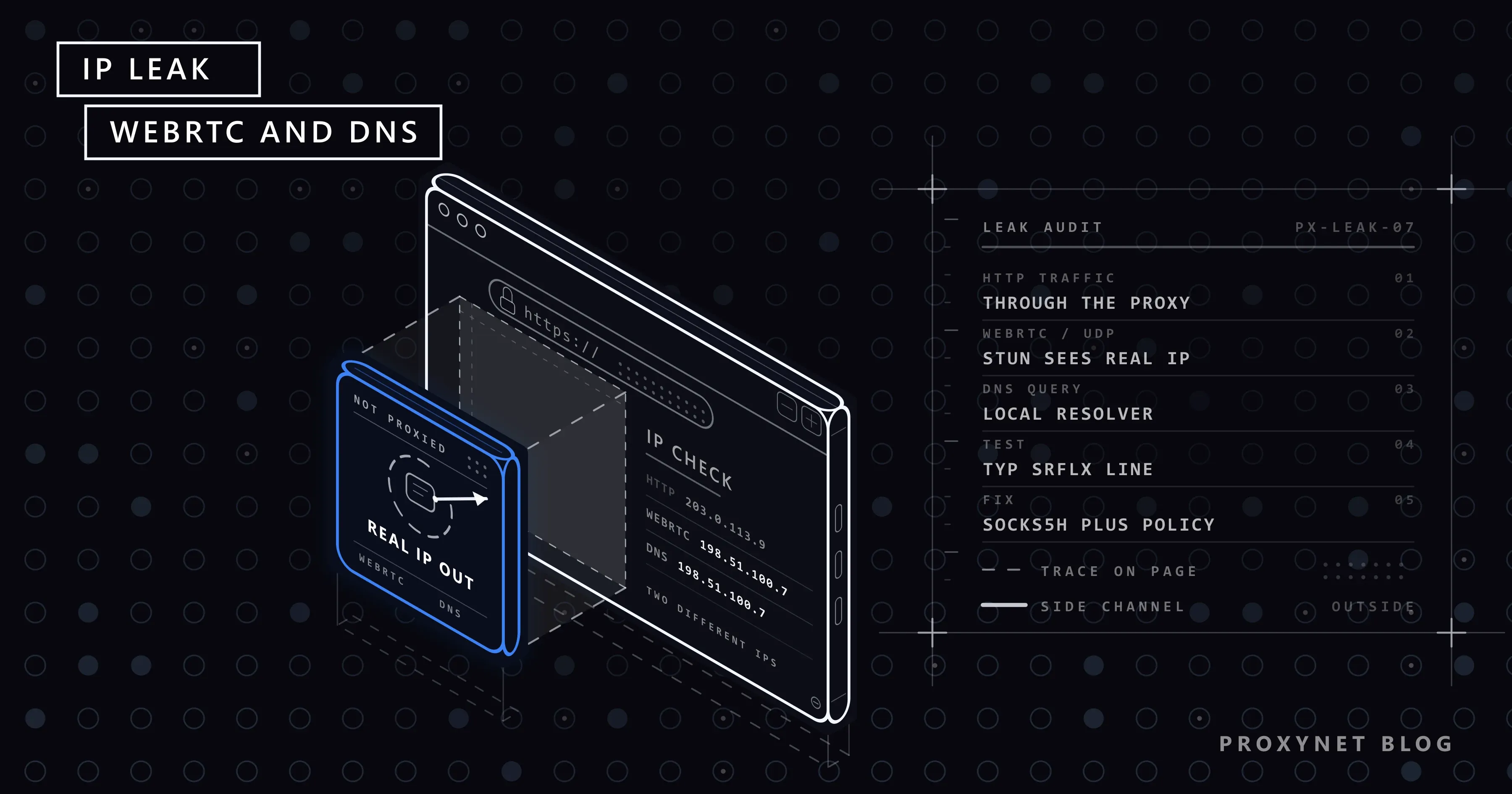
You set a proxy in your browser, the IP check page shows the proxy's address and everything looks fine. But a page opened in the same browser can still learn your real IP address with a few lines of JavaScript. There are two common ways this happens: WebRTC and DNS queries. Both work outside the HTTP traffic a proxy covers, so they may not be affected by the proxy setting.
In this article we explain what an IP leak is, the mechanism through which WebRTC exposes your real address, where DNS leaks come from and how to test for both. Then we cover the Chrome and Firefox settings that close the leak, why remote DNS resolution matters with SOCKS5, and other signals besides IP that give away your location. There is a one-page checklist at the end.
What is an IP leak?
An IP leak is your real IP address becoming visible through part of your traffic while you use a proxy or VPN. A leak does not mean the proxy is not working. The web page's HTTP requests go through the proxy, and the target site sees the proxy's address in those requests. The problem is that the browser can also open other network connections besides HTTP.
A browser's proxy setting usually covers only HTTP and HTTPS requests. The other connections a browser makes are:
- WebRTC: direct connections over UDP for video calls, screen sharing and peer-to-peer data transfer.
- DNS queries: queries the operating system or browser sends to a DNS server to turn domain names into IP addresses.
- Browser extensions and in-app connections: components that use their own network settings.
If a site sees your real address through one of these channels, it can compare it with the address the proxy shows. Two addresses from different countries clearly show that the visitor is using a proxy. We explain how a proxy basically works in What Is a Proxy Server and How Does It Work?.
How does WebRTC reveal your real IP?
WebRTC is designed so that two browsers can talk to each other directly without going through a server. For that, each browser needs to know the addresses at which it can be reached and tell the other side. These addresses are called ICE candidates, and the discovery process is defined in RFC 8445.
When a page starts a WebRTC connection, these steps happen:
- The page creates an
RTCPeerConnection. It does not have to ask the user for permission; no camera or microphone is turned on. Requesting a data channel is enough. - The browser gathers local candidates. These are the addresses on the computer's network interfaces (
hostcandidates). Current browsers hide the local address behind a randomxxxx.localname instead of showing it directly. - The browser sends a UDP packet to a STUN server. The STUN server reports back the public IP address and port the packet came from. This address is recorded as a
srflx(server reflexive) candidate. - The UDP packet does not go through the proxy. An HTTP proxy only carries HTTP traffic; the browser sends the STUN packet directly from the network interface. The STUN server sees the packet coming from your real public IP address.
- The candidates are reported to the page. JavaScript reads the candidate list through the
onicecandidateevent and can send the public IP in thesrflxcandidate to its own server.
The result: the page sees the proxy's address through HTTP requests and your real address through WebRTC.
Which addresses browsers may expose in WebRTC is defined in RFC 8828 as four modes: use all interfaces, use only the default route and its associated local address, use only the default route's public address, and force UDP through the proxy. The settings in Chrome and Firefox correspond to these modes.
What is a DNS leak?
Before connecting to a website, its domain name has to be turned into an IP address. A DNS leak is when that query is made through your own internet provider's or local network's DNS server instead of through the proxy. How name resolution works, and how to see or change the DNS server your device uses, is explained in What Is DNS and How Do You Change Your DNS Server?.
A DNS leak has two consequences:
- The sites you visit are visible from the local network. Your internet provider, your workplace network or someone on the same Wi-Fi network can see which domain names you look up, even though you use a proxy.
- The target site may give you a different server address. Sites using a CDN return the nearest server based on the location of the server that makes the DNS query. If the query leaves from Türkiye while the request exits from a proxy in Germany, you are sent to a distant server and a location mismatch appears.
DNS leaks are most common when:
- With a SOCKS5 proxy, the client resolves the domain name itself and sends only an IP address to the proxy.
- The proxy is set only in the browser and other applications use the system DNS.
- The VPN or proxy software does not change the operating system's DNS settings.
With HTTP and HTTPS proxies, the browser sends the domain name to the proxy in the CONNECT example.com:443 request and the proxy does the resolution. That makes HTTP proxies less risky in terms of DNS leaks for browser web traffic. We explain how the two protocols differ here in SOCKS vs HTTP Proxy.
How do you test for WebRTC and DNS leaks?
Ready-made test pages exist, but running the test once yourself teaches you what to look for.
WebRTC test
With the proxy on, open any page in the browser, open the developer tools console (F12) and run this code:
const pc = new RTCPeerConnection({ iceServers: [{ urls: "stun:stun.l.google.com:19302" }] });
pc.createDataChannel("test");
pc.onicecandidate = (e) => {
  if (e.candidate) console.log(e.candidate.candidate);
};
await pc.setLocalDescription(await pc.createOffer());
You will see a few candidate lines in the console. Look for the line containing typ srflx. If the IP address on that line is:
- the same as the proxy's exit IP, or there is no
srflxline at all, there is no WebRTC leak. - your real IP address, there is a WebRTC leak.
If you do not know your real IP address, open an IP check page with the proxy off.
DNS test
A DNS leak cannot be measured from the browser alone, because only the owner of the domain can see which DNS server a query came from. That is why DNS leak test pages make you resolve randomly generated subdomains and show you which DNS servers made those queries. If the result shows your own internet provider's DNS servers, the queries are not going through the proxy.
On the command line, cURL's verbose output shows how a SOCKS5 proxy handles DNS:
# Local resolution: the domain name is turned into an IP on your computer
curl -v -x "socks5://user:pass@pr.proxynet.io:1080" https://httpbin.org/ip

# Remote resolution: the domain name is sent to the proxy, which does the resolution
curl -v -x "socks5h://user:pass@pr.proxynet.io:1080" https://httpbin.org/ip
In the first command's output, cURL reports that it resolved the domain before connecting and sent an IP address to the proxy. In the second, the domain name itself is sent to the proxy. All of cURL's proxy options are in How to Use a Proxy with cURL.
How do you stop WebRTC leaks in Chrome?
Chrome's settings menu has no option to turn off WebRTC. This behaviour is changed through an enterprise policy or with extensions. The policy method needs no extension and is based on Google's official documentation.
The Chrome Enterprise WebRtcIPHandling policy takes these values:
| Value | Behaviour | RFC 8828 equivalent |
|---|---|---|
default | All network interfaces are used | Mode 1 |
default_public_and_private_interfaces | Public and local address of the default route | Mode 2 |
default_public_interface_only | Only the default route's public address | Mode 3 |
disable_non_proxied_udp | UDP not going through a proxy is disabled; WebRTC falls back to TCP through the proxy | Mode 4 |
The value that closes the leak when you use a proxy is disable_non_proxied_udp. On Windows you can write this policy to the registry from PowerShell opened as administrator:
New-Item -Path "HKLM:\SOFTWARE\Policies\Google\Chrome" -Force | Out-Null
Set-ItemProperty -Path "HKLM:\SOFTWARE\Policies\Google\Chrome" -Name "WebRtcIPHandling" -Value "disable_non_proxied_udp"
Quit Chrome completely, reopen it and type chrome://policy in the address bar to check that the policy has loaded. Then repeat the WebRTC test above.
This setting has a cost: browser-based video calls and screen sharing tools cannot use UDP, so they may slow down or not work at all. If you do both proxy work and video calls on the same computer, it is more practical to use a separate browser profile or a separate browser for each. Where Chrome reads its proxy setting from is explained in Windows and Chrome Proxy Settings.
How do you stop WebRTC leaks in Firefox?
Firefox offers these settings on the about:config page. Type about:config in the address bar, accept the warning and search for the settings below.
| Setting | Value | Effect |
|---|---|---|
media.peerconnection.ice.proxy_only_if_behind_proxy | true | When a proxy is set, WebRTC connects only through the proxy |
media.peerconnection.ice.default_address_only | true | Only the default route's address is used |
media.peerconnection.ice.no_host | true | Local (host) candidates are not sent |
media.peerconnection.enabled | false | WebRTC is turned off completely |
The first setting aims to close the leak during proxy use without breaking calling tools entirely. Setting media.peerconnection.enabled to false is the most definitive fix, but it disables every video call and screen sharing feature in the browser.
For DNS in Firefox, also tick "Proxy DNS when using SOCKS v5" on the proxy settings screen. In about:config this option is network.proxy.socks_remote_dns. The full proxy setup in Firefox is in Firefox Proxy Settings; for per-profile proxy management, see our SwitchyOmega guide.
Why does remote DNS matter with SOCKS5?
The SOCKS5 protocol lets the client tell the proxy the target in two ways: as an IP address or as a domain name. If the client sends an IP address, it has resolved the domain name itself, which means the DNS query went out from your own network.
In libraries and tools this behaviour is set under different names:
- cURL:
socks5://resolves locally,socks5h://remotely. - Python Requests and HTTPX: the
socks5h://scheme in the proxy address. - Firefox: the "Proxy DNS when using SOCKS v5" option.
- Chrome: sends the domain name to the proxy with SOCKS5.
- Routing tools such as Proxifier: an option along the lines of "Resolve hostnames through proxy".
The second benefit of remote resolution is location consistency: when the proxy resolves DNS, CDNs return a server close to the proxy's location. For the technical details of SOCKS5, see What Are SOCKS5 Proxies?. Setups that also cover application traffic use SOCKS5 Proxy plans.
Signals besides leaks that give away your location
After closing IP and DNS leaks, a page can still collect hints about your location from what it knows about the browser itself. These are not network leaks, but when they contradict the proxy's location they have the same effect. Sites that restrict content by country read the same signals; how they decide where you are is explained in What Is Geo-Blocking and How Do Sites Know Your Location?.
- Time zone. JavaScript reads the system time zone with
Intl.DateTimeFormat().resolvedOptions().timeZone. An IP exiting in Germany with anEurope/Istanbultime zone is a contradiction. - Language preferences.
navigator.languagesand theAccept-Languageheader show the browser's language order. - Location permission. If you have given a site location permission in the browser, the Geolocation API can return your real location based on nearby Wi-Fi networks.
- Cookies and sessions. A session cookie from a visit without the proxy is sent on the proxied visit too and ties the two visits together.
- Browser fingerprint. Screen resolution, fonts and graphics card information identify the browser independently of IP. Details are in Browser Fingerprinting.
If you need to work with more than one identity, there are setups that keep each profile's proxy, time zone and language consistent with each other; we explain them in What Is an Antidetect Browser?.
Use cases
- A team checking ads and content in different countries: a WebRTC leak can make the site classify you in the wrong location. Along with a Residential Proxy that goes out through real user lines, the browser settings need fixing too.
- A developer testing mobile-looking traffic: a mobile operator IP showing up in WebRTC together with the real address of a desktop network creates an inconsistency. The same check applies when using a Mobile Proxy.
- A user routing a desktop application through a proxy: the application's DNS queries may go through the system DNS; remote resolution must be turned on in the routing tool.
- A team running browser automation: automation browsers support WebRTC too. The same policy or an equivalent launch setting should be used when starting Chrome.
Common mistakes
- Taking the IP check page's result as enough. These pages only show the address of the HTTP request; WebRTC and DNS must be tested separately.
- Changing the setting without restarting the browser. Chrome policies do not load until the browser is fully closed and reopened.
- Using a VPN and a proxy together and misreading the leaked address. With a VPN on, the VPN's address shows up in the WebRTC test; it is not your real address, but it does not match the proxy address either.
- Leaving the
socks5://scheme as the default. Most library examples use the scheme that resolves locally. - Turning WebRTC off completely and then wondering why calling tools don't work.
proxy_only_if_behind_proxyor a separate profile achieves the same with fewer side effects. - Forgetting the time zone and language. Even when network leaks are closed, these signals reveal a location mismatch.
Checklist
| Check | How | Expected result |
|---|---|---|
| HTTP exit address | IP check page | The proxy's address |
| WebRTC candidates | RTCPeerConnection test in the console | No srflx, or the proxy's address |
| Chrome policy | chrome://policy | WebRtcIPHandling: disable_non_proxied_udp |
| Firefox WebRTC | about:config | proxy_only_if_behind_proxy: true |
| SOCKS5 DNS | Scheme in the proxy address | socks5h:// or remote DNS option on |
| DNS servers | DNS leak test | Your own provider's servers do not appear |
| Time zone and language | Browser and operating system settings | Consistent with the proxy's location |
| Cookies | Separate profile or clean session | No session cookie from outside the proxy |
Frequently asked questions
Do WebRTC leaks only affect proxy users?
They can affect VPN users too, but because most VPNs work at the operating system level and also route UDP traffic through the tunnel, leaks are less common. A proxy only covers the browser's HTTP traffic, so the risk is higher.
Does turning off WebRTC break websites?
Browser-based video calls, voice chat, screen sharing and some file transfer services stop working or slow down. The vast majority of regular websites are not affected.
Is my local IP address (192.168...) still leaking?
Current Chrome and Firefox versions hide local addresses behind random names ending in .local by default. The real risk is the public IP address learned through STUN.
Can a DNS leak happen with an HTTP proxy?
Usually not for browser web traffic, because the domain name is sent to the proxy in the CONNECT request. But other applications and operating system components that have no proxy configured keep making their own DNS queries.
Do WebRTC leaks happen on mobile devices?
They can. Mobile browsers support WebRTC too, and a Wi-Fi proxy set on the phone only covers HTTP traffic. We explain proxy setup on iPhone in iPhone Proxy Settings; you can run the same WebRTC test in a mobile browser.
I closed the leak, but the site still knows I'm using a proxy. Why?
The IP address itself may belong to a data center, the time zone and language settings may contradict the proxy's location, or the browser fingerprint may match your previous visit. A network leak is only one of these signals.
Summary
A proxy carries the browser's HTTP traffic; WebRTC's UDP connections and some DNS queries can fall outside that scope. Close WebRTC leaks with the WebRtcIPHandling policy in Chrome and the media.peerconnection settings in Firefox. For DNS leaks, use remote resolution with SOCKS5, and confirm the results with the console test. Then make sure the time zone, language and cookies are consistent with the proxy's location. You can find plans for browser and application traffic in our proxy services.