Your laptop is on Wi-Fi with full bars, yet every site fails with a message that the server's address could not be found. Or a friend tells you to type 1.1.1.1 into your settings to make the internet "better". Both lead to DNS, the service that turns the names you type into the numeric addresses computers use to find each other.
This post explains what DNS is, follows one lookup step by step and compares the well-known public DNS servers. It then gives the menu paths for Windows 11 and 10, macOS, Android, iPhone, your router and three browsers, and ends with the "DNS server not responding" error and DNS behind a proxy.
What is DNS?
Computers on the internet find each other by IP address, a number such as 192.0.2.10 that works like a postal address for a device. People remember names better, so sites have names such as example.com, and DNS connects the two. The addresses themselves are explained in What Is an IP Address?.
Think of the contacts app on your phone: you tap a name and the phone dials the number stored under it. DNS does the same for sites, except that no single list holds every name. RFC 1034, which has defined DNS since 1987, arranges names as a tree: the root at the top, then endings such as .com or .org (the top-level domains), then the names people and companies register.
What is a DNS server?
The term covers two jobs:
- The resolver is the server your device asks. It collects the answer and passes it back. When a settings screen says "DNS server", "Preferred DNS" or "Primary DNS", it means the resolver.
- Authoritative name servers hold the answers. The servers for
example.comknow the address ofwww.example.com; above them sit the.comservers, and above those the root servers.
When a device joins a network, the router hands it a resolver address automatically. At home this is usually your internet provider's resolver, which is why most people never choose one.
How does a DNS lookup work?
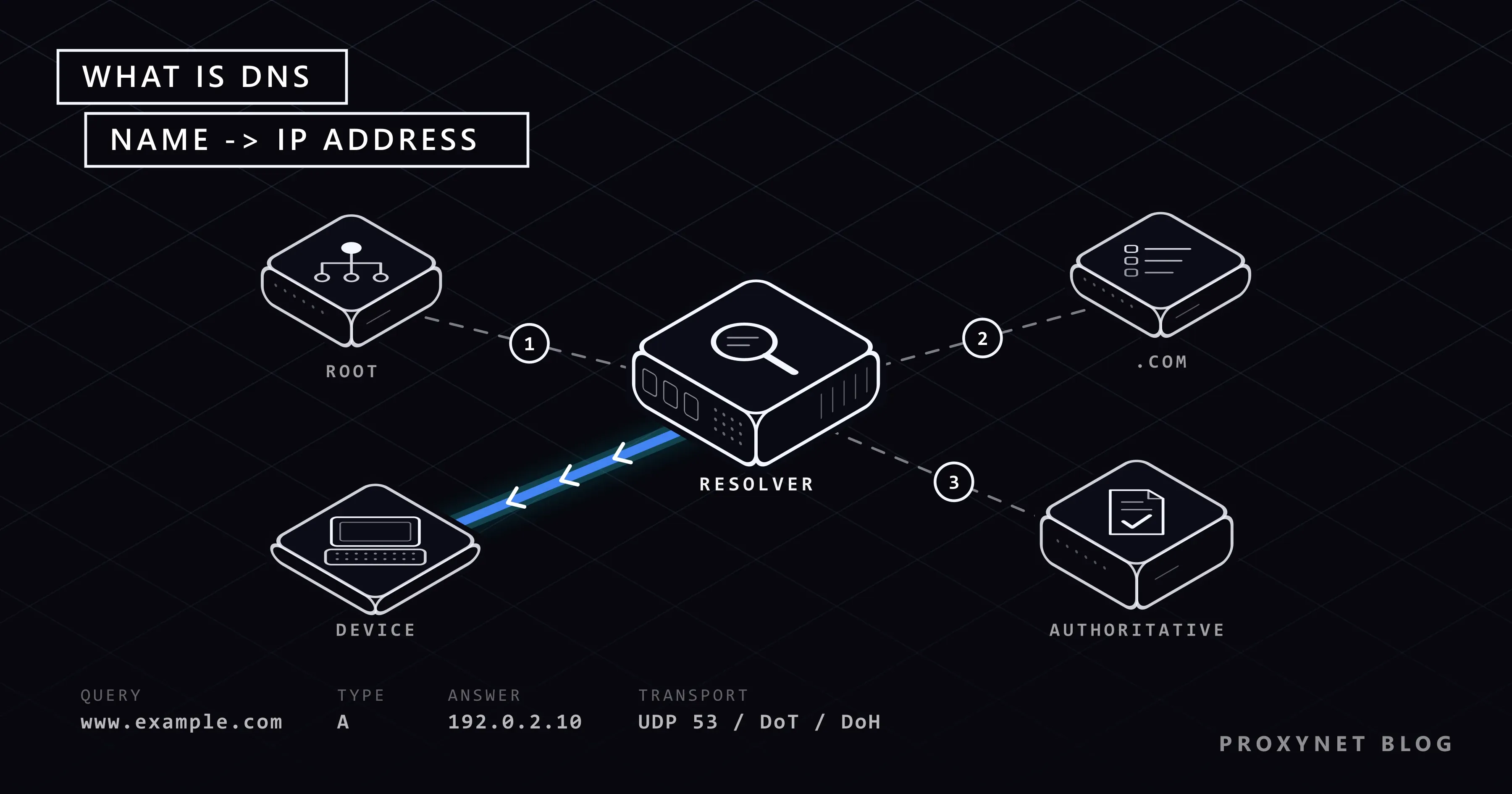
Say you type www.example.com for the first time today:
- The device checks its cache, a short-term store of recent answers. If the name was looked up a few minutes ago, nothing goes out on the network.
- The device asks the resolver: "What is the IP address of
www.example.com?" If the resolver has the answer cached, it replies at once. - If not, the resolver asks a root server, which knows who is responsible for
.com. There are 13 named root servers; IANA notes that they run on hundreds of servers in many countries. - The
.comservers point to the servers responsible forexample.com. - The authoritative server answers with the IP address and a time to live (TTL): how many seconds the answer may be cached.
- The resolver passes the address on and keeps a copy until the TTL runs out. The browser connects, and the page loads.
This usually takes a fraction of a second, and most lookups end in a cache at step 1 or 2. In classic DNS, described in RFC 1035, these messages travel unencrypted on port 53, so the Wi-Fi network or your provider can read which names you look up.
Is DNS encrypted?
Classic DNS is not. Two newer methods add encryption:
- DNS over TLS (DoT), defined in RFC 7858, uses an encrypted connection on port 853. Android's Private DNS uses it.
- DNS over HTTPS (DoH), defined in RFC 8484, carries lookups inside an ordinary HTTPS connection. Windows 11 and the "secure DNS" option in browsers use it.
Both hide your lookups from the network in between, but not from the resolver: the one you choose still reads every name, which is why its privacy policy matters.
Which DNS server should you use?
Speed rankings of DNS servers are everywhere, but how fast a resolver answers depends on the distance to its nearest server and on your provider's network, so a ranking measured in one city says little about yours. Ask instead which one fits your need.
| DNS server | IPv4 addresses | Encrypted DNS | Filtering | Privacy policy in short |
|---|---|---|---|---|
| Your provider's (default) | Set automatically | Depends on the provider | Depends on the provider | The provider's own terms |
| Cloudflare | 1.1.1.1, 1.0.0.1 | DoH and DoT; hostname one.one.one.one | 1.1.1.2 blocks malware; 1.1.1.3 also blocks adult content | Your IP is not written to disk; logs deleted within 25 hours |
| Google Public DNS | 8.8.8.8, 8.8.4.4 | DoH and DoT; hostname dns.google | None, apart from rare security or legal cases | Logs with your full IP deleted within 24 to 48 hours |
| Quad9 | 9.9.9.9, 149.112.112.112 | DoH and DoT; hostname dns.quad9.net | Blocks known malicious domains; 9.9.9.10 does not | Does not record user IP addresses; a Swiss foundation |
Sources, checked in September 2026: Cloudflare's address list and resolver privacy page, Google's Public DNS privacy page, Quad9's service addresses and privacy policy.
A filtering address suits a family computer; it is a useful layer, not a full parental-control system. Encrypted DNS suits networks you do not trust, though it moves your trust to the resolver's operator rather than removing it. If nothing is wrong, your provider's resolver is fine. Take both addresses from the same service: mixing a filtering and a non-filtering one makes a site open one minute and fail the next.
What does changing DNS change, and what does it not?
| Changes | Does not change |
|---|---|
| Who answers your lookups and sees the names | Your IP address; sites see the same one |
| Whether lookups are encrypted, with DoT or DoH | Download and video speed once a connection is open |
| Whether known harmful domains are filtered | The encryption of the rest of your traffic |
| How long a lookup takes, up or down | Your provider's view of the IP addresses you connect to |
DNS only tells your device where a site lives; the connection still leaves from your own IP address. For a different address, see How to Change Your IP Address. Google's Android help states the limit of encrypted DNS plainly: it secures DNS questions and answers and nothing else. What a shared network can still see is in Is Public Wi-Fi Safe?.
How do you change DNS on Windows 11?
Windows 11 keeps a DNS setting per connection and can encrypt lookups with DoH. The field names are on Microsoft's network settings page.
- Open Settings > Network & internet and select Properties next to your connected network (or go through Wi-Fi > Manage known networks).
- Next to DNS server assignment, select Edit. Use this button rather than the one next to IP assignment, which also asks for a fixed IP address.
- Choose Manual, turn on IPv4 and type the addresses in Preferred DNS and Alternate DNS, for example
1.1.1.1and1.0.0.1. - For encrypted lookups, set DNS over HTTPS to On (automatic template); for the large public resolvers Windows fills in the details itself.
- Decide on Fallback to plaintext: when on, Windows sends an unencrypted lookup if the encrypted one fails.
- Select Save.
To go back, choose Automatic (DHCP) in the same window. Windows may ask for administrator approval.
How do you change DNS on Windows 10?
In Windows 10 the Settings app puts DNS in the same form as a fixed IP address, so the Control Panel window is easier. Google's Public DNS setup guide describes the same route:
- Open Control Panel > Network and Internet > Network and Sharing Center and select Change adapter settings.
- Right-click your Wi-Fi or Ethernet connection and select Properties.
- Select Internet Protocol Version 4 (TCP/IPv4), then Properties.
- Choose Use the following DNS server addresses, fill in Preferred DNS server and Alternate DNS server, and select OK.
Microsoft notes that the DNS over HTTPS setting is not available in Windows 10; use secure DNS in your browser instead. To undo, choose Obtain DNS server address automatically.
How do you change DNS on a Mac?
From Apple's Mac help page:
- Choose Apple menu > System Settings and click Network in the sidebar.
- Click the network service you use, such as Wi-Fi, then Details.
- Click DNS (you may need to scroll down).
- Under DNS Servers, click the add button (+), type an address, add the second one the same way and confirm.
To undo, select the added addresses and click the remove button (–). On older macOS versions the list sits under System Preferences > Network > Advanced > DNS.
How do you change DNS on Android?
Android 9 and later have Private DNS, which encrypts lookups with DNS over TLS on every network that supports it, Wi-Fi and mobile data alike. The path from Google's Android help page:
- Open Settings and tap Network & internet > Private DNS. If it is not there, search Settings for "Private DNS"; phone makers move it around.
- Choose Private DNS provider hostname.
- Type
one.one.one.one(Cloudflare),dns.google(Google) ordns.quad9.net(Quad9). - Tap Save.
The field takes a hostname, not an IP address such as 1.1.1.1. If the name is wrong or the provider stops answering, no site opens until you fix it or switch back to Automatic. In that mode the phone encrypts lookups whenever the network's own DNS server supports it.
How do you change DNS on an iPhone?
On iPhone, DNS is set per Wi-Fi network. Apple lists it among the options of the connected network on its Wi-Fi settings page:
- Go to Settings > Wi-Fi and tap the info button (ⓘ) next to the network.
- Scroll down and tap Configure DNS.
- Tap Manual, remove the addresses you do not want, add the new ones and save.
Automatic restores the network's own DNS. The change covers only that network, and there is no DNS field for mobile data. Google's setup guide notes that covering every network needs an app that sets its own DNS server; some providers offer an app or a configuration profile. Install one only from a provider you trust, because it sees every name your phone looks up.
How do you change DNS on your router?
A router setting covers every device at home, including smart TVs with no DNS option. Menus differ by brand, so these are the general steps:
- Type your router's address in a browser, often
192.168.0.1or192.168.1.1. The address and admin password are usually on a label on the router. - Sign in and find the DNS fields, usually under Internet, WAN, LAN or DHCP settings.
- Write down the current values, enter the two new addresses and save.
Devices may need to reconnect to pick up the change. Google's setup guide adds that some providers lock these fields on the routers they supply; then set DNS on each device.
How do you turn on secure DNS in Chrome, Firefox and Edge?
A browser can run its own encrypted DNS. It covers only that browser's lookups, and it is the simplest way to get DoH on Windows 10.
- Chrome: More (⋮) > Settings > Privacy and security > Security, then under Advanced turn on Use secure DNS. Chrome's help says it is on by default in automatic mode, which repeats a failed lookup unencrypted. With a custom provider there is no fallback, so if that provider stops answering, sites stop opening.
- Firefox: menu (☰) > Settings > Privacy and security, scroll to DNS over HTTPS and select Advanced settings. Mozilla's help page lists Default protection (on where available, falls back on problems, steps aside when a VPN, parental controls or company policies are active), Custom protection (always your chosen provider) and Off.
- Edge: Settings and more (…) > Settings > Privacy, search, and services > Security, then turn on Use secure DNS, as Microsoft's Edge help describes.
What does "DNS server not responding" mean?
This message, or a browser code such as DNS_PROBE_FINISHED_BAD_CONFIG, means your device asked its resolver and got no usable answer, so no site opens even though Wi-Fi is connected. Check in this order:
- Another device on the same network. If only the laptop fails, the laptop is the problem; if everything fails, look at the router or the provider.
- Restart the router.
- Undo DNS you set yourself: a mistyped address, a wrong Private DNS hostname or a custom provider in the browser.
- Pause VPN, proxy or security apps. Some change DNS and leave the change behind.
- Try a public resolver from the table. If it works, your provider's DNS was at fault.
- Clear the DNS cache on Windows, as shown below.
If only one site fails and Chrome shows DNS_PROBE_FINISHED_NXDOMAIN, the name itself was not found: see dns_probe_finished_nxdomain: What It Means and How to Fix It; for proxy settings, see Proxy Server Not Responding.
Advanced: clearing the DNS cache on Windows
Windows stores recent answers, failed ones included. After changing DNS or fixing a network problem, type cmd in the Start menu, open Command Prompt and run:
ipconfig /flushdnsMicrosoft's ipconfig documentation describes this as emptying the DNS client's cache, including the entries left by failed lookups. It changes neither your DNS settings nor your IP address. Browsers keep a small cache too, so restart the browser as well.
How does DNS work when you use a proxy?
A proxy is a server that connects to sites for you, so sites see its IP address instead of yours. The lookup can happen on your side or on the proxy's side:
- With an HTTP or HTTPS proxy, the browser passes the site's name to the proxy, which does the lookup.
- With a SOCKS5 proxy, the app decides. If it looks up the name itself, the lookup leaves from your own network while the traffic goes through the proxy: a DNS leak. Remote DNS fixes it, for example
socks5h://in command-line tools or Proxy DNS when using SOCKS v5 in Firefox.
Remote lookups also keep your location consistent, because large sites answer with a server close to whoever asked. Leak tests are in WebRTC and DNS Leaks, the protocol in What Are SOCKS5 Proxies?. For apps beyond the browser, see our SOCKS5 Proxy; for home-connection addresses in a country and city you choose, Residential Proxy. "Smart DNS" is a different kind of service, compared in Smart DNS vs VPN vs Proxy.
Where do DNS settings make a difference?
- One site will not open while others do. The error code tells you whether DNS is involved: This Site Can't Be Reached.
- A laptop on hotel or café Wi-Fi. Encrypted DNS keeps lookups away from the network operator: Is Public Wi-Fi Safe?.
- Apps routed through a proxy. Remote DNS keeps lookups inside the proxy connection: WebRTC and DNS Leaks.
- Checking prices in another market for work. Lookup and request should both come from that country so the site serves its local version: price monitoring.
Common mistakes
- Expecting a new IP address. DNS leaves it as it was.
- Mixing two services in the preferred and alternate fields.
- Typing an IP address into Android's Private DNS. It needs a hostname such as
dns.google. - Expecting an iPhone's Wi-Fi DNS to apply to mobile data.
- Using the IP assignment button in Windows 11. It asks for a fixed IP address, and a wrong one cuts the connection.
- Installing "DNS changer" apps from unknown developers. A DNS server sees every name you look up and can send you to the wrong address, as with free proxies: Are Free Proxies Safe?.
- Not writing down the old values, especially on the router.
Decision guide
| Your need | What to do |
|---|---|
| Nothing is broken | Keep your provider's DNS; turn on secure DNS in the browser for encrypted lookups |
| No site opens, the error mentions DNS | Another device, router restart, undo manual DNS, then a public resolver |
| Filtering harmful sites for the family | A filtering resolver on the router, such as 1.1.1.3 or Quad9 |
| Hiding lookups on public Wi-Fi | Private DNS on Android, DoH in Windows 11 or the browser |
| One setting for every device at home | The router |
| A different IP address | Not DNS; see How to Change Your IP Address |
| Lookups through your proxy | An HTTP(S) proxy, or SOCKS5 with remote DNS |
Frequently asked questions
Does changing DNS change my IP address?
No. The DNS server only tells your device which address a site has. Your connection still leaves from your own public IP address.
Will changing DNS make my internet faster?
Only the lookup can get faster, and only if your current resolver is slow. Once a connection is open, DNS is not involved, so download speed and ping stay the same.
Which DNS server is best?
It depends on the need: a filtering address such as 1.1.1.3 or Quad9's default for blocking harmful sites, any large public resolver for encrypted lookups, your provider's DNS if nothing is wrong.
How do I reset my DNS settings to default?
Set each place back to automatic: Automatic (DHCP) in Windows 11, Obtain DNS server address automatically in Windows 10, remove the added addresses on a Mac, Automatic for Private DNS on Android and for Configure DNS on iPhone. Then clear the cache or restart the device.
Does encrypted DNS hide which sites I visit?
Partly. It hides lookups from the network you are on, but your provider still sees the IP addresses you connect to, and your resolver sees every name.
Is it safe to use a public DNS server?
The large public resolvers publish their privacy policies, so for most people they are a safe choice. The risk lies in DNS servers of unknown origin, which can send you to a fake copy of a site. If the browser warns about a site's certificate, stop there.
Summary
DNS turns the names you type into IP addresses: your device asks a resolver, which collects the answer from root, top-level and authoritative servers and caches it. You can replace your provider's resolver with Cloudflare, Google or Quad9 in Windows, on a Mac, with Private DNS on Android, per Wi-Fi network on iPhone, on the router or in the browser. Encrypted DNS hides lookups from the local network, but your IP address and download speed stay the same. If you need a different IP address in a country and city you choose, have a look at our proxy services.