Elif handles price tracking for an online shop in Türkiye. She wants to see the prices a competitor shows to visitors in Izmir, so she buys a residential GB package. The panel gives her a line that starts with pr.proxynet.io:8000 and carries the country and city in the username. Her Android phone's Wi-Fi proxy screen has no password box, so she whitelists her office IP in the panel. The Windows proxy setting on her laptop then works too, but the next morning part of her package is gone: a cloud sync and a system update ran through the proxy overnight.
This guide covers the hour after you buy: what the residential line carries, which choices you make in the Endpoint Generator, how the line is written for each place you use it, how you confirm the first request, and where your GB goes. Menu paths stay in each device's own guide.
What do you need before you use a residential proxy?
A residential proxy sends your traffic out through a real home internet connection, so a website sees a household IP instead of a server. How that works is in What Are Residential Proxies and How Do They Work?.
You need a residential order in the panel, a GB balance (residential traffic is billed by the gigabyte), and a clear picture of the job: the country, one long session or many separate requests, and the app that will use the proxy. Estimating GB before you buy is covered in What to Look for When Buying a Proxy. The short three-step overview is on the Residential Proxy page.
What does the residential line from the panel carry?
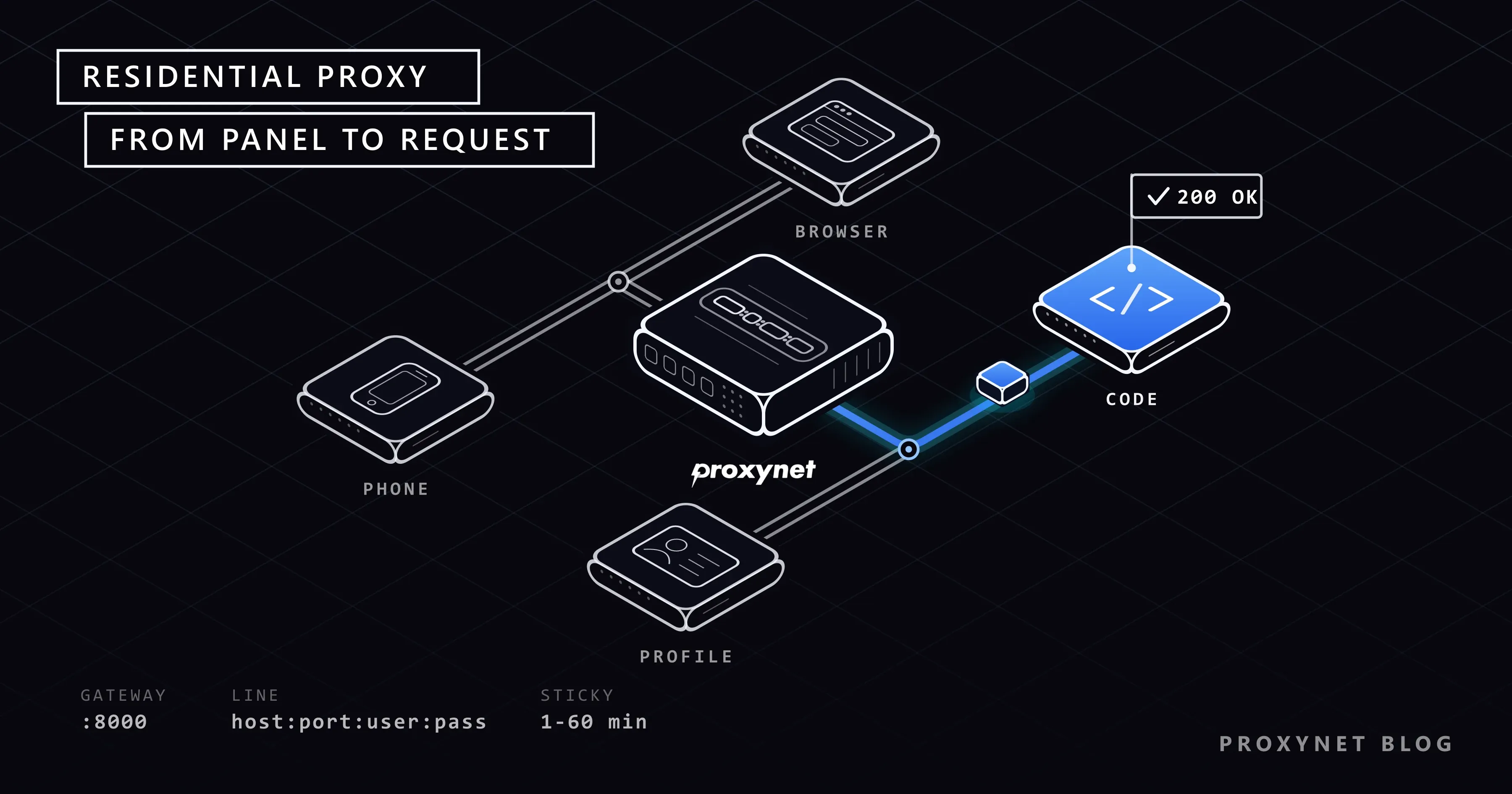
A residential proxy has a single gateway address with the whole pool behind it. Every connection goes to the same address and port. What changes is the username.
When you choose a country, a city and a session length, the panel writes those choices into the username. A generated username looks like proxynet-xxxxxxxx-country-tr-session-…-ttl-1800: your account part, the country code, a session identifier and the session length in seconds (1800 seconds is 30 minutes). You never build it by hand; the format is shown only so you know why the username is long.
Lines for Germany, Türkiye and Brazil can all point at the same address, and each exits in its own country. If you cut the username short, the country or session part goes with it. The four details themselves are explained in What Is a Proxy Server Address and How to Find It, and how a gateway differs from an ISP proxy's IP list in ISP vs Residential Proxies.
How do you generate a line in the Endpoint Generator?
The Endpoint Generator is the part of the panel that turns your choices into connection details. Work through it in this order:
- Country. Pick the country the target site should see; any country code is accepted. Türkiye coverage is on the Türkiye proxy page.
- City, if the job needs it. Local prices, search results and ads often change by city. If the country is enough, leave the city empty.
- Session type. Rotating gives a new IP on every new connection. Sticky keeps one IP for 1 to 60 minutes.
- Protocol. HTTP and SOCKS5 run at the same time on separate ports. Use HTTP for browsers, phones and most tools. Use the SOCKS5 port the generator shows when an app asks for SOCKS5 or needs UDP (SOCKS5 Proxy).
- Format. Check which form the destination expects: separate details, a
host:port:user:passline or a URL (see the table below). - Copy, do not type. One wrong character or a trailing space breaks the login.
One order can serve an Izmir line in a browser and a Germany line in a script at the same time.
Rotating or sticky: which to choose before you generate the line?
Ask one question: is the job made of separate pages, or of steps that must come from the same IP?
Checking a hundred product pages is separate pages, and a new IP per connection spreads the load: Rotating Proxy. Logging in, filling a cart or completing a multi-page form are linked steps that the site ties to your IP: Sticky Proxy. Pick a sticky length a little longer than the job. If one identity must last past 60 minutes, use a static address: ISP Proxy. Why a program that reuses its connection keeps the same IP is covered in What Is IP Rotation and How Does It Work?.
Where does the line go, and in which format?
The place decides the form. Each row links to the full guide.
| Where | What you enter | Protocol | Username and password | GB risk | Guide |
|---|---|---|---|---|---|
| Chrome extension | Generated details | HTTP | In the extension | Low: browser only | Chrome |
| Firefox settings | Address, port | HTTP | Sign-in window | Low: Firefox only | Firefox |
| Windows system setting | Address, port | HTTP | No field; many apps fail | High: all apps | Windows |
| Mac system setting | Address, port | HTTP or SOCKS5 | "Requires password" option | High: all apps | Mac |
| iPhone Wi-Fi | Address, port | HTTP | Authentication switch | High: apps on that Wi-Fi | iPhone |
| Android Wi-Fi | Hostname, port | HTTP | No field; IP whitelist | High: apps on that Wi-Fi | Android |
| Antidetect profile | Four boxes | HTTP or SOCKS5 | Profile's proxy boxes | Medium: per profile | Antidetect |
| Telegram | Four boxes | SOCKS5 | Telegram's proxy screen | Low: Telegram only | Telegram |
| cURL, Python, Node.js | One URL | HTTP or socks5h:// | Inside the URL | Depends on your code | cURL |
| Linux terminal | URL in a variable | HTTP | Inside the URL | Medium: that shell | Linux |
Advanced: the same details in three forms
If a tool asks for a form you do not have, rewrite it:
Separate boxes (extension, phone, antidetect profile)
  Address   pr.proxynet.io
  Port      8000
  Username  user
  Password  pass

One colon-separated line (import boxes)
  pr.proxynet.io:8000:user:pass

One URL (cURL, Python, Node.js, environment variables)
  http://user:pass@pr.proxynet.io:8000
  socks5h://user:pass@pr.proxynet.io:<SOCKS5 port from the generator>

Password p@ss:1 inside a URL
  http://user:p%40ss%3A1@pr.proxynet.io:8000
The h in socks5h:// means the proxy looks up the site's name, not your computer. Inside a URL, @ separates the password from the address, so an @ in the password is written %40 and a colon %3A; the curl manual states that it decodes these in the proxy string. In our test against a local proxy, curl failed with the raw @ and connected with %40.
First connection in each place: browser, computer, phone, antidetect and code
Browser
An extension sends only the browser's traffic through the proxy, the cheapest route in GB. Our Chrome extension, Proxynet Proxy Manager, takes the generated details directly. Chrome does not accept a password for SOCKS5 proxies, so use the HTTP line there. Firefox has its own proxy settings: see Firefox proxy settings.
Computer
A system-wide setting sends every app that reads it through the proxy. The Windows proxy screen has no password fields: Chrome opens a sign-in window, while many desktop apps cannot and fail silently. Details are in Windows and Chrome proxy settings and the Mac guide.
Phone
The iPhone's Wi-Fi proxy screen has an authentication switch for the username and password, and accepts HTTP only. Android's has only a hostname and a port. There, use an IP whitelist: in the panel's access settings you can add up to 10 IP addresses, and connections from them need no password. The Android guide explains the catch: a home IP can change when the modem restarts. Apps with their own proxy screen, such as Telegram, fit better when you need only one app.
Antidetect browser
Give each profile its own sticky line, so one account always appears from one IP. Tool-specific steps are in AdsPower proxy integration and the Dolphin Anty guide.
Code
Scripts take one URL, as in the block above. How to pass it is covered in cURL with a proxy, Node.js with a proxy and How to Rotate Proxies in Python.
How do you know the first request worked?
Open an IP check page through the proxy. The IP should be in the country and city you chose. With a rotating line, two fresh connections show two IPs; with a sticky line, the IP stays until the session ends. The full check is in How to Test a Proxy. A 407 answer means the proxy did not accept your credentials (RFC 9110 defines it); the usual causes are in User:Pass vs IP Whitelist. If nothing connects, see Proxy Server Not Responding.
Where does your GB go while you use it, and how do you save it?
Buying the right package is one part of the cost. The other part depends on how you use it:
- A system-wide proxy. System updates, cloud sync and phone app updates read the system setting and use your package. Give the proxy to one app instead. If a computer must use the system setting, a PAC file can send only your target sites through the proxy.
- Images, video and fonts. A product page can weigh far more than the price you came for. Open it once through the proxy and read the status bar of the Chrome DevTools Network panel, which shows the total size transferred: that is the cost of one page view. Automated browsers can block these files; see Playwright with a proxy.
- Repeating failed requests. A block page or a CAPTCHA page still passes through the proxy. Stop on
403and wait on429, as explained in HTTP Status Codes for Web Scraping. - Needless new sessions. A new sticky session at every step means logging in and loading the start page again. Keep one session per task.
- Heavy test pages. A small IP check page is enough.
The panel shows the GB you have used, with incoming and outgoing bytes and the number of active connections. Check it every day at first: if it grows on a day with no planned work, look for a system-wide proxy that was left on. If the counter cannot be read, the panel shows it as unknown, not zero.
Use cases
- Price tracking: the price a shop shows in a given country or city (price monitoring).
- Local search results: a search as it looks from another country (Google search from a different country).
- SEO rank checks: rankings from your customers' locations (SEO proxy).
- Ad verification: whether an ad appears correctly in the target region (ad verification).
- Data collection: public data at a pace the site accepts, within its robots.txt (data scraping; the legal side is in Is Web Scraping Legal?).
- Your own accounts: one profile and one line per account (antidetect browsers).
Common mistakes
- Shortening the username. The country or session part disappears.
- The SOCKS5 line in an HTTP box, or the reverse. In our test, an HTTP request sent to a SOCKS5 port was cut off without a clear error.
- Adding
http://in an address box. The box wants onlypr.proxynet.io. - Leaving out the port. The program guesses a port where the gateway does not listen; in our test, curl 8.21 given an
http://address without a port went to port 80. - Copying a trailing space. The password no longer matches and you get
407. - Looking for a password box on Android. Use the IP whitelist.
- Expecting a sticky IP past its time. When the session ends, a new IP comes.
- Leaving
@in a URL password unencoded. Write it as%40.
Decision guide
| Need | Recommendation |
|---|---|
| View a site from another country in one browser | The extension, sticky 10-30 minutes; leave the system setting alone |
| Keep several of your own accounts apart | One sticky line per antidetect profile; static ISP past 60 minutes |
| Test an app from another country on a phone | iPhone Wi-Fi screen; on Android, the app's own proxy field or an IP whitelist |
| Collect prices from thousands of pages | A rotating line in code, blocked media, stop on 403, pause on 429 |
| A flow with login, cart or form steps | A sticky session a little longer than the flow |
| An app that uses UDP | The SOCKS5 line; HTTP does not carry UDP |
| Only a few sites on a computer should use the proxy | A PAC file instead of a system-wide proxy |
Frequently asked questions
How do I use a residential proxy on iPhone and Android?
On iPhone, enter the address and port on the Wi-Fi network's proxy screen and turn on authentication for the username and password. Android's Wi-Fi screen has no password field, so whitelist your network's public IP in the panel and enter only the address and port. Menu paths are in the iPhone guide and the Android guide.
Do I need an extension to use a residential proxy in Chrome?
Chrome follows the system proxy setting, which sends every app through the proxy. An extension keeps the proxy inside the browser and saves GB. Use the HTTP line, because Chrome does not accept a password for SOCKS5.
Is a static residential proxy used differently?
Yes. A static (ISP) proxy comes as a list where each line is a fixed IP, and you give each profile its own line instead of changing the username. See ISP vs Residential Proxies.
What happens when a sticky session expires?
After the length you chose, between 1 and 60 minutes, the next connection gets a new IP. A site that tied your login or cart to the old IP may log you out. Choose a length a little longer than the task; see What Is IP Rotation?.
Can I use a residential proxy with SOCKS5?
Yes. HTTP and SOCKS5 run on separate ports, and the Endpoint Generator shows the SOCKS5 port. SOCKS5 carries UDP as well as TCP, and sends the password in plain text during login, as RFC 1929 notes. Which to pick is in SOCKS vs. HTTP Proxy.
Why does my residential proxy use so much GB?
Usually a system-wide proxy carrying updates and sync, heavy media, or scripts that repeat refused requests. Give the proxy to one app, block media and stop on error codes.
Summary
A residential proxy gives you one gateway and one set of details, and the place where you use it decides the form: separate boxes for browsers, phones and profiles, one URL for code. The username carries your country, city and session choices, so copy it whole. Choose rotating or sticky by the job, confirm the first request on an IP check page, and give the proxy only to the app that needs it. To start, create your order on the Residential Proxy page.