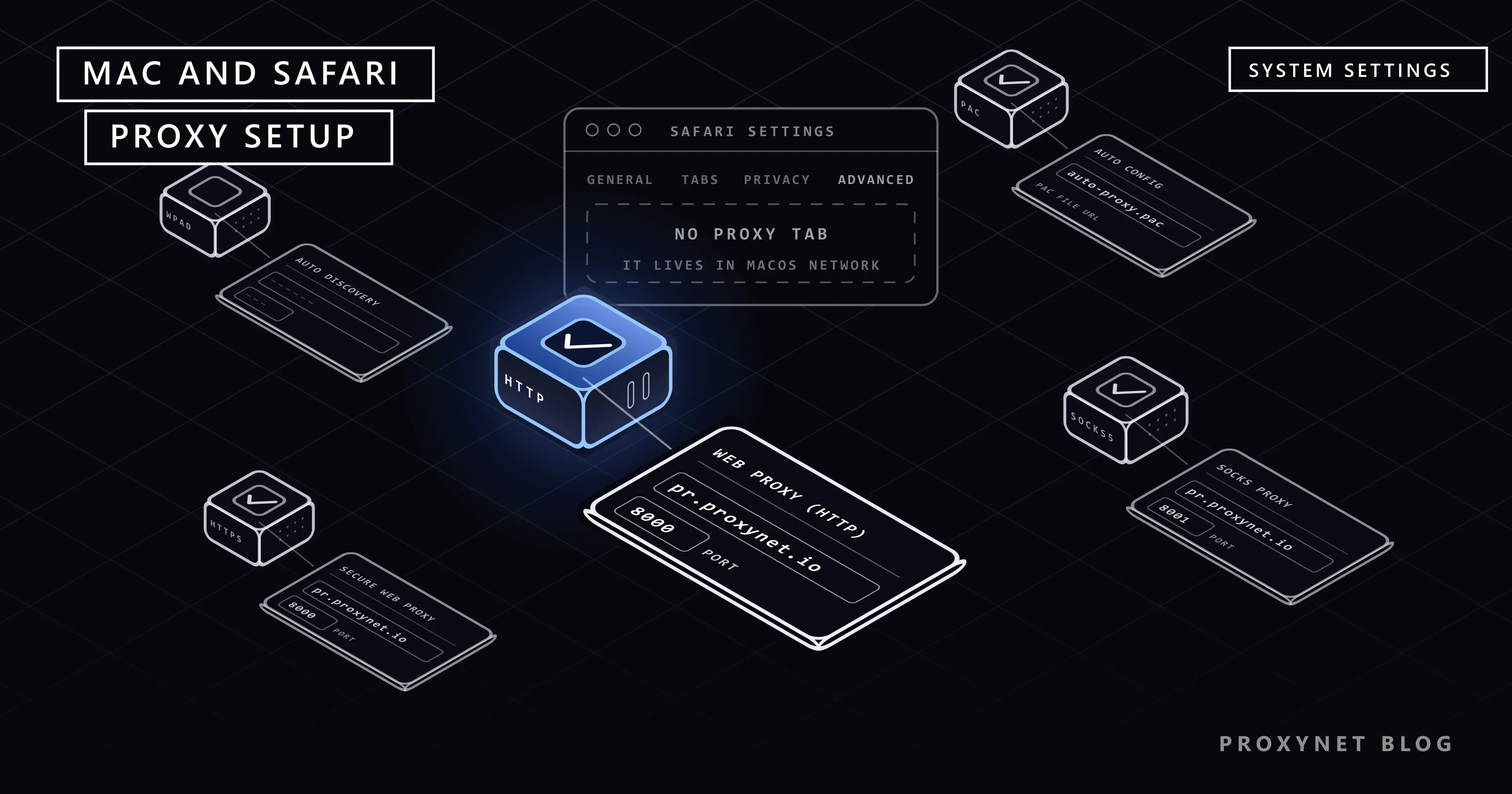
You open Safari's settings looking for a section where you can enter a proxy address. General, Tabs, Privacy, Advanced... none of them has a proxy option. The reason is simple: Safari doesn't keep its own proxy setting; it uses the Mac's network settings. So to use a proxy in Safari, you set it up in macOS. That setting also affects many other apps on the Mac along with Safari.
In this article we explain how to set up a proxy on a Mac step by step, which proxy type goes in which box, what happens with proxies that need a username and password, and when automatic proxy configuration is used. Then we cover how to check that the proxy works, how to turn it off, what to do for Safari on iPhone and iPad, and how to fix the most common problems.
Where does Safari get its proxy setting?
On a Mac, internet settings are kept in one place: the Network section of System Settings. Safari, Mail, the App Store and other apps that use the system setting all read this one setting. So:
- To turn a proxy on or off in Safari, you change the Mac's network settings.
- The setting affects not only Safari but also other apps that use the system setting.
- The setting is per connection. A proxy you enter for Wi-Fi isn't used when you connect with an Ethernet cable.
The same is true for Chrome on Windows, where the browser also reads the system setting. We covered the Windows side in How to Set Up Proxy Settings in Windows and Chrome. If you want a proxy only in the browser, Firefox, which can keep its own proxy setting, is an option; its setup is in How to Set Proxy Settings in Firefox Browser?
What you need before you start
Get these details from your proxy provider's panel:
| Detail | Example | Where it goes |
|---|---|---|
| Server address | pr.proxynet.io | Proxy server box |
| Port | 8000 | The port box next to the address |
| Proxy type | HTTP / HTTPS or SOCKS5 | Decides which row to turn on |
| Username and password | user / pass | The fields that appear when the password option is turned on |
If you use the IP whitelist method instead of a username and password, meaning you added your Mac's internet address to the allowed list in the panel, leave the password fields empty. You can find the difference between the two methods in Proxy Authentication: User:Pass vs IP Whitelist. If you're not sure what each detail means, see What Is a Proxy Server Address and How to Find It.
How to set up a proxy on a Mac
The steps below follow the current System Settings interface in macOS and Apple's Change proxy settings on Mac support page. In older macOS versions, the same setting is under System Preferences > Network > Advanced > Proxies.
- Click the Apple menu in the top-left corner of the screen and open System Settings.
- Click Network in the left sidebar.
- Choose the connection you use: Wi-Fi if you're wireless, Ethernet if you're on a cable.
- For Wi-Fi, click the Details button next to the network you're connected to.
- In the window that opens, select the Proxies section on the left.
- Turn on the row for the proxy type you'll use (we explain which one to choose in the next section).
- Type the address (
pr.proxynet.io) into the Proxy server field and the port (8000) into the box next to it. - If the proxy needs a username and password, turn on Proxy server requires password and enter the username and password.
- Click OK. The setting is saved.
- Quit Safari completely (
Cmd + Q) and open it again.
After you save the setting, open apps may keep using the old connection for a while. That's why you shouldn't skip the last step.
Which proxy type should you choose?
There are several rows in the Proxies section. Apple names them as follows:
| Row | What it does | When to turn it on |
|---|---|---|
| Auto proxy discovery | Looks for an automatic setting on the network | Usually only on workplace networks |
| Automatic proxy configuration | Takes settings from a PAC file | If your provider or workplace gave you a file address |
| Web proxy (HTTP) | Sites starting with http:// | If you use an HTTP/HTTPS proxy |
| Secure web proxy (HTTPS) | Sites starting with https:// | If you use an HTTP/HTTPS proxy |
| SOCKS proxy | Wider use, including non-web traffic | If you use a SOCKS5 proxy |
Since almost all sites today open with https://, if you use an HTTP/HTTPS proxy, turn on both Web proxy (HTTP) and Secure web proxy (HTTPS) and enter the same address and port in both. If you turn on only the HTTP row, most sites open without the proxy and you'll think the proxy isn't working.
If you use a SOCKS5 proxy, turn on only the SOCKS proxy row. Entering a SOCKS5 address in the HTTP rows breaks the connection. We explained the difference between the two types in SOCKS vs. HTTP Proxy: Which One Should You Choose?
At Proxynet, the HTTP and HTTPS rows are used for HTTPS Proxy, and the SOCKS row for SOCKS5 Proxy. If you need to work with the same address for a long time, a ISP Proxy offers an address that stays the same for months.
Proxies that need a username and password
When you turn on Proxy server requires password and enter the username and password, macOS saves them in Keychain (where the Mac stores passwords). Normally it doesn't ask again.
In some cases Safari may still open a password window:
- If the password was entered wrong, it asks again on every connection. Copy the details from the panel and enter them again.
- If an old entry is left in Keychain, the Mac tries the old password. In the Keychain Access app, search for the proxy address, delete the old entry and save the setting again.
- Some apps don't use the password stored in the system. These apps see the proxy but ask for the credentials themselves.
If you don't want to deal with password windows, and your home internet address doesn't change often, the IP whitelist method is more comfortable.
When is automatic proxy configuration used?
The Automatic proxy configuration row lets you take proxy settings from a file. This file is called a PAC file. It consists of short rules deciding which sites go through the proxy and which are reached directly. MDN's explanation of PAC files describes the file's structure. What goes inside the file and how to write your own rules is covered in our post What Is a PAC File?.
For home use you usually don't need this row. It is used when:
- Your workplace or school gave you a PAC file address.
- You want only certain sites to go through the proxy and manage this with a file.
If you turn this row on, the proxy rows you entered by hand may not be used. Don't turn both on at the same time.
Is the proxy working?
After setting it up, the quickest check is:
- Before turning on the proxy, go to an IP check page in Safari and note your address.
- Turn on the proxy and restart Safari.
- Go to the same page again. If the address has changed, the proxy is working.
We covered all the location, speed and leak checks in Is My Proxy Working? How to Test a Proxy. To check whether Safari reveals your real address through another route, see WebRTC and DNS Leaks: What They Are and How to Stop Them.
How to turn off the proxy on a Mac
- Go to System Settings > Network and select your connection.
- Open Details > Proxies.
- Turn off all proxy rows that are on.
- Click OK and restart Safari.
If you turn the proxy on and off at different times, you can use the Locations feature in macOS: create a new location from the menu in the Network section and save the proxy setting only in that location. Switching between locations turns the proxy on and off in one click. In some macOS versions this feature is in the menu at the bottom of the Network window.
Proxy for Safari on iPhone and iPad
On iPhone and iPad too, Safari doesn't keep its own proxy setting; the setting is added to the Wi-Fi network:
- Go to Settings > Wi-Fi.
- Tap the (i) icon next to the network you're connected to.
- Tap the Configure Proxy row at the bottom and choose Manual.
- Fill in the Server and Port fields. If the proxy needs a password, turn on Authentication and enter the username and password.
- Tap Save.
There are two important differences: this setting on iPhone applies only to that Wi-Fi network and isn't used on mobile data. Also, this screen doesn't offer a SOCKS proxy option; HTTP/HTTPS proxies are used. For a guide with screenshots, see How to Set iPhone Proxy Settings?
Troubleshooting
Safari says "Safari can't open the page". The address, port or proxy type is wrong. Copy the details from the panel again and check that you haven't mixed up the HTTP/HTTPS and SOCKS rows.
The password keeps being asked for. The username or password was saved wrong, or there is an old entry in Keychain. Follow the steps in "Proxies that need a username and password" above.
Some sites open, some don't. Look at the Bypass proxy settings for these hosts & domains box at the bottom of the Proxies section. Addresses listed there don't go through the proxy. Also, some sites may not accept proxy traffic; try another site.
You can't reach local devices (printer, NAS) while the proxy is on. Turn on Exclude simple hostnames and add local network addresses to the bypass list (such as 192.168.0.0/16 or *.local).
The proxy doesn't work while a VPN is on. VPN apps change network settings with their own rules. Turn off the VPN while testing the proxy; if you need to use both together, look at the VPN app's proxy settings.
The settings are greyed out and can't be changed. If the Mac is managed by a company or school, the settings may be locked by a management profile. If there's a profile under System Settings > Privacy & Security > Profiles, contact your IT team.
Common mistakes
- Looking for the proxy in Safari's own settings. The setting is always in the Network section of macOS.
- Turning on only the Web proxy (HTTP) row.
https://sites open without the proxy; turn on the HTTPS row too. - Entering a SOCKS5 address in the HTTP row. Use the row that matches the proxy type.
- Setting it up for Wi-Fi and connecting with Ethernet. The setting is separate for each connection.
- Closing the window without clicking OK. The change isn't saved.
- Not restarting Safari. Open tabs may keep using the old connection.
- Turning on automatic configuration and the manual setting at the same time. It becomes unclear which one is used.
Decision guide
| Your need | Recommendation |
|---|---|
| Use a proxy in Safari | System Settings > Network > Details > Proxies |
| You have an HTTP/HTTPS proxy | Turn on both the Web proxy (HTTP) and Secure web proxy (HTTPS) rows |
| You have a SOCKS5 proxy | Turn on only the SOCKS proxy row |
| You don't want to type the proxy password every time | Check the Keychain entry or use an IP whitelist |
| You want a proxy only in the browser | Use Firefox's own proxy setting |
| You turn the proxy on and off often | Create a separate network location with the macOS Locations feature |
| Proxy for Safari on iPhone | Settings > Wi-Fi > (i) > Configure Proxy |
| The Mac is managed by a company | Ask the IT team without changing the setting |
Frequently asked questions
Why is there no proxy setting in Safari?
Safari doesn't keep its own proxy setting; it uses the Mac's network settings. When you set the proxy under System Settings > Network, Safari applies it automatically.
Does a proxy set on the Mac affect all apps?
It affects apps that use the system network setting; Safari, Mail and the App Store are among them. Apps that keep their own network setting (for example Firefox with its own proxy setting selected) aren't affected.
Do I need to turn on both the HTTP and HTTPS rows?
Yes, if you use an HTTP/HTTPS proxy. Since most sites open with https://, turning on only the HTTP row means the proxy won't be used on most sites.
Where does the Mac store my proxy password?
In Keychain. In the Keychain Access app, you can search for the proxy server's address to see the entry and delete it if needed.
Can I use a SOCKS5 proxy on iPhone?
The proxy screen in iPhone's Wi-Fi settings doesn't offer a SOCKS option; HTTP/HTTPS proxies are used. For SOCKS5, you need an app that supports it.
I turned off the proxy but Safari still won't open pages. What should I do?
Quit Safari completely and open it again. If the problem continues, check in Network settings that no other proxy row is still on and that a VPN app hasn't changed the network settings. Restarting the Mac also usually clears old connections.
Summary
On a Mac, Safari's proxy setting is made under System Settings > Network > Details > Proxies in macOS and affects all apps that use the system setting. For an HTTP/HTTPS proxy, turn on both web proxy rows; for SOCKS5, turn on only the SOCKS row. If a password is needed, it is saved in Keychain. On iPhone and iPad, the setting is made separately for each Wi-Fi network. After setting it up, restart Safari and check that your address has changed. You can find proxy types to use on your Mac in our proxy services.