You bought a proxy, entered the address and port on your computer and saved the settings. When you open a website, everything looks the same. Is the proxy really working, or is your connection still going out from your own address? If a shopping site still shows Türkiye prices, is the setting wrong or is the proxy broken? You can answer these questions with a check that takes a few minutes.
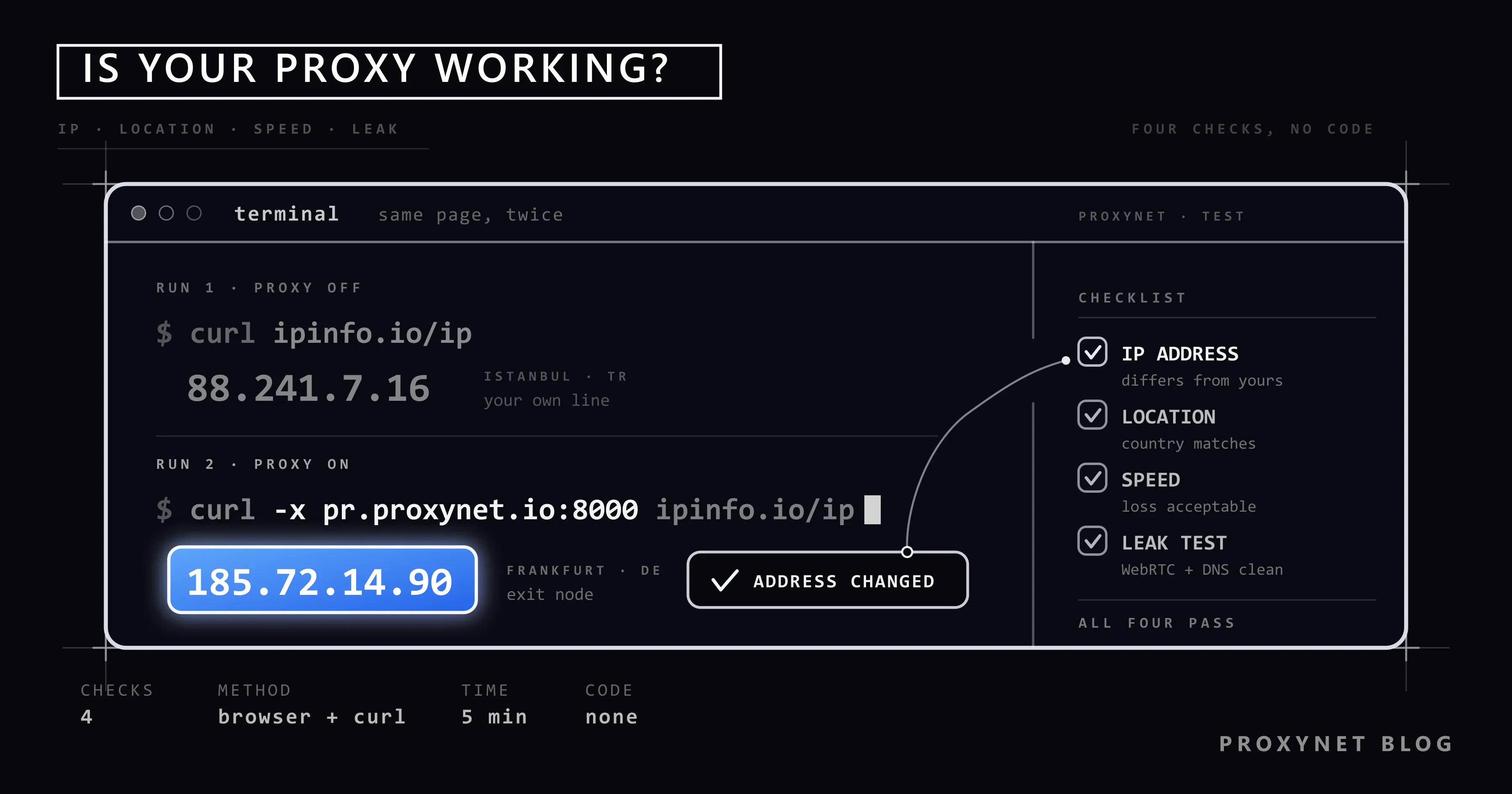
In this article we explain the four checks you need to run to know that a proxy is working, and how to do them in your browser without writing code: whether your address has changed, whether the location looks right, whether the speed is acceptable and whether your real address is leaking somewhere. Then we explain how to read the results, the most common reasons a proxy doesn't work and why the test looks different with proxies whose address changes.
How do you know a proxy is working?
A proxy is an intermediary server that lets you go online from a different address instead of your own. When you open a site, your request first goes to the proxy, and the proxy passes it to the site with its own address. The site sees the proxy, not you. We covered the basics in What Is a Proxy Server and How Does It Work?.
So with a working proxy, four things need to be right:
| Check | What are you looking at? | Expected result |
|---|---|---|
| IP address | The address sites see | Different from your own while the proxy is on |
| Location | Which country and city the address appears in | The location you chose |
| Speed | How long pages take to open | Fast enough for your use |
| Leaks | Whether your real address shows through another route | Your own address appears in no test |
The steps below run these four checks in order. Before you start, have a notepad or an empty note file ready.
Step 1: Check your IP address
An IP address is the address of the device you go online with. Sites see you by this address. The most important step of the test is seeing that the address sites see changes when the proxy is on.
- Turn the proxy off. Disable it in your computer settings or in the app you use.
- Open an IP check page. Search for "what is my IP" in your browser and open one of the results, or open a page such as ipinfo.io that shows your address and location.
- Write down the address, city and internet provider you see. This is your real connection.
- Turn the proxy on. Enable the setting again and save it.
- Close the browser completely, reopen it and go to the same page again. Tabs left open may keep using the old connection.
- Write down the new address. If the two addresses are different, the proxy is carrying your traffic.
If the address stayed the same, the proxy is not active. In that case, skip to the "If the proxy isn't working" section.
It's a good habit to check on two different IP check sites. That way you won't be fooled by an old result cached by one site.
Step 2: Check the location
IP check pages show the country, city and sometimes the internet provider next to the address. If you bought the proxy for a specific country or city, you should see that location here.
There is one thing to know about location: the city an address is placed in is an estimate from address databases. Because different sites use different databases, the same address can appear as Istanbul on one site and Ankara on another. If the country is right and the city is close, that is normal. If the country looks completely different, contact your provider.
While checking the location, also look at:
- The internet provider's name. With home-connection proxies, a known internet or mobile operator appears. With data center proxies, it's normal to see the name of a hosting company.
- The time zone. Some test pages also show your browser's time zone. If the proxy is in another country while your computer's clock stays on Türkiye time, that is an inconsistency, and some sites notice it.
You can see our exit points in Türkiye on our Türkiye location page.
Step 3: Measure the speed
A proxy adds one more stop to your traffic, so some slowdown is normal. What matters is whether the slowdown affects your work.
- Run a speed test with the proxy off and note the results. You can use one of the sites that come up when you search for "speed test".
- Repeat the same test with the proxy on.
- Compare the two results.
You'll see three values in a speed test:
| Value | What it tells you | What to expect with a proxy |
|---|---|---|
| Ping (ms) | Time between sending a request and getting the reply | Rises a little; rises clearly if the proxy is in a distant country |
| Download speed (Mbps) | Speed of loading pages, videos and files | As high as the slower of the proxy and your connection |
| Upload speed (Mbps) | Sending files, video calls | Similar to download |
Some speed test sites may skip the proxy and connect directly. That's why the most reliable speed measure is the pages you actually open in your daily work: open a site you use often with the proxy on and off and compare the time.
If the slowdown is too much, try these:
- Choose an exit location closer to you. Going from Türkiye to Germany takes less time than going from Türkiye to the United States.
- Don't open many tabs or downloads at the same time.
- Check the proxy type. We covered the right type for work that needs instant communication, such as gaming and live streaming, in How to Fix Ping and Packet Loss in Online Games.
Step 4: Run a leak test
Even if the proxy works, your browser may reveal your real address through another route. This is called a leak. There are two common leaks:
- WebRTC leak: a browser technology used for features such as video calls can bypass the proxy and report your real address to sites.
- DNS leak: the lookups that turn a site's name into an address may go through your own internet provider instead of the proxy. Even if the site doesn't see your address, the sites you visit remain in your provider's records.
To test, open "WebRTC leak test" and "DNS leak test" pages with the proxy on. You should not see your own address or your own internet provider's name in the results. We explained step by step how to read what you see and how to close the leak in WebRTC and DNS Leaks: What They Are and How to Stop Them. If you're curious what WebRTC is, W3C's WebRTC specification is the official source.
How do you read the test results?
| What you see | What it means | What to do |
|---|---|---|
| Address changed, location right, no leak | The proxy works properly | Nothing |
| Address didn't change | Traffic isn't going through the proxy | Check the setting and that it was saved, restart the browser |
| A username and password window keeps appearing | Credentials are wrong or weren't saved | Copy the details from the panel and enter them again |
| "The proxy server isn't responding" error | Wrong address or port, or the proxy type doesn't match | Check the address, port and type (HTTP / SOCKS5) |
| Address changed but the country is wrong | Wrong location chosen, or a database difference | Check on another IP check site, change the location if needed |
| Address changed but the WebRTC test shows your own address | Browser leak | Turn off WebRTC |
| The address changes on every page refresh | You are using a rotating proxy | Not an error; see the section below |
| Some sites open, some don't | Some addresses are on the bypass list, or the site blocks the proxy | Check the bypass list, try another site |
If the proxy isn't working
If the address doesn't change or no connection can be made at all, the problem is usually one of these six:
- Wrong username or password. If the proxy doesn't recognise you, it refuses the connection. Technically, this response has the code 407; MDN's explanation of 407 describes the proxy asking for credentials. Copy the details from the panel instead of typing them; even a trailing space breaks the login.
- The IP whitelist is out of date. If you added your computer's address to the allowed list in the panel for password-free use and your home internet address has changed, the proxy won't recognise you. We explained the difference between the two methods in Proxy Authentication: User:Pass vs IP Whitelist.
- Wrong port number. Even with the right address, the wrong port won't connect. Remember that the port is the number after the colon at the end of the address (
8000inpr.proxynet.io:8000). - The proxy type doesn't match. Entering a SOCKS5 proxy as HTTP in an app, or the other way round, won't connect. You can find the difference in SOCKS vs. HTTP Proxy: Which One Should You Choose?.
- The setting was entered in the wrong place. Some programs use the system proxy setting, others want their own. Chrome uses the Windows setting, while Firefox can keep its own. The setting paths are in our articles How to Set Up Proxy Settings in Windows and Chrome, How to Set Proxy Settings in Firefox Browser?, How to Set iPhone Proxy Settings? and How to Set Up Proxy Settings on Mac and Safari.
- Conflict with a VPN. If a VPN is on at the same time, traffic may never reach the proxy. Run the test with the VPN off.
If you're not sure what goes in which field, What Is a Proxy Server Address and How to Find It explains the address, port, username and password fields one by one.
Testing rotating vs. fixed proxies
Proxies fall into two groups depending on how long the address stays the same. To read your test results correctly, you need to know which one you use.
- Rotating proxy: the address changes with every request or at set intervals. Seeing a different address each time you refresh the IP check page is not an error; it is the expected behaviour. A Rotating Proxy is used for work that needs many different addresses.
- Sticky proxy (fixed for a session): the address stays the same for the time you set. During the test, you should see the address stay the same for a few minutes. A Sticky Proxy is preferred on sites where you sign in.
If you connect to a site that needs a login with a rotating proxy and your session keeps ending, the problem isn't a broken proxy but the changing address. In that case, switch to a type with a fixed address. To watch a proxy continuously rather than test it once, you can assign it to a monitor in Uptime Kuma and have the check repeat at an interval you set; What Is Uptime Kuma? Setup and Monitoring Through a Proxy covers the setup and the proxy settings.
Advanced: testing with a single command
If you know how to use the command line, you can test the proxy in one line without opening a browser. The curl tool that comes with Windows 10 and 11, macOS and Linux is enough:
curl -x http://user:pass@pr.proxynet.io:8000 https://ipinfo.io/ipThe command prints the proxy's exit address on one line. If it differs from your own address, the proxy is working. We covered the command's other options in How to Use cURL with Proxy?. What error codes mean is explained in HTTP Status Codes in Web Scraping: 403, 407, 429, 503.
Common mistakes
- Testing without writing down your own address. With nothing to compare, you can't tell whether the address changed.
- Testing without restarting the browser. Tabs left open may use the old connection.
- Relying on a single IP check site. Location details can vary from site to site.
- Treating a city difference as an error. If the country is right, small city differences come from the database.
- Treating address changes on a rotating proxy as a fault. This type of proxy exists to change addresses.
- Testing with a VPN on. The address you see may be the VPN's.
- Entering your password on free proxy test sites. Type your credentials only into the settings on your own device.
Decision guide
| Your need | Recommendation |
|---|---|
| Quickly see whether the proxy works | Compare the address on an IP check page with the proxy off and on |
| Am I going out from the right country? | Check the location on two different IP check sites |
| Is the slowdown normal? | Speed test with the proxy on and off, try a closer location |
| Is my real address visible? | WebRTC and DNS leak test |
| It keeps asking for a password | Copy the credentials from the panel and enter them again, or use an IP whitelist |
| My sessions keep ending | A fixed-address proxy instead of a rotating one |
| Test without opening a browser | One line with curl -x |
Frequently asked questions
What is the quickest way to know a proxy is working?
Look at an IP check page with the proxy off and on. If the two addresses are different, your traffic is going through the proxy. This check takes less than a minute.
My IP address changed but the site still shows Türkiye content. Why?
Sites don't look only at the address; they also look at your browser's language setting, time zone, cookies and the country in your account. Clear cookies in the browser and check the language and time zone; if you're signed in, check your account's country setting.
My internet slowed down with the proxy on. Is that normal?
Some slowdown is normal, because traffic makes one more stop. It grows if the proxy is in a distant country. If it's slow enough to affect your daily use, try choosing a closer location.
Which IP check site should I use?
Any site that shows your address and location will do. What matters is using the same site with the proxy on and off and confirming the result on a second site. You don't need to enter a username or password on these sites.
I see my own address in the leak test. What should I do?
It means your browser's WebRTC feature or DNS setting is bypassing the proxy. We covered browser-specific fixes in our WebRTC and DNS leaks article. After fixing it, run the test again.
How often should I test my proxy?
Testing right after setup, whenever you change the settings and whenever you notice a problem is enough. With fixed-address proxies, a short check once a month confirms the address still shows up in the right location.
Summary
To test a proxy, you check four things: has the address changed, is the location right, is the speed enough and is your real address leaking. First note your own address with the proxy off, then look at the same page again with the proxy on. If the address doesn't change, check the credentials, the port, the proxy type and whether the setting was entered in the right place. With rotating proxies, a constantly changing address is the expected behaviour. To choose the right proxy type for your use, take a look at our proxy services.