A game, a browser extension or a setup guide from your workplace asks you for a "proxy server address" and a "port". There are two empty boxes on the screen and you don't know what to type. Or the opposite happens: you can't get online, somewhere it says "unable to connect to the proxy server", and you don't even know whether your computer has such a setting.
In this article we explain what a proxy server address is and what the port, username and password asked for next to it are for. Then we show step by step where to find your own proxy's details and how to see whether a proxy is currently set on Windows, Mac, iPhone, Android and in browsers. In the last part we cover automatic settings on workplace networks, the "unable to connect to the proxy server" error and turning a proxy off.
What is a proxy server address?
A proxy is an intermediary computer that sits between you and the site you visit. When you open a site, your request first goes to this computer, which passes it to the site under its own name and brings the reply back to you. To reach this intermediary, your device needs to know its address. For a general introduction, see What Is a Proxy Server and How Does It Work?
A proxy server address is written in two forms:
- Domain name form: a name that looks like a website address, such as
pr.proxynet.io. Behind the name there may be one or more servers. - IP form: an address made of four numbers separated by dots, such as
203.0.113.25. Some providers give the address directly in this form.
Both forms do the same job. Whichever you were given is what you type into the settings box.
Address, port, username and password: what are the four details for?
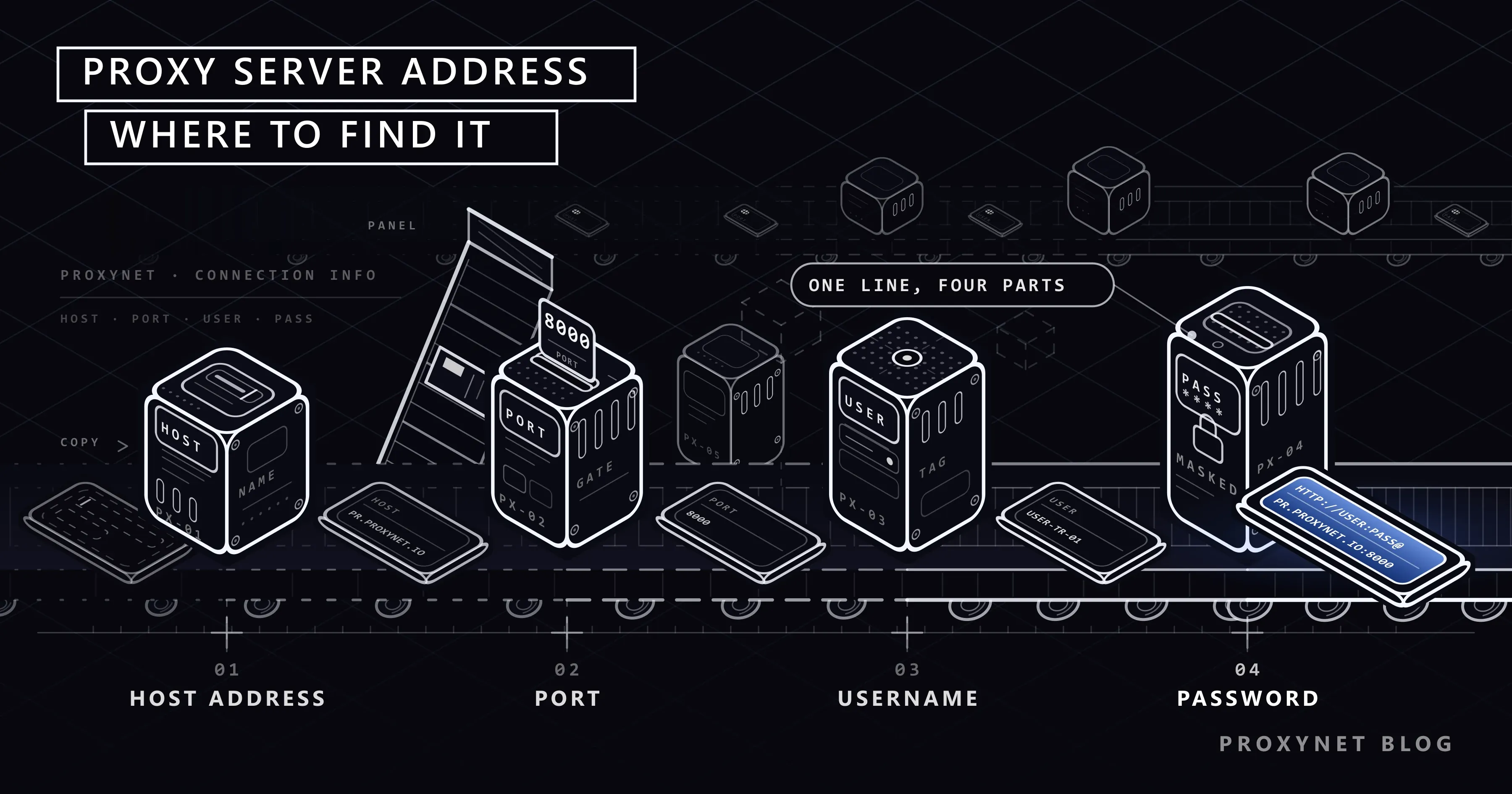
Using a proxy usually requires four details. Sometimes each goes into its own box; sometimes they are combined on one line.
| Detail | What it's for | Example |
|---|---|---|
| Server address (host) | The name or IP address of the intermediary server | pr.proxynet.io |
| Port | Which door the server accepts connections on | 8000 |
| Username | Lets the proxy recognise you | user |
| Password | Confirms your identity together with the username | pass |
A port is a numbered door a server uses so it can offer different services at the same time. The address takes you to the right building; the port takes you to the right door. Even with the right address, a wrong port means no connection.
In the one-line form, the details are combined in this order:
http://user:pass@pr.proxynet.io:8000The http:// at the start is the proxy type, user:pass is the username and password, the part after @ is the address, and the number after the last colon is the port. If the proxy type is SOCKS5, the line starts with socks5://. You can find the difference between the two types in SOCKS vs. HTTP Proxy: Which One Should You Choose?
Some proxies don't ask for a username and password. Instead, you add your computer's address to an allowed list; this method is called an IP whitelist. We explained which one suits you in Proxy Authentication: User:Pass vs IP Whitelist.
Where is your own proxy's address shown?
If you bought a proxy service, the address, port and credentials are in your provider's customer panel. Most panels list them in a section such as "proxy list", "access details" or "connection settings", with a copy button.
When taking the details from the panel, keep these in mind:
- Note the proxy type. Even with the same address, HTTP and SOCKS5 may use different ports.
- Check the location choice. With services that let you choose a country or city, the choice may be added into the username. Don't shorten the username by hand. We show which choices a residential username carries and how to enter the line in each environment in How to Use Residential Proxies: From Panel to First Request.
- Copy the details instead of typing them. One wrong letter or a trailing space breaks the login.
At Proxynet, the connection details for HTTPS Proxy and SOCKS5 Proxy are on the product page in your panel. You can reach all services from our proxy page.
Is a proxy currently on for your device?
If your internet connection has a problem or a program shows a "proxy" warning, check whether a proxy setting is saved on your device. The paths below let you both see the current setting and enter a new one.
Windows 11 and Windows 10
Follow the path on Microsoft's Use a proxy server in Windows page:
- Press
Windows + Ito open Settings. - Go to Network & internet.
- Open the Proxy page.
- If Use a proxy server is on under Manual proxy setup, the address and port are shown below it.
- If Use setup script is on under Automatic proxy setup, your proxy settings come from a file (see "On workplace and school networks" below).
For step-by-step setup and command-line options, see How to Set Up Proxy Settings in Windows and Chrome.
macOS
- Open System Settings from the Apple menu at the top left.
- Click Network in the sidebar.
- Choose the connection you use (Wi-Fi or Ethernet) and click Details.
- Open the Proxies section. The ticked rows are the active proxy types; the address and port are shown next to them.
Apple's Change proxy settings on Mac page explains each option. We covered the full setup in How to Set Up Proxy Settings on Mac and Safari.
iPhone and iPad
- Open the Settings app and tap Wi-Fi.
- Tap the info (i) icon next to the network you are connected to.
- Look at the Configure Proxy row at the bottom. If it says Off, there is no proxy; if Manual is selected, tapping it shows the server address and port.
The proxy setting on iPhone applies only to that Wi-Fi network; it isn't used on mobile data. Details are in How to Set iPhone Proxy Settings?
Android
Menu names on Android vary by phone brand, but the path is usually the same:
- Open Settings and go to Wi-Fi under Connections or Network & internet.
- Tap the gear icon next to the network you are connected to, or long-press the network name.
- Open the Advanced or More options section.
- If the Proxy row says None, no proxy is set. If it says Manual, the server name and port are shown below it.
As on iPhone, this setting applies only to that Wi-Fi network.
Chrome, Edge and Firefox
- Chrome and Edge don't keep their own proxy setting; they use the computer's setting. In Chrome, the link under Settings > System takes you straight to the Windows or Mac proxy screen.
- Firefox can use either the system setting or its own. At the bottom of Settings > General, under Network Settings, you can see which one is selected and the address, if any. Details are in How to Set Proxy Settings in Firefox Browser?
- Browser extensions can also change the proxy setting. If the browser shows a warning like "this setting is controlled by an extension", that extension is managing it.
Where does the address come from on workplace and school networks?
On company and school networks, the proxy setting is usually not entered by hand; it is taken automatically from a configuration file. This file is called a PAC file (proxy auto-configuration file). It is a short list of rules deciding which sites go through the proxy and which are reached directly. MDN's explanation of PAC files describes the file's structure. How the file works and how the browser finds it through WPAD is explained in our PAC file guide.
If you are on such a network:
- Use setup script on Windows or Automatic proxy configuration on Mac is on, with a file address next to it.
- The actual proxy address is inside that file and may differ by site.
- Changing the setting is usually outside your permissions; even if you change it, the company system may overwrite it.
- Ask your organisation's IT team for the correct details.
The "unable to connect to the proxy server" error
If your browser shows this error, a proxy is set on your device but it can't be reached. The five most common causes:
- An old setting was left behind. A proxy you used before may have expired or the service may have closed. Turn the setting off or update it with current details.
- Wrong address or port. A typo or a wrong port blocks the connection completely.
- The proxy type doesn't match. Typing a SOCKS5 proxy into the web proxy (HTTP) box won't work.
- A program changed the setting. VPN apps, ad blockers or malware can add a proxy setting. If you see an address you don't recognise, run a security scan.
- A temporary problem at the provider. If everything else is right, check your provider's status page or contact support.
To check whether the proxy is working properly, follow the four steps in Is My Proxy Working? How to Test a Proxy.
How to turn a proxy off
| Device | Path |
|---|---|
| Windows | Settings > Network & internet > Proxy > Manual proxy setup > Edit > Use a proxy server: off |
| Mac | System Settings > Network > (connection) > Details > Proxies > untick the rows > OK |
| iPhone / iPad | Settings > Wi-Fi > (i) > Configure Proxy > Off |
| Android | Settings > Wi-Fi > (network) > Advanced > Proxy > None |
| Firefox | Settings > General > Network Settings > No proxy or Use system proxy settings |
Restart the browser after turning it off. If the setting keeps coming back on its own, an extension, a VPN app or a company policy may be writing it again.
Common mistakes
- Leaving out the port. The address alone isn't enough; if the port box is empty, no connection is made.
- Typing
http://into the address box. On screens with separate boxes, onlypr.proxynet.iogoes in the address box; the type and port go elsewhere. - Leaving a space at the end of the address. It happens often with copy and paste and goes unnoticed.
- Shortening the username. Location or session details may be inside the username.
- Setting it on one device and expecting it to work on another. Each device, and often each Wi-Fi network, has its own setting.
- Ignoring a proxy address you don't recognise. An address you didn't enter may be a sign of a program or malware.
Decision guide
| Your situation | What to do |
|---|---|
| An app asks for a proxy address | Copy the address, port, username and password from your provider's panel |
| "Unable to connect to the proxy server" error | Turn the device's proxy setting off or update it |
| There's an address but it doesn't work | Check the type (HTTP / SOCKS5) and port, then test |
| You are on a workplace network | Ask the IT team without changing the setting |
| You want a proxy only in the browser | Use Firefox's own setting or a proxy extension |
| You saw an address you don't recognise | Turn the setting off and run a security scan |
Frequently asked questions
Is the proxy server address the same as my IP address?
No. Your IP address is the address of the connection you go online with. The proxy server address is the address of the intermediary server your traffic passes through. With the proxy on, sites see the proxy's exit address, not yours.
What is the port number for, and which one should I enter?
The port is the door number the server accepts connections on. Your proxy provider tells you which port to enter; the same address may use different ports for different proxy types. Don't pick a port yourself.
Can I find my proxy server address online?
The address of a proxy you bought is only in your provider's panel. The "free proxy lists" online are addresses that belong to others, run by unknown operators, and they are not safe.
Are the boxes empty if no proxy is set?
Yes. If Use a proxy server is off on Windows, no row is ticked on Mac, or the phone shows Off or None, your device isn't using a proxy.
Does a proxy I set on Wi-Fi also work on mobile data?
No. On iPhone and Android, the proxy setting is made separately for each Wi-Fi network and isn't used on mobile data. Using a proxy on mobile data usually requires an app.
Can changing the proxy setting harm my computer?
No. A wrong setting only stops you from getting online; turning it off puts everything back as it was. On work computers, though, check with the IT team before changing the setting.
Summary
A proxy server address is the name or IP address of the intermediary server your traffic passes through, and it is always used together with a port number. The address, port and credentials of a proxy you bought are in your provider's panel. You can see whether a proxy is saved on your device under Network & internet on Windows, in the network details on Mac and in the Wi-Fi network's advanced settings on phones. On workplace networks, the setting comes from an automatic configuration file. You can find proxy types to suit your needs in our proxy services.