

































You open your laptop on the sofa, type an address and Chrome shows a small dinosaur icon on a plain page, a short list that begins with "Try:" and ERR_INTERNET_DISCONNECTED in small capitals at the bottom. Nothing loads, not even the site that worked a minute ago. On a phone the same page turns up when a train enters a tunnel, or after airplane mode was switched on by accident.
Below: what the code means, how Chrome decides to show it, the exact text of the page, the usual causes, the fixes on Windows, Mac, Android and iPhone, and what changes when a VPN or a proxy is involved.
What does ERR_INTERNET_DISCONNECTED mean?
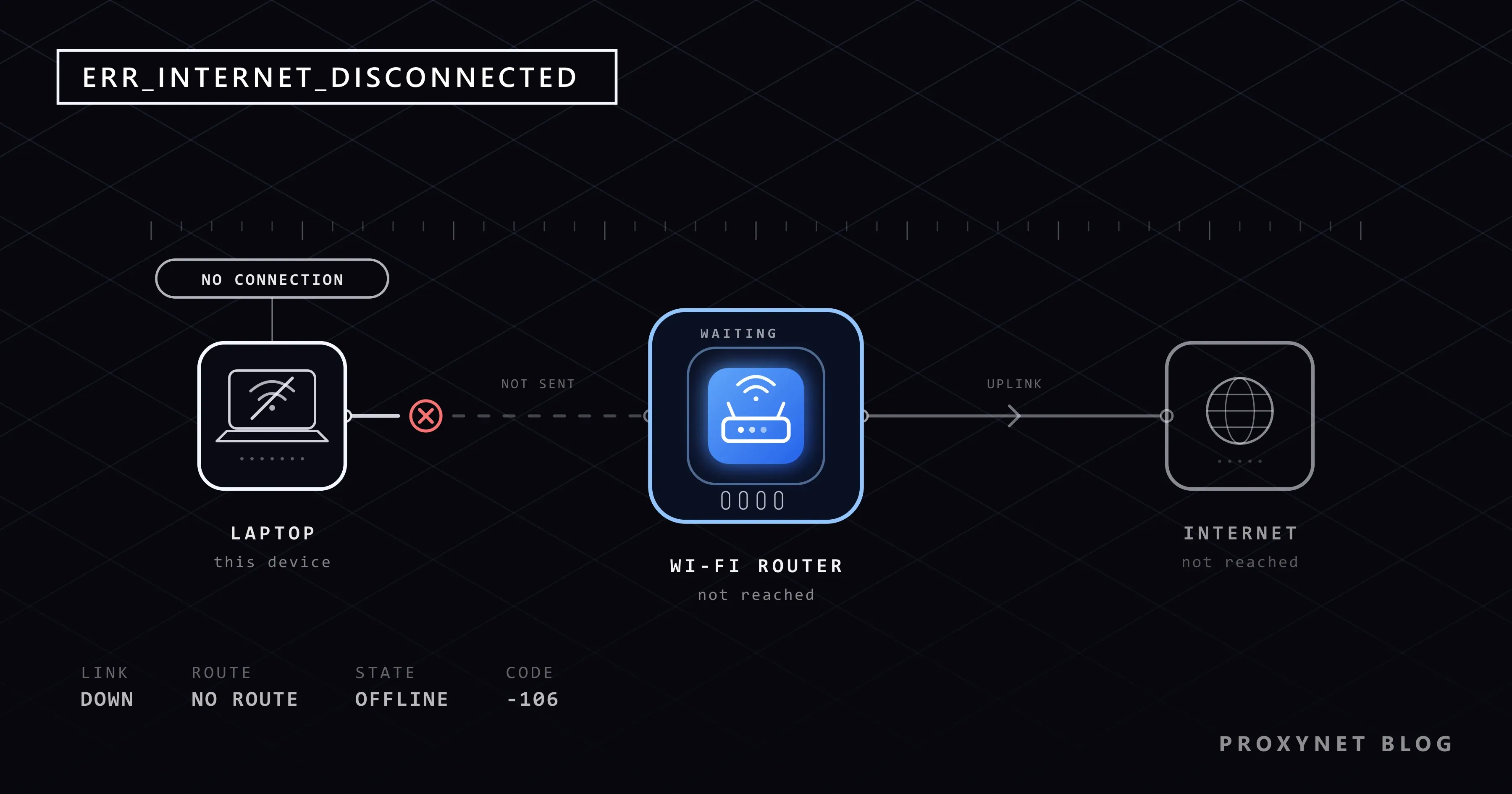
It means Chrome found no network to send your request over. Chromium's list of network errors gives the code the number -106 and a one-line description: "The Internet connection has been lost." Chrome, Edge, Brave and Opera are built on Chromium, so they all show the same code.
Nothing went wrong between you and the site, because nothing left your device. A site that is down produces a different page, usually "This site can't be reached" with a code such as ERR_CONNECTION_TIMED_OUT.
How does Chrome decide that there is no internet?
Chrome does not test the internet before every page. It relies on the operating system and on what happens when it tries to connect:
- It asks the system whether a network is up: Wi-Fi, a cable or mobile data.
- It looks up the site's name. Before connecting, Chrome turns a name such as
example.cominto an IP address. If that lookup fails while the system reports no connection, Chromium reportsERR_INTERNET_DISCONNECTEDinstead of a name error. - It tries to open a connection. If the system replies that the network is down, Chrome maps that reply to the same code.
- It double-checks a "connected" network. When the device says it is connected but no names resolve, Chrome sends a test lookup to Google's public DNS servers. If those do not answer either, it concludes that the line beyond your router is down and shows the same offline page with the code
DNS_PROBE_FINISHED_NO_INTERNET. - It shows the offline page. Unlike many Chrome error pages, this one has no Reload button: once you are back online, reload from the toolbar or press F5.
Step 4 explains a common puzzle: the laptop says "Connected" to Wi-Fi, yet Chrome shows the offline page. The link to the router works; the router's link to your provider does not.
What exactly does the page say?
We reproduced the page in Chromium 145 on Windows with the browser's own offline mode in a test window, while the computer stayed connected. The page showed:
- A heading: "Press space to play". Since Chrome 145 the large heading under the icon is this keyboard hint (on a touchscreen it is a tap hint). Up to Chrome 144 the heading read "No internet"; those words are still in the page, only hidden.
- A list headed "Try:" with "Checking the network cables, modem, and router", "Reconnecting to Wi-Fi" and the link "Running Windows Network Diagnostics" (on a Mac it reads "Running Network Diagnostics").
- The code
ERR_INTERNET_DISCONNECTED, and no buttons. The tab keeps the site's address as its title.
On Android and iPhone, Chromium's source code swaps the list for three phone checks: "Turning off airplane mode", "Turning on mobile data or Wi-Fi" and "Checking the signal in your area" (taken from the source, not from our test).
What does "Load page later" mean on Android?
Chrome for Android can add a button to the offline page: depending on the version, Download when online or Load page later. Tap it and Chrome fetches the page once the phone is back online. After Load page later the page says "Chrome will let you know when this page is ready." with a Cancel link. The button does not appear in Incognito tabs or after you submitted a form.
What causes ERR_INTERNET_DISCONNECTED?
The cause is almost always one link in the chain between your device and your internet provider:
| Cause | What you notice | First step |
|---|---|---|
| Wi-Fi off or airplane mode on | Wi-Fi icon crossed out, plane icon | Wi-Fi on, airplane mode off |
| Cable loose or unplugged | Desktop PC without Wi-Fi | Reseat the cable at both ends |
| Out of range or router off | Weak bars, router lights dark | Move closer, power the router |
| Provider line down | "Connected" but nothing loads | Restart modem and router |
| Network adapter or driver | Began after a Windows update | Troubleshooter, then driver |
| VPN dropped, kill switch on | Began when the VPN disconnected | Reconnect or quit the VPN properly |
| No mobile data or signal | Phone away from Wi-Fi | Mobile data on, check signal |
| DevTools set to Offline | Only the tab with DevTools open | Back to No throttling |
A kill switch is a VPN setting that blocks all traffic when the VPN's tunnel drops, so nothing leaves your device outside it; a VPN that disconnected can therefore look exactly like a dead line.
Two quick checks narrow the list. If no app on the device can go online, the device's own connection is the problem; if every device in the home fails at once, it is the router or the provider.
How do you fix ERR_INTERNET_DISCONNECTED on Windows 10 and 11?
Work from the quickest check to the most drastic one and reload the page after each step. The menu paths come from Microsoft's page on fixing Wi-Fi connection issues in Windows.
- Check Wi-Fi and airplane mode. Select the Network, Sound or Battery icons at the right of the taskbar: Wi-Fi should be on, with Connected under your network's name. Airplane mode is under Settings > Network & internet > Airplane mode and should be off.
- Check the cable. On a wired PC, reseat the network cable at both ends until it clicks, or try another port on the router.
- Restart the modem and router. Unplug the router, then the modem, and wait at least 30 seconds. Plug the modem back in and wait until its lights stop blinking, then the router. If both are one box, unplug just that one.
- Run the troubleshooter. The Running Windows Network Diagnostics link on Chrome's page starts Windows' own diagnostics. On Windows 11 the same check is the Network and Internet troubleshooter in the Get Help app; on Windows 10, open Settings > Network & Internet > Status > Network troubleshooter.
- Forget the network and join again. Open Settings > Network & internet > Wi-Fi > Manage known networks, select your network, select Forget, then reconnect with the password.
- Check the VPN. If the page appeared when a VPN disconnected, reconnect or disconnect inside the VPN app; closing its window may leave the kill switch blocking traffic.
- Reinstall the network driver if the trouble began after an update. Download a backup driver from your PC maker first. In Device Manager, expand Network adapters, right-click your adapter, choose Uninstall device, tick Attempt to remove the driver for this device and select Uninstall; Windows installs the driver again after a restart.
- Network reset, last. Open Settings > Network & internet > Advanced network settings > Network reset, then Reset now and Yes (Windows 10: Settings > Network & Internet > Status > Network reset). It reinstalls every network adapter with default settings and restarts the PC; VPN clients and Hyper-V virtual switches may need reinstalling.
On a Mac
Apple's page for when a Mac is not connecting to the internet over Wi-Fi starts from the same place: the Mac must be on a Wi-Fi network that allows internet access. Click the Wi-Fi icon in the menu bar or Control Center and check that Wi-Fi is on and your network is selected; a Wi-Fi Recommendations item, if shown, gives advice about your network.
For a deeper check, hold the Option key, click the Wi-Fi icon and choose Open Wireless Diagnostics. Restarting the Mac also renews its IP address. Apple notes that VPN and security software that monitors connections can block internet access, so quit such apps for one test.
On Android
Google's Android connection help starts with a restart, then switching between Wi-Fi and mobile data to see which one fails. Menu names differ slightly between brands:
- Airplane mode: open Settings > Network & internet (on some phones Connections) > Airplane mode, turn it on, wait 10 seconds and turn it off.
- Mobile data: in the same place, make sure Mobile data (or Cellular data) is on and a data indicator such as 4G appears beside the signal bars.
- Wi-Fi: check that Wi-Fi is on and its icon at the top of the screen has filled bars; if not, move closer to the router.
- Last step on a Pixel: Settings > System > Reset options > Reset Bluetooth & Wi-Fi, then Reset settings. Other brands name this option differently.
On iPhone
Apple's page for when you cannot connect to Wi-Fi on an iPhone begins in Settings > Wi-Fi: Wi-Fi should be on, with a blue checkmark next to your network. If No Internet Connection appears under the network's name, the phone has reached the router but the router has no internet, so restart the router or ask your provider. Make sure Airplane Mode is off.
On mobile data, open Settings > Cellular (Mobile Data in some regions) and check that Cellular Data is on. Scroll down: the list shows which apps may use mobile data, and an app switched off there can only use Wi-Fi, so check that Chrome is on. Apple also suggests uninstalling VPN and security apps for a test and restarting.
The last resort is Settings > General > Transfer or Reset iPhone > Reset > Reset Network Settings. It resets all Wi-Fi networks and passwords, cellular settings, and VPN and APN settings, so have your Wi-Fi password ready.
Why do developers see it on localhost?
Because DevTools or a test tool is pretending the tab is offline. In the DevTools Network panel, the Network throttling drop-down next to Disable cache has an Offline option that simulates a completely offline network, and DevTools shows a warning icon next to the Network tab while it is on. A local server needs no internet, but offline mode blocks every request from that tab, including those to localhost.
We checked this with a small server on 127.0.0.1: with offline mode on, the page failed with ERR_INTERNET_DISCONNECTED; with it off, it loaded with status 200. Playwright's context.setOffline(true) does the same on purpose and reports net::ERR_INTERNET_DISCONNECTED; that is how we produced the page for this guide. Set the drop-down back to No throttling to go online again.
How does it differ from similar Chrome errors?
The code tells you how far the request got before it stopped:
| Code | What it means | Where to look |
|---|---|---|
ERR_INTERNET_DISCONNECTED | The device has no network at all | Wi-Fi, cable, airplane mode |
DNS_PROBE_FINISHED_NO_INTERNET | Connected to a network, nothing beyond it answers | Router, provider outage |
ERR_NETWORK_CHANGED | The network switched during the load | VPN reconnects, two connections |
ERR_NAME_NOT_RESOLVED | Network up, one site name not found | Spelling of the address, DNS |
ERR_PROXY_CONNECTION_FAILED | Chrome cannot reach its proxy | The system proxy setting |
ERR_NETWORK_ACCESS_DENIED | Software on the device blocked Chrome | Firewall or antivirus |
The last row has its own heading in Chrome, "Your Internet access is blocked". A network that keeps switching rather than vanishing is covered in err_network_changed: What It Means and How to Fix It.
Can a proxy or a VPN cause this error?
A proxy rarely does; a VPN sometimes does. A proxy that cannot be reached produces ERR_PROXY_CONNECTION_FAILED instead. In our Chromium 145 test, a proxy setting pointing at a closed port gave a page whose heading still read "No internet", followed by "There is something wrong with the proxy server, or the address is incorrect." That line and the code tell it apart from a real disconnect.
If you see the proxy line, check the system setting. On Windows it is Settings > Network & internet > Proxy, where Use a proxy server under Manual proxy setup and Use setup script should be off unless you set them on purpose. On a Mac, choose Apple menu > System Settings > Network, select your network service, then Details > Proxies. Our guide to err_proxy_connection_failed explains where such a setting usually comes from.
A VPN is different: when its tunnel drops with the kill switch on, traffic stays blocked until the app reconnects. If the VPN instead says "Connected" while nothing loads, see VPN Connected but No Internet? Causes and Fixes.
A proxy you use on purpose needs the same working connection underneath; it cannot bring a dead line back. What it can keep is your outward address: with a sticky session on Residential Proxy, the proxy holds one exit IP for the time you choose, between 1 and 60 minutes, so after a short drop a site sees the same address as before.
Where people run into it
- Laptops woken from sleep before the Wi-Fi has reconnected.
- Phones in lifts, tunnels and basements.
- Homes during a provider outage, where every device fails at the same moment.
- Work laptops whose VPN dropped with a kill switch on.
- Desktop PCs after a Windows or driver update.
- Web developers who left DevTools in Offline mode.
Common mistakes
- Clearing the cache and cookies. Nothing stored on the device caused this; the request never left it.
- Changing DNS servers. DNS only works over a connection, and a different server cannot create one.
- Reinstalling Chrome. The browser only reports what the operating system told it.
- Pressing the router's reset pinhole. That is a factory reset; a restart means unplugging it.
- Network reset as the first step. It removes saved networks and VPN clients for a problem that is often a single switch.
- Installing "driver updater" or "internet booster" tools. Take network drivers from your PC maker or from Windows Update.
Decision guide
| Situation | What to do |
|---|---|
| Wi-Fi icon crossed out, or a plane icon | Wi-Fi on, airplane mode off |
| Device says "Connected", nothing loads | Restart modem and router; check for an outage |
| Every device at home fails | The router or the provider, not your device |
| One PC fails after an update | Troubleshooter, then the network driver |
| Began when the VPN dropped | Reconnect or disconnect inside the VPN app |
| "No internet" with a proxy server line | The proxy setting, not your connection |
| Only the tab with DevTools open | Network throttling back to No throttling |
| Phone on mobile data only | Mobile data on, signal, Chrome allowed to use data |
Frequently asked questions
Why does Chrome say there is no internet when other apps work?
Usually the connection dropped for a moment and the page failed in that gap, so reload it. If only Chrome keeps failing, check what applies to Chrome alone: on an iPhone, Chrome's switch in the app list under Cellular; on a computer, a VPN or proxy extension (test a new Incognito window, where extensions are off unless you allowed them) or DevTools left in Offline mode.
How do I fix err_internet_disconnected on an iPhone?
Check for the blue checkmark in Settings > Wi-Fi, turn Airplane Mode off, and under Settings > Cellular make sure Cellular Data is on and Chrome may use it. "No Internet Connection" under the Wi-Fi name points at the router.
Do Edge, Brave and Opera show the same error?
Yes. All three are built on Chromium, use the same code and offline page, and need the same fixes.
Is the website down when I see ERR_INTERNET_DISCONNECTED?
No. The request never left your device, so the site cannot be the cause. To confirm, open the same site on a phone using mobile data.
Will clearing the cache or changing DNS fix the error?
No. Neither creates a network connection. Clearing the cache removes stored copies of pages, and changing DNS only helps when lookups fail on a network that otherwise works.
What does ERR_INTERNET_DISCONNECTED mean on Android?
The same as on a computer: the phone has no working connection at that moment. Check airplane mode, mobile data and the Wi-Fi icon; the Load page later button, where it appears, fetches the page once the phone is back online.
Summary
ERR_INTERNET_DISCONNECTED means your device reported no working network, so Chrome never sent the request and the site was never involved. Work from the simple checks to the drastic ones: Wi-Fi and airplane mode, the cable, a modem and router restart, the troubleshooter, the driver, and a network reset only at the end. If the device says "Connected" but nothing loads, the line beyond your router is down; if the page names a proxy server, the cause is a proxy setting. Once you are online again, our proxy overview explains how proxies sit on top of your connection and which types keep a fixed address.