You open the Wi-Fi details on your laptop and see 192.168.1.34. A "what is my IP" site shows a completely different number, and next to it a city you may not even live in. Your phone on mobile data shows a third number. All three are IP addresses and all three are correct. They simply belong to different layers of the same connection.
This post explains what an IP address is, what it is used for and what happens to it when you open a website. It covers the difference between public and private addresses and between IPv4 and IPv6, who hands out addresses in the first place, and how to find your own on Windows, Mac, Android and iPhone with menu paths taken from each vendor's help pages. It ends with what an IP address reveals about you, what it does not, and a decision table.
What is an IP address?
An IP address is the address of a device on a network that uses the Internet Protocol, the shared set of rules that every computer, phone and server on the internet follows to send data. Data does not travel as one long stream. It is cut into small pieces called packets, and every packet carries two addresses: the one it comes from and the one it is going to.
The closest everyday comparison is a letter. The envelope carries the recipient's address on the front and the sender's address on the back. The post office does not open the letter; it reads the address and passes the envelope one step closer. Routers on the internet do the same with packets. When the site answers, it swaps the two addresses, and the reply travels back to you. The protocol itself does not check that the sender's address is real, but the reply always goes to that address, which is why forging it, known as IP spoofing, can flood a server yet never open a website.
The 1981 standard that defined the addresses still in use today, RFC 791, puts the idea in one line: a name says what we are looking for, an address says where it is. The name is something like proxynet.io. The address is the number your device actually connects to.
In practice an IP address does two jobs. It gets data delivered, because the site needs to know where to send the page. It also tells the other side which network a connection comes from, which is why sites can guess your country and why a bank notices a sign-in from an unusual place.
What happens to your IP address when you open a website?
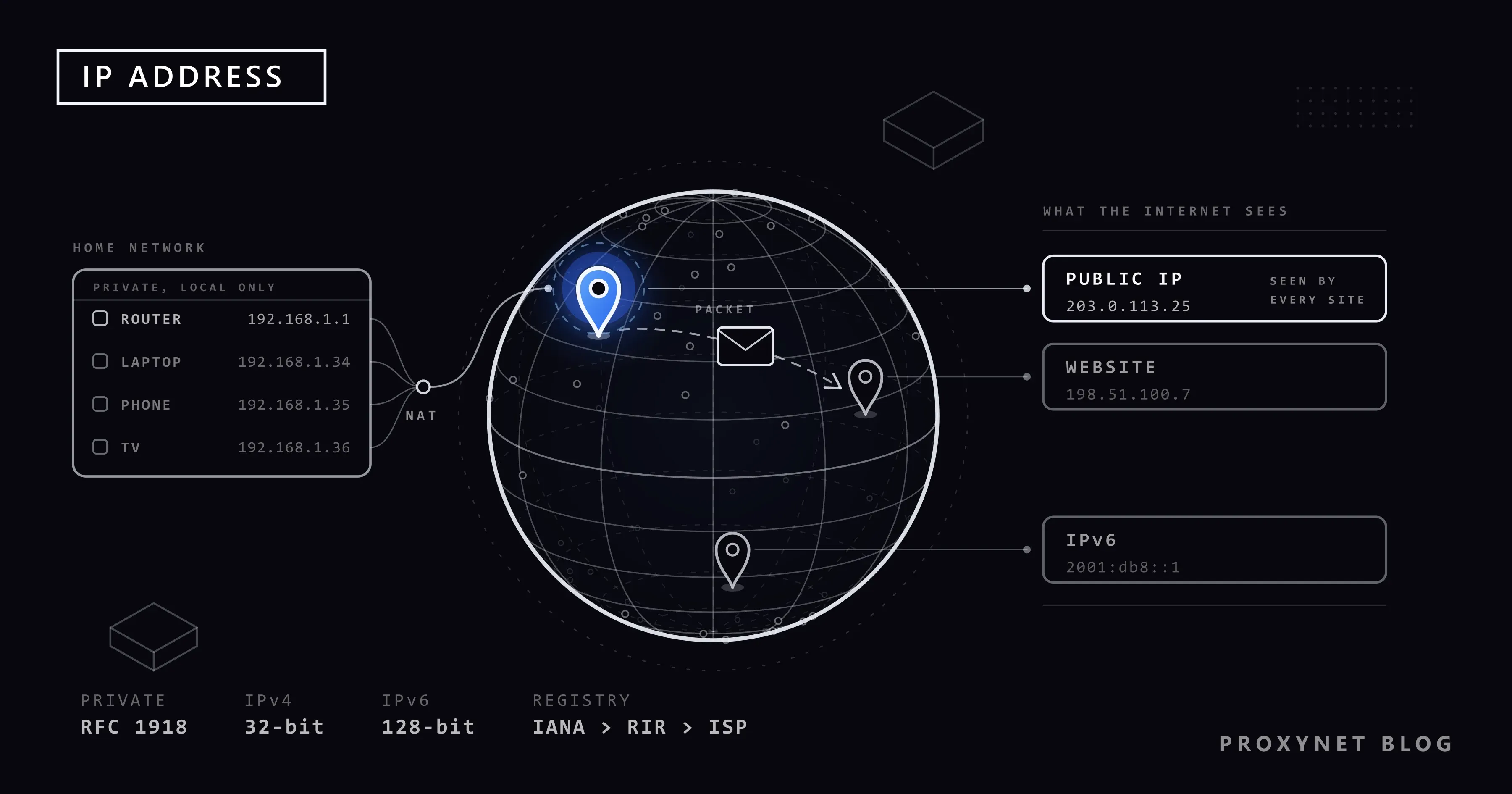
A single page load involves at least three addresses: your device's local address, your router's public address and the site's address. This is the order in which they are used:
- Your device gets a local address. When your phone joins the home Wi-Fi, the router gives it a private address such as
192.168.1.34. This happens automatically through DHCP, the service that hands out addresses on a network. - The site's name becomes a number. You type a site name. Your device asks a DNS server which IP address belongs to that name and gets back something like
198.51.100.7. We explain this lookup in What Is DNS?. - The request leaves with two addresses. Your device sends the request with its own local address as the sender and the site's address as the recipient.
- The router swaps the sender address. A private address is not valid on the internet, so the router replaces it with the public IP your provider gave it and notes which device sent the request. This swap is called NAT (network address translation).
- The site replies to your public IP. The server only ever sees your public address, so that is where it sends the page.
- The router hands the reply to the right device. It checks its notes, sees that the reply belongs to your phone and forwards it to
192.168.1.34.
Step 4 explains a lot of everyday confusion. All the devices in your home share one public IP, so a website cannot tell your laptop from your TV by address alone. And the local address you see in your settings never reaches the site at all.
Public vs private IP address: what is the difference?
Think of a company switchboard. The company has one phone number that the outside world calls, and inside the office every desk has a short extension number. The switchboard connects outside calls to the right extension. Your public IP is the company number, and the private addresses in your home are the extensions. Two companies can both use extension 101 without any clash, just as millions of homes use 192.168.1.34 at the same moment.
| Public IP | Private (local) IP | |
|---|---|---|
| Who assigns it? | Your internet provider | Your router, or the network you join |
| Who sees it? | Every site, app and game server you connect to | Only devices on the same network |
| Is it unique? | Yes, on the whole internet, though a provider can share one address among customers | No, the same addresses repeat in every home |
| What does it look like? | 203.0.113.25 or a longer IPv6 address | Starts with 192.168., 10. or 172.16. to 172.31. |
| Where do you see it? | On a "what is my IP" site | In the Wi-Fi or network settings of the device |
| When does it change? | When the provider reassigns it, or when you switch networks | When the router hands out addresses again, or you join another Wi-Fi |
The private ranges are fixed by RFC 1918, which sets aside three blocks for private networks and says packets with these addresses should not be forwarded between networks on the internet. That is why a private address only works inside its own network:
| Range | Short form | Where you usually meet it |
|---|---|---|
10.0.0.0 to 10.255.255.255 | 10/8 | Office networks and some home routers |
172.16.0.0 to 172.31.255.255 | 172.16/12 | Office networks and virtual machines |
192.168.0.0 to 192.168.255.255 | 192.168/16 | Most home routers |
What does 192.168.x.x mean?
If an address starts with 192.168, you are looking at a private address handed out by a router. The router usually keeps an address at the start of the range for itself, such as 192.168.1.1 or 192.168.0.1. That is the address you type into a browser to open the router's admin page.
Two more addresses often confuse people. 127.0.0.1 always means "this device itself" and is used by programs that talk to each other on the same computer. An address starting with 169.254 means the device did not get an address from the router and gave itself one; it usually points to a Wi-Fi or router problem rather than to anything wrong with the device.
IPv4 vs IPv6: why are there two formats?
An IPv4 address is 32 bits long, as RFC 791 defines it. It is written as four numbers from 0 to 255 separated by dots, such as 203.0.113.25. Thirty-two bits allow a little under 4.3 billion addresses, and the internet outgrew that long ago. RIPE NCC, the registry for Europe, the Middle East and Central Asia, handed out the last addresses of its free IPv4 pool in November 2019; new networks in the region now join a waiting list for addresses that are returned.
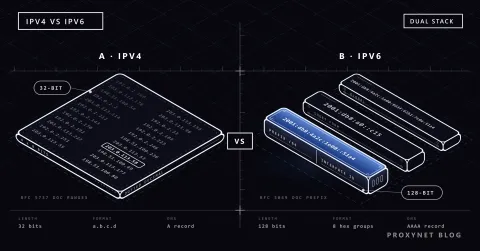
IPv6 is the long-term answer. RFC 8200, the current IPv6 standard, raises the address size from 32 bits to 128 bits. An IPv6 address is written as eight groups of up to four hexadecimal digits (0-9 and a-f) separated by colons. Under the writing rules in RFC 4291, a run of groups that are all zero can be shortened to :: once per address, so 2001:db8:0:0:0:0:0:1 becomes 2001:db8::1.
| IPv4 | IPv6 | |
|---|---|---|
| Length | 32 bits | 128 bits |
| Written as | Four decimal numbers with dots: 203.0.113.25 | Eight hexadecimal groups with colons: 2001:db8::1 |
| How many addresses? | A little under 4.3 billion | So many that running out is not a practical concern |
| At home | All devices share the router's one public address through NAT | Each device can get its own public address |
| Support | Every site and network | Many sites and networks, not all |
Many connections today run both formats side by side. Your device uses IPv6 when the site and your provider support it and falls back to IPv4 otherwise. That is why a "what is my IP" site may show you two addresses, one with dots and one with colons. What this means when you pick a proxy is covered in IPv4 vs IPv6 Proxies.
Does your IP address change?
It depends on the type of line. Most home connections have a dynamic IP: the provider can give your router a different public address after a restart, a power cut or on its own schedule. A static IP stays the same, which businesses need for servers and for services that only accept connections from a known address. Your local IP can change too, when the router hands out addresses again. The full comparison, including how to tell which one you have, is in Static IP vs Dynamic IP.
Who hands out IP addresses?
No single company owns the internet's addresses. They are handed down a chain:
- IANA (Internet Assigned Numbers Authority) keeps the global pool. Its number resources page explains that it allocates blocks of addresses to five Regional Internet Registries as they need them, and does not normally allocate to providers or end users directly.
- The five regional registries allocate to providers in their region: AFRINIC (Africa), APNIC (Asia-Pacific), ARIN (Canada, the USA and some Caribbean islands), LACNIC (Latin America and some Caribbean islands) and RIPE NCC (Europe, the Middle East and Central Asia, which includes Türkiye).
- Your internet provider assigns one of its addresses to your router, or to your phone when it is on mobile data.
- Your router hands out private addresses to the devices in your home through DHCP.
Each registry keeps a public database that shows which organisation holds which block. That is why an "IP lookup" can tell you the name of the provider behind an address, but not the name of the person using it.
What is CGNAT and why might you share your public IP?
Because IPv4 addresses ran short, many providers, especially mobile carriers, put several customers behind one public address, a setup called CGNAT (carrier-grade NAT). Your router then gets an internal address from the provider, the address websites see belongs to a shared device in the provider's network, and What Is CGNAT? shows how to check whether your line works this way.
How do you find your public IP address?
Your public IP is the one websites see, so the easiest way to find it is to ask a website. On the device and network you want to check, search for "what is my IP" and open one of the checker sites in the results. The number at the top is the address your connection arrived from.
Keep three things in mind when you read the result:
- The result depends on the network. On home Wi-Fi your phone and laptop show the same public IP, because both go out through the same router. Switch the phone to mobile data and it shows the carrier's address instead.
- Two addresses mean two formats. If the site shows one address with dots and another with colons, your line has both IPv4 and IPv6.
- The country and city are estimates. Checker sites read them from location databases, not from your device, and the city is often wrong. We explain why in Why Is My IP Location Wrong?.
Your router's admin page also shows the public address it received, usually in a section called Internet or WAN. If that address differs from the one on the checker site, your provider is probably using CGNAT.
How do you find your local IP address on Windows, Mac, Android and iPhone?
The local IP is shown in the network settings of each device. The steps below come from the vendors' own help pages.
Windows 11 and Windows 10
Microsoft's network settings page gives the same steps for both versions:
- Open Start > Settings > Network & internet.
- For Wi-Fi, select Wi-Fi and then the network you are connected to. For a cable connection, select Ethernet.
- Your local IP is listed next to IPv4 address.
A shortcut: right-click the Wi-Fi or network icon on the taskbar and choose Network and internet settings, then select Properties next to your connected network.
Mac
Apple's TCP/IP settings guide uses this path:
- Choose Apple menu > System Settings, then click Network in the sidebar.
- Click the connection you use, for example Wi-Fi, then click Details.
- Click TCP/IP (you may need to scroll). The tab shows your IPv4 address and the address of your router.
Android
Menu names vary by phone brand. These steps are from Google's Android Wi-Fi help and match Pixel phones and others with the standard Android menus:
- Open the Settings app and tap Network & internet > Internet.
- Next to the Wi-Fi network you are connected to, tap the gear icon (Wi-Fi settings).
- Scroll down to the network details, where the IP address is listed.
On other brands, look for the same kind of details screen for your connected Wi-Fi network.
iPhone
Apple's private Wi-Fi address page describes how to reach the network's info screen:
- Open the Settings app and tap Wi-Fi.
- Tap the More Info button (the small "i") next to the network you are connected to.
- Scroll to the IPv4 address section. The IP address listed there is your local address on that Wi-Fi.
The same screen has the Private Wi-Fi Address option. That setting is about your MAC address, the hardware address of the Wi-Fi chip, not your IP; the difference is explained in What Is a MAC Address?.
On mobile data, the quickest check on any phone is a "what is my IP" site, which shows the address the internet sees.
Advanced: find your IP with one command on Windows
If you are comfortable with a command window, there is a faster way on Windows. Type cmd into the Start menu, open Command Prompt and run:
ipconfigAccording to Microsoft's ipconfig reference, the command without extra options displays the IPv4 and IPv6 addresses, the subnet mask and the default gateway of every network adapter. Look under the adapter you use, Wi-Fi or Ethernet. The IPv4 line is your local IP, and the default gateway is usually your router. On a normal home connection your public IP does not appear in this output.
What does your IP address reveal, and what does it not?
An IP address says less about you than many people fear, but it is not empty either.
What it can reveal:
- Your internet provider or the organisation that holds the address, from the registries' public databases.
- The type of network: a home line, a mobile carrier, a company or a data center.
- An approximate location, at best the city and often only the region or country.
What it does not reveal:
- Your name or your home address. The record of which subscriber used which address at what time is kept by your provider; it is not in any public database.
- Which device in your home made the request, or its local IP.
- Your accounts. A site knows who you are once you sign in, not from the address.
The limits of location lookups, and what to do if someone has your IP, are covered in Why Is My IP Location Wrong?. One caveat: a browser feature called WebRTC can expose your local IP to a site; WebRTC and DNS Leaks shows how to check.
Can you change or hide your IP address?
Yes, and the method depends on which address and how far you want to move it. Restarting the router or toggling airplane mode on mobile data can give you a new public IP from the same provider, in the same country. A VPN changes the address for all traffic from the device. A proxy changes it only for the browser or app you set it in, and lets you pick the country and often the city. Each method, with its menu paths, is in How to Change Your IP Address, and the choice between the last two is in Proxy vs VPN.
With a proxy, the type decides what kind of address you get. Residential Proxy give you addresses that belong to real home connections in the country and city you choose, and can rotate them as often as you need. ISP Proxy give you one address that stays the same, which suits signing in to the same account from the same address every time.
A new address does not make you a new person online. Your accounts, cookies and browser settings stay the same, and sites still recognise you by them.
What is an IP address used for?
- Getting replies back to you. Every page, message and video call needs an address to answer to; the lookup that turns a site name into an address is in What Is DNS?.
- Showing local content. Sites use the estimated country to pick a language, a currency or a catalogue, as explained in What Is Geo-Blocking?.
- Spotting unusual sign-ins. Banks and email services compare the address of a sign-in with the ones you normally use; see Why Your Bank Flags a Login from an Unusual Location.
- Allowing only known addresses. Some services and company systems accept connections only from addresses on a list, which is why Static IP for API Access matters to developers.
- Blocking abuse. Mail servers and sites refuse addresses that have sent spam or attacks; What Is an IP Blacklist? explains those lists.
- Checking prices in other markets. Businesses look at the same page from addresses in other countries to see what local customers see, the job behind our price monitoring page.
Common mistakes
- Thinking sites see your 192.168 address. That address stays inside your home. Sites see only your public IP.
- Typing a new local IP into Windows to change your public IP. The setting only changes the address inside your network. It can also cause an "IP address conflict" if another device already uses that number.
- Trusting the city on a checker site. It is a database estimate. A wrong city says nothing about where you actually are.
- Checking on the wrong network or browser. A phone on Wi-Fi shows the router's address, not the carrier's. If a proxy is set in one browser, check in that browser.
- Mixing up the IP and the MAC address. The MAC address identifies the network chip of a device and stays on the local network; the IP address is what the internet uses.
- Assuming that someone who knows your IP knows where you live. Public lookups stop at the provider and an approximate area.
Decision guide
| Your need | What to do |
|---|---|
| See the address websites see | Open a "what is my IP" site on that device and network |
| Find the address of your computer or phone at home | Windows: Settings > Network & internet; Mac: System Settings > Network > Details > TCP/IP; phones: the info screen of your Wi-Fi network |
| Open your router's settings | Type the default gateway, often 192.168.1.1 or 192.168.0.1, into a browser |
| The checker shows the wrong city | Location databases are estimates; see Why Is My IP Location Wrong? |
| The router's internet address differs from the checker | Your line is probably behind CGNAT; see What Is CGNAT? |
| A new public IP in the same country | Restart the router, or toggle airplane mode on mobile data |
| One browser or app from another country or city | Residential Proxy |
| The same address every time for an account or an allowlist | ISP Proxy, or a static IP from your provider |
Frequently asked questions
Is my IP address the same on Wi-Fi and mobile data?
No. On Wi-Fi your phone goes out with your router's public IP, and on mobile data it uses an address from your carrier. The public address changes the moment you switch from one to the other.
Does every device have its own IP address?
Every device on your home network has its own local IP. With IPv4, they all share the router's single public IP. With IPv6, each device can have its own public address as well.
Can someone find my home address from my IP address?
Not from public sources. Location databases stop at a city or region and are often wrong, and the link between an address and a subscriber sits in the provider's records. If you think someone is misusing your address, your provider is the party to contact.
Why does my IP address show a different city or country?
Location databases are updated only from time to time, providers move address blocks between regions, and mobile carriers often route traffic through a hub in another city. A VPN or proxy that is switched on will also change the country. If none of these apply, the database is most likely out of date.
Can two devices have the same IP address?
Two devices in different homes can have the same private address without any problem. On the same network they cannot: Windows shows an "IP address conflict" warning, and setting both devices back to automatic addressing usually fixes it. Many devices can share one public IP, as all the devices in your home do.
Is 192.168.1.1 my IP address?
Usually not. On most home networks it is the router's own local address, shown as the default gateway. Your device has a different local address in the same range, and your public IP is something else entirely.
Summary
An IP address is the number that lets data find a device, and every packet carries two of them: the sender's and the recipient's. At home your devices have private addresses such as 192.168.1.34 that never leave the house, while websites see only the public IP your provider gave your router. IPv4 addresses are four numbers with dots and have run short; IPv6 addresses are longer, use colons and are plentiful. Addresses come down a chain from IANA to regional registries to your provider and your router. You can see your public IP on a "what is my IP" site and your local IP in the Wi-Fi settings of any device. An IP address points to a provider and a rough area, not to your name. If you need a browser or app to connect from an address in a country or city you choose, have a look at our proxy services.