You type something into Google, press Enter, and a plain white page opens where the results should be: "Our systems have detected unusual traffic from your computer network". Most of the time there is an "I'm not a robot" box underneath. You tick the box, pick out the crosswalks and the buses, and two searches later the same page is back. Sometimes there is no box at all, only "Please try your request again later".
This article explains why Google shows this page, what each line on it means and how to work through the fix in order. Search operators, browser extensions and school or office networks each get their own section, because each plays a part in this warning. We also touch on the similar warning in ChatGPT. None of the steps needs technical knowledge.
What does Google's unusual traffic warning mean?
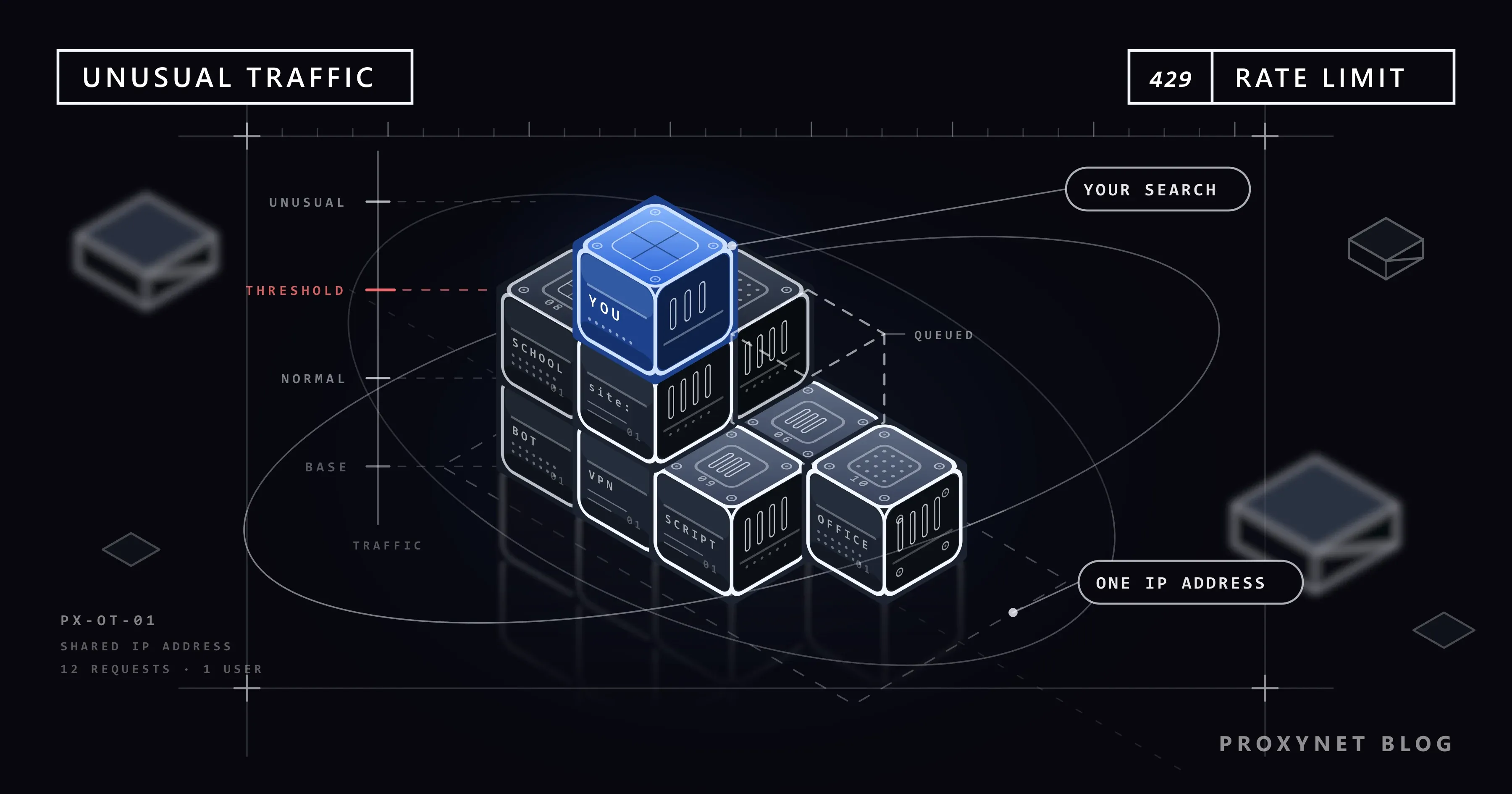
People are not the only ones who send queries to Google. Programs do too: software that copies result pages, tools that measure rankings, malware. When the searches coming from an address look as if a program is sending them, Google puts a verification page in the way before it shows any results.
The wording is the same across Google's own pages. The warning itself says "unusual traffic from your computer network", and Google's help article carries the same phrase in its title. The variants people type into the search box, such as "our systems have detected unusual traffic" or "Google keeps asking for CAPTCHA", all describe this one page.
There are three things to know:
- The warning is given to an address, not to an account. It appears even when you are not signed in to a Google account. Changing your password or opening a new account changes nothing.
- It is not proof of a virus. Malware is only one of the possible causes. In most cases the cause is other users who share the address with you.
- It is temporary. Google says on the page itself that the block will expire shortly after the automated requests stop.
What does the sorry page say?
When this page opens, look at your browser's address bar: the address starts with google.com/sorry/. That is why developers call it the "sorry page". The page comes in two versions, and the one you see decides what to do next.
| The screen you see | What it means | First thing to do |
|---|---|---|
| The message and an "I'm not a robot" box | Google is not sure; show that you are a person and you can keep searching | Solve the verification once |
| Only the message, no box, "try your request again later" | Requests from your address are being held back entirely for now, or the verification box failed to load in your browser | Check that JavaScript is turned on, then wait |
Under the message, in the "Why did this happen?" section, Google says four things: the page appears when requests that come from your network and seem to violate the Terms of Service are detected automatically; those requests may have been sent by malicious software, a browser plug-in or a script (a small program) that sends automated requests; if you share your connection, a different computer using the same IP address may be responsible; and you may also see the page if you use advanced terms that robots are known to use, or send requests very quickly.
At the very bottom of the page there are three more lines: IP address, Time and URL. The IP address shows which address Google sees you coming from at that moment. The Time line gives the moment of the warning down to the second. These two lines are useful when you report the problem to a network administrator or to your internet provider, so remember to take a screenshot.
Why does Google show this page?
Google's official help page on the subject states plainly what it counts as automated traffic: searches sent by robots, computer programs, automated services and search scrapers, plus software that sends searches to Google to find out how a website ranks. So what Google is looking for is not "a person who searches a lot" but a program that searches.
The same page also lists why you can see the warning even if you are not running such a program yourself:
- Malware installed on your device without your knowledge may be sending searches in the background.
- If you are on a shared network such as a school or a business, someone else on the same network may be sending automated searches.
- If you use a VPN, other users of the same VPN may be sending automated searches. Google adds that some VPNs and IPv6 tunnel services cause all of their traffic to be blocked, because abusive and normal traffic cannot be told apart on those addresses.
- Other customers of the same internet provider as you may be sending automated searches.
The last three items meet at one point: your address does not belong to you alone. Google cannot know how many people stand behind an address; it looks at the total traffic coming from it. We explained in detail why home and mobile subscribers usually share a common address in What Is CGNAT?. For the YouTube version of the same mechanism, see YouTube 'Confirm You're Not a Bot' Error.
Why do search operators trigger this page?
Search operators are small commands you add to a query to narrow it down. site: searches within one site only, quotation marks search for an exact phrase, a minus sign leaves a word out, and filetype: finds a particular file type. The full list is on Google's refine your searches page. Using these operators is entirely allowed.
The problem is this: the programs that collect result pages use these same operators more than anything else, because a site: query is the way to list all of a site's pages on Google. This is why the sorry page mentions advanced terms that robots are known to use.
A typical scenario goes like this. You are looking for sources for an assignment: you write a query that starts with site:edu filetype:pdf, change one word each time and search again, and open the results ten at a time in new tabs. Dozens of operator searches packed into a few minutes can bring up the verification page, all the more so when they come from a shared dorm address.
Solve the verification once, leave a few seconds between searches and go through the results one by one instead of opening tabs in bulk. You do not have to stop using operators. If you want to know which pages of your own site are indexed, look at the Pages report in Search Console instead of trying site: queries one after another; Google gives that information there in one place.
Which extensions and programs send queries to Google in the background?
The "browser plug-in" mentioned on Google's page is the cause most people never think of. Some extensions send requests to Google without you doing anything:
- SEO extensions. Extensions that write a rank number, keyword volume or site score next to the search results can run extra queries with every search you make.
- Rank tracking programs. Software that is installed on a computer and searches Google for a list of keywords at set intervals is exactly what Google defines as automated traffic. One computer running it is enough for the whole office to see the verification page.
- Extensions that reload a page automatically. An extension set to reload a result page once a minute means one search a minute.
- Free VPN and proxy extensions of unknown origin. Some of them also use your connection for other users' traffic. We covered the risks in Are Free Proxies and Web Proxy Sites Safe?.
For a quick test, open your browser's incognito window; extensions do not run there by default. If the warning does not appear in the incognito window, go back to a normal window, open the three-dot menu at the top right of Chrome, follow Extensions > Manage Extensions and turn the extensions off one at a time until you find the one causing the problem.
Step-by-step fix
1. Solve the verification once
If the box appears, tick it, and answer the image question if one follows. This is the first step Google recommends. Reloading the page again and again has the opposite effect: every reload is one more request to a system that already thinks too many requests are coming in.
2. If the box is missing, check JavaScript and your browser
According to Google's help page, the verification box only appears if your browser is a supported one and JavaScript is enabled. JavaScript is the language that runs the interactive parts of pages; when it is off, the box never loads. In Chrome, under Settings > Privacy and security > Site settings > JavaScript, "Sites can use JavaScript" should be selected. If you use an extension that blocks scripts, allow google.com and update your browser.
3. Turn off the VPN and the proxy
If a VPN app, an in-browser VPN or a forgotten system proxy setting is active, turn it off and try again. We gave the menu paths step by step in our YouTube article; VPNs built into browsers and antivirus suites are covered in VPN or Proxy Detected Error. The difference between the two is explained in Proxy vs. VPN.
4. Weed out extensions and background programs
Run the incognito window test from the previous section. If a program on your computer tracks rankings or sends searches in bulk, stop it.
5. Scan for malware
If the warning appears on one computer only and has nothing to do with extensions, run a scan. On Windows, type "Windows Security" into the Start menu, open the app and press Quick scan under Virus & threat protection. More thorough options are described on Microsoft's Windows Security page. Also remove programs that were installed recently and that you do not recognize.
6. Try a different network
Share your phone's mobile data with the computer and run the same search. If the warning disappears, the problem is not your device but the address of the first network. At home, turning the modem off and back on after half a minute may bring you a different address; we explained when that works in How to Change Your IP Address.
7. Report it to the network administrator or your internet provider
On a shared network, send a screenshot of the IP address and Time lines on the sorry page to the network administrator. If the warning lasts for days on a home connection, the last step Google suggests is to contact your internet provider.
What should you do if the CAPTCHA keeps coming back?
An "I'm not a robot" box that returns with every search does not mean the verification is broken. It means that, as far as Google can tell, automated requests are still coming from your address. Ask three questions to narrow down the source.
Does it appear on every device at home? Then the problem is the address: either you are on a shared address or one of the devices at home is sending requests in the background. You can take the devices off the Wi-Fi one at a time and watch which one makes the warning stop when it leaves.
Does it appear in one browser only? Then look at extensions, the JavaScript setting and cookies. A browser that blocks cookies entirely, or deletes them every time it closes, looks to Google like a first-time visitor on every visit. If the box you ticked clears itself after a while, or never loads at all, What Is CAPTCHA? explains expired approval codes and extensions that block the box.
Does it appear on one device only, in every browser? In that case a program or malware on that device is the more likely cause.
Why is it more common on school, dorm and office networks?
On institutional networks, hundreds of computers usually reach the internet through a single address. To Google this is one visitor who searches all day without a break. As long as the total traffic stays normal nothing happens; but if a rank tracking program, malware or a script sending queries in bulk is running on just one computer on the network, everyone sharing that address sees the verification page.
What you can do as a user on these networks is limited: solve the verification and report the situation to the IT department, with the IP address and the time attached. The real work falls to the network administrator. Google's help page advises administrators to locate the sources of automated searches and block them, and says users should be able to search normally once those searches stop. The same page carries one more warning: organizations about to buy IP space from a broker should review it thoroughly first and, if possible, test the network beforehand to make sure it can access major websites and has no existing blocks on it. The logic is clear: an address brings its history along to the new owner.
If the same warning appears on your phone
On mobile data, carriers gather large numbers of subscribers behind the same public address, so you can run into the verification page on your phone without having done anything. Switching airplane mode on and off for a few seconds can get you a different address. If it does not, switch between Wi-Fi and mobile data. If a VPN app is installed on the phone, turn it off.
Is the "Unusual activity detected" warning in ChatGPT the same thing?
The logic is the same, the details differ. OpenAI's error messages help page says this warning is shown when its systems detect traffic that resembles automated or unusual behavior. The suggested steps are familiar: disable VPNs and proxies that route your traffic through flagged addresses, restart the browser or the device, and start a fresh session in a private window.
The difference is on the account side. Google's warning looks at the network only; ChatGPT's also takes the use of your account into consideration. In the same list OpenAI advises you to make sure you are not sharing your account with other people and to change your password. If the warning continues even though you use no bots or automation tools, it asks you to write to the support team.
How does the same warning look on other sites?
Large classifieds and shopping sites show warnings of their own in similar situations, along the lines of "we have detected unusual access"; the mechanism stays the same, only the party making the decision changes. On sites that sit behind Cloudflare you see different faces of the same check: we covered the waiting screen in Cloudflare Verify You Are Human, the rate limit in Error 1015 and the outright refusal in Sorry, You Have Been Blocked. The logic of rate limiting is in 429 Too Many Requests.
Common mistakes
- Reloading the page over and over. It raises the number of requests and can lengthen the block.
- Switching on a free VPN when the warning appears. Google's own page says that all traffic from some VPNs gets blocked. A crowded VPN address usually sends you into verification more often, not less.
- Looking for the problem in your Google account. Because the warning is given to the address, changing your password or signing out does not change the outcome.
- Trusting fake verification pages. The real page is on
google.comand only asks you to tick a box or pick images. A "verification" page that asks you to press Windows + R and paste some text, or to download a file, is a scam; Microsoft documented this method in detail in its ClickFix analysis.
For businesses and SEO teams: what to use instead of automated queries
This section is for agencies and site owners who see the warning because their work involves sending many queries to Google. Google's spam policies explicitly prohibit, under the heading "machine-generated traffic", scraping results for rank-checking purposes and automated access without permission. Changing the IP address does not change this rule, and it does not stop the program that sends the queries from being automated traffic.
The permitted route for rank tracking is Search Console. The Search Analytics API returns the average position at which your site appears for each query, together with click and impression counts. We described the setup and its limits in How to Automate SEO Rank Tracking.
Manual checks are a separate matter. A specialist looking at how the result page appears from another country or city for a handful of critical queries is work on a human scale; we compared the methods in How to Search Google from Another Country. When you do this through a proxy, how often you meet the verification page is decided by the history of the address. On free addresses shared by many people you cannot know who is sending what at the same moment, and the address has usually been flagged before you arrive. ISP Proxy and Residential Proxy addresses are registered to service provider networks and home connections. At Proxynet, an IP address is not given to a second user on the same platform at the same time, which lowers the chance of landing in verification because of someone else's traffic. This is not a guarantee of passing: if the verification appears, you solve it yourself and keep the number of queries on a human scale. Other use cases for SEO teams are on our SEO proxy page.
Decision guide
| Your situation | What to do |
|---|---|
| The box never appears | Turn on JavaScript, turn off the script blocker, update the browser |
| The box appears and a VPN or proxy is on | Solve the verification, turn off the VPN |
| You run operator searches in quick succession | Leave a few seconds between searches, do not open tabs in bulk |
| It appears in one browser only | Try an incognito window, turn extensions off one at a time |
| It appears on one computer only, in every browser | Scan for malware, remove programs you do not recognize |
| You are on a school, dorm or office network | Report it to the network administrator with the IP address and time |
| It has appeared on every device at home for days | Restart the modem; if it continues, contact your internet provider |
| You send automated queries to Google for rank tracking | Stop the program, move to the Search Console API |
Frequently asked questions
Does this warning mean there is a virus on my computer?
Not by itself. Google lists malware among the possible causes, but VPNs, shared networks and addresses shared out by the internet provider are far more common causes. If the warning disappears on a different network, the problem is not your computer. If it appears on a single device only and on every network, it is time to run a scan.
How long does the unusual traffic warning last?
Google gives no exact duration; it only says that the block will lift shortly after the automated requests stop. If the source is on your own device, stopping it is enough. If the source is someone else who shares the address with you, the duration is out of your hands; moving to a different network gets results faster than waiting.
Why does it appear in one browser only?
Two browsers on the same computer reach Google from the same address, so the difference is in the browser: an extension that sends queries, JavaScript turned off, or blocked cookies. The incognito window test shows which one it is.
Is it forbidden to search with operators like site:?
No. Operators are tools described on Google's own help pages, and anyone can use them. What is forbidden is having a program send these queries. If your manual operator searches come very fast and back to back, the verification page may appear; solving it and slowing down a little is enough.
Why does it appear on mobile data when I have done nothing?
Mobile carriers send large numbers of subscribers out to the internet from behind a single public address. If another subscriber's traffic on that address has caught Google's attention, you see the verification page too.
Should I use an extension or service that solves the CAPTCHA for me?
We do not recommend it. The verification page is not a fault, it is a question; having a program answer it does not remove the source of the problem, and it adds a new risk to your browser. If the warning appears often, the job is to find where the automated requests come from and stop them.
Summary
Google's "unusual traffic from your computer network" warning is given not to your account but to the address you use to reach the internet, and it says that searches resembling the work of a program are coming from that address. Solve the verification once and do not reload the page over and over. If the warning repeats, turn off the VPN, weed out extensions with the incognito window test, slow down your operator searches and run a malware scan if needed. On shared networks, go to the network administrator with the IP address and time shown on the sorry page. For work such as rank tracking, use the Search Console API instead of sending automated queries to Google; if you want to work with addresses that are yours alone for your manual location checks, take a look at our proxy services page.