You try to open a site and instead of the page you get a plain screen with "Verifying you are human" in the middle. Below it there is a small checkbox or a spinning circle, and next to it the line "This may take a few seconds". Most of the time it really does take a few seconds and the site loads. Sometimes the circle never stops: the page reloads, the same screen comes back, and you tick the same box for the fifth time. It can happen on a classifieds site, on social media, on an AI chat page or on your bank's website.
This article explains what that screen is, which process runs behind it and when the check fails to finish. Then it walks through what to do on a computer, on a phone and in the small browsers inside apps. It also covers how to tell whether the problem is on your side or on the site's side. There is no code here, and no step needs technical knowledge.
What does "Verifying you are human" mean?
This screen does not come from the company that hosts the site but from Cloudflare, which sits in front of it. Cloudflare passes the traffic of a large number of websites through its own network. Instead of letting every request straight through, a site owner can choose to run some of them through a check first. The screen you see is that check.
What you get here is not a classic puzzle. Cloudflare does not ask you to type distorted letters or to "select all squares with traffic lights". It inspects the browser itself and lets most visitors through without asking for anything. The most you are asked to do is tick a small box.
The language of the screen does not depend on the site either. The verification page looks at your browser's language setting and shows the text accordingly. The same site says "Verifying you are human" in an English browser and shows the local wording in a browser set to another language.
Do not confuse this screen with three close relatives. The red-headed "Sorry, you have been blocked" page is not a check but a flat refusal, and we covered its causes in Sorry, You Have Been Blocked. Error 1015, which says "You are being rate limited", appears when too many requests are sent in a short time, and we handled it in What Is Error 1015?. Google's "unusual traffic" warning has nothing to do with Cloudflare: it is Google's own check, and it is the subject of Google Unusual Traffic Error.
What happens behind the verification screen?
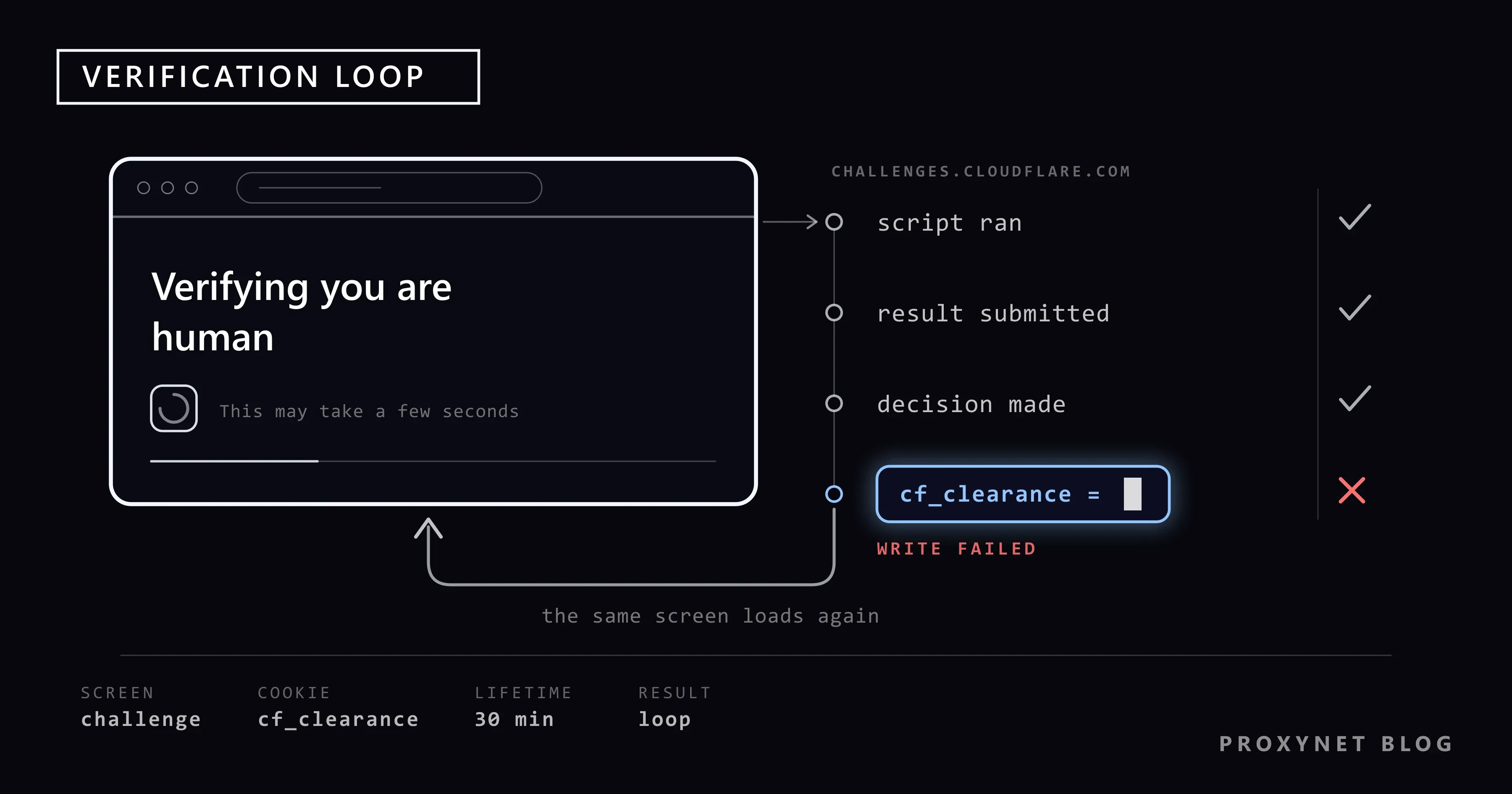
The screen is not idle. While you wait, these steps run:
- Your request is held. Before passing your request to the site, Cloudflare steps in and returns a full-page verification screen. None of the site's own content reaches your browser at this stage.
- A small script runs. The verification screen runs a piece of JavaScript in your browser. That script collects signals about the browser environment: how the browser identifies itself, whether its screen and graphics properties are consistent, and so on.
- The result goes to the verification address. The collected result is sent to
challenges.cloudflare.com. The fact that verification runs over a separate address is the root of many of the problems you will see later in this article. - A decision is made. If the signals are clean, the screen switches to "Success". If there is doubt, you are asked to tick a box. That click is less about the verification itself and more about how the browser behaves at that moment.
- A clearance cookie is written. Once you pass, a cookie named
cf_clearanceis left in your browser and the original request is forwarded to the site. The page finally opens.
Every link in that chain depends on the previous one. If the script does not run, no result is produced; if the result cannot be sent, no decision is made; if the cookie cannot be written, everything starts over on the next page.
How many kinds of verification are there?
The site owner chooses which check runs. The type of screen you see follows from that.
| Type | What you see | Notes |
|---|---|---|
| Non-interactive challenge | You click nothing and wait while the browser finishes the script | Usually takes less than five seconds |
| Managed challenge | Most of the time it turns to "Success" by itself, and asks for a tick when needed | This is the option Cloudflare recommends to site owners |
| Interactive challenge | You have to act to get through | Cloudflare recommends a managed challenge instead |
| Turnstile widget | A small box embedded in the page, usually on login and form pages | Not a full page; it runs before the form is submitted |
Turnstile is the name of the box placed inside the page. It uses the same infrastructure as the full-page verification screen, which is why both get stuck for the same reasons. If you are curious about Cloudflare's newer layer that watches behaviour across a session, What Is Cloudflare Precursor? covers that side. Google's reCAPTCHA box and form errors such as "Invalid Captcha" are covered in What Is CAPTCHA?.
I passed the check, so why is it asking again?
The cf_clearance cookie written when you pass is the proof that you cleared the check. As you move around the site, Cloudflare looks at that cookie first; while it is valid, no new verification is shown.
The site owner sets the lifetime of the cookie. According to Cloudflare's challenge passage documentation, the default is 30 minutes and the recommended range is between 15 and 45 minutes. Seeing the check again half an hour later on the same site is therefore normal, not a fault.
The same document adds an interesting detail: when Cloudflare evaluates the cookie, it allows a few extra minutes for clock skew. That allowance is for small deviations. If your device clock is hours or days off, the cookie can look expired from the start and verification can be asked for on every page. That is why the clock setting gets its own step in this article.
It also matters that the cookie is tied to the device it was issued to. The same cookie cannot be carried to another machine and reused. This is why the "copy and paste the cookie" recipes circulating online do not work.
Why does the screen loop?
On its own challenge solve issues page, Cloudflare lists the main reasons for a loop: an unstable network connection, browser settings or extensions that block the script, an unsupported browser, disabled JavaScript and detection errors. The same page suggests checking browser compatibility, disabling extensions, enabling JavaScript, trying a private window, switching to another browser or device, temporarily turning off VPNs and proxies, and connecting to a different network.
The table below tells you where to look, based on what you see.
| What you see | Likely cause | Where to look first |
|---|---|---|
| I tick the box, the page reloads, the screen comes back | The script runs but the clearance cookie does not stay | Cookie settings and privacy extensions |
| The circle spins and never moves on | The script cannot load or the verification address is unreachable | Ad blocker, security software, DNS filter |
| The screen never appears, the page stays blank | JavaScript is off or the browser is very old | Browser version and JavaScript setting |
| It happens on one site only | That site's rule finds you suspicious | Change network, wait a few hours |
| It happens on every site and every device | The common factor is your network | Router, VPN, clock setting, network change |
| It only happens when you open a link inside an app | The limits of the in-app browser | Open the link in the real browser |
Try these three things first
Before the long list, three quick checks work for most people:
- Reload the page once and wait. Do not reload repeatedly. Every reload is a new request and it does not fix the state.
- Open it in a private window. Extensions are usually disabled in your browser's private window. If the site opens there, an extension is causing the problem.
- Turn off your VPN if it is on. If you have a VPN app or a browser extension, switch it off and open the page again.
If none of the three helps, work through the steps below in order.
Step by step on a computer
1. Fix the device clock and time zone
A wrong clock is the quietest enemy of verification. Encrypted connections and clearance cookies rely on timestamps; if the clock has drifted, everything looks stale the moment it is written.
On Windows, go to Start > Settings > Time & language > Date & time and make sure Set time automatically and Set time zone automatically are on. The details are on Microsoft's time, date and time zone settings in Windows page. On phones it is enough to search for "date and time" in the Settings app and switch the automatic setting on.
Clocks drift on their own: a desktop with a dead battery, a laptop that stayed off for a long time, or a phone whose time zone was left on manual after a trip abroad all show the same symptom.
2. Allow cookies
If the clearance cookie cannot be written, verification is requested on every page. Strict privacy settings and preferences that delete cookies at every close produce exactly that.
In Chrome, open the three-dot menu at the top right and go to Settings > Privacy and security > Third-party cookies. If an option that blocks cookies entirely is selected, change it, or add the site you are struggling with to the list of exceptions. When you write an exception for a whole domain, you can put [*.] in front of the address. Google's manage cookies in Chrome page has the illustrated steps.
On an iPhone, go to Settings > Apps > Safari > Advanced and turn off Block All Cookies. Apple's enable cookies on iPhone page shows the same path. If you use Firefox and have left enhanced tracking protection on "Strict", define an exception for the site you are struggling with.
If your browser deletes cookies automatically when it closes, consider turning that off. A clean browser looks tidy, but you end up being verified from scratch on every visit.
3. Make sure JavaScript is enabled
Verification runs entirely on JavaScript. If it is off, the screen either never appears or never moves on.
In Chrome, open Settings > Privacy and security > Site settings, find the JavaScript row and check that it is allowed. If you want to change the setting for one site, you can use the icon to the left of the address bar and go to Site settings. Both paths are described on Google's site settings permissions page. On work computers an administrator sometimes locks this setting; in that case you need to talk to your IT team.
4. Turn extensions off one by one
Ad blockers, script blockers and fingerprint protections can block the pieces verification needs. Cloudflare says plainly that extensions which modify the browser's user agent value or web APIs such as Canvas and WebGL break the check.
- Turn all extensions off temporarily and reload the page.
- If the site opens, turn them back on one at a time until you find the culprit.
- You do not have to delete the problematic extension; most of them can be disabled for a single site.
Extensions that change the browser identity top this list. If you are curious why, What Is a User Agent? and What Is Browser Fingerprinting? explain the mechanism.
5. Update the browser
Cloudflare states that browsers and operating systems more than five years old, or without security updates for over two years, may have trouble with challenges, and that Internet Explorer is not supported at all. Open the "About" section in your browser's menu and run the update. Heavily modified or embedded browser engines fall under the same limit.
6. Check security software and DNS filters
The verification result has to reach challenges.cloudflare.com. If that address is blocked, the screen cannot finish. Three causes are common: the content filter of a corporate network, family protection packages and the web protection module of security software installed on the computer.
- Turn off the web protection module of your security software for a few minutes and try again.
- If a custom DNS server is defined on your router or device, switch back to the default temporarily.
- If you are on a company network and everyone sees the same screen, give your IT team that address.
Some users see the warning "Please unblock challenges.cloudflare.com to proceed" directly on the screen. When that sentence appears the cause is spelled out: the verification address cannot be reached.
7. Try another network
This is the fastest way to find out whether the problem is in the device or in the network. Turn on the hotspot on your phone and connect the computer to it, or turn Wi-Fi off on the phone and try over mobile data. If the site opens on the other network, the issue is at the address the first network goes out from.
Shared networks are at a disadvantage here. On dormitory, café and office connections, hundreds of people go out through a single address. Your operator may also be putting many subscribers behind one address; we explained that mechanism in What Is CGNAT?. If you want to try changing your address, the ways are in How to Change Your IP Address.
If you use a VPN, turn it off and try. Addresses taken from free VPN and proxy lists are the ones that trigger verification most often; we covered the reason in Are Free Proxies Safe? and VPN or Proxy Detected Error. If you are not sure how the two differ, Proxy vs. VPN is a good starting point.
On a phone and in in-app browsers
Verification gets stuck more often in the small browser windows inside apps. When you tap a link in Instagram, X or an email app, the page opens in the app's own window rather than in the full browser. In those windows JavaScript capabilities can be limited, cookie and storage support can be missing, and access to the verification address can be blocked.
The fix is simple: use Open in browser from the menu at the top right of the page, or copy the link and paste it into Chrome or Safari. Verification usually passes there on the first try.
On a phone, also check the following:
- Update the browser app from the store.
- Clear the browser's site data, then open the page again.
- Confirm that the device clock is on the automatic setting.
- Switch between Wi-Fi and mobile data.
- If there is a VPN app on the phone or a proxy defined in the Wi-Fi settings, turn it off.
Is it me or the site?
Sometimes you have done nothing wrong. When there is an outage on Cloudflare's side, verification gets stuck on many sites at once and social media fills up with "the internet is down" posts.
Three checks are enough to tell the difference:
- Open another site that uses Cloudflare. If all of them are stuck, the problem is probably not yours.
- Look at the status page. Cloudflare publishes the state of its own services at cloudflarestatus.com. If there is an ongoing incident there, waiting is all you can do.
- Try from another device. If a second device on the same network opens the site, the issue is in the first device's browser.
If the problem continues on one site and that site matters to you, write to it from its contact page. If you add the Ray ID in the bottom corner of the screen to your message, the site administrator can find the record in their own panel. We explained what a Ray ID is in Sorry, You Have Been Blocked. If the check never appears and Chrome shows a grey "This site can't be reached" screen instead, the request never got to the site; we cover that diagnosis in This Site Can't Be Reached: What It Means and Why It Happens.
Common mistakes
- Reloading the screen over and over. Every reload is a new request and it does not reduce suspicion.
- Installing extensions that claim to pass verification. Because those extensions change the browser identity, they usually break the check rather than clear it.
- Looking for a CAPTCHA-solving service. The screen you see is not a puzzle. Those services do not fix your problem; they add a layer that wants access to your browser and your data.
- Resetting the computer or reinstalling the operating system. The problem is almost never there.
- Trying addresses from free proxy lists. Those addresses are already suspect on most sites and they make the screen appear more often.
- Skipping the clock setting. It is the fastest check on the list and the one most often skipped.
- Insisting on the in-app browser. Opening the link in the real browser ends most cases in one step.
Decision guide
| Your situation | What to do |
|---|---|
| I tick the box but the screen comes back | Allow cookies, turn off privacy extensions |
| The circle spins and never finishes | Turn off the ad blocker and your security software's web protection |
| The page arrives blank | Enable JavaScript, update the browser |
| It happens on every device and every site | Set the clock to automatic, turn off the VPN, try another network |
| It happens when I open links inside an app | Open the link in Chrome or Safari |
| It happens to everyone on the office computers | Tell your IT team the verification address is in the filter |
| It started on many sites at the same time | Check the Cloudflare status page and wait |
For site owners and businesses
This screen has a second reader: site owners whose own visitors get stuck. Here the cost of a false positive comes straight out of the basket, because a customer stuck in verification does not come back.
There are three places to look in your panel. The first is the rule itself: review which traffic you show verification to, because a broad rule can cover all the subscribers of an entire operator. The second is the challenge type: Cloudflare recommends using a managed challenge unless there is a compatibility problem, rather than moving to the interactive type. The third is the passage duration: if you find the default 30 minutes too short, you can set it within the recommended 15 to 45 minute range. If verification will run inside your mobile app's browser, you need to enable JavaScript, cookie and storage support and avoid blocking access to the verification address.
For teams running legitimate automation the line is clear: Cloudflare does not support browser automation tools for solving production challenges and provides separate test keys for your own tests. The right path is not to work around the protection layer but to declare your own monitoring traffic in your own panel. We drew the general logic of that line in How Bot Detection Works.
There is one more point at the mechanism level. The network a request comes from affects how it is treated: addresses registered to data centre blocks and addresses an internet service provider hands to its subscribers are evaluated differently. Teams that check their own site from different countries, verify how their ads look or run localisation tests therefore pay attention to the type of exit address. ISP Proxy gives addresses registered to a provider that stay fixed for a long time, while Residential Proxy goes out through addresses belonging to real home connections. You can compare the options on the proxy services page. None of this is a way to bypass verification; it is about reducing needless interruption in permitted work. You can check how your connection looks with how to test a proxy, and whether your browser leaks your real address with WebRTC and DNS Leaks.
Frequently asked questions
Is this screen a sign of a virus or a hack?
No. The verification screen is a check placed in front of the site and it does not mean something is wrong with your device. Seeing it often means your connection or your browser settings make the check harder, not that your computer is infected.
Why does verification sometimes never appear and sometimes appear on every page?
When you pass, a clearance cookie is written to your browser and you see no new verification while that cookie is valid. The default lifetime is 30 minutes. If the cookie cannot be written, or looks invalid because the device clock has drifted, verification is requested again on every page.
I ticked the box but the screen came back. What should I do?
That is the classic symptom of a clearance cookie that does not stay. Check the cookie settings first, then turn off privacy and ad blocking extensions and reload the page. If nothing changes, try a private window; if it opens there, an extension is the cause.
Why does it appear more often when a VPN is on?
Many people use a VPN's exit addresses at the same time, and some of them produce automated traffic. Because the address does not allow individuals to be told apart, everyone coming from it is verified more often. Using a VPN is not forbidden; a shared address simply makes the check more frequent.
Is there an extension or program to get past the screen?
We do not recommend using one. Extensions that change the browser identity are among the first things that break verification, and challenge-solving services put another party in the middle without solving the problem. The steps in this article already target the points where real users get stuck.
How should I write to the site owner?
There is a Ray ID at the bottom of the verification screen. When you write from the site's contact page, include that number, the date and time, the browser you use and how you connect to the internet. With that information the administrator can find the record in their panel and review the rule.
Summary
The "Verifying you are human" screen is not a punishment or a fault; it is the check in front of the site. Behind it there is a small script running in your browser, a request carrying the result of that script and a clearance cookie written when you pass. If the screen loops, one of those three cannot complete. Allow cookies, turn off privacy and ad blocking extensions, set the device clock to automatic, update the browser, make sure your security software does not block the verification address, and try another network. If it gets stuck in an in-app browser, open the link in your real browser. If it started on many sites at once, it is time to wait. If you deal with similar screens, Sorry, You Have Been Blocked and YouTube Confirm You're Not a Bot Error explain the same logic on other platforms.