When you open a video on YouTube from a TV, a desktop or a phone, a black screen can appear instead with the message "Sign in to confirm you're not a bot". On top of that, the same video may play without trouble on another device in the same home. Is something wrong with your account, has something happened to your computer, or is YouTube broken? Most of the time, none of these. YouTube thinks your connection looks like it comes from a program rather than a person, and it is asking you to prove otherwise.
In this article we explain what the warning means, why YouTube shows this screen and how to fix the problem step by step. We cover what to do on a computer, a phone and a TV separately, and explain what to watch out for if you use a VPN or a proxy. None of the steps require technical knowledge.
What does this warning mean?
YouTube receives an enormous amount of traffic every day, and part of it comes from automated programs rather than people. These programs try to download videos in bulk, inflate view counts or copy information from the site. To limit this kind of traffic, YouTube constantly evaluates connections.
The "Sign in to confirm you're not a bot" screen is the result of that evaluation. YouTube is effectively saying: "This connection looks suspicious to me. If you sign in with a Google account, I'll be convinced you're a real person." Once you sign in, YouTube no longer looks at the connection alone; it also takes your account's history into account.
There are three things worth knowing here:
- Your account is not being penalised. The warning is attached to the connection, not the account. That is why it can appear even when you are not signed in.
- It does not mean your computer has a virus. In most cases the problem is not the computer but the address you go online from.
- It is not permanent. When your connection returns to normal, the warning disappears on its own. It can last an hour in some cases and days in others.
It is also not the same as the "not available in your country" message, which is about your location rather than whether you are a person; that case is covered in Video Not Available in Your Country on YouTube: What to Do.
Why does YouTube show this warning?
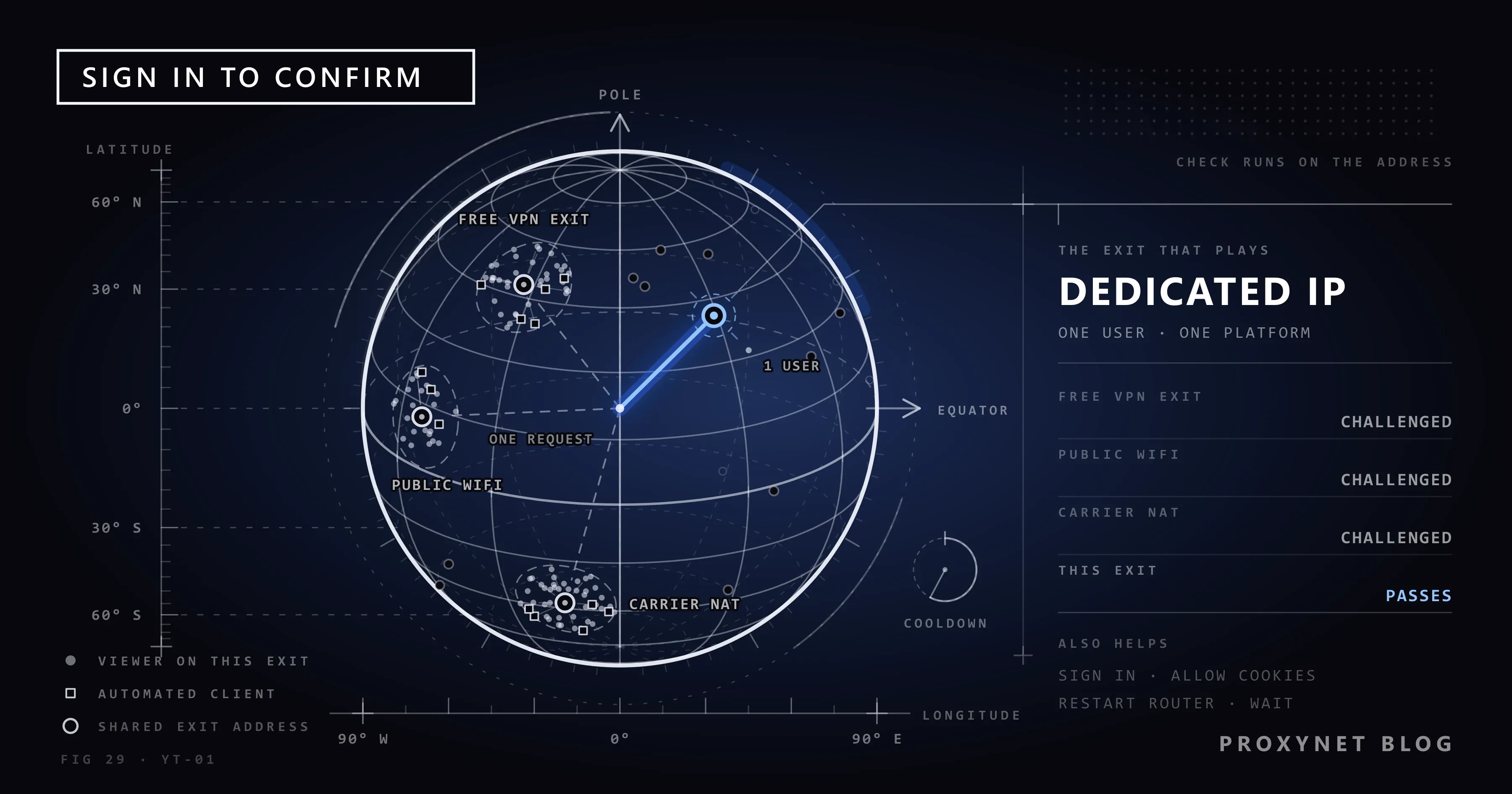
YouTube does not explain exactly when it shows the warning. But the same causes come up again and again in user reports. Most of them relate to your IP address, the address that represents you online. An IP address is the address of the device you connect with; the sites you visit see you by this address.
| Cause | What happens | Who sees it most? |
|---|---|---|
| A shared VPN or free proxy is on | Thousands of people use the same exit address, and part of the traffic from it already comes from automated programs | People using VPN apps or browser extensions |
| Shared network | Hundreds of people in a dorm, café, library, school or office go online from the same address | Students, people on shared Wi-Fi |
| The provider shares addresses | Some internet and mobile providers put many subscribers behind a single public address | Mobile data, some home internet plans |
| Cookies are off or deleted all the time | YouTube can't recognise you from your last visit and sees you as "someone new" each time | Browsers with strict privacy settings, people who clear history on exit |
| Ad and privacy extensions | The extension also blocks page components YouTube uses for verification | People with several blocking extensions installed |
| Too many requests in a short time | Many tabs at once, constant autoplay, video download tools | People using video download sites and programs |
The first three rows in the table come down to the same point: you share your address with other people. If one of them runs an automated program, in YouTube's eyes you are coming from the same address. That is why a home computer on Wi-Fi can get the warning while a phone on mobile data works fine. Or the other way round.
If you want to know how your address appears and how an intermediary server fits into this picture, our article What Is a Proxy Server and How Does It Work? is a good introduction.
Try these three things first
Before moving on to the longer fixes, do three quick checks that work for most people:
- Refresh the page and wait a few minutes. Sometimes the warning appears because of a short spike in traffic and goes away on its own.
- Turn off your VPN if it is on. If there is a VPN app on your phone or computer, or a VPN extension in your browser, turn it off and open the video again.
- Sign in with your Google account. Press the Sign in button at the top right. The warning itself asks for this, and in most cases it is enough on its own.
If these three steps don't solve it, go through the steps below in order.
Step-by-step fix
1. Sign in with your Google account
Signing in tells YouTube that "there is a real account with a history behind this connection". Signing in with an account you have used for a long time and that has a verified phone number is the most effective option. If you have trouble signing in, YouTube's sign-in help page walks through password, two-step verification and device problems one by one.
2. Turn off VPNs and free proxies
A VPN is a service that routes your internet traffic through another server. With free or multi-user VPNs, thousands of people share the same exit address. Some of these addresses have been used for automated traffic before, so YouTube is cautious with them.
- Close the VPN program on your computer or disconnect it.
- If your browser has a VPN or proxy extension, disable it.
- If a proxy is set in Windows, turn it off. You can find where in our article How to Set Up Proxy Settings in Windows and Chrome.
If you are not sure how a VPN differs from a proxy, our article Proxy vs. VPN: Which One and When? explains in plain language when each one is used.
3. Try a different network
This is the easiest way to tell whether the problem comes from the connection or the device:
- If you are on a computer, turn on your phone's hotspot over mobile data and connect the computer to it.
- If you are on a phone, turn off Wi-Fi and try on mobile data, or the other way round.
If the video opens fine on the other network, the problem is not your device but the address the first network goes online from.
4. Restart your modem
With many home internet subscriptions, your provider may give you a different address each time the modem reconnects. Turn the modem off, wait 30 seconds and turn it back on. Once the internet is back, try the video again. This does not change the address with every provider, but it does no harm to try.
On a phone you can get the same effect by turning airplane mode on for a few seconds and then off. When mobile data reconnects, you often get a different address.
5. Allow cookies
Cookies are small files that sites leave in your browser so they can recognise you on your next visit. YouTube treats a browser with cookies turned off as a first-time visitor every time, which increases suspicion.
In Chrome: from the three-dot menu at the top right, go to Settings > Privacy and security > Third-party cookies. If a setting that blocks all cookies is selected, change it, or add youtube.com and google.com to the list of allowed sites. Details are on Google's Chrome cookies help page.
In Safari: under Settings > Privacy, uncheck "Block all cookies" if it is ticked.
In Firefox: under Settings > Privacy & Security, if Enhanced Tracking Protection is set to Strict, add an exception for YouTube.
If your browser has a setting that deletes history and cookies every time you close it, consider turning that off for YouTube as well.
6. Turn extensions off one by one
Ad blockers, privacy extensions and video download extensions can block page components YouTube uses for verification. The quickest test is to open a private window and try the video there. Extensions usually don't run in private windows.
- If the video opens in a private window, the problem is most likely an extension.
- Turn extensions off one at a time, refreshing the page each time, to find the one causing it.
- We recommend removing video download extensions. They can send many requests to YouTube in the background.
7. Update your browser or try another one
An old browser version may not run YouTube's verification steps properly. Go to the "About" section in your browser's menu and check for updates. If the problem continues, try another browser; if the video opens there, something in the first browser's settings or extensions is causing the problem.
8. Wait
If none of the above worked, the address you connect from has most likely been restricted temporarily. The restriction usually lifts within a few hours. Retrying from the same address over and over during this time can make it last longer. Take a break and try again later.
The same error on phones and TVs
The warning doesn't only appear on computers; it can also show up in the YouTube app and on smart TVs.
On a phone (Android and iPhone):
- Check in the app store that the YouTube app is up to date.
- Check whether you are signed in to the app; if not, sign in.
- Switch between Wi-Fi and mobile data and try again.
- On Android, clear the cache under Settings > Apps > YouTube > Storage. Clearing data signs you out, so start with the cache.
- If there is a VPN app on the phone or a proxy set in the Wi-Fi settings, turn it off. We showed where the iPhone proxy setting is in our article How to Set iPhone Proxy Settings?.
On a smart TV:
- Sign in with your account in the YouTube app on the TV.
- Turn the TV and the modem off and on again.
- If a proxy or DNS change has been made in the TV's network settings, reset it to the default.
What to watch out for if you use a proxy
A proxy is an intermediary server that lets you go online from a different address instead of your own. If you get this warning while using a proxy, the cause is most likely the type of address you are using.
- Free and public proxies are the addresses that trigger the warning most often. It is unclear who uses them, and many are also used for automated traffic. They are a security risk too.
- Addresses shared by many people cause the same problem. Even if you only watch normally, someone else on the same address may be sending heavy traffic to YouTube.
- Dedicated, fixed addresses trigger the warning far less. Because the address stays the same for a long time and is used only by you, in YouTube's eyes it differs little from a normal home connection.
So if you need to use YouTube through a proxy, for example to check how content looks in another country, choose addresses that stay the same for a long time and belong to a real home connection. A ISP Proxy address stays the same for months, while a Residential Proxy offers addresses that belong to home internet connections. You can find use cases on our YouTube proxy page, and those for live streaming and series platforms on our streaming proxy page.
A browser that leaks your real address through another route while you use a proxy can also raise suspicion. We explained how to check this in WebRTC and DNS Leaks: What They Are and How to Stop Them. Sites look not only at your address but also at your browser's characteristics; our article What Is Browser Fingerprinting? explains this.
A note: tools aimed at getting around YouTube's checks and bulk video download programs may break YouTube's terms of service. The suggestions above are meant to keep you from looking suspicious by mistake during normal viewing.
Common mistakes
- Deleting cookies every day. A clean browser may look good for privacy, but it makes it harder for YouTube to recognise you and makes the verification screen appear more often.
- Installing several VPN or proxy extensions at once. Extensions change each other's settings, and it becomes unclear which address your traffic leaves from.
- Pasting video links into download sites. These sites may also send requests from your address in the background.
- Refreshing the page again and again when the warning appears. Each refresh is a new request and can extend the restriction.
- Looking for the problem in your account. Changing your password or opening a new account usually doesn't help, because the warning is attached to the connection, not the account.
- Trying addresses from free or low-quality proxy lists. These addresses almost always trigger the warning and are not safe. Besides free proxies, some proxy services also share the same address among many people so they can sell cheaply. Research the proxy service you plan to buy and look at its complaints and reviews.
Decision guide
| Your situation | What to do |
|---|---|
| You are watching without signing in | Sign in with your Google account |
| A VPN or proxy extension is on | Turn it off and try the video again |
| You are on a dorm, school or café network | Try mobile data |
| It only happens in one browser | Turn off extensions, allow cookies, update the browser |
| It only happens in the phone app | Update the app, clear the cache, switch between Wi-Fi and mobile data |
| It happens on every device at home | Restart the modem and wait a few hours |
| Your work requires you to use YouTube through a proxy | Use a dedicated address that stays the same for a long time instead of a free one |
Frequently asked questions
Does this warning mean my account will be closed?
No. The warning is attached to the address you connect from, not your account. That is why it appears even when you are not signed in. Signing in does nothing to your account; it only confirms that you are a real user.
Can I keep watching YouTube without signing in?
Yes, as long as the warning doesn't appear. Once it does, you need to either sign in or wait for your connection to return to normal. Switching to another network also often lets you keep watching without signing in.
Why does YouTube show this warning to VPN users?
Many people use a VPN's exit addresses at the same time, and some of them run automated programs. Since YouTube can't tell individual people apart, it may ask everyone coming from that address to verify. Using a VPN isn't forbidden, but a shared address increases suspicion.
Why does it only appear on one device?
If the devices are on different networks (one on Wi-Fi, the other on mobile data), they go online from different addresses. If they are on the same network, the difference usually comes from browser settings, extensions or cookies. Check the extensions and cookie settings on the device showing the warning.
How long does the warning last?
No exact duration is published. In user reports it usually disappears within a few minutes to a few hours; rarely it can last days. Not retrying from the same address over and over during this time keeps it from lasting longer.
Is it forbidden to watch YouTube through a proxy?
Using a proxy is not forbidden in itself. However, YouTube's terms of service restrict automated access to its systems and methods aimed at getting around its checks. If you use a proxy for normal viewing, an address that isn't shared and stays the same for a long time lowers the risk of the warning.
Summary
The "Sign in to confirm you're not a bot" warning is about the address you go online from, not your account. VPNs, shared networks, address sharing by your provider, disabled cookies and extensions can make YouTube mistake your connection for automated traffic. First sign in, turn off your VPN and try another network. Then restart the modem, allow cookies and check your extensions. If nothing works, wait a few hours. If your work requires you to connect to YouTube through a proxy, take a look at our proxy services, which offer dedicated, fixed addresses.