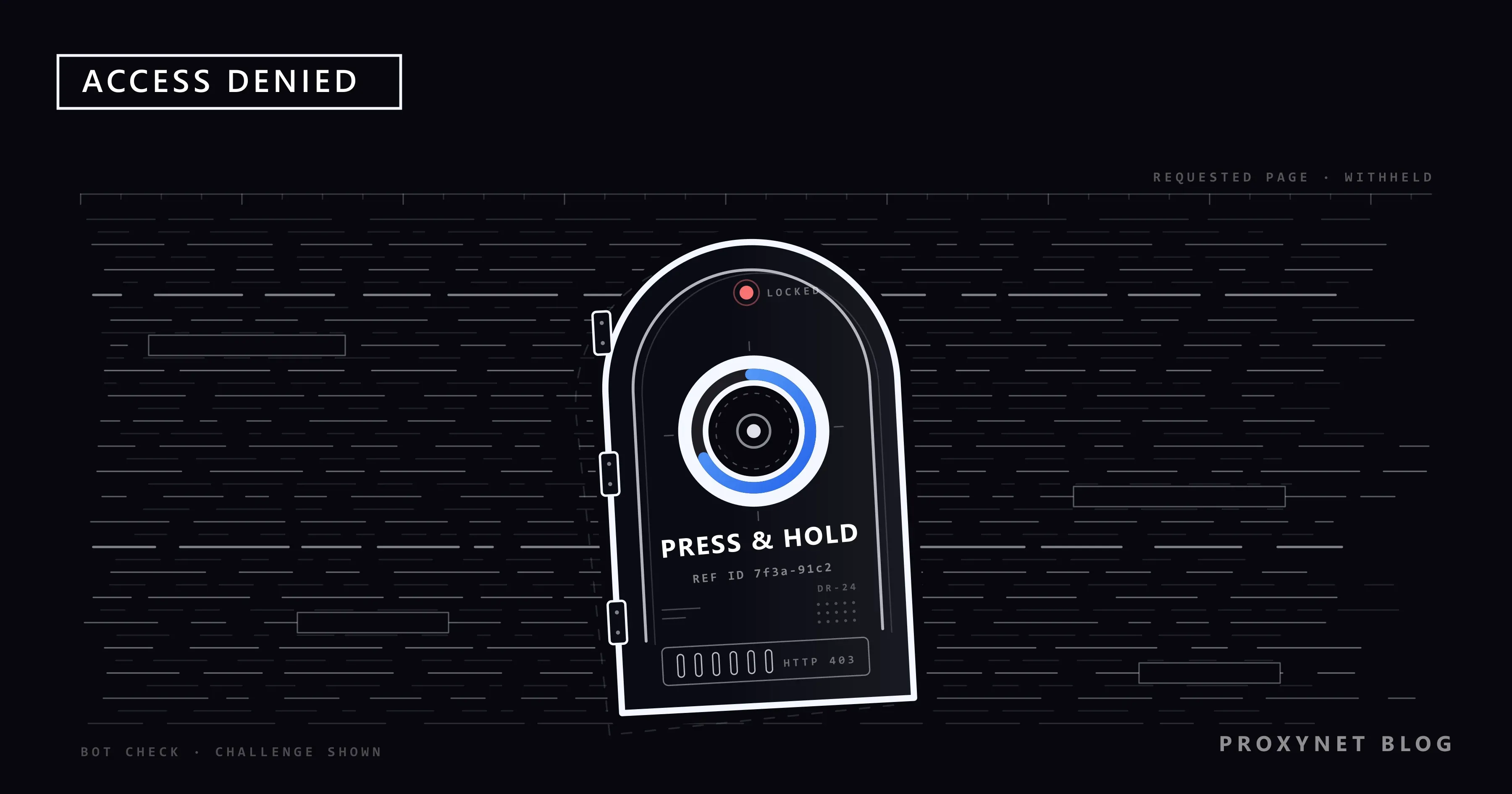
You open a link to an online shop, a study site or a ticket page, and a pale screen appears instead. There is a round "Press & Hold" button, and the browser tab reads "Access to this page has been denied". Some versions even claim you are "using automation tools to browse the website", although you are a person with an ordinary browser. You hold the button, the bar fills, and sometimes the same screen comes back.
This post explains who shows that page, what the button checks and why it picked you. It then lists the fixes in order, decodes the messages inside the box, shows how to use the Reference ID and separates this screen from Cloudflare's and Akamai's block pages. Short sections at the end cover site owners and developers.
What does "Access to this page has been denied" mean?
The sentence appears in two layouts. On the older one, the heading says "Please verify you are a human", followed by "Access to this page has been denied because we believe you are using automation tools to browse the website." Two possible reasons follow: "Javascript is disabled or blocked by an extension (ad blockers for example)" and "Your browser does not support cookies". These are the default texts in HUMAN's challenge customization documentation.
On the newer layout, the sentence is only the browser tab's title, as set in HUMAN's open-source block page template. The page shows a box headed "Before we continue...", the line "Press & Hold to confirm you are a human (and not a bot).", the button and a "Reference ID" line at the bottom. Sites can add a logo or translate the box, but the button and that line give it away.
It does not mean your computer is infected, your account is banned or the site is down. The site answered you; it wants proof that a person is there before it shows the page.
Who shows this page, and how does it decide?
HUMAN Security sells bot protection to websites. It merged with PerimeterX in 2022, and the old name still appears in file names and messages. The website chooses the service and sets its rules. HUMAN's documentation describes the decision in this order:
- The page loads a small JavaScript program from HUMAN, called the Sensor.
- The Sensor collects signals about the browser and how it is being used.
- The resulting risk score is stored as a cookie, a small piece of data the site keeps in your browser.
- A component in front of the site, the Enforcer, reads that cookie with each request and lets it through or blocks it. If the cookie is missing, it asks HUMAN's servers for a score.
- A blocked request gets the challenge page and a Reference ID. HUMAN's open-source enforcer sends it with status code
403(Forbidden).
This explains the hint on the old layout: with JavaScript off, the Sensor never runs, and with cookies blocked, the score has nowhere to live. Either way your browser looks like a program. The wider picture is in How Bot Detection Works.
What does the Press & Hold button check?
Press & Hold, called HUMAN Challenge by the vendor, takes the place of picture puzzles. You press the button with the mouse or a finger, keep holding until the bar inside it is full, then let go. Meanwhile HUMAN watches mouse, touch and keyboard events for signs of automation, such as a replayed answer or a headless browser (a browser without a window, driven by code).
- Hold until the bar is full. Letting go early is a failed attempt, and the box says "Please try again".
- One pass does not cover the whole visit. If the signals stay risky, the challenge can return on the next page.
- There is a keyboard route. HUMAN's screen-reader prompt says you can press Tab for an accessible version; on some sites it sends a temporary code to your email address instead.
Why does the page appear for you?
You cannot see your score, but the causes fall into a few groups.
JavaScript is off or blocked. A privacy setting or a security extension that blocks unfamiliar scripts stops the Sensor from running.
Site data is blocked. HUMAN's cookies are first-party cookies, set under the site's own address, so blocking third-party cookies is not the problem; blocking all site data is.
An ad, tracker or script blocker. List-based blockers can catch the Sensor or the challenge script. When the script fails to load, the box shows "Please check your internet connection or disable your ad-blocker."
Your IP address. VPNs, free proxies and some mobile carriers put many people behind one address. If some of them ran bots, the address has a poor IP reputation and a high fraud score, and you inherit both. See also What Is CGNAT? and VPN or Proxy Detected.
An outdated browser. HUMAN lists minimum browser versions; on unsupported ones the box says "There seems to be a problem with your browser". Extensions that change how the browser describes itself make it look stranger (browser fingerprinting).
A burst of requests. Reloading again and again, or an extension that refreshes pages on its own, looks like the traffic rate limits are built to catch.
What should you do, in order?
These steps do not get around the check; they remove what made your browser look suspicious. Try the page after each one. The paths are for Chrome on a computer; other browsers use similar names.
- Stop reloading and wait a few minutes. Each reload is another request.
- Turn on JavaScript. Go to More > Settings > Privacy and security > Site settings > JavaScript and select Sites can use JavaScript (Google's help page gives the same path).
- Allow site data. In Site settings, open Additional content settings > On-device site data and select Allow sites to save data on your device (Google's guide).
- Test without extensions. Open More > New Incognito Window, where extensions are usually off, and visit the page. If it works, go to More > Extensions > Manage extensions and switch extensions off one at a time. Most ad blockers can allow a single site.
- Turn off VPN and proxy settings. Close VPN apps and proxy extensions and check the system proxy (Windows and Chrome proxy settings). On an iPhone, iCloud Private Relay acts similarly.
- Update the browser. Go to More > Help > About Google Chrome and select Relaunch if an update is waiting.
- Try another network. Switch between Wi-Fi and mobile data. If the page opens there, your home address carries the poor score.
- Write to the site owner. If nothing helped, only the site can change the decision.
What do the messages inside the box mean?
Each short message in the box points to a different fix.
| What you see | What it means | What to do |
|---|---|---|
| Please try again | The hold ended early or failed | Hold until the bar is full; after two or three failures, work through the steps above |
| Please check your internet connection or disable your ad-blocker. | The challenge script did not load | Allow the site in your blocker, check the connection, reload once |
| There seems to be a problem with your browser | The browser is too old or unsupported | Update it or try another browser |
| The challenge returns after every hold | Your risk score stays high | Turn off the VPN and extensions; then send the Reference ID to the site |
| A blank page with no button | Scripts are blocked completely | Turn on JavaScript and test in a private window |
How do you send the Reference ID to the site owner?
The Reference ID identifies the one blocked request. It tells you nothing, but it tells the site owner a lot. HUMAN's dashboard documentation says owners need this ID to unblock a person for a chosen period, and its investigation guide adds that this works only within 24 hours of the block. Write the same day, and include:
- The Reference ID as text and a screenshot
- The date and time, with your time zone
- The address you tried and what you were doing (opening a page, logging in, paying)
- Your browser and connection type, and whether a VPN was on
Leave out passwords and card numbers; nobody needs them to find a blocked request. If the contact page is behind the same check, use the support address in the site's app store listing or its social media accounts. Writing to HUMAN rarely helps: the site sets the rules and holds the records.
How is it different from other block screens?
Several services put block pages in front of websites; Imperva's, for example, opens with the heading Pardon Our Interruption. The last line of the page usually tells them apart.
| What the page says | Clue | Who shows it | Read |
|---|---|---|---|
| Press & Hold; tab title "Access to this page has been denied" | Reference ID | HUMAN (PerimeterX) | This post |
| Sorry, you have been blocked | Ray ID | Cloudflare firewall | Sorry, You Have Been Blocked |
| Verify you are human, with a checkbox | Ray ID | Cloudflare challenge | Cloudflare verification |
| Access Denied, You don't have permission | Reference #18… | Akamai | Access Denied Error |
| A short "checking your device" page or a slider puzzle | No ID line | DataDome | Device Check docs |
| "…has been denied by K7…" | A security product's name | K7 software on your device | K7 false-positive report |
If the sentence ends with a security product's name or mentions your administrator, the block comes from software on your device or a filter on your work or school network, not from the website.
If you run the site: helping a blocked customer
Ask the customer for the Reference ID and the time. In the HUMAN console, search for it as a Block ID and use Clear Block ID to release that visitor for a period you choose, within 24 hours of the block. The Investigation view keeps 14 days of data and lets you allow or deny an IP address, network or user agent. Enhanced Accessibility Mode in the Bot Defender Challenge Settings helps visitors who cannot hold a button, and the challenge text can say where to send a Reference ID.
If your scraper or script gets this page
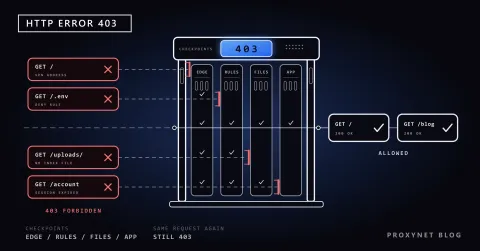
Developers usually meet the page as a 403 response whose HTML title is "Access to this page has been denied". The reasons follow from the mechanism above:
- No JavaScript, no cookie. A plain HTTP client such as Python's requests or curl never runs the Sensor.
- Automation markers. HUMAN says its challenge detects automated tools, replayed tokens and headless browsers.
- Origin. Owners can deny an IP address, a whole network or a user agent, and data center networks are a common target.
- Speed. HUMAN's open-source enforcer also has a rate-limit action that answers
429 Too Many Requests(429 explained).
Treat the page as the site's answer: log the Reference ID, stop that job and do not retry in a loop. Read the site's robots.txt and terms, look for an official API and keep your request rate low. For regular access, ask; HUMAN lets owners allow specific addresses and issue access tokens to approved crawlers. This post does not cover "solvers" or bypass tools, which exist to get past a refusal the site made on purpose. More in How to Scrape Websites Without Getting Blocked.
Proxies come in only after that. An owner who allows your traffic needs an address that stays the same, and a ISP Proxy gives you a fixed IP registered to an internet provider. If you run a protected site, Residential Proxy exits in other countries show what home visitors there see. Rotating addresses to dodge the check is the very pattern it is built to catch. Our data scraping page describes collection within a site's rules.
Common mistakes
- Reloading over and over. It adds requests and can stretch a short challenge into a block.
- Turning on a free VPN to get around it. Shared VPN exits often have the worst reputation (Are Free Proxies Safe?).
- Following "fix" instructions that ask you to paste a command. A real Press & Hold check never asks you to press Windows+R, open a terminal or paste anything.
- Writing without the Reference ID, or a day later. The owner may no longer be able to release the block.
Decision guide
| Your situation | What to do |
|---|---|
| The page mentions JavaScript or cookies | Turn on JavaScript and allow on-device site data |
| The box says to disable your ad-blocker | Allow the site in the blocker or test in a private window |
| It appears only while your VPN is on | Turn the VPN off for this site |
| Press & Hold fails every time | Change one thing at a time, then send the Reference ID |
| You cannot hold a button | Press Tab for the accessible version or contact the site |
| Your script receives it | Stop, read robots.txt, use the official API or ask for permission |
Frequently asked questions
Why does the page say I am using automation tools?
That sentence is the old layout's default text, shown to everyone it blocks. Nobody has examined your visit; most often your browser could not run HUMAN's script or keep its cookie.
Why does Press & Hold keep failing or looping?
Either the hold ends before the bar is full, or your risk score stays high after a successful hold. In the second case, holding again will not help: work through the steps above, then send the Reference ID to the site.
Can I complete the check with a keyboard or a screen reader?
Yes. HUMAN's challenge supports keyboard access and screen readers, and its prompt mentions pressing Tab for an accessible version. If that fails, contact the site.
Is this page safe, or could it be fake?
The real page only asks you to hold a button. Microsoft's ClickFix analysis describes scams that show fake human checks and tell people to paste and run commands in the Run dialog, Windows Terminal or PowerShell. If a "verification" asks for that, close the page.
How long does the block last?
The page does not say. A challenge you pass is over at once; a block tied to your address lasts until your score improves or the owner releases it.
Why does my script get this page when my browser does not?
Your browser runs HUMAN's script and keeps its cookie; a simple script does neither, and headless browsers leave traces the check looks for. Permission or an official API is the route that lasts.
Summary
"Access to this page has been denied" is HUMAN's bot check, formerly PerimeterX, run by the site you are visiting. It appears when HUMAN's script cannot run or your connection looks risky: JavaScript or cookies off, a blocker in the way, a poorly rated VPN or proxy address, an old browser or a burst of reloads. Remove those causes, hold the button until the bar is full and, if the page keeps returning, send the Reference ID and the time to the site owner the same day. If you collect data for work, start with the site's rules, and compare proxy types on our proxy services page.