You open a few product pages in new tabs, or click through a booking site a little quickly, and instead of the page you get a plain screen headed "Pardon Our Interruption". It says something about your browser made the site think you were a bot and asks you to turn on cookies and JavaScript. Often both are already on, and the screen returns after every reload.
This post explains who shows that page, what it checks and why it picked you. It then lists the fixes in order, decodes related Imperva pages such as "Request unsuccessful. Incapsula incident ID" and separates this screen from Cloudflare's and HUMAN's. Short sections at the end cover site owners and developers.
What does "Pardon Our Interruption" mean?
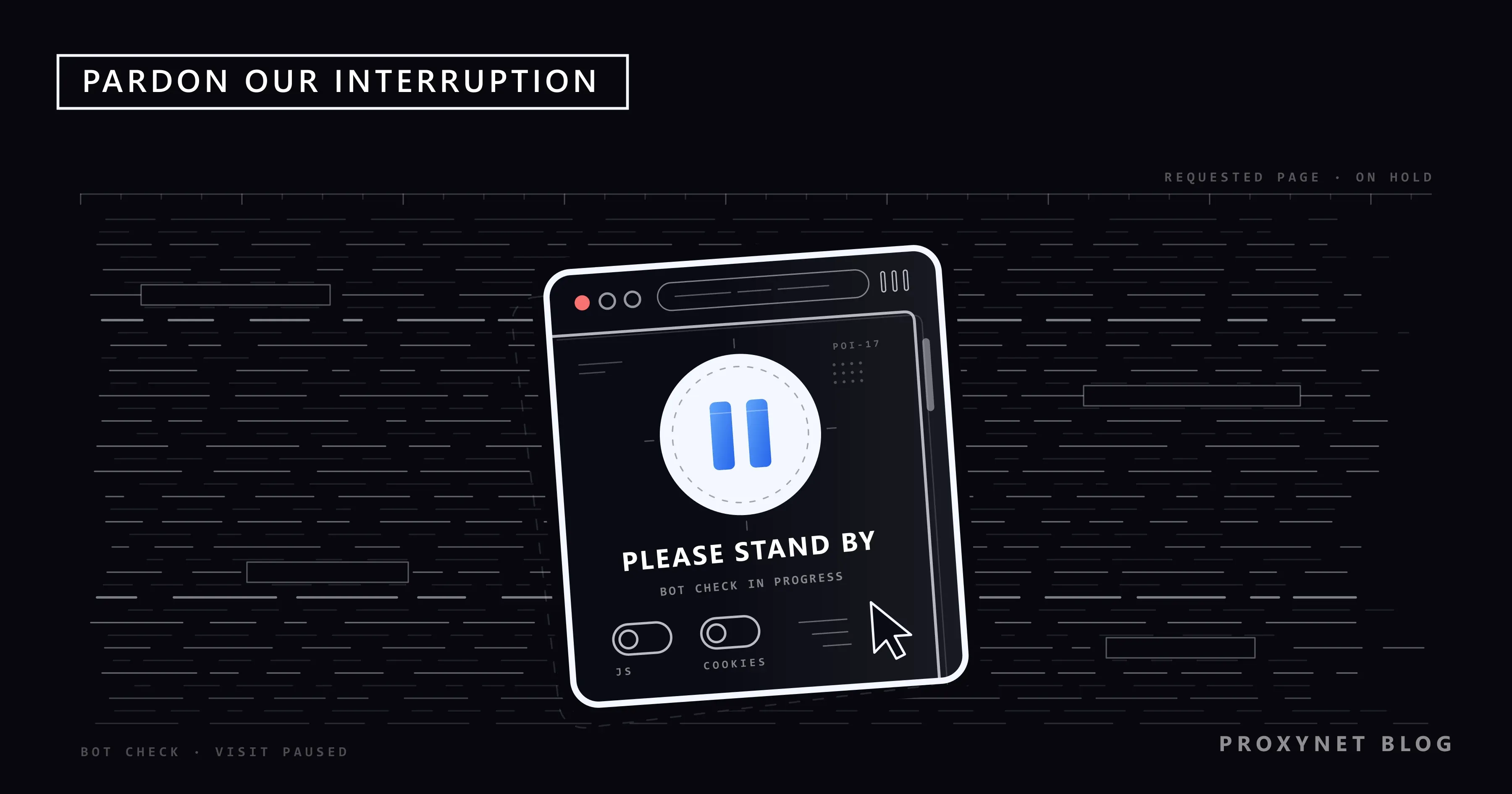
Under the heading, the page says: "As you were browsing something about your browser made us think you were a bot." Three possible reasons follow:
- "You're a power user moving through this website with super-human speed."
- "You've disabled cookies in your web browser."
- "A third-party browser plugin, such as Ghostery or NoScript, is preventing JavaScript from running."
It ends by asking you to enable cookies and JavaScript before reloading. The current version also carries a "Please stand by" message saying the page is loading. If the check passes, the site opens by itself; if it cannot finish, the list of reasons is what stays on screen.
In plain words, the website paused your visit to make sure a person is behind it. Your computer is not infected, your account is not closed and the site is not down. The site answered; it wants more evidence before it shows the page.
Who shows this page?
The page comes from Imperva, a security company owned by Thales since December 2023. Imperva agreed to buy Distil Networks, a bot-protection specialist, in June 2019, and in February 2020 it announced Advanced Bot Protection as the product that followed.
The website decides to use the service and sets the rules; Imperva supplies the check. According to the same announcement, a site can run it inside Imperva's cloud firewall or connect it to platforms such as AWS, Cloudflare, F5 and NGINX, so the page can appear on a site that shows no other sign of Imperva.
How does the check decide you might be a bot?
Imperva does not publish its scoring, but its product sheet and help pages describe the outline. The same building blocks sit behind every anti-bot service, as How Bot Detection Works shows.
- Along with the page, the site loads a small JavaScript snippet. JavaScript is the language web pages use for anything interactive.
- The snippet examines the browser to confirm it is what it claims to be.
- The site sets first-party cookies, small pieces of data saved under its own address, much like a login cookie.
- As you browse, the service watches how the device behaves: how fast pages are requested, in what order, from which address.
- When the snippet cannot run or the visit looks automated, the site applies the response its owner chose. Imperva's options include block, CAPTCHA, rate limit, delay and tarpit, which means answering on purpose very slowly.
Imperva's help article on browser plugins names the most common trigger: when a plugin stops the snippet, your browser looks like the bots that never run JavaScript. It adds that the snippet does not need cookies for its test, although the block page asks for both.
Why does the page appear for you?
You cannot see your score, but the causes fall into a few groups.
JavaScript is off or blocked. If JavaScript is disabled, or a security setting blocks unfamiliar scripts, the check never runs.
A privacy extension stops the script. Blockers such as Ghostery and NoScript, which the page names itself, can treat the snippet as a tracker. Imperva says most plugins that trip its check are privacy tools.
Site data is blocked. The check uses first-party cookies, so blocking third-party cookies is fine; blocking all site data is not.
You move faster than a person usually does. Opening a dozen listings at once, clicking through pages within a second or an extension that refreshes a page every few seconds all look like "super-human speed".
Your IP address. Imperva files anonymous proxies and anonymizer services under a client type of their own. VPNs, offices and some mobile carriers put many people behind one address; if others on it ran bots, you inherit its poor reputation.
An unusual browser. Outdated versions, beta builds and extensions that change how the browser describes itself look less like the browsers the check expects.
Who usually runs into it?
- Shoppers who open many product pages in tabs at once
- People refreshing a ticket, booking or appointment page while waiting for a slot
- Users of strict privacy setups: script blockers, tracker blockers, hardened browsers
- People on a VPN or on a company or campus network shared by many users
- Anyone running a price-watch extension, an auto-refresh tool or a script against the site
How do you fix it, in order?
These steps do not get around the check; they remove what made your visit look automated. Try the page after each one. The paths are for Chrome on a computer; other browsers use similar names.
- Stop and wait a few minutes. Close the extra tabs of that site, wait, then reload once.
- Turn on JavaScript. Go to More > Settings > Privacy and security > Site settings > JavaScript and select Sites can use JavaScript, as Google's help page describes. On an iPhone: Settings > Apps > Safari > Advanced, then turn on JavaScript.
- Allow site data. In Site settings, open Additional content settings > On-device site data and select Allow sites to save data on your device.
- Test without extensions. Open More > New Incognito window; extensions only run there if you turned on Allow in incognito for them. If the page opens, go to More > Extensions > Manage extensions and switch extensions off one at a time. Most blockers can allow a single site.
- Turn off the VPN or proxy. Disconnect VPN apps and proxy extensions. On an iPhone, also try with iCloud Private Relay off for a moment, as Apple suggests when a site will not load.
- Update the browser. Go to More > Help > About Google Chrome and select Relaunch if an update is waiting. On a beta build, try the stable version.
- Try another network. Switch between Wi-Fi and mobile data. If the page opens there, your usual connection's address is the problem.
- Answer what the page offers. Some sites show a CAPTCHA, a small test only people should pass, or a form to request unblocking. Complete it once and describe your visit honestly.
- Write to the site. If nothing helps, the decision sits with the site owner.
"Request unsuccessful. Incapsula incident ID" and other Imperva pages
Incapsula was the name of Imperva's cloud security service before it carried the Imperva brand; incapsula.com now redirects to imperva.com. These pages come from Imperva's cloud firewall and mean a security rule or bot setting stopped the request. Developers mostly see the one-line form, "Request unsuccessful. Incapsula incident ID:" and a long number, in the response to a script. In a browser, the newer page is a card headed "Access denied" with an error number.
Imperva's list of error pages and codes explains the numbers. Codes 14 to 17 all read "This request was blocked by our security service". Code 15 means the firewall settings blocked the request, the user or the IP address; 16 means bot access control or a rule against specific sources, such as a country or a network; 14 and 17 mean an earlier block on your session still applies.
These screens show the error code, a time stamp, your IP address and the Incident ID: a session number and a request number joined by a hyphen, which leads the site owner to your exact request.
How do you send the Incident ID to the site?
Imperva's console keeps security events for 90 days, so a message sent a few days later can still be traced, but the same day is easier. Include:
- The Incident ID as text, plus a screenshot of the whole page
- The date and time, with your time zone
- The page address and what you were doing (searching, adding to the basket, signing in)
- Your browser, whether a VPN or privacy extension was on, and the IP address the page shows
If the page shows no ID, as the "Pardon Our Interruption" version often does, send the rest. Leave out passwords and card numbers. If the contact form sits behind the same check, use the support address in the site's app store listing. Writing to Imperva rarely helps: the site sets the rules.
How is it different from other block screens?
Several companies put block pages in front of websites. The wording and the last line usually tell them apart.
| What the page says | Clue | Who shows it |
|---|---|---|
| Pardon Our Interruption | List of reasons, sometimes a CAPTCHA | Imperva Advanced Bot Protection |
| Access denied, Error 15 or 16 | Incident ID | Imperva cloud firewall |
| Request unsuccessful. Incapsula incident ID | One line with a long number | Imperva cloud firewall |
| Access to this page has been denied | Press & Hold button, Reference ID | HUMAN (formerly PerimeterX) |
| Sorry, you have been blocked | Ray ID | Cloudflare |
| Access Denied, You don't have permission | Reference #18… | Akamai |
If your screen shows a round "Press & Hold" button instead, the vendor and the fixes differ; Access to This Page Has Been Denied covers HUMAN's check.
A page that says "Sorry, you have been blocked" with a Ray ID at the bottom comes from Cloudflare's firewall, explained in Sorry, You Have Been Blocked.
If you run the site: helping a blocked visitor
Ask the visitor for the Incident ID, the time and the IP address. With Imperva's cloud firewall, open Application > Security Events in the Cloud Security Console, filter by the Incident ID and open the request. For requests stopped by the Bad bots or Advanced Bot Protection rules, the details offer Add exception to rule, which lets that traffic through without switching the rule off for everyone. Under CDN > Delivery > Custom Error Page you can replace the page for the ABP identification failed error type so it says where to write; the template is capped at 8 KB and allows no scripts.
If your scraper or script gets this page
Developers meet the page as HTML titled "Pardon Our Interruption" or as the one-line Incapsula message, so check the body, not only the status code. Responses from Imperva's cloud often carry an X-CDN: Imperva header and cookies named visid_incap_… or incap_ses_…. The reasons follow from the mechanism:
- No JavaScript. Plain HTTP clients such as Python's requests or curl never run the snippet; Imperva even files Wget and Python's urllib under a developer-tool client type.
- Automation markers. Imperva validates the browser itself, so a headless browser, one without a window and controlled by code, leaves traces.
- Pace and origin. Parallel requests on a fixed timer match "super-human speed", and data center ranges are easy to classify. A tarpit can slow a scraper to a crawl before it sees any error.
Treat the page as the site's answer: log the Incident ID if there is one, stop the job and do not retry in a loop. Read the site's robots.txt, the file that states which paths automated visitors may fetch, and its terms, look for an official API and keep your rate low. For regular access, ask; a crawler that names itself and gives a contact address is far easier to approve. Solvers, stealth plugins and other bypass tools are not covered here: they exist to defeat a refusal the site made on purpose.
Proxies come in only after that. An owner who agrees to let your traffic through needs an address that stays the same, and a ISP Proxy gives you a fixed IP registered to an internet provider.
If you run a protected site, Residential Proxy exits in other countries show what home visitors there see, false blocks included. Rotating addresses to slip past the check is the very pattern it is built to catch.
Common mistakes
- Reloading again and again. Each reload keeps the "super-human speed" signal alive.
- Turning on a free VPN to get past it. Shared VPN exits often have the worst reputation of all.
- Switching off every privacy tool everywhere. Allow the one site in your blocker instead.
- Following a "verification" that asks you to paste a command. A real Imperva check never asks you to press Windows+R or open a terminal.
Decision guide
| Your situation | What to do |
|---|---|
| Cookies and JavaScript are on, but the page stays | Test in an Incognito window; a blocker is the likely cause |
| It appeared after you opened many tabs | Close the extra tabs, wait a few minutes, reload once |
| It appears only while the VPN is on | Turn the VPN off for this site |
| A CAPTCHA or an unblock form appears | Complete it once and describe your visit honestly |
| "Access denied" with an Incident ID | Send the ID and the time to the site |
| Your script receives it | Stop, read robots.txt, use the official API or ask for access |
Frequently asked questions
What does "Pardon our interruption" mean in plain words?
"We paused your visit to check that you are a person." The site's bot protection could not confirm that from your browser, so it shows this page instead of the content.
Why does the page come back after I turn on cookies and JavaScript?
Usually a privacy extension still blocks the script, or your address has a poor reputation. Test in an Incognito window and with the VPN off; if both fail, write to the site.
Is the page a virus or a scam?
The real page only explains the block, sometimes with a CAPTCHA. A "verification" that tells you to paste a command into the Windows Run box or a terminal is a known scam; close it.
Why do I see it on my phone?
For the same reasons: a Safari content blocker, iCloud Private Relay, a VPN app or a mobile address shared by many people. Check that JavaScript is on, then try Wi-Fi instead of mobile data.
How long does the block last?
The page does not say. A passed check is over at once; a block tied to your address lasts until your score improves or the owner changes the rule.
Why does my script get this page when my browser does not?
Your browser runs Imperva's snippet and keeps its cookies; a simple HTTP client does neither. Permission or an official API is the route that lasts.
Summary
"Pardon Our Interruption" is the page Imperva Advanced Bot Protection shows when a site cannot confirm that a person is browsing. JavaScript or cookies turned off, a privacy extension, very fast browsing or a VPN address with a poor reputation are the usual causes. Slow down, allow JavaScript and site data, test without extensions and the VPN, then reload once; if the page stays, send the details and any Incident ID to the site. If you collect data for work, start with the site's rules, and compare proxy types on our proxy services page.