You are moving your old website to a new platform. The agency that built it is gone, you have no server access, and the product pages hold a few hundred photos. Saving each one by hand would take days, and the first few you tried came out smaller and blurrier than they look on the page.
This guide is for pictures you are allowed to copy: your own site, the press kit an organisation offers to journalists, or openly licensed images whose terms you follow. Taking a competitor's product photos for your own shop is outside its scope, and being able to download a picture does not give you the right to use it (Is Data & Web Scraping Legal?). Below are four ways to save every image on a page without code, the reasons images arrive small or go missing, what to do with WebP files, and one optional Python script.
Where do the images on a page come from?
Every image on a page is a separate file. The page itself is a text file (HTML) that says where each picture lives, and your browser fetches every picture with its own request.
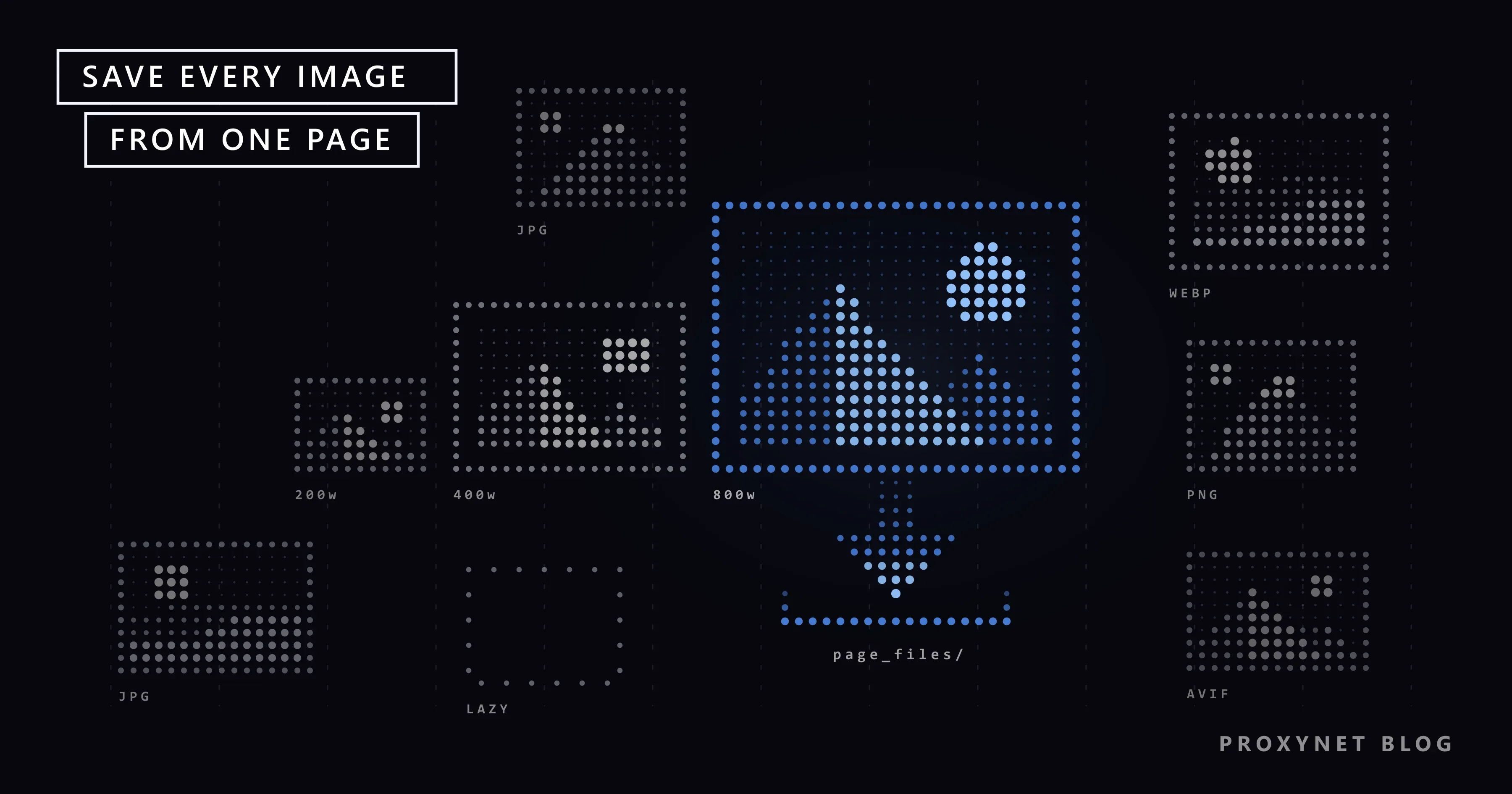
A picture enters the page in one of three ways: an img tag, which you can right-click and save; a CSS background, which is why some banners offer no save option; or a picture element, which lists the same image in several formats and sizes and lets the browser choose.
Many sites serve images from a CDN (content delivery network), a set of servers that delivers files from a location near the visitor. That is why file names often look random.
How do you download all images from a web page?
Every method below follows the same four steps:
- Open the page and scroll to the very bottom. Images further down often load only when you reach them.
- Pick a method from the table below.
- Clean up the folder. Delete logos, icons and one-pixel tracking images.
- Check the size. If an image is smaller than it looked on screen, look for the full-size address.
| Method | What you get | Images loaded on scroll | Full size? | Best for |
|---|---|---|---|---|
| Chrome: Save page as > Webpage, Complete | An HTML file plus a folder of its files | Script-loaded ones only after scrolling | No, the copy chosen for your screen | One page, nothing to install |
| Bulk image downloader extension | The images you tick, after filtering | Yes, if you scrolled first | Usually the on-screen copy | A few pages, sorting by size |
| Firefox: Page Info > Media | Every image on the page, backgrounds included | Yes, if you scrolled first | The copy the page loaded | Firefox, no add-ons |
| DevTools > Network > Img | One file at a time, with its real address | Yes, as you scroll | Yes, if you pick the largest copy | A few images at full size |
| Python script (advanced) | Every img and source address in the HTML | Reads data-src, misses JavaScript-added images | Picks the largest srcset copy | Repeat jobs |
How to save every image with Chrome's Webpage, Complete
This method needs nothing installed. Open the page, scroll to the bottom, then open the three-dot menu at the top right and choose Cast, save, and share > Save page as (Ctrl+S, or Cmd+S on a Mac), as Chrome's help describes.
Set the format to Webpage, Complete and click Save. Chrome writes an .html file and, next to it, a folder with the same name ending in _files. The images sit in that folder among style sheets and scripts; sort it by type to find them.
Chrome saves the files the page points to at that moment, so pictures a script swaps in on scroll are missing if you never scrolled. You also get the copies your screen received, not always the originals.
How do you use a bulk image downloader extension?
Search the Chrome Web Store for "image downloader" to find extensions that list every image on the open tab. We name none, because they change owners often. Most work like this:
- Install the extension, open the page and scroll to the bottom.
- Click the extension's icon. A grid of the page's images appears.
- Raise the minimum width filter until icons and thumbnails drop out.
- Tick the images you want and click download.
To avoid one save window per image, go to Settings > Downloads and switch off Ask where to save each file before downloading.
Read the permissions before you install. Many of these extensions ask to "Read and change all your data on all websites", which lets them see every page you open. Check the reviews, the last update and the developer, and remove the extension when the job is done.
How to save all images with Firefox's Page Info window
Firefox has a built-in way. Press Ctrl+I (Cmd+I on a Mac) to open the Page Info window, then open the Media tab.
The list shows every image the page uses, backgrounds and icons included, with its address and type. Click Select All, then Save As…, and choose a folder. Expect to delete some icons afterwards.
How do you find an image's real address with DevTools?
DevTools (developer tools) is a panel built into Chrome that shows everything a page loads, which is how you find the full-size file.
- Press F12 and open the Network tab.
- Click the Img filter, one of the type filters listed in Chrome's Network panel reference.
- Reload the page and scroll to the bottom. DevTools records requests only while it is open.
- Each row shows the file name, its type (webp, avif, jpeg) and its size. Click a row for a preview.
- Right-click the row, choose Copy > Copy URL, open the address in a new tab and save the image there.
For one picture, right-click it and choose Inspect. If its img tag has a srcset attribute, it lists several copies with a width after each, such as photo-400.jpg 400w, photo-1600.jpg 1600w. The biggest number is the largest copy.
Searching the page source (Ctrl+U) for ".jpg" misses a lot: the source is the HTML the server first sent, so images added later by JavaScript are not there.
Why do images download small, blurry or not at all?
1. Your browser picked a small copy. With srcset, a site lists the same picture at several widths. MDN's img element reference says the browser selects among these sources at its own discretion. In a narrow window it usually takes a smaller one, and that is what you save.
2. The image had not loaded yet. A tag with loading="lazy" waits until the picture comes near the screen. Other sites keep the real address in a data-src attribute and show a blank or blurred placeholder until a script swaps it in. It is the same mechanism that fills pages with JavaScript after the first load (Static vs Dynamic Pages).
3. The thumbnail and the full picture are separate files. On books.toscrape.com, a practice site built for scraping, the cover of "A Light in the Attic" is 125 × 155 pixels on the home page and 318 × 395 pixels on the book's own page.
4. The address asks for a small copy. Many image CDNs put the size in the address, such as ?w=400, and resize the picture to match.
To fix it, widen the window, scroll the whole page, open the large gallery image before saving, or take the largest srcset copy in DevTools.
How do you open images that download as WebP or AVIF?
WebP and AVIF are newer formats that make smaller files than JPEG. MDN's image format guide says lossy WebP images are on average 25-35% smaller than JPEG at similar compression, and that WebP has broad support in current browsers.
One address can send different formats to different programs. When we requested an image from an image CDN, a plain request got a JPEG and a request with the Accept header Chrome sends got AVIF. That is why an expected .jpg arrives as .webp or .avif.
On Windows 11, Paint opens WebP files: choose File > Save as and pick JPEG. AVIF files may need Microsoft's free AV1 Video Extension from the Microsoft Store. For dozens of files, a batch image converter does the job in one pass.
Advanced: download a page's images with Python
This optional section is for people who repeat the job, such as a monthly backup of their own site. You need Python 3.10 or newer and pip install requests beautifulsoup4. The script:
- sends a
User-Agentthat names the script and gives a contact address (What Is a User Agent?); - reads every
imgandpicture sourcetag and takes the largest candidate fromdata-srcsetorsrcset, otherwisedata-srcorsrc; - skips inline
data:placeholders and completes relative addresses such as../img/photo.jpg; - streams each file inside a
withblock, as the Requests documentation recommends, and skips anything that is not a200with animage/type; - never overwrites a file (a second
photo.jpgbecomesphoto-1.jpg) and waits one second after each address, skipped ones included.
import mimetypes
import time
from pathlib import Path
from urllib.parse import urljoin, urlsplit

import requests
from bs4 import BeautifulSoup

PAGE_URL = "https://example.com/gallery/"  # a page you own or may copy
FOLDER = Path("images")
DELAY = 1.0  # seconds between downloads
HEADERS = {"User-Agent": "image-backup/1.0 (contact: you@example.com)"}


def largest_candidate(srcset):
    """Return the URL with the largest w or x value in a srcset."""
    best_url, best_size = None, -1.0
    for part in srcset.split(","):
        bits = part.split()
        if not bits:
            continue
        size = 1.0
        if len(bits) > 1 and bits[1][-1] in "wx":
            size = float(bits[1][:-1])
        if size > best_size:
            best_url, best_size = bits[0], size
    return best_url


def image_urls(html, base_url):
    soup = BeautifulSoup(html, "html.parser")
    urls = []
    for tag in soup.select("img, picture source"):
        srcset = tag.get("data-srcset") or tag.get("srcset")
        url = largest_candidate(srcset) if srcset else None
        url = url or tag.get("data-src") or tag.get("src")
        if url and not url.startswith("data:"):  # skip inline placeholders
            full = urljoin(base_url, url)
            if full not in urls:
                urls.append(full)
    return urls


def free_name(url, content_type):
    """Pick a file name that does not overwrite an earlier download."""
    name = Path(urlsplit(url).path).name or "image"
    stem, suffix = Path(name).stem, Path(name).suffix
    if not suffix:
        suffix = mimetypes.guess_extension(content_type.split(";")[0]) or ".img"
    target, n = FOLDER / f"{stem}{suffix}", 1
    while target.exists():
        target, n = FOLDER / f"{stem}-{n}{suffix}", n + 1
    return target


FOLDER.mkdir(exist_ok=True)
with requests.Session() as session:
    session.headers.update(HEADERS)
    page = session.get(PAGE_URL, timeout=15)
    page.raise_for_status()
    for url in image_urls(page.text, page.url):
        try:
            with session.get(url, stream=True, timeout=30) as r:
                ctype = r.headers.get("Content-Type", "")
                if r.status_code != 200 or not ctype.startswith("image/"):
                    print("skipped", r.status_code, ctype, url)
                    continue
                target = free_name(url, ctype)
                with open(target, "wb") as f:
                    for chunk in r.iter_content(chunk_size=64 * 1024):
                        f.write(chunk)
            print("saved", target.name)
        except requests.RequestException as exc:
            print("failed", url, type(exc).__name__)
        finally:
            time.sleep(DELAY)  # also runs after a skipped file
We ran it with Python 3.13, Requests 2.34.2 and Beautiful Soup 4.15.0 on a local test page: it chose the 1600w copy over the 400w one, found the address behind a data: placeholder, kept two photo.jpg files apart and skipped a 404. On books.toscrape.com it saved the 20 home page thumbnails. Start each run with an empty folder.
There is no retry: when a server answers 429, read HTTP Status Codes in Web Scraping first. Parallel downloads (Concurrency vs Parallelism) and proxies are left out too, because backing up your own site needs neither. Relative addresses are explained in pagination and relative links, attribute reading in our BeautifulSoup tutorial. Terminal users will find polite recursive download options in Using a Proxy with wget.
Use cases
- Moving your own site. Check your CMS for a media export first (How to Extract Data From a Website).
- A press kit. Organisations publish event photos and logos for journalists, usually with terms about credit (Is Data & Web Scraping Legal?).
- Openly licensed archives. Keep the required attribution and read the site's robots.txt file before a scripted download.
- Auditing your own shop. The script prints every image that returns an error, a quick list of broken product photos (HTTP Status Codes in Web Scraping).
- Many pages of your own site. Start with the list of pages that the sitemap provides (How to Find a Website's Sitemap).
Common mistakes
- Saving before scrolling. Pictures that load on scroll are missing.
- Taking the thumbnail for the original.
- Leaving the download prompt on. You click through one save window per image.
- Installing an extension without reading its permissions.
- Letting files overwrite each other. Two folders on a site can both hold a
photo.jpg. - Assuming a download comes with usage rights. Check the owner's terms or the licence.
- Running a script with no pause. Hundreds of requests a minute from one address can slow a small site, and the server may answer 429 Too Many Requests.
Decision guide
| Need | Recommendation |
|---|---|
| All images on one page, nothing installed | Scroll to the bottom, then Chrome's Save page as > Webpage, Complete |
| Images from a few pages, without icons | A bulk image downloader extension with a width filter; check its permissions, remove it afterwards |
| Firefox, no add-ons | Ctrl+I > Media > Select All > Save As… |
| The original size of one image | DevTools > Network > Img, or the largest srcset candidate |
| Files arrive as WebP or AVIF, you need JPG | Open in Paint and save as JPEG; a batch converter for many files |
| A monthly backup of your own site's images | Your CMS's media export, otherwise the Python script |
| Images from every page of a site | A crawl: permission and robots.txt first, then the wget bulk download options |
The rows near the top need the least setup.
Frequently asked questions
Are bulk image downloader extensions safe?
They can be, but most need permission to read and change data on every site you visit, your email and bank included. Pick one with many reviews, a recent update and a named developer, and remove it afterwards.
Why do images download as WebP?
The site sends WebP or AVIF because the files are smaller, and your browser tells the server it can display them. Current browsers and Windows 11's Paint open WebP, and Paint can save it as a JPEG.
Why are the images not full size?
The page probably gave your screen a smaller srcset copy, or you saved the gallery thumbnail. Widen the window, open the large image, or take the largest candidate in DevTools. If the site publishes only small copies, no larger file exists.
Can I download all images from a web page on my phone?
Not in one go with the standard Chrome app on Android. You can save pictures one at a time: touch and hold an image, then tap Download image, as Google's Android help describes. For a whole page, use a computer.
Can I download the images from every page of a website at once?
That is a crawl, a program that follows links from page to page, not a page save (Web Scraping vs Web Crawling). Get permission, read robots.txt, and use polite settings such as those in the bulk download section of Using a Proxy with wget. Businesses that need crawls at scale can look at our web crawler solution.
Can I use downloaded images on my own website?
Only if you have the right to. A download gives you a copy, not a licence. Your own photos are fine, press kit images follow the kit's terms, and openly licensed images follow their licence, which often requires credit (Is Data & Web Scraping Legal?).
Summary
To download all images from a web page, scroll to the bottom, then save it as Webpage, Complete in Chrome, use a bulk image extension, or use Firefox's Page Info window. Small images usually mean a smaller srcset copy or a picture that had not loaded, and DevTools shows the full-size address. Keep to images you may use, and if your business needs regular image collection at scale, see our data scraping solutions.