Almost everyone who starts scraping hits the same moment: products, prices and reviews are right there in the browser, but when you fetch the same address in Python with requests, the selectors find nothing. Looking at the page's HTML, you see a "Loading..." text and a few <script> tags instead of a product list. The problem is not your code; the page is dynamic, and JavaScript running in the browser fetches the content afterwards.
In this article we explain the difference between static and dynamic pages, how to tell in a few minutes whether a page is dynamic, and what a headless browser is. The part we focus on most is how to get to the data without a headless browser in most cases: finding the API request the page makes in the background and reading JSON embedded in the HTML. When a browser is really needed, we also show the right waiting strategies in Playwright and ways to reduce the cost. We ran the examples against a local test page that loads its content with JavaScript.
What is a static page?
On a static page, everything the browser shows is in the HTML of the server's first response. The server may read that HTML from a prepared file or generate it from a database on every request; what matters for scraping is that the content is inside the HTML when it reaches the browser.
You don't need a browser to get data from a static page:
import requests
from bs4 import BeautifulSoup

html = requests.get("https://example.com/deals", timeout=20).text
cards = BeautifulSoup(html, "html.parser").select("div.product")
print("Product cards found:", len(cards))
News sites, blogs, many corporate sites and server-side rendered e-commerce pages belong to this group.
What is a dynamic (JavaScript-loaded) page?
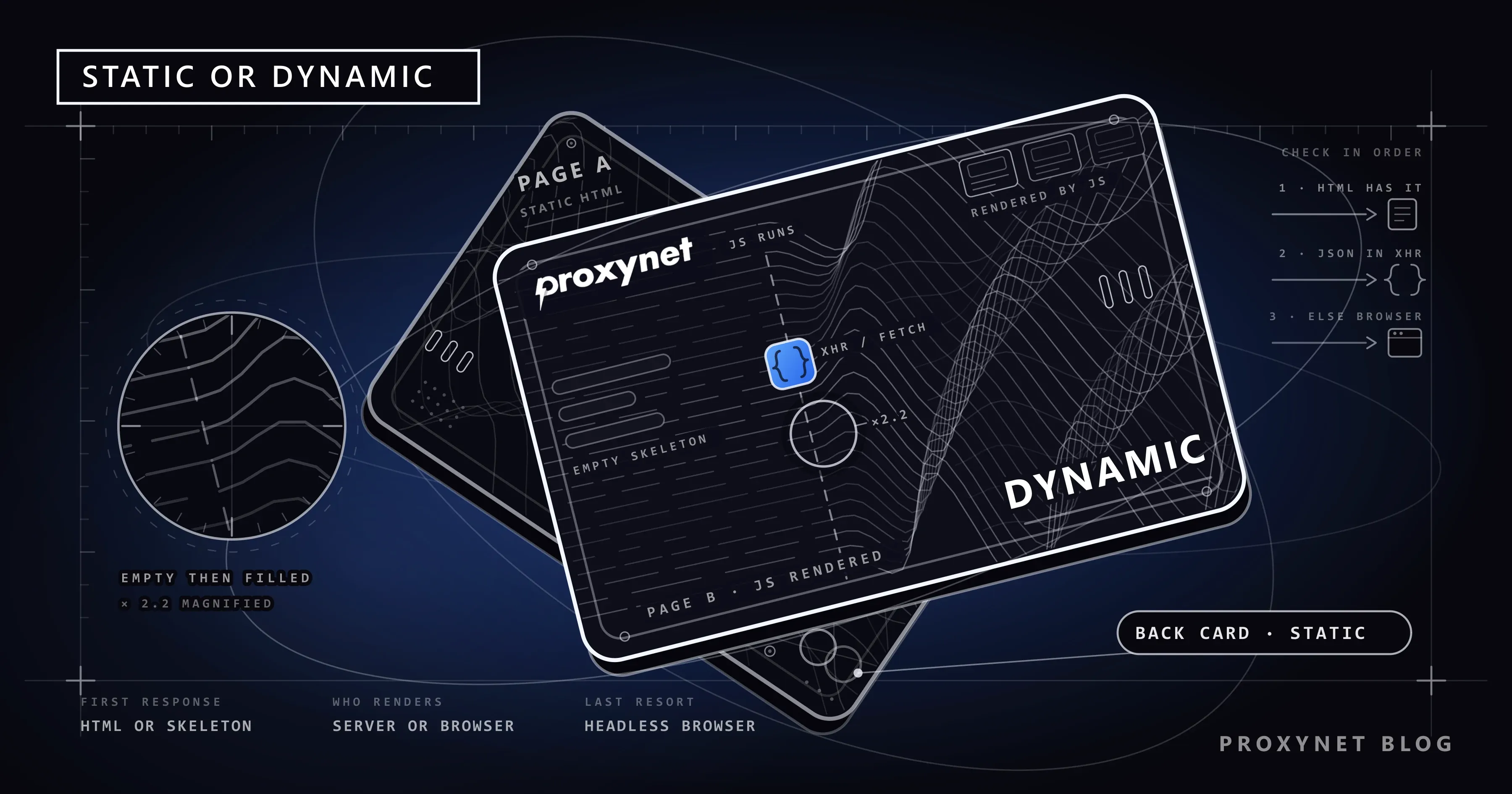
On a dynamic page, the server's first response is a skeleton: the page layout, an empty list container and JavaScript files. The content arrives afterwards in these steps:
- The browser receives the HTML skeleton and draws a placeholder such as "Loading..." on screen.
- JavaScript files are downloaded and run. Often a framework such as React or Vue.
- JavaScript sends an API request. For example, with
fetchto/api/products?category=headphones&page=1. - The server returns the data as JSON. Product names, prices, stock information.
- JavaScript builds HTML from that JSON and inserts it into the page. Product cards only appear at this step.
- Scrolling or clicking triggers new requests. Infinite scroll, a "show more" button, filters.
An HTTP client such as Python's requests only does the first step; it does not run JavaScript. That is why the HTML it gets has no product cards. On our local test page, the requests code above found zero cards; the same page showed two products in the browser. Images work the same way; we show why pictures that load only on scroll go missing from a bulk download in how to download all images from a website.
There is also a hybrid structure: frameworks such as Next.js and Nuxt render the page's first state on the server and also embed the same data in the HTML as a JSON block for JavaScript to use. On these pages the data is in the HTML without running JavaScript, but sometimes it sits inside a <script> tag rather than in the visible cards.
How can you tell whether a page is dynamic?
A few minutes of diagnosis before setting up a headless browser helps you pick the right route:
- View the source.
Ctrl + Uon the page (Cmd + Option + Uon macOS) shows the raw HTML the server sent. Search there for a product name or price you see on the page. If you find it, the page is probably static. - Compare with the Elements panel. The Elements panel in the developer tools shows the page after JavaScript has run. If the text is in Elements but not in the source, the content came through JavaScript.
- Turn off JavaScript and reload. In Chrome developer tools, open the command menu with
Ctrl + Shift + P, type "Disable JavaScript" and reload the page. If the content disappears, the page is dynamic. - Check with code. Search the HTML you got with
requestsfor a text you expect. If it isn't there and the HTML is very short, you got a skeleton. - Look at the Fetch/XHR filter in the Network panel. If you reload the page and see JSON responses under this filter, the data is probably in one of those requests.
Step four has a trap: if the content isn't in the HTML, the reason is not always JavaScript. The site may have returned a challenge page or different content. Check the response's status code and content; we explain that diagnosis in detail in How to Scrape Websites Without Getting Blocked.
What is a headless browser?
A headless browser is a real browser that runs without opening a window on screen. The Chromium, Firefox or WebKit engine loads the page like a normal browser, runs JavaScript, sends API requests and builds the page; you read that page with code. Common tools are Playwright, Puppeteer and Selenium.
A headless browser can do more than an HTTP client, but it also costs more:
- CPU and memory. Each browser tab uses many times the resources of an HTTP request. The number of pages you can run at once on the same machine is limited by cores and memory, not by the network.
- Time. Downloading and running all of a page's JavaScript can take seconds.
- Request count and bandwidth. A single page generates dozens of extra requests for images, fonts, stylesheets, analytics scripts and ads. That increases both your traffic and the target site's load.
- Maintenance. Browser versions, drivers and waiting logic add complexity.
That is why a headless browser should be the last resort, not the first choice. For a comparison of different tools, see Web Scraping: JavaScript or Python?, and for setting up Selenium, see Using a Proxy with Selenium.
Finding the API/XHR request first
The data on a dynamic page reaches the browser from somewhere as JSON. If you find that request, you can get the data directly without rendering the page at all. Chrome's Network panel reference explains the filters and copy options in detail; the short route is:
- Open the developer tools (F12) and switch to the Network tab.
- Tick Fetch/XHR in the filter bar.
- Reload the page or perform the action that loads the data (scroll the page, pick a filter, go to the next page).
- Click requests whose names contain words like
api,graphql,searchorproducts, and look at the JSON in the Response tab. - When you find the request containing the data you need, note the address, parameters and required headers from the Headers tab. You can try it on the command line by right-clicking the request and choosing Copy > Copy as cURL. Our How to POST JSON with Python Requests: cURL Equivalents article explains which headers to drop when you turn the copied command into Python, and whether the body belongs in
json=ordata=.
Repeating the request you found in Python usually takes a few lines:
import requests

session = requests.Session()
session.headers.update({
    "User-Agent": "ExamplePriceBot/1.0 (+https://example.com/about-our-bot)",
    "Accept": "application/json",
})

response = session.get(
    "https://example.com/api/products",
    params={"category": "headphones", "page": 1},
    timeout=20,
)
response.raise_for_status()
for product in response.json()["products"]:
    print(product["name"], product["price"])
The advantages of this route are big: the data arrives structured, you don't need HTML selectors, your code doesn't break when the page design changes, and a single request is a small fraction of a whole page's load. Paging is usually done with a page, offset or cursor parameter. If the endpoint returns an HTML page instead of JSON when your script calls it, the .json() call fails with JSONDecodeError: Expecting Value; we show how to find the cause in How to Fix JSONDecodeError: Expecting Value in Python.
Things to watch out for:
- Authentication and tokens. Some API requests need cookies, session tokens or short-lived signatures. Copying these by hand works for a short time, then breaks.
- Site terms. An internal API the site uses for its own front end is not a public API. Apply the site's terms of use and robots.txt rules to these requests too; if an official API is offered, prefer it. For the legal framework, see Is Web Scraping Legal?.
- Speed. Because API requests are light, they can be sent very fast, which also means you can exceed a site's limits more easily. Apply the same speed rules.
Reading JSON embedded in the HTML
On sites built with Next.js, Nuxt and similar frameworks, the data often sits ready in a <script> tag inside the HTML. View the source and search for __NEXT_DATA__, __NUXT__, __INITIAL_STATE__ or application/ld+json.
import json

import requests
from bs4 import BeautifulSoup

html = requests.get("https://example.com/deals", timeout=20).text
soup = BeautifulSoup(html, "html.parser")

data = json.loads(soup.select_one("script#__NEXT_DATA__").string)
for product in data["props"]["pageProps"]["products"]:
    print(product["name"], product["price"])
application/ld+json blocks carry structured data such as product name, price, stock and rating in schema.org format, and because they are prepared for search engines they are usually stable. We cover making selectors robust against design changes in CSS Selector vs XPath.
Waiting strategies in Playwright
If the data is neither in an API nor in embedded JSON, or if reaching the content needs interactions such as clicking, scrolling and filling in forms, a headless browser is used. The most common mistake then is when to read: if you read as soon as the page opens, the content hasn't arrived yet; if you wait a fixed time, you either waste time or still get an empty result on a slow response.
Playwright's proper waiting tools are:
- Locators' automatic waiting. Operations such as
page.locator("div.product h2").inner_text()wait until the element appears on the page, up to the default timeout. Playwright's actionability checks documentation lists what is waited for. - Waiting for a specific element.
page.locator("div.product").first.wait_for()waits until the first product card appears. - Waiting for a specific response.
page.expect_response(...)waits for the page's data request to return and gives you the JSON directly. - Not using fixed waits.
page.wait_for_timeout(5000)is useful in tests but unreliable in production.
The Playwright documentation says that the networkidle load state, waiting for network traffic to stop for a while, is discouraged; on pages where analytics and ad scripts keep sending requests, that state may never come.
The example below opens the page through a proxy, blocks images and fonts to reduce load, captures the data request's response and then reads the rendered cards:
from playwright.sync_api import sync_playwright

PROXY = {"server": "http://pr.proxynet.io:8000", "username": "user", "password": "pass"}

with sync_playwright() as p:
    browser = p.chromium.launch(proxy=PROXY)
    page = browser.new_page()

    # Don't download images and fonts, to cut time and traffic
    page.route("**/*.{png,jpg,jpeg,webp,gif,woff2}", lambda route: route.abort())

    with page.expect_response(lambda r: "/api/products" in r.url and r.ok) as response:
        page.goto("https://example.com/deals")
    api_data = response.value.json()           # get the JSON directly

    page.locator("div.product").first.wait_for()  # or wait for the rendered cards
    names = page.locator("div.product h2").all_inner_texts()

    print(len(api_data["products"]), names)
    browser.close()
In this example, the JSON captured with expect_response is often enough on its own; there is no need to read the cards. You end up using the browser only to make the page send that request with the right parameters and cookies.
In Playwright, proxy details are given when launching the browser, with the username and password in separate fields. For flows where the same IP must be kept for the session, a fixed exit address can be used; for many independent pages, a Rotating Proxy that gives a different IP on every connection. We explain why challenge screens appear in browser automation in Puppeteer and CAPTCHA.
Cost: when is a headless browser unnecessary?
| Approach | When it works | Speed and resources | Fragility | Watch out for |
|---|---|---|---|---|
| HTTP client + HTML | The page is static, the content is in the source | Very fast, very light | Sensitive to design changes | Tie selectors to stable attributes |
| JSON embedded in HTML | Hybrid pages such as Next.js, Nuxt | Very fast, light | The data structure can change | Error handling that checks the JSON path |
| Background API request | The content arrives as JSON | Very fast, lightest | Independent of design, the API can change | Site terms, tokens, rate limits |
| Headless browser | Interaction needed, data not reachable any other way | Slow, heavy | Sensitive to waiting logic | Block images, keep concurrency low |
Typical cases where a headless browser is unnecessary:
- The content is already in the page source.
- The data comes from a JSON request that can be repeated with simple parameters.
- The data sits in a
__NEXT_DATA__or JSON-LD block. - JavaScript is only used for navigation between pages, and the content comes from the server on every page.
Cases where a headless browser is really needed:
- The content only loads with scrolling, clicking or form interaction, and the related API request cannot be repeated.
- Requests need short-lived signatures or tokens generated by the page's JavaScript.
- The page's visual output (a screenshot, layout verification) is the job itself.
If you do use a headless browser, set the number of simultaneous pages according to machine resources; we cover this in Concurrency vs Parallelism.
Use cases
- E-commerce price monitoring: the category page is dynamic, but the product list comes from a single
/api/productsrequest. The API request instead of a headless browser; to see prices in different countries, a Residential Proxy that goes out through real home connections. The setup is on our e-commerce proxy solution page. - A listings site built with Next.js: the data is in
__NEXT_DATA__. An HTTP client and JSON parsing are enough. - A review list with infinite scroll: the paging request sent while scrolling is found and looped with its
cursorparameter. - An account panel that needs interaction (your own account): login, filter selection and report download steps with a headless browser; the same IP for the session. The general setup is on our data scraping solution page.
Common mistakes
- Switching to a headless browser first. The JSON request in the Network panel often gives the same data much more cheaply.
- Waiting a fixed time.
time.sleep(5)wastes time on fast responses and still returns empty results on slow ones. - Waiting for
networkidle. It may never come on pages that keep sending requests. - Downloading every resource. Images, fonts and videos aren't needed for data; blocking them cuts time and traffic.
- Mistaking an empty result for a dynamic page. A challenge page or a block also gives an empty result; check the status code and content.
- Using an internal API like a public API. Site terms and rate limits apply to these requests too.
- Reaching for detection evasion tools. Plugins that try to make the browser "look human" hide the source of the problem; reviewing speed, scope and permission is a more solid route. We discuss why such tools are problematic in How to Use Undetected ChromeDriver for Web Scraping.
Decision guide
| Diagnosis result | Recommendation |
|---|---|
| The text is in the page source | HTTP client + HTML parsing |
The source has __NEXT_DATA__ or JSON-LD | HTTP client + JSON parsing |
| The Network panel has a JSON request carrying the data | Repeat the request directly |
| The JSON request needs a short-lived signature | Headless browser + expect_response |
| The content only arrives with interaction | Headless browser + locator waiting |
| The headless browser is slow and heavy | Block images, lower concurrency |
| No content in the HTML and the status code is 403/429 | Not dynamic but a block; diagnose it |
Frequently asked questions
Why doesn't requests return the content I see in the browser?
Because requests only fetches the first HTML the server sends and does not run JavaScript. If the page content is loaded later with JavaScript, that HTML only contains the skeleton. Find the request the data comes from in the Network panel, or look for JSON embedded in the HTML.
What is the difference between a headless browser and a normal browser?
The engine is the same; the difference is that no window is drawn on screen in headless mode. Page loading, running JavaScript and network requests work as in a normal browser. Some sites can tell headless browsers apart by small differences.
Playwright or Selenium?
Both run dynamic pages. Playwright offers features that help in scraping, such as automatic waiting, capturing network responses and blocking requests, in a single API; Selenium is older, multi-language and has a wide ecosystem. Continuing with whichever one your existing project uses is usually the most practical choice.
Is using a hidden API request legal?
A request being technically public does not make its use unrestricted. Consider the site's terms of use, robots.txt rules and personal data laws; if there is an official API, prefer it. If you are unsure, get legal advice.
How do I use a headless browser with a proxy?
In Playwright, the proxy is given with the proxy parameter when launching the browser; the server address, username and password are separate fields. In Puppeteer and Selenium, it is passed to the browser as a launch argument and authentication is handled separately.
How do you get data from infinite scroll pages?
First, find the paging request sent while scrolling in the Network panel. It usually carries a page number or a cursor value and can be repeated in a loop. If the request cannot be repeated, scroll the page gradually in a headless browser and wait for new cards to arrive at each step.
Summary
On a static page the content is ready in the HTML and a simple HTTP request is enough; on a dynamic page the content arrives later through JavaScript and an HTTP request returns a skeleton. Before switching to a headless browser, view the source, look in the Network panel for the JSON request carrying the data and check for data embedded in the HTML. When a browser is really needed, use locator waiting and expect_response instead of fixed waits, block images and keep concurrency low. You can find proxy types that suit your data collection work in our proxy services.