You open a shop you buy from every month and Chrome stops on a grey page: "This site can't be reached" at the top, "shop.example.com's server IP address could not be found." underneath and, in small letters at the bottom, ERR_NAME_NOT_RESOLVED. Reloading brings the same page. The address opens on your phone but not on the laptop, or the other way round.
This post explains what the code means, which steps a browser goes through to turn a name into an address, and at which step the error appears. Then it covers the difference from the neighbouring code DNS_PROBE_FINISHED_NXDOMAIN, the fixes on computers and phones, and who resolves the name when you use a proxy. We checked Chrome's behaviour against the source code of Chromium, the open-source project behind the browser, on 7 October 2026.
What does ERR_NAME_NOT_RESOLVED mean?
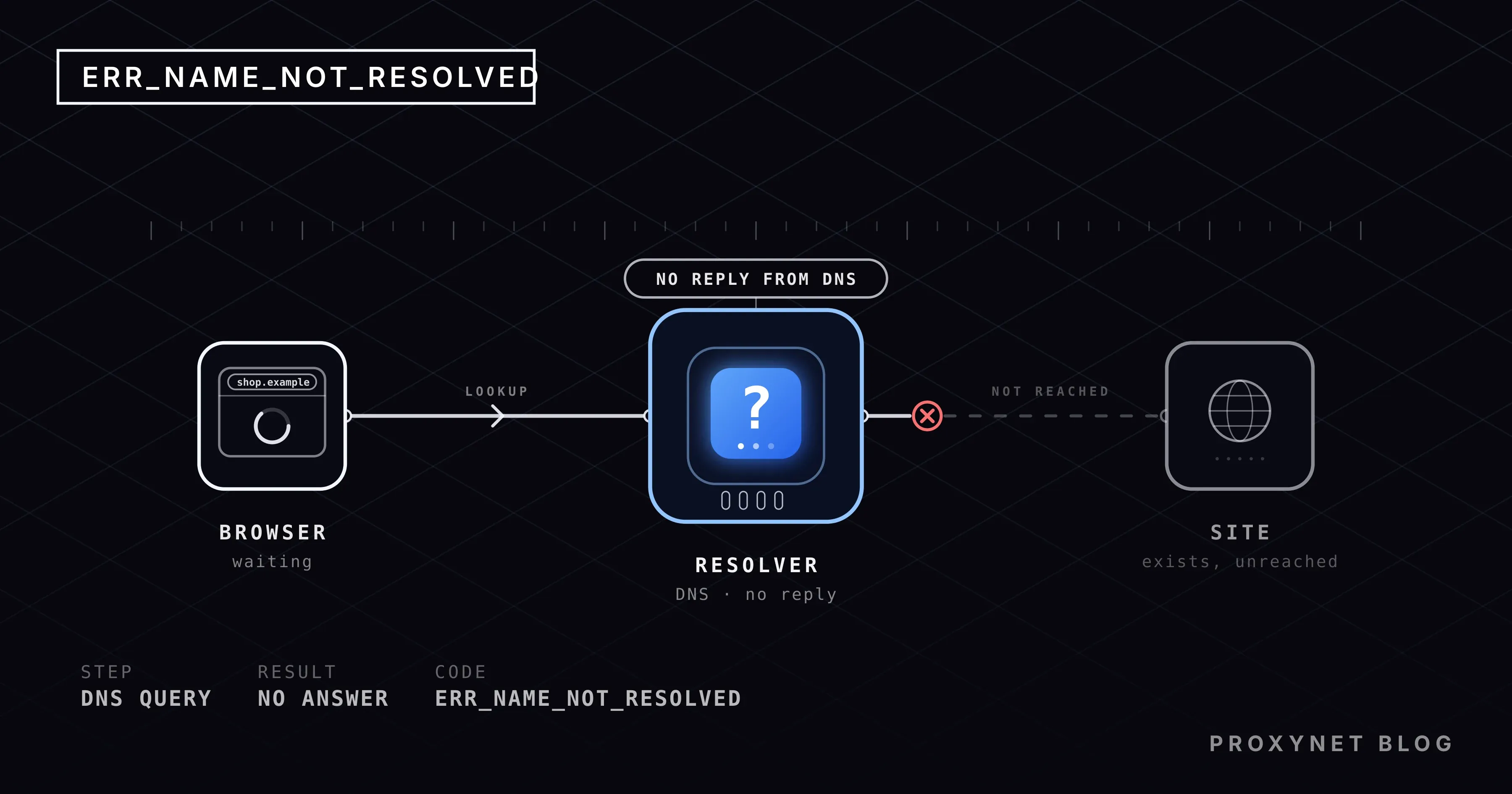
The code means "name not resolved": Chrome could not convert a site name such as shop.example.com into the numeric address computers use to find each other. You type a name, but the internet runs on IP addresses like 203.0.113.24. The translation is done by DNS, the internet's address book. When no answer comes back from that book, Chrome has no address to connect to, and the page stops at the very first step.
Chromium's error list defines the code as number -105 with a single sentence: the host name could not be resolved. The code reports the outcome, not where it went wrong, which is why the same screen appears for a typo, a crashed DNS server and a wrong proxy setting alike.
Browsers built on Chrome's engine, such as Edge, Brave and Opera, show the same code. Safari and Firefox print a plain sentence such as "server not found" instead, but the underlying problem is the same.
How does a browser turn a site name into an address?
Chrome looks in several places in turn when it resolves a name, and the error can appear at any of them. The order is summarised from Chromium's host resolver code:
- Chrome's own memory. Chrome keeps the answers to recent lookups for a short while. If the answer is here, the question never leaves the browser. An old or broken answer can sit here too.
- The computer's hosts file and its own cache. The operating system first checks the hosts file, a small text file that maps names to addresses by hand, then its own stored answers. Windows calls this store the DNS client cache.
- The router. Most home computers use the router as their DNS server. If the router does not know the answer, it passes the question on.
- Your internet provider's DNS server, or one you chose yourself. This is called a resolver; if it does not know the name, it asks the servers responsible for the domain and carries the answer back.
- The answer returns to Chrome. If an address arrives, Chrome opens the connection. If nothing comes back, the wait times out, or the answer is "no such name", the page stops with
ERR_NAME_NOT_RESOLVED.
There are two exceptions. If a secure DNS provider is selected in Chrome, Chrome skips the router and the provider and sends the question straight to that provider over an encrypted HTTPS connection, which is called DNS over HTTPS. And if you use a proxy, the name is usually resolved by the proxy server rather than by Chrome; that case has its own section below.
How is it different from DNS_PROBE_FINISHED_NXDOMAIN?
Both codes come from the same failed lookup, but they say different things. DNS_PROBE_FINISHED_NXDOMAIN means DNS gave a clear "no such name" answer and Chrome's follow-up check showed that your DNS works. ERR_NAME_NOT_RESOLVED is broader: no answer may have arrived at all, the resolver may have been unreachable, or a proxy setting or an extension may have cut the lookup off.
Chromium's code ties them together like this: when a lookup fails with ERR_NAME_NOT_RESOLVED, Chrome runs a test lookup. If the test concludes that the DNS servers work and therefore the domain does not exist, the page shows the NXDOMAIN code. If the test does not run, ends inconclusively, or has been switched off in the settings, the page keeps the original code.
| Code | What Chrome knows | Most common cause | First step |
|---|---|---|---|
ERR_NAME_NOT_RESOLVED | Lookup failed; cause unclear | Typo, cache, DNS server, proxy | Try another device |
DNS_PROBE_FINISHED_NXDOMAIN | DNS works, this name does not exist | Typo, expired domain | Check the spelling |
DNS_PROBE_FINISHED_NO_INTERNET | No DNS server could be reached | Connection down | Wi-Fi and router |
DNS_PROBE_FINISHED_BAD_CONFIG | Your DNS failed the test | Wrong DNS setting, server down | Change the DNS server |
In short, NXDOMAIN usually points at the name itself; ERR_NAME_NOT_RESOLVED means you should look at your own side first. The causes of NXDOMAIN, and what to check when the domain is yours, are in dns_probe_finished_nxdomain: What It Means and How to Fix It.
Why does ERR_NAME_NOT_RESOLVED happen?
Roughly in the order we see them:
- A typo. A missing letter,
.coninstead of.com, a space, or a full stop that stuck to the end when the address was copied from a message. A typo gives the same result on every DNS server. - An old or broken answer. Chrome and Windows keep answers for a while. If the site changed its address, or you switched from Wi-Fi to mobile data, the stored answer no longer helps.
- The DNS server cannot be reached. Your provider's server may be down, the router may have frozen, or the secure DNS provider you chose may not be answering. Then every site usually shows the same error.
- A proxy setting. A proxy setting left on in Windows, or an automatic configuration file, makes Chrome send every request to a server that no longer exists. An uninstalled VPN app is the usual culprit.
- Extensions. VPN, ad-blocking and "privacy" extensions can change Chrome's proxy setting or block certain domains. When the extension's service stops, the error comes from the route it set up.
- A filtering DNS. Parental controls, office networks and some security software refuse to answer for certain names. If a network you do not manage blocks a site, ask its administrator rather than trying to get around it by changing DNS.
- The domain itself. The domain may have expired or its DNS records may be broken. Then the site opens on no device and no network.
The hosts file is not on this list because it cannot produce this code on its own. A wrong line there sends you to the wrong address, which shows up as a different error such as "connection refused" or a timeout. Still, if your security software shows lines in the hosts file you do not recognise, delete them.
Is the problem on your side or the site's?
Three short tests before any fix save you hours in the wrong place:
- Read the name in the address bar letter by letter. Look at the address Chrome shows at the top, not at the link you clicked. Searching for the site and clicking the result is an easy way to check the spelling.
- Open the same address on your phone with Wi-Fi off. If it opens over mobile data, the problem is in your home network or your computer. If it fails there too, the problem is the site or its domain, and all you can do is wait.
- Open another site. If nothing opens, the cause is your connection or your DNS server. If only one site fails, look at stored answers and filters.
The other codes on the same grey page belong to later steps: connection refused, timed out or reset. Which code belongs to which step is explained in This Site Can't Be Reached: What It Means and Why It Happens.
How do you fix it on Windows and in Chrome?
The steps run from the easiest to the most involved. Reload the page after each one; if it works, skip the rest.
- Clear Chrome's stored answers. Type
chrome://net-internals/#dnsinto the address bar and click Clear host cache. Then close Chrome completely and open it again. - Try an Incognito window. Extensions are off in Incognito by default. If the site opens there, an extension is the cause: go to Settings > Extensions and turn off VPN, proxy and ad-blocking extensions one at a time. Google's Chrome help page on connection errors also recommends turning off extensions and testing in Incognito for this code.
- Check the secure DNS setting. Open Settings > Privacy and security > Security and find Use secure DNS under Advanced. If a provider you picked is selected, switch it temporarily to the operating system default. When a selected provider cannot be reached, Chrome does not fall back to normal DNS, and every site shows this error.
- Check the proxy setting. Open Settings > Network & internet > Proxy. If Use a proxy server under Manual proxy setup is on and you did not set it up, turn it off. If Use setup script is on and you do not recognise the address, turn that off too. Chrome takes its proxy setting from Windows; the proxy link on Chrome's Settings > System page leads to the same place.
- Change the DNS server. Open Settings > Network & internet > Wi-Fi (or Ethernet), open the properties of your network and click Edit next to DNS server assignment. Choose Manual, switch on IPv4 and enter Google's
8.8.8.8or Cloudflare's1.1.1.1as the Preferred DNS. If the site opens now, your provider's DNS was the problem. What this setting means and where it lives on other devices is in What Is DNS and How Do You Change DNS Settings?. - Restart the router. Unplug it, wait thirty seconds and plug it back in. That clears the router's own DNS memory; a frozen router gives every device in the house the same error.
- Pause only the "web protection" feature of your security software for a few minutes. Some antivirus programs pass DNS lookups through their own filters. Test, then turn it back on.
On a Mac the same settings live under System Settings > Network, in the DNS and Proxies tabs behind your network's Details button.
How do you fix it on Android and iPhone?
Phones have two more common causes: a private DNS name entered on the phone, and ad blockers that run as a VPN.
On Android:
- Switch between Wi-Fi and mobile data. If the site opens on one, the other network's DNS is the problem.
- Check Private DNS: Settings > Network & internet > Private DNS (or search Settings for it). If Private DNS provider hostname is selected and you did not enter the name, choose Automatic.
- Pause VPN and ad-blocking apps. Most of them pass traffic through a VPN on the phone; when the app stops, DNS stops with it.
- Check secure DNS in Chrome: Settings > Privacy and security > Security > Use secure DNS, with the same rule as on the computer.
- Restart the phone to clear the stored answers.
On iPhone:
- Turn Wi-Fi off and try over mobile data. Safari shows no code, but the test works the same way.
- Check the Wi-Fi network's DNS. Go to Settings > Wi-Fi, tap the (ⓘ) next to the network and open Configure DNS. If Manual is selected and you did not enter the servers, tap Automatic.
- Check the proxy on the same screen. Configure Proxy should be Off unless you or your workplace set it.
- Check VPN profiles under Settings > General > VPN & Device Management; turn off any you do not recognise from the app that installed it.
- Restart the iPhone.
Advanced: clearing the DNS cache on Windows
You can skip this section; the steps above solve most cases. Independently of Chrome, Windows keeps recent DNS answers too, so after a site changes its address or you change the DNS server, the old answer may still be here. Type cmd into the Start menu, open Command Prompt and run:
ipconfig /flushdnsThe command prints a short confirmation and changes no settings. Microsoft's ipconfig reference says this parameter flushes the DNS client resolver cache, including the negative entries left behind by failed lookups. Chrome keeps its own memory, so close and reopen the browser afterwards.
Who resolves the site name when you use a proxy?
A proxy is an intermediate server that forwards your traffic on your behalf, and when you use one the site name is usually resolved by the proxy, not by your computer. When Chrome connects to an HTTP or HTTPS proxy, it tells the proxy "connect me to shop.example.com"; the proxy turns the name into an IP address. Chromium's proxy documentation states the same rule for SOCKS5: when a proxy's scheme is SOCKSv5, name resolution is always done on the proxy side. Only the old SOCKS4 resolves the name on your computer.
This has two consequences. First, a site your provider's DNS cannot resolve may open through an HTTPS Proxy, because the proxy asks its own DNS. Second, if the proxy's DNS does not know the name either, the error still appears in Chrome, but the problem is now in the proxy's network rather than yours; you need a different exit or the provider's support team.
So what happens when the proxy server's own name cannot be resolved, say because the proxy left behind by an old extension has been shut down? Chrome then shows ERR_PROXY_CONNECTION_FAILED, not ERR_NAME_NOT_RESOLVED. In Chromium's source, both the HTTP proxy and the SOCKS connection code return this code whenever the connection to the proxy cannot be established for any reason, and the error list's definition says the same: an error occurred either in resolving its name or in connecting a socket to it. So if you see ERR_NAME_NOT_RESOLVED while a proxy is configured, the problem is not reaching the proxy but the proxy finding the target name.
Networks that use an automatic configuration file (PAC) have one more exception: if the file cannot be downloaded, Chrome continues without a proxy; if the administrator made the file mandatory, requests stop with ERR_MANDATORY_PROXY_CONFIGURATION_FAILED.
In scripts and apps the difference comes down to one letter: with socks5:// your program resolves the name, with socks5h:// the proxy does. For tools that run through a SOCKS5 Proxy, choosing remote resolution keeps the DNS question where the request leaves the network, and the job keeps going when your local DNS cannot resolve a name.
Where does this error come up?
- Going online for the first time with a proxy setting left in Windows by an uninstalled VPN app.
- In a new home, when the router has not yet received the right DNS address from the provider.
- When a manually selected secure DNS provider in Chrome has an outage.
- When a full stop or a space sticks to the end of an address copied from an email.
Common mistakes
- Changing the DNS server before checking the spelling. A typo gives the same result on every server.
- Deleting cookies and history. The page never loaded; Chrome's name memory lives elsewhere and is cleared from
chrome://net-internals/#dns. - Turning off the whole firewall. Pausing only the web protection feature for a moment is enough for the test.
- Installing a "DNS changer" or a free VPN. These apps bring their own DNS and proxy settings; often one of them is the cause in the first place.
- Turning off the proxy setting but leaving the extension on. The extension writes the setting back within seconds.
Decision guide
| Situation | What to do |
|---|---|
| One site fails, on this device only | Clear Chrome's memory, turn off extensions, try Incognito |
| No site opens, but the phone works on mobile data | Restart the router, change the DNS server, turn off the proxy setting |
| Only Chrome fails; Edge or Firefox works | Check Chrome's secure DNS setting and extensions |
| The error appears with a VPN or extension on | Turn it off; for a lasting fix, check the app's own DNS setting |
A proxy is set and ERR_PROXY_CONNECTION_FAILED appears | Check the proxy address and port; the target site is not the problem |
| The site fails on every device and network | The domain or the site's DNS is broken; tell the owner or wait |
Frequently asked questions
What does the ERR_NAME_NOT_RESOLVED error mean?
It means Chrome could not turn the site's name into an IP address. The cause can be a typo, an old answer stored on the device, a DNS server that does not answer, or a proxy setting, VPN or extension that cuts the lookup off.
What is the difference between ERR_NAME_NOT_RESOLVED and DNS_PROBE_FINISHED_NXDOMAIN?
NXDOMAIN means DNS gave a clear "no such name" answer and Chrome's follow-up check showed that your DNS works. ERR_NAME_NOT_RESOLVED covers every case where no answer came back or Chrome could not decide why.
Does changing DNS fix this error?
It does when your provider's DNS server is not answering or filters certain names. For a typo, a proxy setting problem or a broken domain, changing DNS changes nothing.
What should I do if the error appears on one site only?
Check the spelling first, then open the address on your phone over mobile data. If it opens there, clear Chrome's stored answers and turn off extensions; if it fails there too, the problem is the site or its domain.
Why does ERR_NAME_NOT_RESOLVED appear while I use a proxy?
With HTTP, HTTPS and SOCKS5 proxies the proxy resolves the site name, so the error means the proxy's own DNS could not find it. When the proxy server itself cannot be reached, Chrome shows ERR_PROXY_CONNECTION_FAILED instead.
How do I fix ERR_NAME_NOT_RESOLVED on a phone?
Switch between Wi-Fi and mobile data, set Private DNS to Automatic on Android, pause VPN and ad-blocking apps, and restart the phone. On iPhone, make sure the Wi-Fi network's DNS and proxy settings are automatic.
Summary
ERR_NAME_NOT_RESOLVED says Chrome could not turn the site name into an address, and it does not say where the cause lies. Check the spelling and another device first to learn whether the problem is yours or the site's. If it is yours, clear Chrome's memory, turn off extensions and the secure DNS provider, check the proxy setting, change the DNS server and restart the router, in that order. If you use a proxy, the proxy resolves the name; when the proxy itself cannot be reached you see a different code. For people who route their traffic through an intermediate server on purpose, choosing which side resolves the name matters for exactly this reason; the options are on our proxy page.