A social media team runs the pages and ad accounts of fifteen clients from one office. Each account needs its own logged-in browser session, and each platform expects an account to connect from roughly the same place every day. Hidemyacc is an antidetect browser built for this: every profile keeps its own cookies, its own browser fingerprint and, once you add one, its own proxy. The proxy is the part you bring yourself.
This guide covers adding Proxynet proxies to one Hidemyacc profile and to many, choosing the connection type and proxy, matching settings, testing, automation and common errors.
What is Hidemyacc?
Hidemyacc is an antidetect browser: a desktop application that keeps many browser profiles isolated on one computer. Each profile has its own fingerprint values (user agent, screen size, fonts, language, Canvas and WebGL output), its own cookies and its own proxy, so websites see it as a separate device. How this category of tools works is explained in What Is an Antidetect Browser?.
The app runs on Windows and macOS; version 3.1.8 came out in September 2026. Profiles run on Marco, Hidemyacc's Chromium-based browser core (version 151 since August 2026). The older Ghosty source, still visible in some screenshots, was disabled in January 2024. Each profile presents a system you pick (Windows, macOS or Linux, plus Android and iOS from the Base plan) and a browser: Chrome, Brave, Opera, Edge or Yandex.
Teams use it for social media, advertising, e-commerce and data scraping, with automation and profile sharing built in. There is a 7-day trial with 30 profiles, then paid plans. Hidemyacc does not supply your proxies: without one, every profile uses your computer's IP address.
Why does each profile need its own proxy?
Separate profiles keep cookies and logins apart, but the network address is shared unless you add a proxy. Fifteen client accounts behind one office IP all carry the history of that one address.
The second reason is account hygiene. A logged-in account is expected to connect from a stable location. An account that appears from Istanbul in the morning and from another country at noon looks like a possible takeover, and the platform asks for verification. One profile with one consistent IP keeps the login history predictable. This keeps legitimate client accounts orderly; it does not change a platform's rules on how many accounts one person may hold.
How to use Proxynet proxies with Hidemyacc?
First generate your details in the Proxynet panel's Endpoint Generator: country, city if needed, and rotating or sticky session. The examples use pr.proxynet.io:8000 and user:pass.
1. Download Hidemyacc
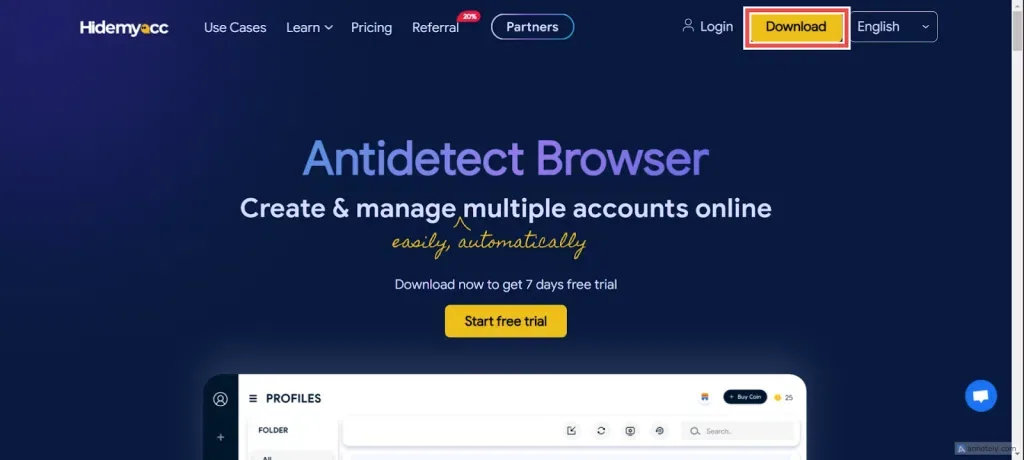
Go to the official Hidemyacc website, click Download and install the Windows or macOS version.
2. Register a Hidemyacc account
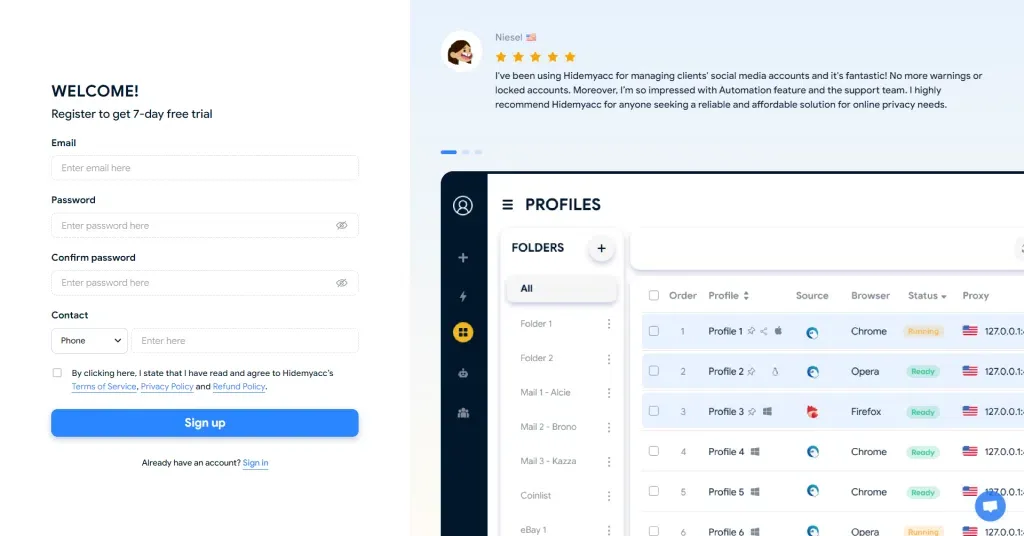
Open the app and click Register here. Enter your email, a password and a contact (phone, Skype or Telegram), accept the terms and click Register (the button reads Sign up in older versions). Registration works only in the desktop app, not in a web browser.
3. Create a new profile
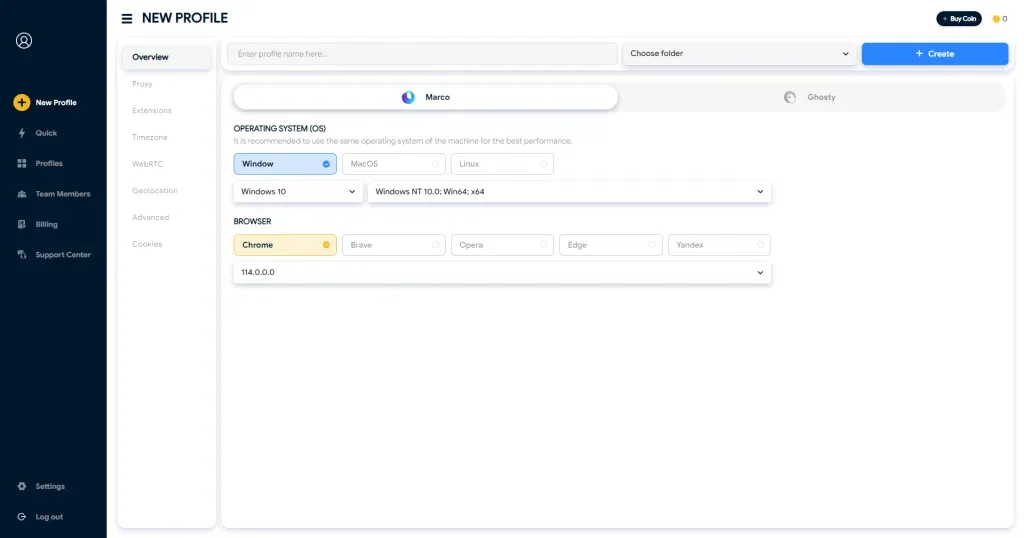
Log in and click New Profile in the left menu. On the Overview tab, enter a name, then choose the operating system and browser the profile presents. Name the profile after the account it holds, such as "client-a-instagram", so proxy and account stay matched.
4. Add the proxy settings
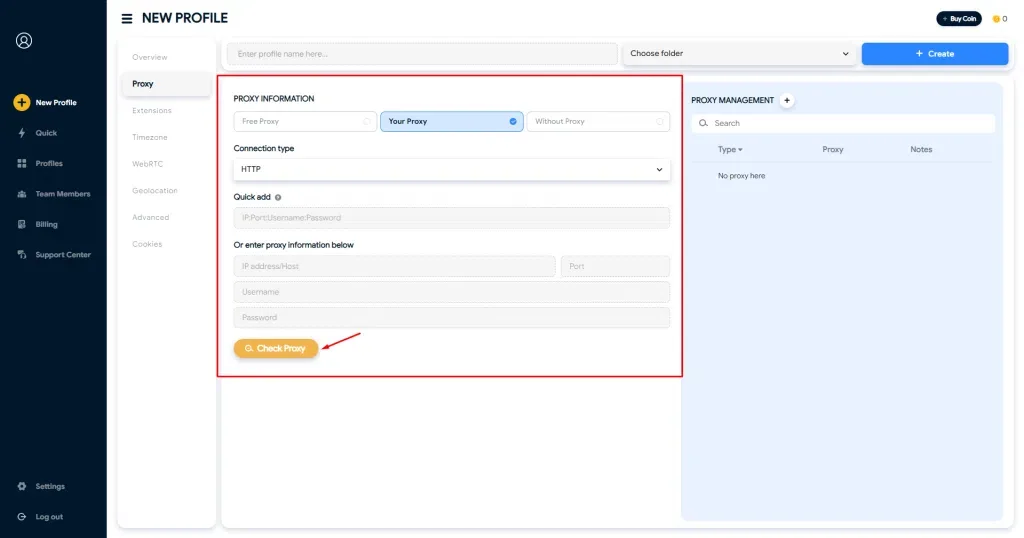
Open the Proxy tab. Under Proxy information you choose where the proxy comes from:
- Your Proxy: your own proxy. Use this for Proxynet.
- Free Proxy: a random address from Hidemyacc's shared list of about 10,000, from the Base plan.
- Without Proxy: the profile uses your real IP.
- Proxy Manager: a proxy you saved earlier (see the next section).
Select Your Proxy and set Connection type to HTTP for Proxynet's HTTP port, or Socks5 for the SOCKS5 port. Paste pr.proxynet.io:8000:user:pass into Quick add, or fill the host, port, username and password fields below it. If your password contains a colon, use the separate fields.
5. Check the proxy and run the profile
Click Check Proxy. A working proxy shows its IP, time zone, country, region and city; a failed check says "Can't connect to proxy server". Click Create, then Run in the profile list. The profile opens ipfighter.com, which shows the exit IP and ISP.
If a screen looks different in your version, see the Hidemyacc profile documentation.
How do you add proxies in bulk with Proxy Manager?
Proxy Manager keeps your proxies in one list, so you do not retype them for every profile:
- Open Proxy Manager and click Add proxy.
- Set Proxy type (HTTP, Socks4 or Socks5) and paste the Proxy list, one
IP:Port:Username:Passwordper line. - Add Tags, such as the client name, and optionally an expiration date. Click Add.
- Select the proxies and click Check Proxy to test them all.
- In a new profile's Proxy tab, click the Proxy Manager icon and pick a proxy. For existing profiles, select them, click Add Proxy, then the Proxy Manager icon.
For many new profiles, Multi Profiles creates them in one go; its import template takes a proxy type and a host:port:username:password column. See the Proxy Manager documentation.
Which connection type should you choose?
With Proxynet, HTTP and SOCKS5 run on separate ports of one gateway, so the connection type decides the port.
| Connection type | What it is | Use it when | With Proxynet |
|---|---|---|---|
| HTTP | Requests go to the proxy; HTTPS sites pass through an encrypted CONNECT tunnel | Default for browser profiles | HTTP port |
| Socks5 | Protocol-neutral tunnel with username and password | A tool needs SOCKS5 or UDP | SOCKS5 port |
| Socks4 | Older SOCKS version without password login | Legacy IP-authenticated proxies | Not used |
| SSH, Tinsoftproxy, TMproxy | Your own SSH server, or two specific providers | You use those | Not used |
HTTP covers almost every profile, since a browser only makes web requests. Proxynet's SOCKS5 Proxy also carries UDP. The differences are in SOCKS vs HTTP Proxy.
Which proxy should you use with Hidemyacc?
It depends on how long the profile must keep one IP.
| Profile use | Proxy | Why |
|---|---|---|
| Logged-in account kept for weeks | Static ISP | The same ISP-registered IP every day |
| Session work within the hour | Sticky residential | One home IP for 1-60 minutes |
| Account normally used from phones | Mobile | Operator IPs; in Türkiye Turkcell, Türk Telekom and Vodafone |
| Ad and page checks without login | Rotating residential | A new home IP per connection |
Use a ISP Proxy for long-lived accounts, a Sticky Proxy for session work and a Mobile Proxy for mobile-first accounts. Keep rotating proxies off logged-in profiles: an IP change mid-session can log the account out. More in ISP vs Residential Proxies and What Is IP Rotation?.
Free shared proxies carry other people's history; for accounts that matter, use a proxy only your profile uses. Not sure which product fits? Contact our sales team.
Which profile settings follow the proxy?
A proxy changes the IP, not the fingerprint, so the profile's other values must match the proxy's location. Hidemyacc's defaults handle most of it:
- Timezone: set from the proxy, for example Europe/Istanbul for a Türkiye exit. If a test site shows the wrong zone, set it by hand or switch the lookup server under Settings > Timezone.
- WebRTC: WebRTC can reveal an IP outside the proxy. Altered (the default) shows the proxy IP and suits static proxies. Hidemyacc reads that IP once when the profile starts, so with a rotating proxy choose Disable. Real shows your computer's IP; never use it with a proxy.
- Geolocation and language: geolocation follows the proxy; set the browser language under Advanced to match the proxy's country.
After the first run, check for leaks as in WebRTC and DNS Leaks. Fingerprint values are explained in Browser Fingerprinting.
How do you test the proxy outside Hidemyacc?
When Check Proxy fails, test the same details from a terminal. If curl works, look at Hidemyacc or your network; if it fails too, the details are wrong:
# HTTP port: prints exit IP, city and time zone
curl -x http://user:pass@pr.proxynet.io:8000 https://ipinfo.io/json

# SOCKS5 port (as shown in the Endpoint Generator), DNS resolved by the proxy
curl -x socks5h://user:pass@pr.proxynet.io:1080 https://ipinfo.io/json
CONNECT tunnel failed, response 407: wrong username or password on the HTTP port (407 Proxy Authentication Required).User was rejected by the SOCKS5 server: the same on the SOCKS5 port.Proxy CONNECT abortedorReceived invalid version in initial SOCKS5 response: the type and the port do not match.
Hidemyacc shows one failure message for all of these. Full checklist: How to Test a Proxy.
How do you automate profiles that use a proxy?
Hidemyacc's automation runs inside the profile, so scripted actions use that profile's proxy. Scripts are built by drag and drop, by recording real actions or from your own code.
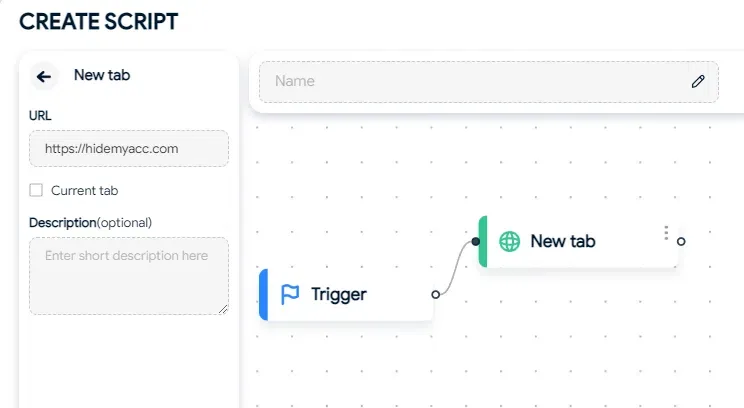
From the Team plan, the local API creates profiles with the proxy already set; the 3.x documentation puts it at http://127.0.0.1:2268 while the app runs. This script reads proxies.txt, one host:port:user:pass line per profile:
import json
import time
import requests

API = "http://127.0.0.1:2268"  # Hidemyacc 3.x local API

with open("proxies.txt", encoding="utf-8") as f:
    lines = [line.strip() for line in f if line.strip()]

for i, line in enumerate(lines, start=1):
    host, port, user, password = line.split(":", 3)
    proxy = {
        "mode": "http",  # or "socks5" with the SOCKS5 port
        "host": host,
        "port": int(port),
        "username": user,
        "password": password,
    }
    body = {
        "name": f"client-{i:02d}",
        "os": "win",
        "browserSource": "marco",
        "browserType": "chrome",
        "proxy": json.dumps(proxy),  # the API expects the proxy as a JSON string
    }
    try:
        r = requests.post(f"{API}/profiles", json=body, timeout=30)
    except requests.ConnectionError:
        raise SystemExit("Hidemyacc is not running or the API is not available")
    if r.status_code == 402:
        raise SystemExit("API access starts with the Team plan")
    data = r.json()
    if data.get("code") == 1:
        print(f"client-{i:02d} created: {data['data']['id']}")
    else:
        print(f"client-{i:02d} failed: {data}")
    time.sleep(1)
mode accepts http, socks4 or socks5. POST /profiles/start/<id> opens a profile and returns a wsUrl for Puppeteer or Selenium. Keep proxies.txt private; it holds your password.
Use cases
- Agencies: each client's social and ad accounts in a separate profile with a fixed IP: social media proxy and How to Manage Multiple Instagram Accounts.
- Ad verification: checking campaigns by country and city without logging in: ad verification.
- E-commerce teams: separate seller accounts within each marketplace's rules: e-commerce proxy.
- QA: testing a site across systems, browsers and locations: app testing.
Common errors and how to fix them
- "Can't connect to proxy server". Compare host, port and password character by character; a trailing space breaks the login. Match the connection type to the port, then run the curl test.
- The profile shows your own IP. Without Proxy is still selected, or a VPN extension in the profile or on your computer overrides the proxy.
- Rejected with an IP whitelist. The whitelist checks the IP of the computer running the profile, so a teammate elsewhere is refused. Proxynet allows up to 10 whitelisted IPs; teams do better with username and password: Proxy Authentication Methods.
- Wrong time zone or city. Switch the timezone server or set the zone by hand; IP databases also disagree: Why Is My IP Location Wrong?.
- "Being used". The profile is open on another device; one profile cannot run on two computers at once.
- Daily verification requests. The profile is on a rotating proxy or its sticky session ran out; move it to static ISP.
Decision guide
| Need | Recommendation |
|---|---|
| Profiles that never log in | HTTP, rotating residential |
| Client accounts kept for months | One static ISP proxy per profile |
| Tasks needing one IP for an hour | Sticky residential |
| Accounts used from phones | One mobile proxy per profile |
| A tool needs SOCKS5 or UDP | Socks5 type, SOCKS5 port |
| Dozens of profiles | Proxy Manager, Multi Profiles or the API |
| Rotating proxy on a profile | WebRTC set to Disable |
Frequently asked questions
Which proxy types does Hidemyacc support?
HTTP, Socks4, Socks5 and SSH, plus built-in options for Tinsoftproxy and TMproxy. With Proxynet, use HTTP or Socks5.
What proxy format does Hidemyacc use?
IP:Port:Username:Password, for example pr.proxynet.io:8000:user:pass. A hostname works in place of the IP, and Proxy Manager takes one proxy per line.
Is Hidemyacc free?
No. There is a 7-day trial with 30 profiles, then a paid plan. Proxy settings work the same during the trial.
Can several profiles share one proxy?
Technically yes, but they then share one IP and its history. Keep one proxy per logged-in profile; sharing is fine for test profiles.
Does the proxy change the browser fingerprint?
No. The proxy changes only the IP address; the fingerprint comes from the profile settings. Hidemyacc takes the time zone and geolocation from the proxy so the two match.
Does the proxy stay the same when a teammate runs the profile?
Yes, the proxy is saved with the profile. The connection starts from the teammate's computer, so username and password work anywhere, while an IP whitelist must include their IP.
Summary
Hidemyacc keeps profiles apart; a proxy per profile gives each its own IP. Add it under New Profile, Proxy, Your Proxy, match HTTP or Socks5 to the port and confirm with Check Proxy. Use static ISP or sticky residential for logged-in accounts. To choose a proxy for your profiles, see our proxy products.