You bought a SOCKS5 proxy, the panel shows an address, a port, a username and a password, and now you want Telegram to use it. Telegram takes those four values without extra software, but the form sits in a different place on each platform, macOS has two different Telegram apps, and the phone apps keep the option under a menu most people never open. Type the values into the wrong form and the only feedback is a "Connecting..." label that never goes away.
This post walks through the setup platform by platform: what to copy from the panel, which session type keeps Telegram stable, the exact menu path on Windows, macOS, Linux, Android and iPhone, a check that the proxy really carries your traffic, and fixes for the three most common complaints. The wider picture, including what MTProto is, is in Telegram Proxy Settings: SOCKS5 and MTProto Setup.
What does a SOCKS5 proxy do inside Telegram?
A proxy is a server in the middle: Telegram on your device connects to the proxy, and the proxy connects to Telegram's servers for you. Telegram's side sees the proxy's IP address, not your home or office one. SOCKS5 is the general-purpose protocol for that hand-off, defined in RFC 1928; the username and password step comes from RFC 1929. The protocol is explained in What are SOCKS5 Proxies?.
The proxy defined inside Telegram applies to Telegram only. Telegram traffic is encrypted before it leaves the app, so according to Telegram's proxy documentation the operator cannot read messages or identify your account, but can record your IP address and connection times. That is the reason to use a proxy whose operator you know.
SOCKS5 or MTProto: which form do you fill in?
Every Telegram app offers two proxy types on the add-proxy screen. SOCKS5 asks for a server, a port and, optionally, a username and password. MTProto asks for a server, a port and a long key labelled Secret; it was written only for Telegram and no other app can use it. Telegram Desktop also lists HTTP, which the phone apps do not have.
The rule: if your panel gave you a username and a password, you are adding a SOCKS5 proxy, and the right form has no "Secret" field. Proxynet sells SOCKS5 Proxy lines, not MTProto servers, so everything below uses the SOCKS5 form. MTProto's sponsored channel and why we do not publish free proxy lists are covered in the broader Telegram post.
What do you copy from the panel before you start?
Open the endpoint builder in the panel and generate a line for the country you want. It gives you four values; Telegram wants each in its own box.
| Value | Where it goes in Telegram | Note |
|---|---|---|
Server, for example pr.proxynet.io | Hostname / Server | The same gateway address for every residential and mobile line |
| Port | Port | Use the SOCKS5 port the endpoint builder shows; the HTTP port is a different number and the phone apps will not accept it |
| Username | Username | Long on purpose: the country and session parts live inside it; never shorten it |
| Password | Password | Copied exactly; a trailing space breaks the login |
The username is long because the panel writes your choices into it: the account part, -country-xx for the country, and on a sticky line a -session-...-ttl-... part with the session length in seconds. Cut anything off the end and the country or the session goes with it (What Is a Proxy Server Address and How to Find It). Choose username and password authentication rather than an IP whitelist: a phone gets a new IP every time it moves from Wi-Fi to mobile data, and a whitelist no longer recognises it (User:Pass vs IP Whitelist).
Sticky or rotating: which session type suits Telegram?
This choice is made in the panel, before any menu step. Telegram does not send separate requests the way a browser loads pages; it opens one connection to its server and keeps it open for hours, reconnecting only when the phone sleeps, you switch networks, or the proxy drops the link.
On a rotating line each new connection can leave from a different IP, so every reconnect looks like a new location. A sticky line keeps the same exit IP for a chosen 1 to 60 minutes, enough for a test or a short session. For an app that is open all day, the calmest option is a static address that never changes (What Is IP Rotation and How Does It Work?).
| Line type | What Telegram sees | Fits |
|---|---|---|
| ISP Proxy | One IP for months, registered to a real internet provider | Daily use, a business account, a device that stays logged in |
| Sticky Proxy | The same residential IP for 1-60 minutes, then a new one | Testing the setup, short sessions, a specific city |
| Rotating Proxy | A new IP on each new connection | Not for Telegram; built for jobs made of separate requests |
Telegram Desktop on Windows: step by step
Telegram Desktop is the app from desktop.telegram.org; it looks the same on Windows, macOS and Linux. Menu names are from its English interface.
- Click the three-line menu in the top-left corner of the chat list and choose Settings.
- Click Advanced.
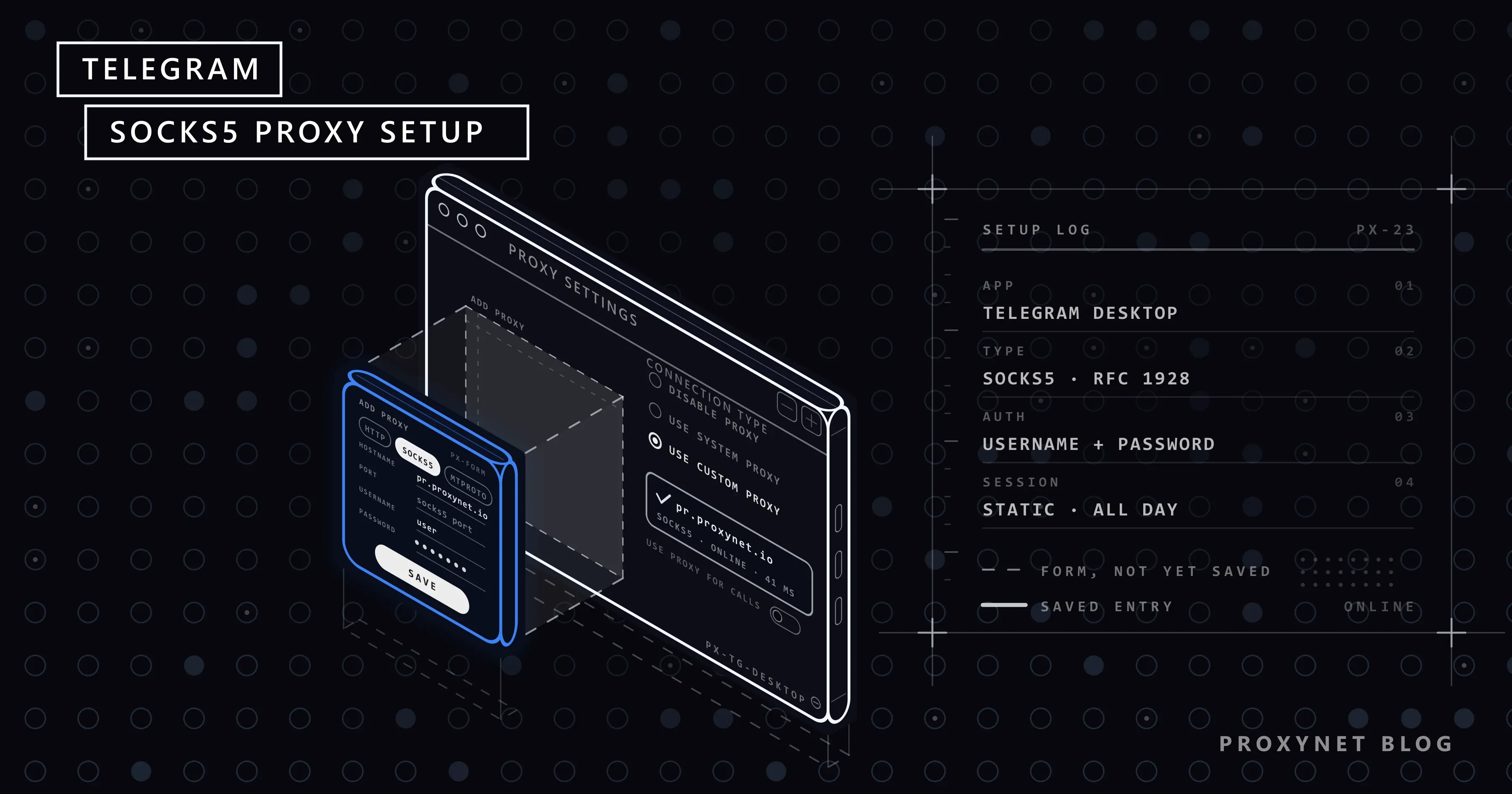
- Under Network and proxy, click Connection type. A "Proxy settings" window opens with three radio buttons: Disable proxy, Use system proxy settings, Use custom proxy.
- Click Add proxy at the bottom of that window.
- In the Type row, select SOCKS5. If a "Secret" field appears, you clicked MTPROTO.
- Type the server address into Hostname and the SOCKS5 port into Port.
- Under Credentials (optional), paste the Username and the Password. Do not skip this because it says optional: a Proxynet line without credentials is refused.
- Click Save. Back in the window, make sure Use custom proxy is selected and your entry has the tick.
What you should see: within a few seconds the entry shows "online" or "available" with a ping in milliseconds; "not available" means the connection did not complete. Leave Use proxy for calls off unless calls must go through the proxy too.
Telegram Desktop on macOS and Linux
On macOS there are two different Telegram apps. Telegram Desktop, the download from desktop.telegram.org, uses exactly the Windows path above. Plain Telegram from the Mac App Store is the native macOS client and has the path in the next section. Check the app's name in the menu bar before you go looking for a setting that is not there.
On Linux, whether you installed the tarball, the Flatpak or the Snap, the interface and the path are the same as on Windows; choose Use custom proxy with your own entry.
Telegram for macOS: the native App Store app
- Open Telegram, press Cmd + , or click the gear icon to open Settings.
- Choose Data and Storage.
- Turn on Use Proxy, then click Add Proxy in the list that appears.
- Select SOCKS5 as the type, fill in Server, Port, Username and Password, and save.
- Make sure the new entry is selected; it should show "connected" and a ping time.
Android: step by step
- Open Telegram, tap the three-line menu and choose Settings.
- Tap Data and Storage.
- Scroll to the Proxy section and tap Proxy Settings.
- Tap Add Proxy.
- Select SOCKS5 Proxy at the top of the form. MTProto Proxy adds a "Secret" field you do not need.
- Fill in Server, Port, Username and Password, then tap the tick in the top-right corner.
- Back on the list, turn on Use Proxy and tap your entry to select it.
What you should see: the label under the entry goes from "Checking..." to "Available" or "Connected", and a small shield icon appears in the top bar of the chat list while the proxy is on. Tapping the shield opens the same list, a quick way to switch it off later.
iPhone and iPad: step by step
- Open Telegram and go to the Settings tab at the bottom right.
- Tap Data and Storage.
- Under Connection, tap Proxy. If nothing is set up, the row says "None" or "Disabled".
- Tap Add Proxy.
- Under Type, select SOCKS5.
- Under Connection, fill in Server and Port.
- Under Credentials (optional), fill in Username and Password.
- Tap Save, turn on the Use Proxy switch at the top of the list and make sure your entry is ticked.
What you should see: "connected" with a ping in milliseconds; "unavailable" means the connection did not complete. If someone sent you the details as a t.me/socks link, Paste From Clipboard fills the fields; such a link carries the password in plain text, so pass it on only through a private chat with yourself.
How do you check that Telegram is really using the proxy?
- The status text. "connected", "available" or "online" with a ping means Telegram reached the proxy and completed the SOCKS5 handshake.
- The active sessions list. Open Settings > Devices on a phone, or Settings > Privacy and Security > Active sessions in Telegram Desktop. The current device shows the IP address and location Telegram sees; with the proxy on, that should be the proxy's country and city, not yours.
- A test outside Telegram. If the location does not match what the panel promised, test the same line on a computer (Is My Proxy Working? How to Test a Proxy); that tells you whether the fault is in the Telegram entry or in the line.
Why does a paid line stay up when a free one does not?
A free SOCKS5 or MTProto server from a list is one machine, run by someone you cannot contact, shared with everyone who found the same list. When it is overloaded, Telegram's connection is dropped and the app cycles between "Connecting..." and "Updating..."; when the owner shuts it down, the address stops answering. Free servers rarely have credentials, so nothing stops the next person from taking your slot (Are free proxies safe?).
A paid dedicated line reverses each point: the address belongs to a provider with a support channel, the credentials are yours alone, and a static ISP address stays the same for as long as the plan runs, so Telegram never has to rebuild its session from a new location. If you are still choosing where to buy that line, we compared the providers in Best SOCKS5 Proxy Providers - 2026.
Troubleshooting
Telegram stays on "Connecting..."
- Turn the proxy off and try. If Telegram does not connect without the proxy either, the problem is your internet connection or Telegram, not the line.
- Check the type. A "Secret" field on the form means you added an MTProto entry. Delete it and add the line again as SOCKS5.
- Check the port. The endpoint builder shows one port for HTTP and one for SOCKS5; the phone apps only speak SOCKS5, so the HTTP port fails silently.
- Check the network. Office, hotel and campus Wi-Fi often block outbound ports. If the same entry works on mobile data but not on that Wi-Fi, ask the network administrator (Proxy server not responding).
The entry shows "unavailable" although the address is fine
This is almost always authentication. RFC 1929 says a SOCKS5 server that rejects the username or password must close the connection, so Telegram never gets a "wrong password" message; it sees the link drop and reports the entry as unavailable.
- Retype the username and password by hand. Copying from a chat often drags a space along; the phone keyboard may capitalise the first letter or autocorrect part of the password.
- Make sure the username is complete. If the country or session part at the end is missing, the gateway rejects it.
- Look at the authentication mode in the panel. If the line is set to IP whitelist, your phone's current address is probably not on the list. Switch to username and password.
- Check that the plan is active. An expired plan or a residential line with no GB balance answers the handshake and then refuses the connection.
Messages arrive but photos, videos and voice notes do not load
Text is tiny; media is not. When chats work but media hangs on the download circle, the proxy is carrying traffic but not enough of it.
- Residential GB balance. Residential and mobile lines are billed by the gigabyte, and auto-downloaded videos in groups consume it fast. Check the balance in the panel, and open Settings > Data and Storage > Automatic media download to turn off video and file auto-download.
- A rotating line. Telegram downloads large files over several connections at once; on a rotating line each may exit from a different place, and the download can stall. Switch to a sticky or static line.
Decision guide
| Your situation | Do this |
|---|---|
| You use Telegram on one computer, all day | Static ISP line; Telegram Desktop, Settings > Advanced > Connection type |
| You need a specific city for a short while | Sticky residential line with the longest session, 60 minutes |
| The form has a "Secret" field | You are in the MTProto form; go back and pick SOCKS5 |
| The entry says "unavailable" but the address responds | Retype the credentials and check the authentication mode in the panel |
| Chats work, media does not | Check the GB balance and switch off automatic media download |
Frequently asked questions
Does Telegram support SOCKS5 with a username and password?
Yes, on every platform. The add-proxy form has separate Username and Password fields, and Telegram completes the RFC 1929 authentication step by itself. The section is labelled optional because some proxies need no credentials; a Proxynet line always does.
Where is the proxy setting in Telegram Desktop?
Settings > Advanced > Connection type, which opens the "Proxy settings" window with the Add proxy button. The path is the same on Windows, macOS and Linux; the native macOS app keeps it under Settings > Data and Storage.
Can I use the same SOCKS5 line on my phone and my computer at the same time?
Telegram does not mind; whether the line does depends on the plan, and a static ISP line is built for exactly that. On a sticky residential line both devices carry the same session ID in the username, so they exit from the same IP for the length of the session.
Should I pick sticky or rotating for Telegram?
Sticky or static. Telegram keeps one long-lived connection and reconnects after sleep or a network change; a rotating line turns each reconnect into a new location. A sticky line holds the IP for up to 60 minutes, a static ISP line for the life of the plan.
Why do voice and video calls sound worse through the proxy?
Calls use UDP packets that prefer a direct path, and by default Telegram sends them outside the proxy. With "Use proxy for calls" on, every packet takes the extra hop and the delay grows. Leave the switch off unless calls must exit from the proxy's address.
Will Telegram close my account for using a proxy?
No. The proxy setting is a built-in feature, and Telegram's own documentation describes both proxy types. Accounts are closed for behaviour such as bulk unsolicited messages and automated member adding, which end the same way from any IP address.
Summary
Telegram's SOCKS5 form takes the four values from your panel as they are: the server, the SOCKS5 port, the full username and the password. In Telegram Desktop the form is under Settings > Advanced > Connection type; on Android under Settings > Data and Storage > Proxy Settings; on iPhone and in the native macOS app under Settings > Data and Storage > Proxy. Choose a static or sticky line, because Telegram keeps its connection open all day. When the entry shows "unavailable", the cause is nearly always the credentials or the port; when media stops while chats continue, it is nearly always the GB balance. For a fixed address that goes straight into that form, see our proxy services.