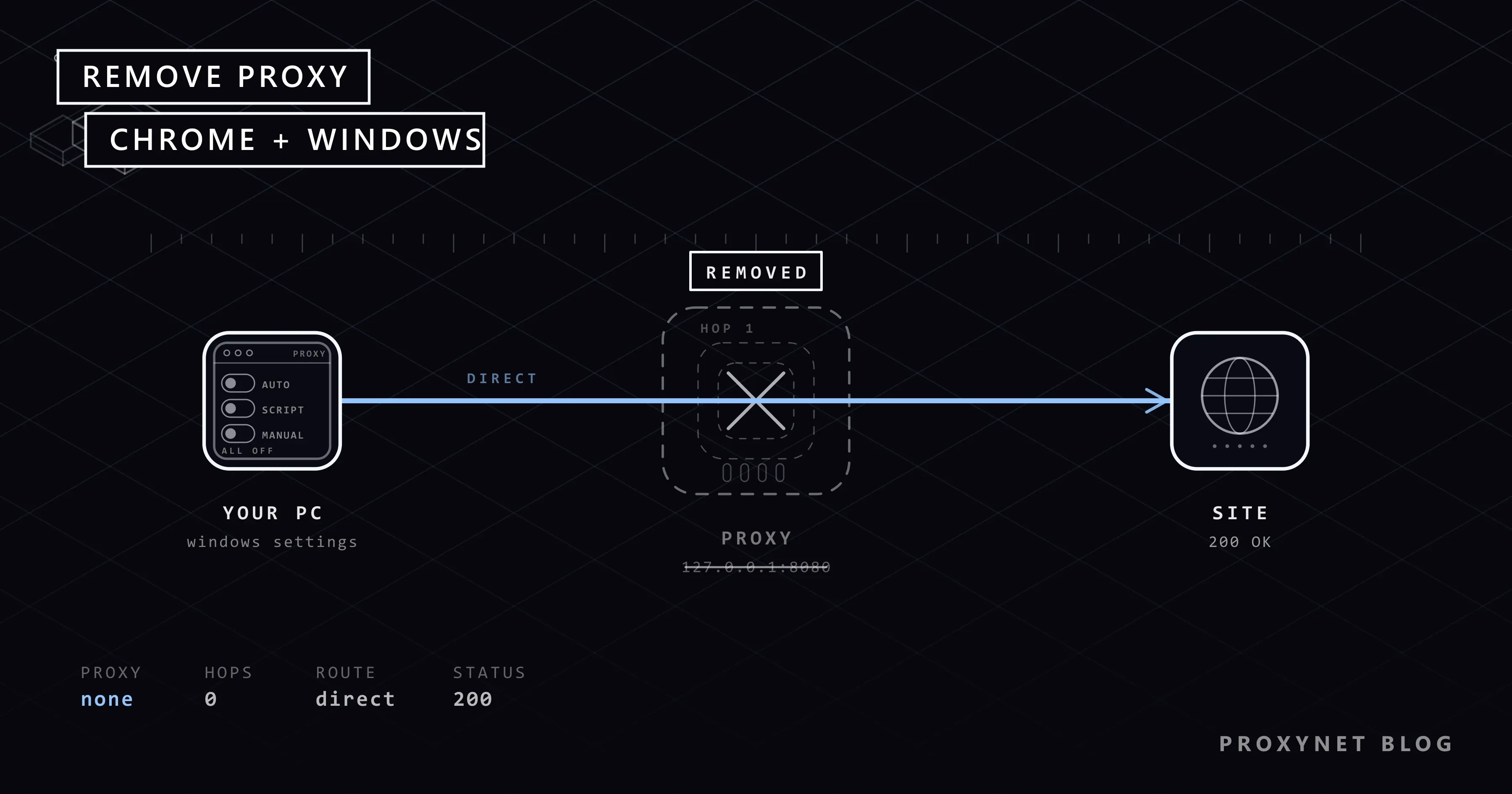
You open Chrome, type an address, and instead of the page you get "The proxy server is refusing connections" or a tab that never finishes loading. You do not use a proxy. Or you did, months ago, for a job that is long finished, and you thought you had turned it off. Somewhere in Windows a proxy setting is still switched on, and Chrome follows it.
This guide shows where that setting can hide and how to remove it for good: why a proxy lingers, where Chrome takes its proxy from, the steps for Windows 11 and 10, the older Internet Options dialog, Chrome extensions and Edge, a check that the proxy is really gone, what to do if it comes back, and how to keep a proxy you still need without touching the whole system.
Why is a proxy still set on your computer?
A proxy is an address your computer sends its web traffic through before it reaches the site. When the setting points at a server that no longer answers, every page fails. The setting rarely appears by itself; one of these five things usually put it there:
An old program. Free VPN apps, "unblock this site" tools and some game boosters write their own address into the Windows proxy setting to catch your traffic. When you uninstall the program or its free quota runs out, the address stays behind and points at nothing.
A browser extension. VPN and "change my country" extensions take control of Chrome's proxy. If the extension has expired or its server is down, Chrome still tries to use it.
A setup script. Work and school networks hand out a small file (a PAC file) that tells the computer which sites go through which proxy. Take the laptop home and the script address still sits in the settings, unreachable from your home network. What such a script contains is explained in What Is a PAC File?.
A network profile. A VPN connection or a saved Wi-Fi profile can carry its own proxy setting, so you only see the problem on that connection.
Malware. Some unwanted software routes your traffic through its own server to inject ads. When that server disappears, your internet stops. An address you do not recognise in the proxy box is a reason to run a security scan.
If you want to understand the address before you delete it, What Is a Proxy Server Address? explains how to read it.
Where does Chrome take its proxy from?
Chrome's settings page has no box for a proxy address. The Chromium project's network settings document explains why: Chrome uses the system's network settings so that one place controls all programs. On Windows that place is the Settings app, and the link Open your computer's proxy settings under Settings > System in Chrome simply opens the Windows screen.
There are three exceptions, and they matter when you are trying to remove a proxy:
- An extension. A proxy extension overrides the Windows setting. Chrome shows a note like "This setting is controlled by an extension".
- A shortcut flag. Chrome can be started with a
--proxy-serveroption added to its desktop shortcut. Only that Chrome window uses the proxy. - Company policy. On a managed work computer the proxy is set centrally and greyed out. You cannot remove it yourself.
Edge reads the Windows setting too, so removing the proxy from Windows fixes both browsers at once. Firefox is the exception, because it can keep its own setting.
Setting one up in the same screens is covered in How to Set Up Proxy Settings in Windows and Chrome; this article goes the other way.
Step by step: remove the proxy in Windows 11 and Windows 10
The screens follow Microsoft's Use a proxy server in Windows page. Windows 10 has the same page with a slightly different layout.
1. Turn off the manual proxy
- Press
Windows + Ito open Settings. - Click Network & internet in the left menu.
- Scroll down and open Proxy.
- Under Manual proxy setup, click Set up (or Edit if a proxy is already saved).
- Before you switch it off, note the address in the box. It tells you which program put it there.
- Turn Use a proxy server to Off and click Save.
2. Turn off the setup script
On the same page, look at Automatic proxy setup. If Use setup script is on and you are not on a work or school network, click Edit, turn it Off and save. Automatically detect settings can stay on; it does nothing harmful on a home network.
3. Check the older Internet Options dialog
Older programs use a second window for the same setting. Type "Internet Options" in the Start menu search, open it, go to the Connections tab and click LAN settings. Use a proxy server for your LAN and Use automatic configuration script should both be unticked. This dialog shows the same setting as the Settings page, so if it is ticked again, something is writing it back; see the "if it comes back" section below.
4. Remove proxy extensions from Chrome
- Click the three-dot menu, then Extensions > Manage Extensions.
- Look for anything with "VPN", "proxy", "unblock" or a country name in its title.
- Click Remove on each one and confirm. Disabling is not enough; a disabled extension can be switched back on by an update.
Google's Install and manage extensions page shows the same steps. Afterwards, open Settings > System in Chrome; the note about an extension controlling the setting should be gone.
5. Check the Chrome shortcut
Right-click the Chrome icon you use to start the browser and choose Properties. The Target field should end with chrome.exe" and nothing else. If it continues with --proxy-server=..., delete that part and click OK. The taskbar icon is a separate shortcut; check it too.
6. Edge and other programs
Edge needs no separate step: it reads the Windows setting you just turned off. Only a VPN or proxy extension installed in Edge has to be removed on its own. Programs with their own proxy field (Telegram, download managers, some games) keep their own copy of the address; clear it in each program's settings.
How do you check that the proxy is gone?
Restart Chrome, because open tabs may still use connections set up with the old setting. Then do two checks:
- Open the Windows Proxy page again and confirm that all three switches are off.
- Open a "what is my IP" page. It should show an address that belongs to your internet provider, with a location that matches your city. A datacenter or a foreign country means something is still routing your traffic.
If you have a proxy you plan to keep, the same test is described in more detail in Is My Proxy Working? How to Test a Proxy.
Advanced: the one command worth knowing
Everything above covers the browser. Windows keeps a second proxy setting for background services such as Windows Update and the Microsoft Store, called the WinHTTP proxy, and the Settings app does not show it. If updates fail after you removed the browser proxy, type "cmd" in the Start menu, right-click Command Prompt, choose Run as administrator and run:
netsh winhttp reset proxyMicrosoft's netsh winhttp reference describes this command as resetting the WinHTTP proxy to direct, meaning no proxy. It does not touch the Chrome or Edge setting, so run it in addition to the steps above, not instead of them.
What changes after the proxy is removed?
You notice the difference within a minute:
- Pages that showed "The proxy server is refusing connections" or
ERR_PROXY_CONNECTION_FAILEDload again, without the short pause at the start of each page. - Sites see your real country again, so search results, prices and streaming libraries return to normal.
- Programs that had stopped syncing (mail, cloud storage, updates) start working again.
If pages still fail, the problem is not the proxy. The next suspects are a VPN app that is still connected, a broken DNS setting or a firewall rule; What Is a Proxy Error? walks through them in order.
Where a proxy hides
| Place | How to see it | How to remove it |
|---|---|---|
| Windows manual proxy | Settings > Network & internet > Proxy > Manual proxy setup | Turn off Use a proxy server |
| Setup script (PAC) | Same page, Use setup script | Turn off, clear the script address |
| Automatic detection | Same page, Automatically detect settings | Turn off for a clean state |
| Internet Options | Start > Internet Options > Connections > LAN settings | Untick both boxes |
| Chrome or Edge extension | Menu > Extensions > Manage Extensions | Remove the extension |
| Chrome shortcut | Right-click the icon > Properties > Target | Delete the --proxy-server part |
| Program with its own proxy field | The program's settings | Clear the address there |
| WinHTTP (services) | Not visible in Settings | netsh winhttp reset proxy |
| Company policy | Greyed-out switches, "managed by your organization" | Ask your IT team |
What if the proxy comes back?
You removed the proxy, and after a restart it is back. Something on the computer is rewriting the setting. Work through these in order:
- Installed programs. Open Settings > Apps > Installed apps, sort by install date and uninstall any VPN, "free internet", booster or toolbar program you do not remember choosing.
- Startup programs. Open Task Manager (
Ctrl + Shift + Esc), go to Startup apps and disable anything you do not recognise. - Scheduled tasks. Type "Task Scheduler" in the Start menu. In the Task Scheduler Library, look for tasks with random names or names that copy a system tool, right-click and Disable them.
- Security scan. Run a full scan with Windows Security or your antivirus. A proxy that comes back on its own is a classic sign of adware.
- Work or school PC. If the Proxy page says "Some settings are managed by your organization", or
chrome://policylists a proxy policy, the setting comes from your IT department. You cannot remove it, and on a company network you should not.
When do you actually want to keep a proxy?
Not every proxy is a leftover. If you pay for one to do a specific job (managing a second social media account, watching prices in another country, keeping one account on one fixed address), the goal is not to remove it but to stop it from affecting everything else. The Windows setting is the wrong place for that, because it routes every program, including Windows Update, through the proxy.
Set the proxy per application instead:
- A proxy extension with profiles. SwitchyOmega switches between "direct" and a saved proxy with one click and can send only chosen sites through the proxy. The rest of Windows is untouched.
- A second Chrome shortcut. A shortcut with the
--proxy-serverflag and its own profile folder opens a separate Chrome that uses the proxy, while your everyday Chrome stays on the direct connection. The exact shortcut is in the setup article linked above. - The program's own proxy field. Telegram, download managers and many tools have one. Fill it in there and leave Windows alone.
For a job that needs the same address every day, a ISP Proxy keeps one fixed address for you. For plain browser use, an HTTPS Proxy works with the extension and shortcut methods without extra setup.
Common mistakes
- Turning off only the manual proxy and leaving Use setup script on; the script keeps sending traffic to the old address.
- Disabling an extension instead of removing it; an update can switch it back on.
- Running the netsh command and expecting Chrome to change; it only affects background services.
- Removing a company proxy on a work laptop; it comes back at the next policy refresh, and until then internal sites stop working.
Decision guide
| Your need | Recommendation |
|---|---|
| Pages fail with a proxy error and you never set one | Turn off manual proxy and setup script in Windows Settings |
| Chrome says the setting is controlled by an extension | Remove the extension from Manage Extensions |
| The proxy is off but returns after a restart | Uninstall unknown programs, check Startup and Task Scheduler, run a scan |
| Windows Update or Store fails after removal | netsh winhttp reset proxy as administrator |
| Switches are greyed out | Company policy; ask IT |
| You want to keep a proxy for one job only | Extension with profiles or a separate Chrome shortcut |
| One account must always use the same address | ISP Proxy set per application |
Frequently asked questions
Does removing the proxy from Windows also remove it from Chrome?
Yes. Chrome reads the Windows setting, so turning it off in Settings > Network & internet > Proxy turns it off in Chrome too. Only an extension, a shortcut flag or a company policy survives.
Why is there no proxy field in Chrome's settings?
Because Chrome uses the operating system's network settings by design. The link in Chrome's settings opens the Windows screen. Extensions and the --proxy-server flag are the only ways Chrome can use a proxy of its own.
Is Edge affected by the same setting?
Yes. Edge also reads the Windows proxy setting, so one change fixes both browsers. Only extensions installed in Edge need to be removed separately.
I removed the proxy but pages still do not load. What now?
Restart the browser first. Then check whether a VPN app is still connected, whether the same program changed your DNS setting, and whether the firewall blocks the browser. The proxy error article linked above goes through these steps.
Can I keep a proxy for one site only?
Yes. A proxy extension with rules, such as SwitchyOmega, sends only chosen sites through the proxy and everything else directly. It is the cleanest way to use a paid proxy without touching the Windows setting.
Is it safe to delete a proxy address I do not recognise?
Yes, if the computer is yours. Write the address down first, turn the setting off and run a security scan. If the computer belongs to your employer or school, ask the IT team before changing anything.
Summary
On Windows, Chrome and Edge take their proxy from Settings > Network & internet > Proxy, so that is where you remove it: turn off Use a proxy server and Use setup script, then remove any proxy extension and check the Chrome shortcut. Confirm with an IP check page. If the proxy returns, an installed program, a scheduled task or a company policy is writing it back. And if you still need a proxy for a specific job, set it per application rather than for the whole system; see our proxy services for plans that fit.