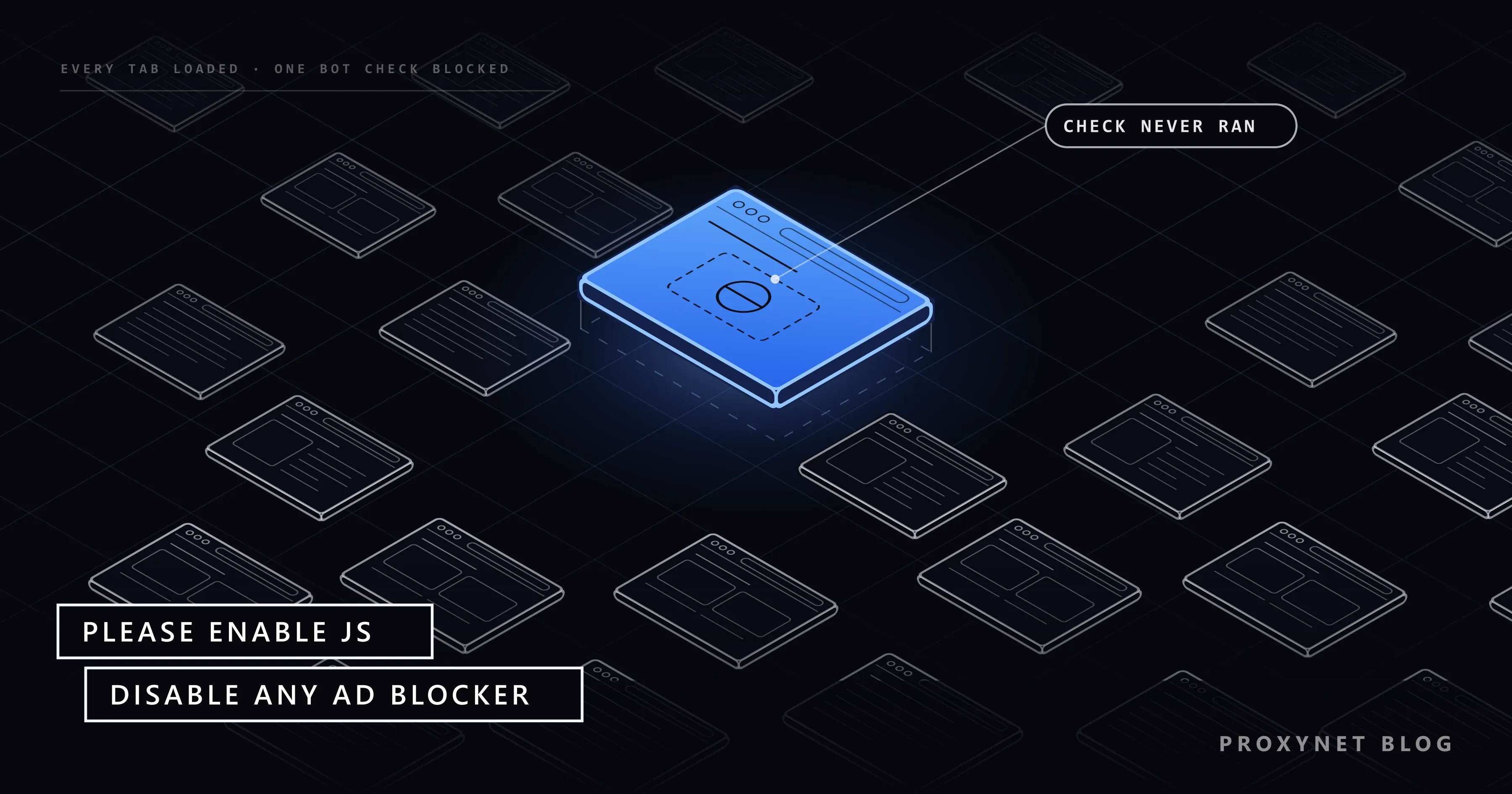
You click a link to a shop, a news article or a booking page and get an almost empty white screen. One line of grey text in the corner says "Please enable JS and disable any ad blocker". JavaScript is probably on, you may not even use an ad blocker, and reloading changes nothing.
This post explains who puts that sentence there, why it mentions ad blockers when nobody is counting ads, and what to try, in order, on a computer and on a phone. Short sections at the end cover site owners and people whose scripts receive the page.
What does "Please enable JS and disable any ad blocker" mean?
JS is short for JavaScript, the programming language that makes web pages interactive. The sentence asks you to let the page run its code and to switch off whatever stops that code from loading.
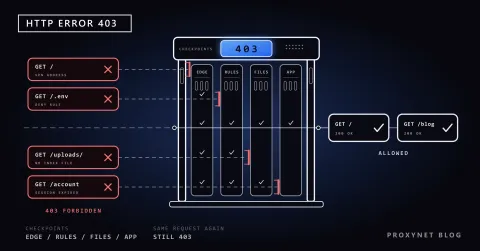
The screen is not the website's own page. Its source holds that one sentence and a script from captcha-delivery.com, an address that belongs to DataDome. When we requested such a page on 6 October 2026, the server answered with status code 403 (Forbidden), and the tab showed only the site's domain name.
The key detail is in the page's style rules: the sentence stays invisible for the first second and a half. A working browser has run the script and replaced the page with DataDome's check by then. If you can read the sentence, the check never started on your device. It does not mean you have a virus or a banned account.
Who shows this page, and how does it decide?
DataDome sells bot protection to websites. The site chooses to use it and sets the rules; DataDome runs the checks. Based on its developer documentation, a decision runs in this order:
- You request a page. A DataDome module on the site's server or content delivery network sends DataDome your IP address, the user agent (the line in which your browser names itself), the other headers, the cookies and the path.
- On earlier pages, DataDome's JavaScript tag collected signals such as mouse movements, key strokes and facts about the browser, operating system and graphics chip, tied to a cookie named
datadome. - DataDome answers within the same request. "Allow" lets the request through; any other answer goes straight back to you, and the site's own server never sees the request.
- That answer is the short page above: the hidden sentence plus the script that loads the check.
- If the script runs and you pass, DataDome updates the cookie and sends you on. If it does not run, the sentence appears and nothing else happens.
Because of point 3, the site's owners find your blocked request in DataDome's dashboard, not in their own logs.
What do the device check and the slider look like?
Besides letting you through, DataDome has three response pages, called Device Check, Captcha and Block in its documentation. The site picks which one each rule uses.
| What you see | What it is | What to do |
|---|---|---|
| A short page with a spinner | Device Check, automatic | Wait a few seconds; do not reload |
| A slider, or an audio task | DataDome's CAPTCHA, called Slider | Drag the slider fully right, or type the numbers you hear |
| A page that refuses access | Block | Try the steps below, then contact the site |
| Only the "enable JS" sentence | The check script did not run | Allow the site in your blocker, turn on JavaScript |
DataDome describes Device Check as a check that runs on your device without asking you to do anything, and applies it only to requests that already look suspicious. The slider comes next and has an audio version in 58 languages. A CAPTCHA is a short test that people pass easily and programs find hard; What Is CAPTCHA? compares the common kinds.
Why does it tell you to disable your ad blocker?
The site is not checking whether you see its ads. The sentence names ad blockers because they are among the most common reasons a check script fails to load.
Ad blockers and privacy extensions work from filter lists, long lists of addresses whose scripts they refuse to load. EasyPrivacy, one of the most widely used, has rules against DataDome's script addresses when they load on another company's site, and Brave builds its Shields partly from it. DataDome itself advises customers to serve its script from their own domain when it is "blocked by ad blockers or privacy filters" for many visitors, as its JavaScript tag documentation puts it.
So a blocker can work against you twice. On normal pages it stops the tag that would have collected ordinary, human-looking signals; on the check page, a script blocker can stop the check itself.
Things not called ad blockers do the same: a browser with a built-in blocker, an extension that blocks unfamiliar scripts, or a router, DNS service or work network that filters tracking domains for every device. "I don't use an ad blocker" does not rule this cause out.
Why does the check pick you?
Not every visitor is checked. You cannot see your score, but the usual reasons fall into a few groups.
JavaScript is off. Some people turn it off for privacy or speed, and some security setups block it on unfamiliar sites. Without it, neither the tag nor the check can run.
Site data is blocked. The datadome cookie is set under the site's own address, and DataDome warns that blocking or deleting it can cause problems. Blocking third-party cookies does not touch it; blocking all site data does.
Your IP address. VPNs, free proxies and some mobile networks put many people behind one address, and an address shared with bots starts with less trust. Apple's Safari help notes that with a VPN on, some websites might block content.
Automation and speed. Tools that drive a browser from code leave traces the tag looks for, and sites can set rate limits, above which DataDome answers with a check or a block. Dozens of tabs opened at once can look similar.
What should you do, in order?
These steps do not get around the check. They remove what stopped it or what made your visit look automated. Try the page after each step, reloading only once.
- Wait a minute, then reload once. A burst of reloads can turn a check into a block.
- Allow the site in your blocker. Click the blocker's icon next to the address bar and switch it off for this site only. In Brave, click the Shields icon in the address bar and turn Shields off for the site.
- Turn on JavaScript. In Chrome on a computer, go to More > Settings > Privacy and security > Site settings > JavaScript and select Sites can use JavaScript, as Google's help page shows. On Android, it is under More > Settings > Site settings > JavaScript.
- Allow site data. In Site settings, open Additional content settings > On-device site data and select Allow sites to save data on your device.
- Test in a private window. Open More > New Incognito window. Extensions run there only if you turned on Allow in Incognito for them, so if the page opens, an extension is the cause; switch them off one at a time under More > Extensions > Manage extensions.
- Turn off the VPN or proxy. Close VPN apps and proxy extensions. On an iPhone or a Mac, iCloud Private Relay also changes your address, and Apple suggests turning it off for a while in iCloud settings.
- Try another network. Switch between Wi-Fi and mobile data. If the page opens there, a network filter or your home address is the cause.
- Contact the site. If nothing helped, only the site can change the decision.
On an iPhone, Safari's JavaScript switch is under Settings > Apps > Safari > Advanced > JavaScript, according to Apple's Safari help. If you use a content blocker app, allow the site in that app.
How do you contact the site?
The fallback sentence shows no reference number. Send the site what it needs to find your request: the full address and what you were doing, the date and time with your time zone, your browser, whether a VPN or blocker was on, and a screenshot. Your public IP address helps too, if you are comfortable sharing it. Never include passwords or card numbers.
If the contact page sits behind the same check, use the support address in the site's app store listing. Writing to DataDome rarely helps; the site sets the rules.
How is it different from other block pages?
Each bot protection service has a page of its own.
| What you see | Clue | Who shows it |
|---|---|---|
| Only "Please enable JS and disable any ad blocker" | Almost empty page, no ID | DataDome |
| Press & Hold; tab title "Access to this page has been denied" | Reference ID | HUMAN, formerly PerimeterX |
| Sorry, you have been blocked | Ray ID | Cloudflare |
| Access Denied, You don't have permission | Reference number | Akamai |
HUMAN's box also asks you to disable your ad blocker when its script fails, so most steps above carry over; its Press & Hold button and Reference ID are explained in Access to This Page Has Been Denied.
A page titled "Pardon Our Interruption" is Imperva's bot check, with its own causes, covered in Pardon Our Interruption.
If you run the site
These visitors appear in DataDome's dashboard, not in your server logs. Settings from DataDome's documentation that help them:
- Serve the JavaScript tag from your own domain. DataDome recommends this first-party setup when blockers stop the tag for many visitors.
- Watch the response analytics. "JS Not Executed" in the slider flow and "Discarded" in the device check flow count browsers that never ran the check.
- Put your name and logo on the response pages, as DataDome's accessibility guidance asks, so visitors know the check is yours.
- Allow traffic you trust with custom rules, and tell customers on your contact page what to send.
If your scraper or script gets this page
Developers meet the sentence as the body of a 403 response, usually with a datadome cookie in the headers. The page expects a browser that runs JavaScript, which a plain HTTP client such as Python's requests or curl never does. Headless browsers are no answer either: DataDome says its tag detects headless Chrome, Puppeteer and Selenium.
Treat the page as the site's answer: stop the job, do not retry in a loop, read the site's robots.txt and terms, and look for an official API. DataDome blocks bots it cannot identify by default and documents a route for the rest: a bot that sends its own user agent and proves who it is with Web Bot Auth signatures, reverse DNS or a published IP list can be verified, and each site then decides whether to allow it (DataDome's bot authentication documentation). This post does not cover CAPTCHA solvers or "undetected" browsers, which exist to get past a refusal made on purpose.
Proxies come in only after that. If a site owner agrees to let your crawler in, a fixed address makes the rule easy to write, and a ISP Proxy gives you one registered to an internet provider. If you run a protected site, Residential Proxy exits in other countries show whether your check pages load for visitors there. Rotating addresses to slip past the check is the very pattern it is built to catch.
Common mistakes
- Reloading again and again. A rate limit can turn the check into a block.
- Switching on a free VPN to fix it. Free VPN exits are shared by many users and often carry the poorest reputation.
- Turning the blocker off everywhere. Allow the one site instead.
- Following a "verification" that asks you to paste a command. DataDome's checks never ask you to open a terminal.
Decision guide
| Your situation | What to do |
|---|---|
| You use an ad, privacy or script blocker | Allow this one site and reload once |
| JavaScript is turned off | Turn it on for all sites or this site |
| It opens in a private window only | Switch extensions off one at a time |
| It appears only while your VPN is on | Turn the VPN off for this site |
| It appears on every device at home | Try mobile data, then check router or DNS filters |
| Your script receives it | Stop, read robots.txt, use the official API or ask |
Frequently asked questions
I don't use an ad blocker. Why does the page mention one?
The sentence is the same for everyone and names the two most common causes. Built-in tracker blocking or a network filter has the same effect.
Is this page a virus or a scam?
The real page only asks you to enable JavaScript and pause blockers. Microsoft's ClickFix analysis describes fake human checks that tell people to paste commands into the Run dialog, Windows Terminal or PowerShell. If a "verification" asks for that, close the page.
Why does the slider or spinner keep coming back?
Passing a check vouches for that moment only. If the signals stay risky, such as a VPN address or a tag your blocker keeps stopping, the next request can be checked again.
Does this happen on iPhone and Android too?
Yes, for the same reasons: JavaScript off, a content blocker app, iCloud Private Relay or a VPN. The phone paths are in the steps above.
Does DataDome track me?
DataDome says its tag is built for bot detection rather than tracking and that its cookie holds no personally identifiable information. Filter list maintainers decide for themselves what to block. In practice the site will not open until the check runs.
How long does the block last?
The page does not say. A passed check updates your cookie at once; a block tied to your address or behavior lasts until those signals change or the site owner lets you in.
Summary
"Please enable JS and disable any ad blocker" is the fallback line of DataDome's bot protection. It shows only when the check script that should have replaced it never ran, usually because JavaScript is off or a blocker or network filter stopped it. Allow the site in your blocker, turn on JavaScript and site data, test in a private window, drop the VPN and try another network. If nothing helps, send the details to the site owner. If you collect data for work, start with the site's rules, then compare proxy types on our proxy services page.