This guide covers creating, setting up and testing a mobile proxy: we create a mobile proxy from scratch in the Proxynet panel, collect its connection details and send a first request to confirm that a carrier IP comes back. The screenshots are taken from the panel's English interface, and the text uses the same button and tab names. The same steps are in the video below.
What do you need to set up a mobile proxy?
You need a Proxynet account and some balance on it. Mobile proxies are not billed as a monthly package but per GB of traffic you actually use; a small amount of balance is enough to create the gate. Mobile traffic costs more than residential traffic; the current per-GB price for your account tier (starting at $3) is shown on the Mobile Proxy page and on the order screen.
There are three things to decide: the target country, the session type (a new IP on every request, or the same IP for a while) and the program that will use the proxy. These three drive your choices in the Endpoint Generator. For what a mobile proxy is and why sites treat mobile IPs with less suspicion, see What are Mobile Proxies? Everything You Need to Know; for how it differs from residential, see Residential vs Mobile Proxies: Comparison Guide.
How do you create a mobile proxy in the panel?
Every proxy order in the panel is listed as a gate. A mobile gate opens the whole mobile pool through a single address; country and session choices are made later, inside the username.
Step 1: Open the Proxy Create menu
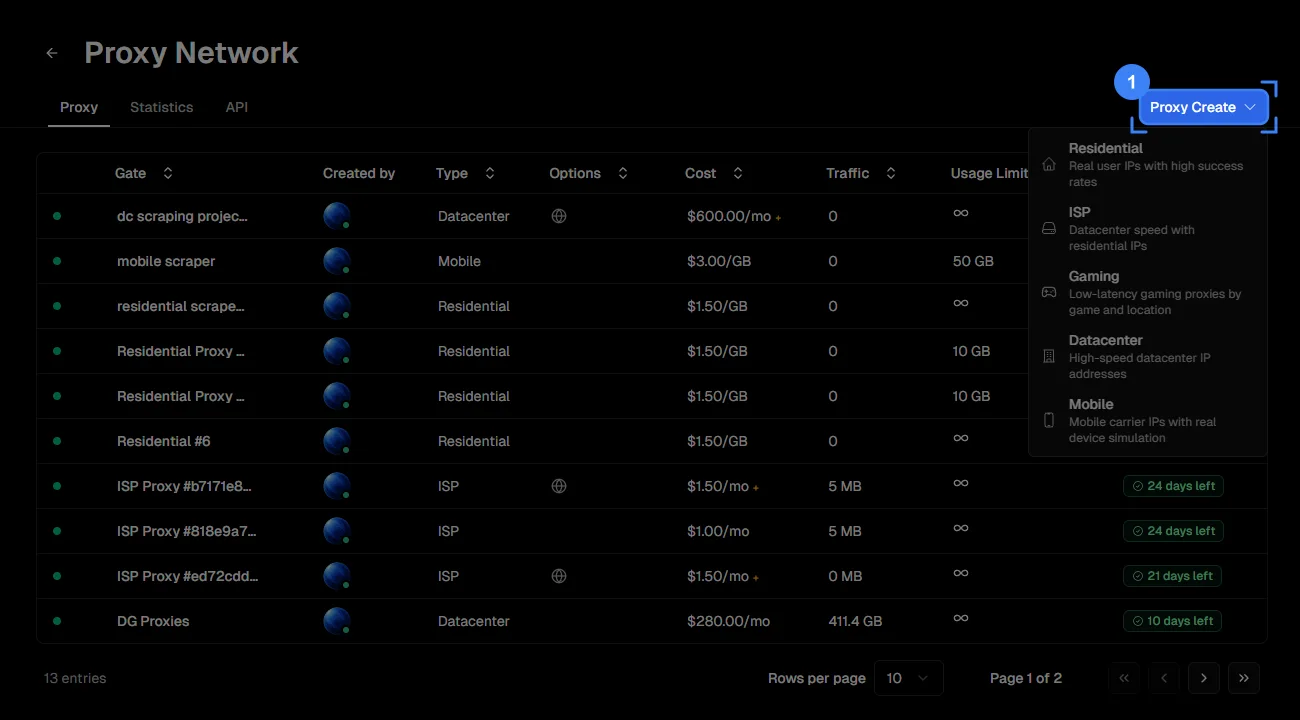
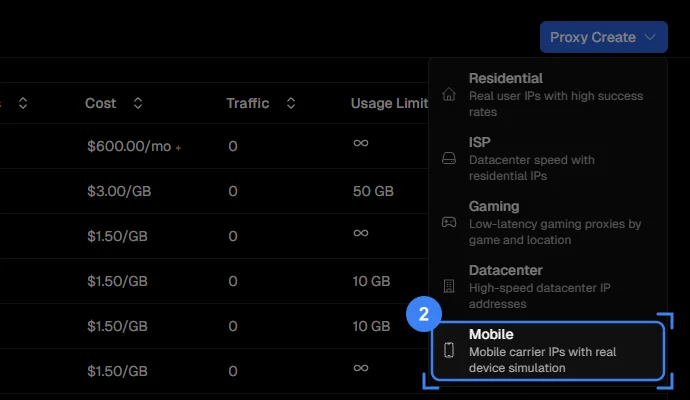
Switch to the Proxy tab. The list shows your existing gates with their name, type, cost, traffic used and traffic limit. Click the blue Proxy Create button in the top right.
Step 2: Choose the Mobile type
The menu that opens lists five proxy types; click Mobile at the bottom. The description in the menu sums up the type: the IPs come from mobile carrier networks and look to the site like a real phone connection.
Step 3: Name the gate and create it
On the Create Gate page the Mobile tab is already selected. If you like, replace the default name in the Gate Name field with one that describes the job (for example "Instagram test"); you can rename it later as well. The Features section lists what the mobile gate supports: HTTP(S) and SOCKS5, rotating and sticky sessions, location targeting.
Unlike the residential order screen, the Access Information section at the bottom of the page shows the username and password before the gate is created. You can keep the default values or use Edit to enter your own username and password; both can be changed later.
The Order Summary card on the right shows the proxy type, your account tier and the price per GB. Note the warning under the card: if you were added to a workspace as a member, the charge comes out of the account owner's balance, not yours. Tick the terms of use box and press Create.
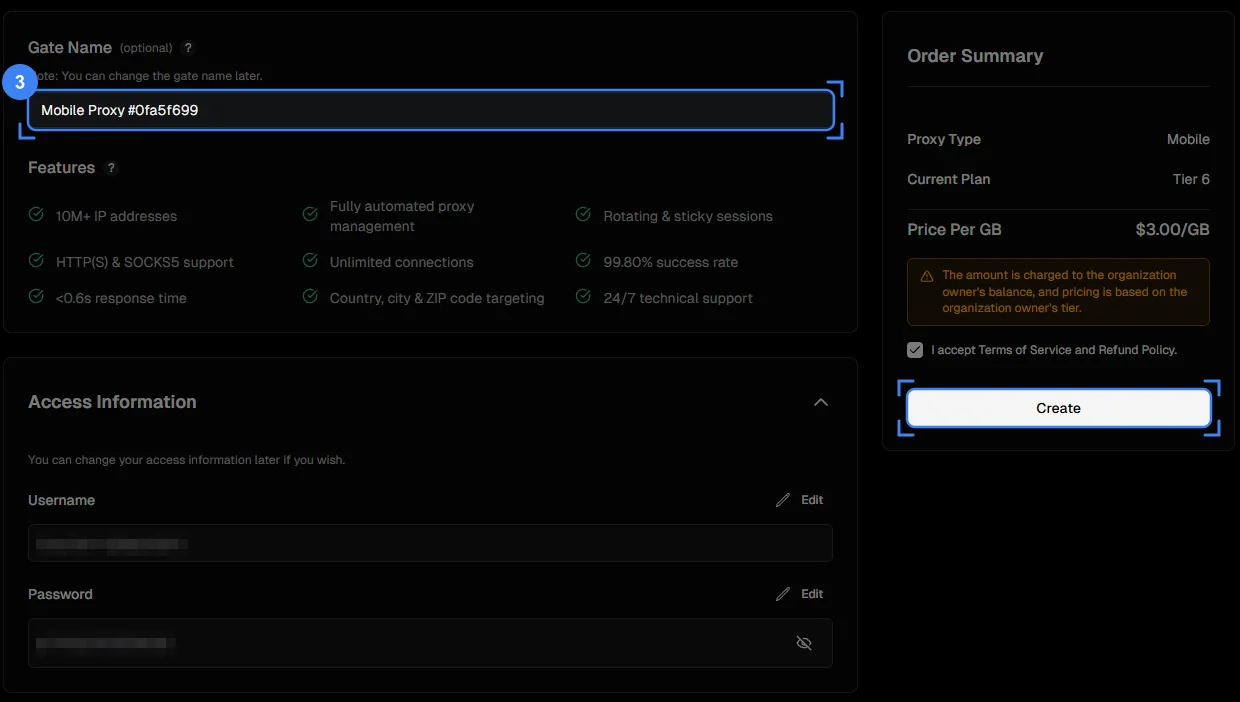
A mobile gate does not expire (Duration: Lifetime). In a month where you use no traffic, you pay nothing; the gate stays in the list until you delete it.
Step 4: Get the connection details from Access Details
As soon as you press Create, the gate's page opens. It has four tabs: Access Details, Endpoint Generator, Statistics and Logs. The Access Details card on the first tab gives you everything needed to connect.
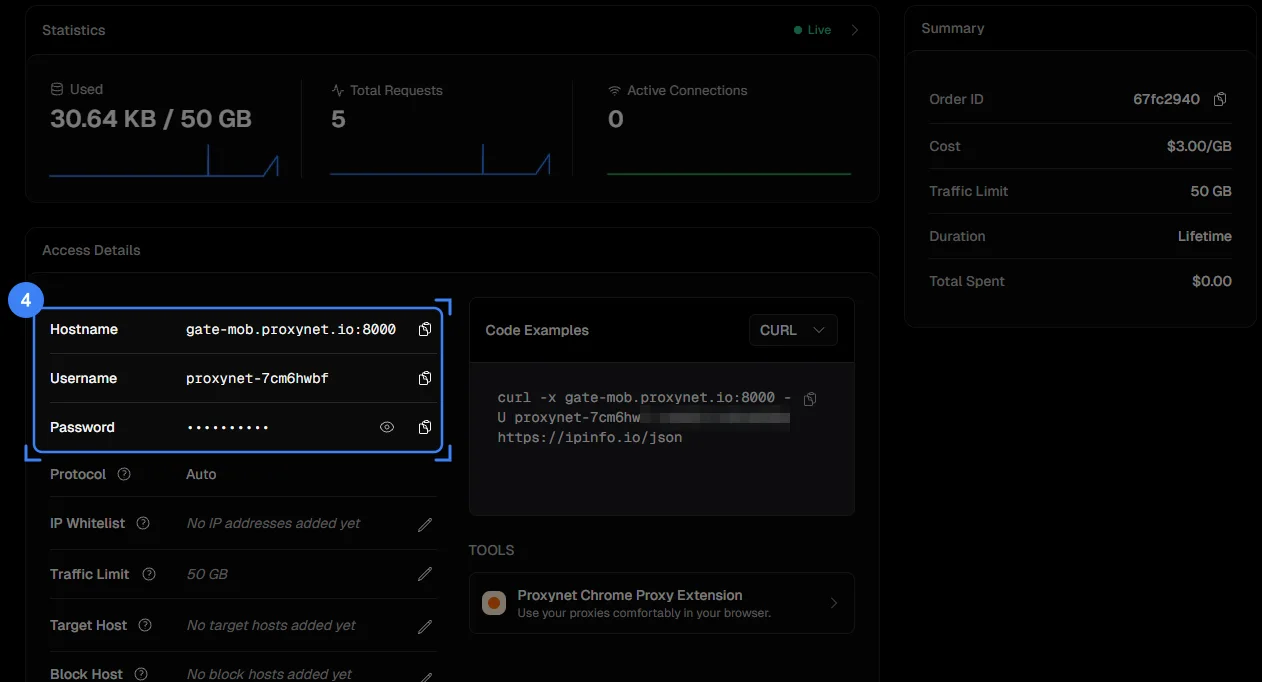
- Hostname: the mobile gateway address and port (
gate-mob.proxynet.io:8000). All mobile traffic goes to this address; do not confuse it with the residential gate'sgate-resaddress. - Username / Password: credentials specific to this gate. The eye icon reveals the password, the copy icon puts it on the clipboard.
- Protocol: "Auto". The same port accepts both HTTP and SOCKS5 connections.
- IP Whitelist: a list of allowed IPs for devices that cannot ask for a password. Details are in Proxy Authentication: User:Pass vs IP Whitelist.
- Traffic Limit: the maximum number of GB the gate may use. Because mobile traffic is expensive, this row matters even more here; the gate in the example has a 50 GB cap.
- Target Host / Block Host: domains that are exclusively allowed or blocked. If the proxy is meant for a single app's server, enter that domain under Target Host.
The Code Examples card on the right turns the same details into ready-made commands for curl and languages such as Python; the Tools card leads to the Chrome extension. The Summary card holds the order number, the per-GB price, the traffic limit and total spend.
Step 5: Pick a country and session in the Endpoint Generator
The details in Access Details use the gate without a country, in "global" mode. For country, city and session type, switch to the Endpoint Generator tab. Every choice is written into the username; the address and password stay the same.
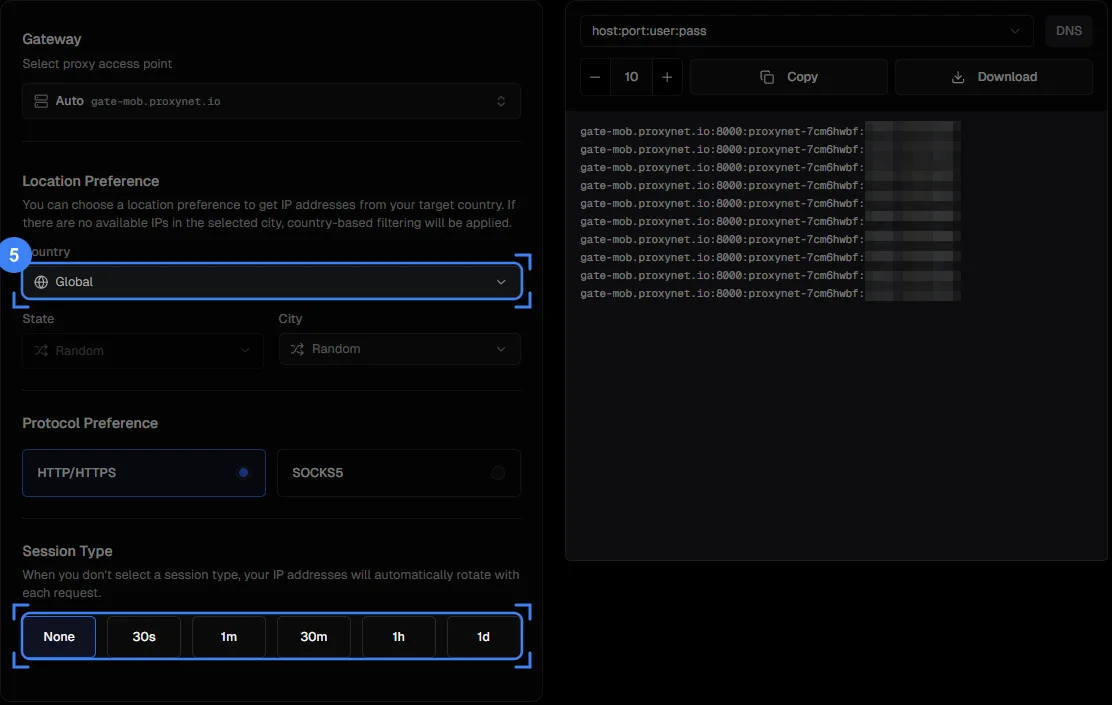
- Gateway: leave it on "Auto"; the address comes up as
gate-mob.proxynet.io. - Country: the country you want the target site or app to see. If left on "Global", the IP can come from any country. In Türkiye the mobile pool covers the Turkcell, Türk Telekom and Vodafone networks; for coverage, see the Türkiye proxy page.
- State / City: choose one only if the job depends on a city. If no suitable IP is available in that city at the moment, the request is served at country level. There is no carrier selection; the IP comes from one of the carrier networks in the country you picked.
- Protocol Preference: HTTP/HTTPS for browsers, phones and most tools; SOCKS5 for programs that require SOCKS5 or need to pass UDP (SOCKS5 Proxy).
- Session Type: None gives a new IP on every request (rotating). If you pick a duration, the same IP stays for that period (sticky); the options range from 30 seconds to 1 day. How to choose the duration for mobile IPs is in the table below.
The panel on the right turns your choices into a line. The host:port:user:pass format is the most common; leave the DNS switch on domain; the counter sets how many lines are generated (in a sticky session, 10 lines = 10 separate IPs). Copy with Copy, or save many lines with Download. Do not type the line by hand; a single wrong character returns a 407 error.
How do you test a mobile proxy?
Testing means opening an IP check page through the proxy and looking at the address it returns. With a mobile proxy there is one more check: the IP must be registered to a mobile carrier, not to a home connection.
Step 6: Send the first request
In the browser: install the Proxynet Chrome extension from the Tools card, enter the line you copied from the Endpoint Generator and open https://ipinfo.io/json. If the country field shows the country code you picked and the org field names a mobile carrier, the test has passed. Instead of the extension you can also use the operating system's proxy setting; the steps are in Is My Proxy Working? How to Test a Proxy.
In the terminal: the Code Examples card in Access Details gives you a curl command already filled in with the gate's details. Copy it and paste it into a terminal.
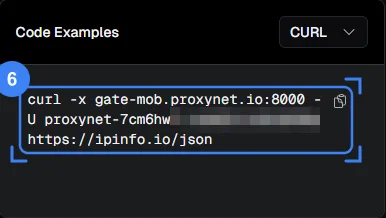
The general form of the command (the username and password are replaced with yours):
curl -x gate-mob.proxynet.io:8000 -U user:pass https://ipinfo.io/json-x sets the proxy address and -U sets the proxy credentials (curl documentation). On a mobile gate with Türkiye selected, a successful test returns a response like this (we masked the IP address):
{
  "ip": "xxx.xxx.xxx.xxx",
  "city": "Istanbul",
  "region": "Istanbul",
  "country": "TR",
  "org": "AS16135 Turkcell Iletisim Hizmetleri A.S."
}
Three things to check: is country the country you picked, does the org line name a mobile carrier, and does the IP change when you run the command twice (it should change with rotating, and stay the same with sticky until the period ends). On mobile IPs it is normal for the first request to take a little longer than on residential; the request passes through a phone's cellular connection. If you get 407 instead of a response, the credentials were not accepted; the code is defined in RFC 9110, and the fix is in the error table below. If the command gets no response at all, see What Is a Proxy Error? Fix Proxy Server Not Responding; for further experiments with curl there is cURL with Proxy: How to Set HTTP and SOCKS5 Proxies.
Step 7: See the traffic in Statistics
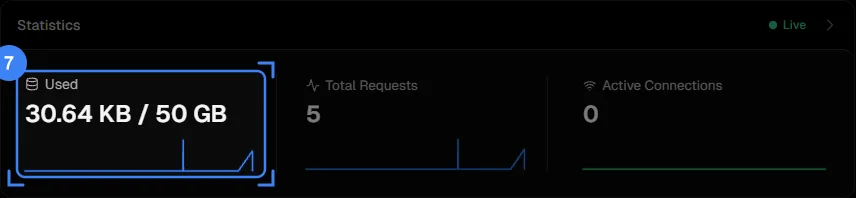
The Statistics card at the top of the Access Details page shows live data: Used is the traffic spent and the traffic limit if one is set, Total Requests the number of requests, Active Connections the number of open connections. A few seconds after the test request you will see Used grow by a few kilobytes; that is the second proof that the proxy works. In the example, five test requests used 30.64 KB.
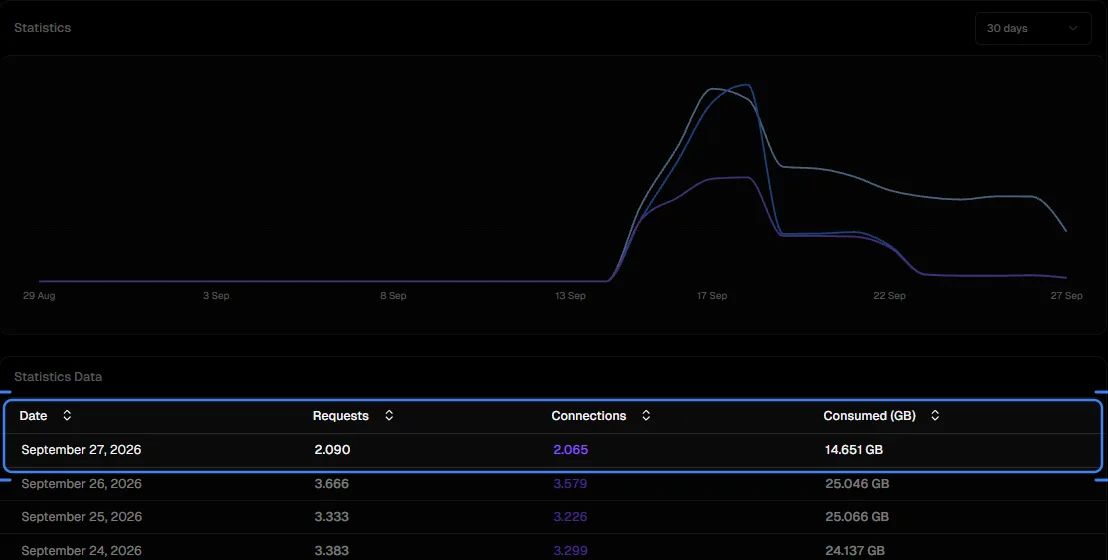
The Statistics tab keeps the same data day by day: a chart for the selected period at the top, and each day's requests, connections and GB usage below. The screenshot below comes from a gate that has been running for longer; on a newly created gate the table starts with your first day. When planning a monthly budget, look at the daily GB average in this table.
Step 8: Review requests in Logs
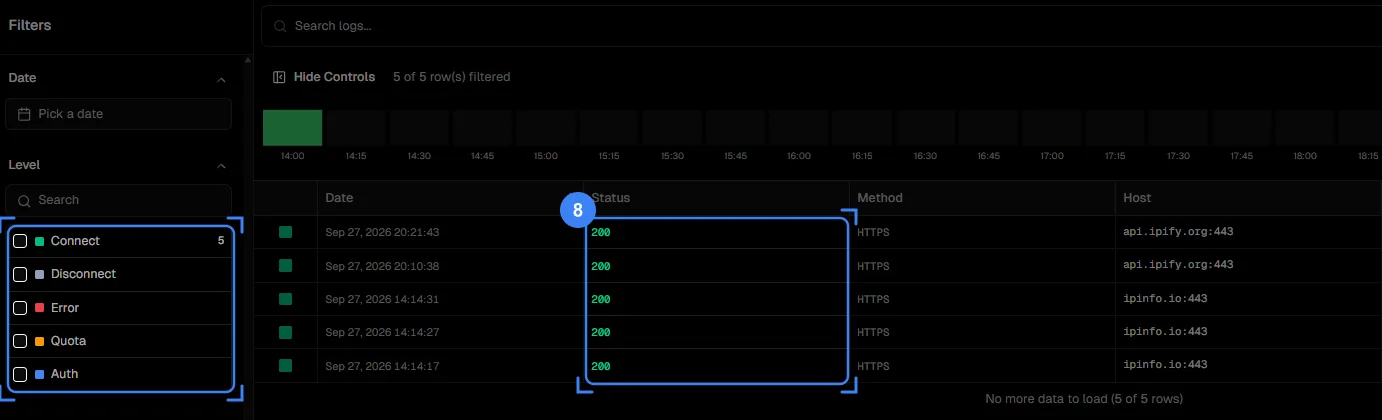
Each connection is one row: date, status code, protocol, domain, source IP and duration. The Level filter on the left separates the records: Connect for successful connections, Error for failed ones, Quota for those that hit the traffic limit, Auth for rejected credentials. When a proxy "doesn't work", this is the first place to look: no row means the request never reached the gate, an Auth row means the credentials are wrong, and a Connect row means the problem is on the target site. The Host column shows which domains are using up your GB; with mobile traffic, this column is the quickest way to see where the budget goes.
That completes the setup. The sections below cover choosing a session type on mobile IPs, the choice between mobile and residential, and the errors that come up in the first hour.
Should you use rotating or sticky sessions on a mobile proxy?
The question is the same as with residential: does the site expect your requests to come from the same IP? Mobile IPs differ in two ways. First, a carrier IP is shared by many subscribers at the same time (CGNAT), so sites rarely block a single mobile IP. We explain how this sharing works in What Is CGNAT? How to Check and Get Out of It. Second, phones drop off the network and switch cell towers more often, so in a sticky session the IP is more likely than on residential to change before the period you chose runs out.
| Criterion | Rotating (Session Type: None) | Sticky (30 s - 1 day) |
|---|---|---|
| When does the IP change? | On every new connection | When the period ends or the device drops off the network |
| Suitable jobs | Price and SERP checks on mobile results, mobile ad verification, bulk reads from app APIs | Logging in to social media and app accounts, multi-step sign-up and checkout flows, app testing |
| Behavior when blocked | If one IP is challenged, the next request already goes out from another IP | A shared IP is rarely blocked; if it is, generate a new line |
| Choosing a duration | None | Keep it short: 30m is enough for a login or form; even with 1d, the IP changes earlier if the device drops off the network |
| GB usage | Same | Same; the price does not depend on the session type |
| Product page | Rotating Proxy | Sticky Proxy |
If an account needs to stay on the same IP for days, a mobile sticky session is not the right tool; that is what the ISP Proxy with a fixed address is for. The general logic of IP rotation is in What Is IP Rotation and How Does It Work?.
Should you choose a mobile or a residential proxy?
The setup steps are almost identical for both types; the difference lies in the network the traffic exits from and in the price. Open a mobile gate when the target is a mobile app or a site whose mobile version runs separately, when account security is on a platform that treats mobile IPs with less suspicion, or when you need to check what a mobile user in a given country sees (ads, prices, search results). If you are going to read large volumes of data from desktop sites, residential is cheaper and faster; we cover its setup in Create and Set Up a Residential Proxy: Step-by-Step Guide. For jobs that need the same IP for weeks, see Create and Set Up an ISP Proxy: Step-by-Step Guide. You can also use both types on the same account: heavy reading goes through the residential gate, sensitive logins through the mobile gate. We collected the rules for managing several social media accounts on a regular basis in How to Manage Multiple Social Media Accounts Safely.
How do you fix common setup errors?
The table below covers nearly all the questions that come up in the first hour. Each row gives the symptom first, then what you will see in the Logs tab and what to do.
| Symptom | Seen in Logs | Cause | Fix |
|---|---|---|---|
407 Proxy Authentication Required | Auth row | Wrong username or password, the line was truncated, or the residential gate's credentials were used with the mobile address | Copy the line again from the mobile gate's Endpoint Generator; check that the address is gate-mob |
| Connection times out, no response at all | No row | Wrong address or port, or your network blocks port 8000 | Copy the hostname from Access Details. On a corporate network, try another network; if the port is closed, ask the network admin to open port 8000 |
The org field names a home internet provider, not a mobile carrier | Connect row | The request went through the residential gate, or the program is not using the proxy | Check that the address in the program is gate-mob.proxynet.io and that the proxy is switched on |
| The returned IP is not in the country you picked | Connect row | You are using the global line from Access Details, or the country code dropped out of the username | Pick the country in the Endpoint Generator, regenerate the line and copy it |
| You picked a city but the IP is from another city | Connect row | No suitable mobile IP in that city at the moment, or the carrier registered the IP to a different city | Pick a nearby large city. City data for mobile IPs is coarser than for residential; country level is usually enough |
| You chose sticky but the IP changed before the period ended | Connect row | The device dropped off the network, or Session Type is still "None" | Check that a timed option is selected. If it is, this is the nature of mobile networks; split the job into short sessions or use a fixed IP for long-running jobs |
| First requests are slow | Connect row, long Duration | The request passes through a cellular connection | Raise your program's timeout by a few seconds; split bulk jobs across concurrent connections |
| Balance drained faster than expected | Unfamiliar domains in the Host column | The proxy is set system-wide; updates and cloud sync also go through the mobile proxy | Give the proxy only to the application that needs it. Set a Traffic Limit on the gate and, if needed, a Target Host |
Quota rows, requests rejected | Quota row | The gate's Traffic Limit has been reached | Raise or remove the limit in Access Details |
| A program that requires SOCKS5 does not connect | No row or Error | HTTP is selected as the protocol in the program | Select SOCKS5 in the Endpoint Generator and enter the generated line in the program's SOCKS5 field |
If none of the rows fit, check which domain the Error row in Logs points to and try opening the same address without the proxy; if the page does not load without the proxy either, the problem is not the proxy.
Decision guide
| Need | Recommendation |
|---|---|
| Create your first mobile gate in the panel | Proxy > Proxy Create > Mobile > Create; naming is optional |
| Set your own username and password | Edit in the Access Information section of the Create Gate page |
| Exit from a specific country's mobile network | Pick Country in the Endpoint Generator and regenerate the line |
| A new mobile IP on every request | Session Type: None |
| Log in to an app or social media account | Short timed Session Type (30m) |
| The same IP for weeks | ISP Proxy |
| High-volume reading from desktop sites | Residential gate |
| Test without writing code | Chrome extension + ipinfo.io/json, carrier name in the org field |
| Test from the terminal | The curl command in the Code Examples card |
| Protect your balance | Traffic Limit on the gate, Target Host if needed |
| Diagnose "it doesn't work" | Logs tab, Level filter |
Frequently asked questions
Does it cost anything to create a mobile proxy?
Creating the gate does not charge anything; you pay only for the traffic you use, per GB. The few test requests you send are measured in kilobytes. The current per-GB price appears on the Order Summary card of the order screen and on the Mobile Proxy page.
Can I choose which mobile carrier my IP comes from?
No. The Endpoint Generator lets you choose a country, state and city; there is no carrier selection. The IP comes from one of the carrier networks in the country you picked, and you can see which carrier it is in the org line of the test response.
Do other users share the mobile IP?
On the carrier side, yes: mobile carriers share one external IP among many subscribers at the same time. That is also what makes mobile IPs valuable; a site that blocks the IP blocks hundreds of real users with it. Your session, however, is tied to your own username; no other Proxynet customer can enter your sticky session.
Can I use more than one country with the same gate?
Yes. In the Endpoint Generator you generate a separate line for each country; the address and password stay the same, and only the username changes. If you want to track countries separately, you can also open separate gates; Statistics and Logs are kept per gate.
Can I use a mobile proxy on my phone?
Yes. Enter the address, port, username and password from the line you copied from the Endpoint Generator in the proxy field of the phone's Wi-Fi settings. The steps for Android are in How to Set Up Proxy Settings on an Android Phone, and for iPhone in iPhone Proxy Settings: How to Configure a Proxy on iOS.
I was added to a workspace as a member. Can I create a gate?
Yes, but as the warning on the order screen says, the charge comes out of the workspace owner's balance and the price is set by their tier. The Created by column in the list shows who opened each gate.
Summary
Creating a mobile proxy takes four clicks in the panel: Proxy tab, Proxy Create, Mobile, Create. The Access Details section of the gate page gives you the gate-mob.proxynet.io:8000 address, username and password; country, city and session choices are written into the username in the Endpoint Generator. To test, use the panel's curl command or the Chrome extension and check the country code and the carrier in the org line on an IP check page, then watch the traffic grow in Statistics. Because mobile traffic is expensive, remember to set a Traffic Limit on the gate. If you do not have a gate yet, you can start from the /proxy page.