




























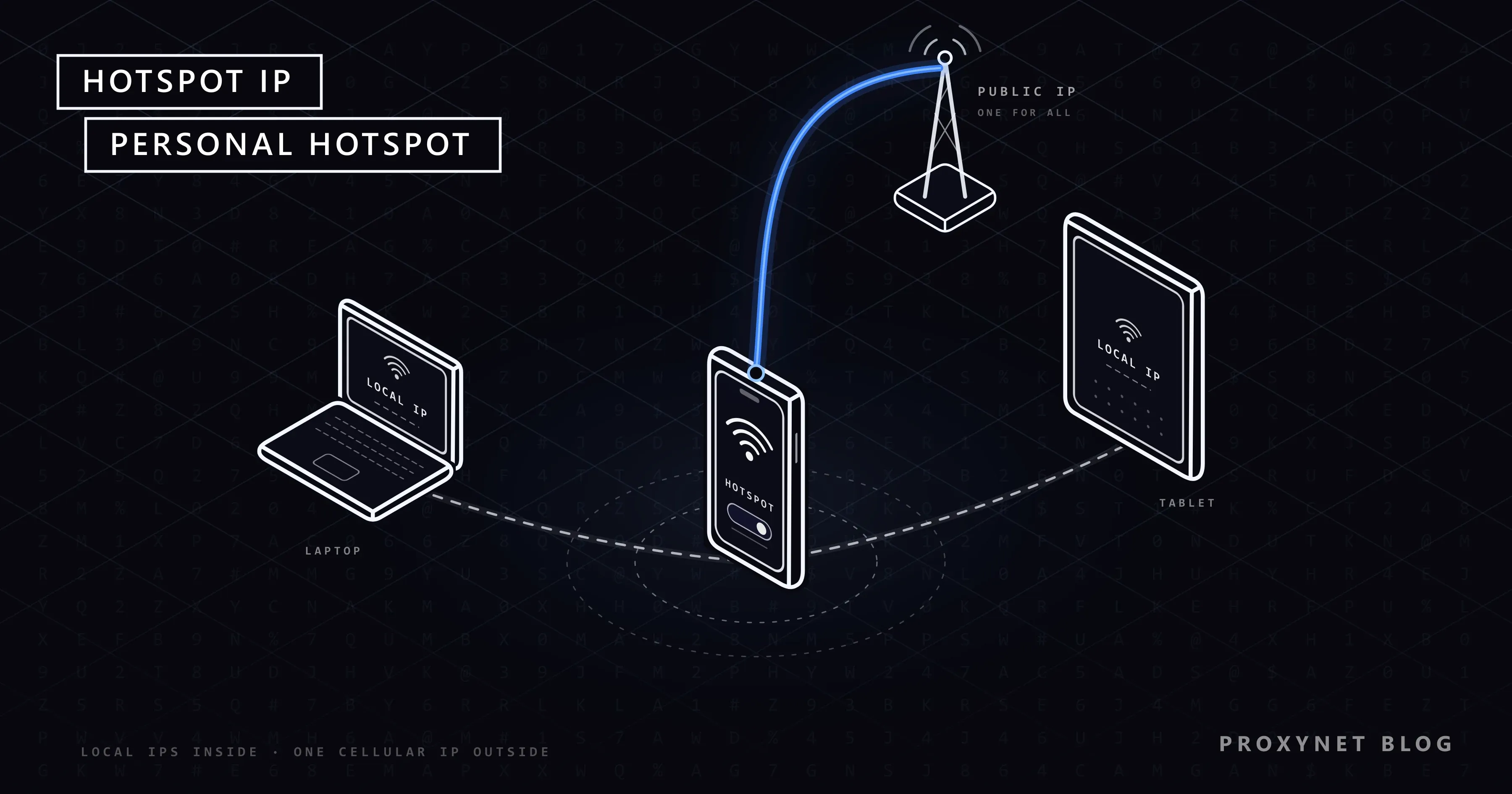
You are on a train with your laptop tethered to your iPhone, and a work tool asks for "your IP address". The laptop's network screen shows one number, a "what is my IP" page shows a completely different one, and neither matches the address you saw at home. All three are correct; they just describe different parts of the same connection.
This guide explains what happens to IP addresses when you turn on Personal Hotspot: which address each connected device gets, which address the iPhone has on that small network, which public address websites see, and how IPv6 fits in. It then shows how to read each address on Windows, Mac, iPad and Android, what to do when a device joins but gets no address, and how proxies and IP whitelists behave on a hotspot. Menu names follow the current English interface of iOS.
What is Personal Hotspot on iPhone?
Personal Hotspot is the iPhone feature that shares its cellular data connection with other devices over Wi-Fi, Bluetooth or a USB cable. To the other device, the iPhone looks like any Wi-Fi network: it appears under the iPhone's name and asks for a password.
A few rules come from Apple's own Personal Hotspot connection guide. Your carrier has to support the feature and may charge for it. The number of devices that can join depends on the carrier and the iPhone model. The hotspot carries the iPhone's name, which you change under Settings > General > About > Name, and the Wi-Fi password must be at least eight characters long.
The data comes from your cellular plan. Every page a laptop loads through the hotspot counts against the iPhone's mobile data, which you can watch under Settings > Cellular.
How do you turn on Personal Hotspot and connect a device?
- On the iPhone, open Settings and tap Personal Hotspot (or Cellular > Personal Hotspot). If the option is dimmed, check that Cellular Data is on.
- Turn on Allow Others to Join.
- Tap Wi-Fi Password to see or change the password.
- On the laptop or tablet, open the Wi-Fi list and choose the network with your iPhone's name, then type the password.
- For a cable connection, plug the iPhone into the computer with USB and accept the "Trust" prompt; for Bluetooth, pair the devices from the computer's Bluetooth settings.
Devices signed in to the same Apple Account, or in the same Family Sharing group, can use Instant Hotspot and join without typing the password. To stop sharing, turn off Allow Others to Join. Unplugging a USB cable alone does not end the hotspot.
Which IP addresses does an iPhone hotspot involve?
Three addresses are in play, plus IPv6 on some networks, and most confusion comes from mixing them up.
| Address | Where you see it | Who uses it |
|---|---|---|
| Device's hotspot IP | Network details on the laptop or tablet | Only devices on the hotspot |
| iPhone's hotspot IP | "Router" or "Default gateway" on the device | Devices sending traffic out |
| iPhone's public IP | A "what is my IP" page | Every website you visit |
| IPv6 address (sometimes) | Network details, next to IPv4 | Depends on the carrier |
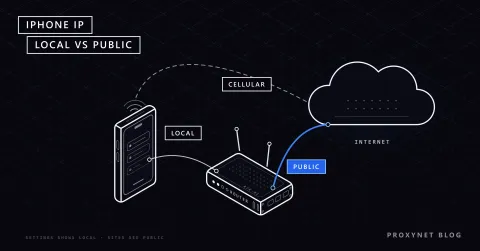
The first two are private addresses. They only mean something inside the hotspot, much like room numbers inside one building. The third is the public address that the mobile network gave your iPhone, and it is the one websites, online services and IP whitelists see.
What IP range does the iPhone hotspot use?
The hotspot uses a private IPv4 range, but Apple does not state the exact range in its Personal Hotspot guides. Private ranges are the blocks reserved for local networks in RFC 1918: 10.0.0.0/8, 172.16.0.0/12 and 192.168.0.0/16. The addresses a device receives from an iPhone hotspot fall inside one of these blocks, so they never travel on the internet as they are.
Forums and blog posts often quote one specific range and gateway. We could not find that range in any Apple document, so we do not repeat it here. Read the values on your own connected device instead: the IP address is the device's place on the hotspot, the Router or Default gateway is the iPhone, and the Subnet mask tells you how large the hotspot network is. How to read a mask such as 255.255.255.0, and what the /24 style means, is covered in What Is a Subnet Mask and How Do You Calculate It?
Can you change the range? Not on the iPhone. The Personal Hotspot screen in Apple's guides offers the join switch, the Wi-Fi password, Maximize Compatibility and Family Sharing, but no address, DHCP or IPv6 settings.
How do you find the hotspot IP on a connected device?
You read it on the device that joined the hotspot, not on the iPhone. Apple's guides do not describe an iPhone screen that lists the addresses of connected devices.
- Windows 11: Open Settings > Network & internet > Wi-Fi and select the hotspot network. The address appears next to IPv4 address. For the gateway, open Command Prompt and run
ipconfig; the iPhone is the Default Gateway line under the Wi-Fi adapter. - Mac: Open System Settings > Network, select Wi-Fi (or iPhone USB for a cable connection), click Details and then TCP/IP. You see the IP address, subnet mask and router.
- iPad or a second iPhone: Open Settings > Wi-Fi and tap the Info button next to the hotspot network. The address, subnet mask and router are listed further down the same screen.
- Android: Open the Wi-Fi settings, tap the hotspot network or the gear next to it, and look for the IP address in the network details. Menu names differ between phone makers.
Note all three values: IP address, subnet mask and router. They are what an IT team or support agent will ask for.
What public IP do devices on the hotspot have?
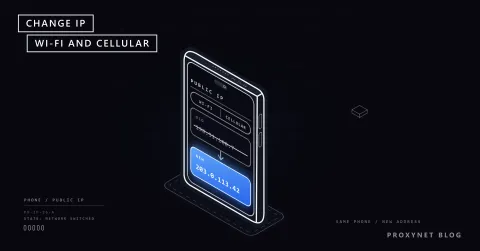
They all have the iPhone's public cellular IP. The iPhone forwards their traffic and swaps each device's private address for its own public one, a process called network address translation (NAT). Open a "what is my IP" page on the laptop and on the iPhone while tethered, and both show the same address.
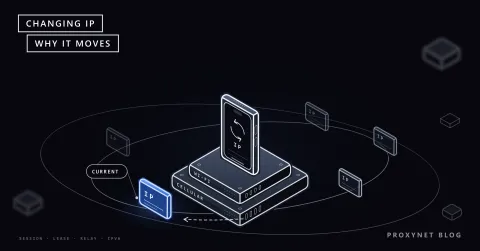
That public address belongs to the mobile carrier, not to you. Many carriers also place many subscribers behind one shared public address, a setup called carrier-grade NAT (CGNAT), so the address may be shared with strangers as well as with your laptop. It can also change without warning, for example after a restart or after Airplane Mode, because the carrier assigns it per connection. The different addresses the iPhone itself carries, on Wi-Fi and on cellular, are compared in How to Find Your iPhone's IP Address.
The public address also decides the location websites guess for you. A laptop on the hotspot usually looks to sites like a mobile user in the carrier's region, which explains why a site may switch language or ask for an extra security check.
Does the iPhone hotspot use IPv4 or IPv6?
IPv4 always, and IPv6 on some networks. A phone can share the IPv6 prefix it receives from the mobile network with tethered devices; the IETF describes this kind of sharing in RFC 7278. Whether your laptop actually gets a global IPv6 address through the hotspot depends on the carrier and on the device.
Check the network details on the connected device. An IPv6 address that starts with fe80 is a link-local address: it is created automatically, works only on the hotspot link itself and does not mean you have IPv6 internet access. An address with any other prefix next to the IPv4 one usually means IPv6 traffic reaches the internet too.
There is no "IPv4 only" switch on the iPhone. If one program on a laptop misbehaves over IPv6, change that program or that computer's network settings, not the phone.
How does DHCP hand out addresses on the hotspot?
The iPhone runs a small DHCP service, the automatic system that gives each new device an address, a subnet mask, a router and DNS servers when it joins. The device asks, the iPhone answers, and the address is lent for a limited time called a lease. The full exchange is explained in What Is DHCP and How Does It Work?
When this exchange fails, the device stays connected to the Wi-Fi network but has no usable address. Windows and Mac then assign themselves an address that starts with 169.254, which only works between devices on the same link. Seeing 169.254 on a laptop tethered to an iPhone is the clearest sign that DHCP did not finish.
Avoid typing a fixed IP address on the laptop to get around this. The range is not documented, so a hand-typed address may clash with another device or stop working after an iOS update.
Can you use a proxy or an IP whitelist over the hotspot?
Yes, but set the proxy on each device. A proxy setting or proxy app on the iPhone does not automatically configure the laptop that joins its hotspot. We have not verified whether our iPhone app's tunnel also carries traffic from hotspot devices, so do not count on it.
- On the iPhone itself: iOS has no manual proxy field for cellular data. The Proxynet.io app routes all of the iPhone's traffic, on Wi-Fi and cellular, through the gateway you pick by country, state and city, and shows the assigned exit IP and its location while connected. iOS displays its standard "VPN" indicator because the app uses Apple's tunnel framework; it is still a proxy, not a VPN service. The app's interface is in English, and it changes the location websites infer from your IP, not your GPS location.
- On a laptop: set the proxy in the browser or the operating system. In Chrome, our Proxynet Proxy Manager extension switches the browser to a proxy without touching other apps.
- IP whitelists: do not whitelist the hotspot's public IP. It changes and may be shared through CGNAT, so a whitelist built on it breaks or admits others. Use username and password authentication while tethered.
If what you actually need is a carrier-network address on a desktop or server, tethering one phone is a weak tool. Mobile Proxy gives any device an exit IP from mobile carrier networks, with the country and city you choose and rotating or sticky sessions (1-60 minutes).
For addresses from home internet connections at a lower price per GB, Residential Proxy works the same way for any device you configure.
How do you fix hotspot IP problems?
Most address problems mean the joining device did not finish DHCP. Apple's Personal Hotspot troubleshooting page lists the official steps; here they are in a practical order.
- Check the basics. Allow Others to Join is on, the joining device picked the network with the iPhone's name, and the password matches the one under Settings > Personal Hotspot.
- Rejoin. Turn Wi-Fi off and on again on the joining device, and keep the Personal Hotspot screen open on the iPhone until it connects.
- Turn on Maximize Compatibility under Settings > Personal Hotspot. Apple notes that internet performance and Wi-Fi security may be reduced for connected devices, so turn it off again once older devices are no longer in use.
- Restart both devices and install the latest iOS update.
- Check VPN and security apps on the joining device. Apple's guide asks that a VPN configuration not block local networking; a tunnel that captures all traffic may stop the device from reaching the iPhone.
- On a Mac with USB, open System Settings > Network and look for the iPhone USB service. Apple suggests adding it if it is missing, or making it inactive and active again.
- Reset network settings on the iPhone as a last step: Settings > General > Transfer or Reset iPhone > Reset > Reset Network Settings. This also removes saved Wi-Fi networks and passwords, cellular settings, and VPN and APN settings.
If the Personal Hotspot option is missing altogether, ask the carrier whether your plan includes it. No setting on the phone replaces the carrier's permission.
Where you meet the hotspot IP
Remote work is the usual place: a company VPN or remote desktop client asks for your address, and the answer it needs is often the public one. Developers see the private address when they open a test site running on a laptop from a tablet on the same hotspot. Support desks ask for the router address when a printer, a smart TV or a second laptop refuses to connect. Account security emails show the public address when you sign in to a service from a tethered laptop and it reports "a new sign-in from another city".
Common mistakes
- Giving the private address when the public one is needed. Whitelists and "where are you connecting from" questions want the public IP from a "what is my IP" page.
- Copying a range from a forum post or typing a static IP. Read the values on your device and fix DHCP instead.
- Whitelisting the cellular IP for a proxy or a work system. It changes and may be shared.
- Expecting a proxy on the iPhone to cover the laptop. Configure each device on its own.
- Leaving the hotspot on after a USB session. Unplugging does not stop it; turn off Allow Others to Join.
Decision guide
| What you need | What to do |
|---|---|
| The address of your laptop on the hotspot | Network details on the laptop: IP address |
| The iPhone's address on the hotspot | Router or default gateway on the laptop |
| The address websites see | A "what is my IP" page on any tethered device |
A device joins but gets 169.254 | Rejoin, Maximize Compatibility, restart, then reset |
| A stable address for a whitelist | Not the hotspot IP; use username and password |
| A proxy on the laptop while tethered | Browser extension or the laptop's proxy settings |
| A carrier IP on any device without tethering | A mobile proxy with country and city targeting |
Frequently asked questions
Is the iPhone hotspot IP the same as my phone's IP?
Partly. On the hotspot, the iPhone has its own private address, which connected devices see as their router. On the internet, every device on the hotspot uses the iPhone's public cellular address, so a "what is my IP" page shows the same IP on the phone and the laptop.
Can I change the iPhone hotspot IP range?
No. The Personal Hotspot settings have no field for the address range, DHCP or IPv6. You can change the hotspot's name and password, turn on Maximize Compatibility and choose who can join, but the addresses are handed out automatically.
Does iPhone hotspot support IPv6?
It can. IPv4 always works, and on some carrier networks connected devices also get a global IPv6 address shared from the phone's mobile connection. An address starting with fe80 alone is only link-local and does not mean IPv6 internet access.
Why does my laptop connect to the iPhone hotspot but get no IP address?
The automatic address exchange (DHCP) did not complete, and the laptop gave itself a 169.254 address. Turn Wi-Fi off and on, keep the Personal Hotspot screen open, try Maximize Compatibility, restart both devices, and check that a VPN app on the laptop is not blocking local traffic.
Do all devices on my hotspot share one public IP?
Yes. The iPhone translates their private addresses into its own public cellular address, and with carrier-grade NAT other subscribers may share it too.
Does a proxy app on my iPhone work for devices on my hotspot?
Do not count on it. A proxy on the iPhone is set for the iPhone's own traffic; set a proxy on each connected device as well, for example a browser extension on the laptop. We have not verified hotspot behaviour for our own app, so we do not claim it either way.
Summary
An iPhone hotspot is a small private network: the iPhone gives each device a private IPv4 address through DHCP, appears to them as the router, and sends all their traffic out under its own cellular public IP. IPv6 may be added depending on the carrier. Apple does not publish the range, so read the IP address, subnet mask and router on the connected device, and use a "what is my IP" page for the public address. For anything that needs a stable or chosen address, such as whitelists or country checks, set a proxy on each device rather than relying on the hotspot IP.