























Someone from your company's IT team asks for your iPhone's IP address so they can add it to an allowlist. You open the Wi-Fi details and read 192.168.1.23. A "what is my IP" page in Safari shows a completely different number, and when the phone drops to mobile data outside, the page shows a third one. None of them is wrong. Your iPhone has more than one IP address, and the right one depends on who is asking.
This guide shows where each address lives on an iPhone: the local address on Wi-Fi, the address your carrier gives on cellular data, and the public address that websites see. It covers the Settings path, why the city on a lookup page is often wrong, why you may see an IPv6 address, what changes when iCloud Private Relay or a proxy is on, and whether it is safe to share the number.
What IP addresses does an iPhone have?
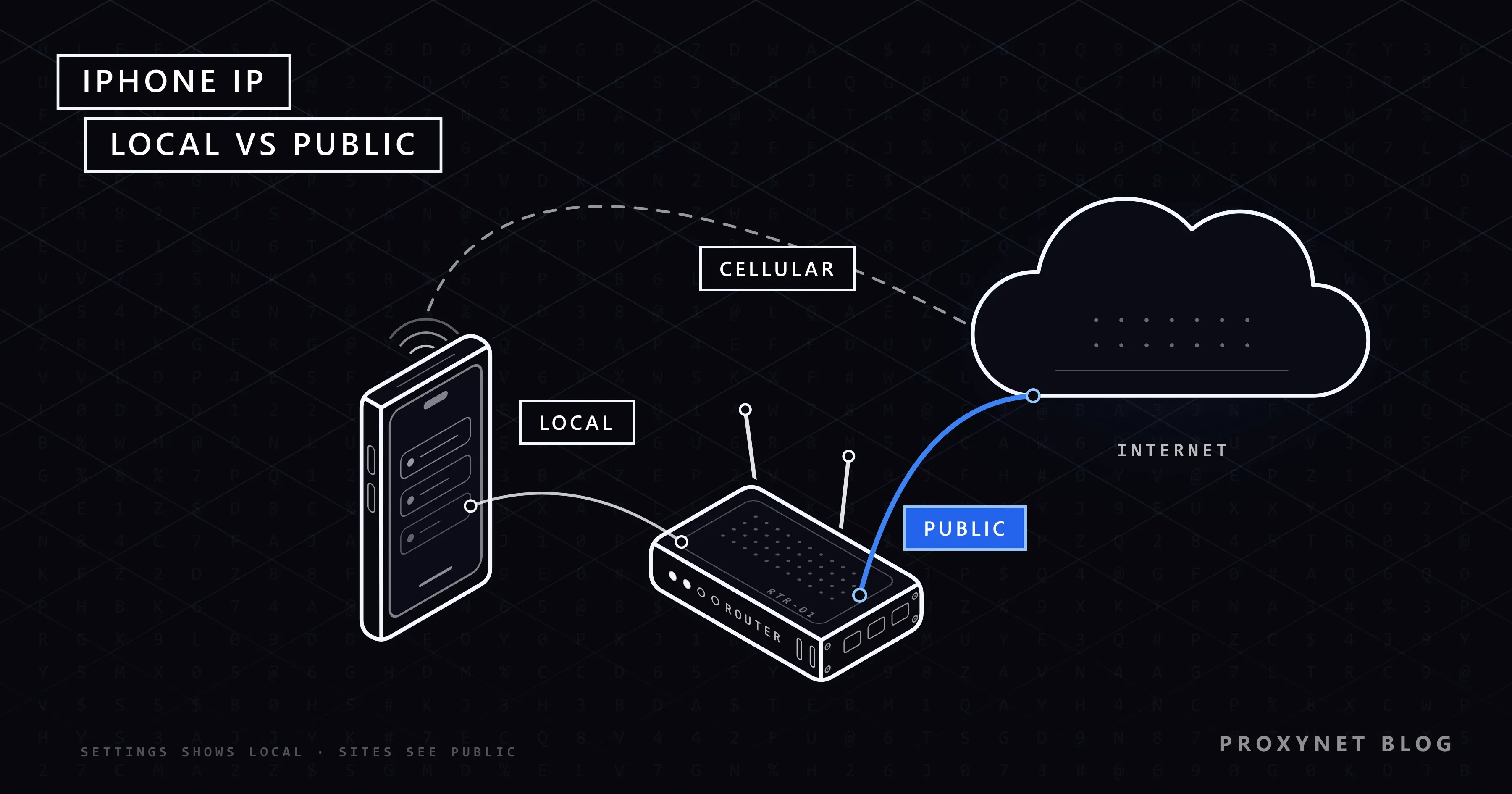
An iPhone usually has three addresses worth knowing, each belonging to a different part of the connection. An IP address is the number that lets data find a device on a network, and the phone gets a new one whenever it joins a different network.
- Local IP on Wi-Fi. Your router gives the iPhone an address that works only inside your home or office network, such as
192.168.1.23. A printer or laptop on the same Wi-Fi reaches your phone with it. - Cellular IP. On mobile data, the carrier gives the phone an address on the carrier's network. Many carriers share one internet-facing address among many customers, so this is often an internal address, not the one websites see.
- Public IP. This is the address your traffic carries on the internet, and the only one websites and apps see. On Wi-Fi it belongs to your router; on cellular it belongs to the carrier.
| Address | Where you see it | Who sees it |
|---|---|---|
| Local IP (Wi-Fi) | Settings > Wi-Fi > (i) | Devices on the same Wi-Fi |
| Cellular IP | Not shown in Settings | The carrier's network |
| Public IP | A "what is my IP" page | Every site and app you use |
Local addresses come from ranges set aside for private networks. The 1996 standard RFC 1918 reserves three: 10.x.x.x, 172.16.x.x to 172.31.x.x, and 192.168.x.x. If the number on your Wi-Fi screen starts with one of these, it is a local address, and nobody outside your network can reach your phone with it.
How do you find your iPhone's IP address on Wi-Fi?
The local Wi-Fi address sits in the details screen of the network you are connected to. Apple's guide to troubleshooting Wi-Fi on iPhone and iPad points to the same screen to check the IP address, subnet mask and router.
- Open the Settings app and tap Wi-Fi.
- Find the network with the check mark, the one you are connected to.
- Tap the info button (the small "i" in a circle) on the right of its row.
- Scroll down to the IPv4 address section.
- Read the IP Address row. That is your iPhone's local address on this Wi-Fi.
The same section has two more rows. Subnet Mask tells the phone which addresses count as local; on a home network it is usually 255.255.255.0. Router is your Wi-Fi router's address, often 192.168.1.1, and typing it into Safari usually opens the router's admin page, which also lists the public address the router received.
How do you find your iPhone's IP address on cellular data?
Settings has no row for it. iOS shows network details for Wi-Fi networks, while the cellular screens list data usage and options, not an IP address. The practical answer is to check what the internet sees:
- Turn off Wi-Fi under Settings > Wi-Fi, so the phone uses mobile data.
- Check that the status bar shows your carrier's network type, such as LTE or 5G.
- Open Safari, search for "what is my IP" and open one of the lookup pages.
- Read the address at the top. That is the public address your carrier uses for your traffic right now.
This number is often not the address the carrier gave your phone. Mobile networks commonly use CGNAT (carrier-grade NAT): each phone gets an internal address, and the traffic of many customers leaves for the internet from a shared public address. A separate block, 100.64.0.0/10, was reserved for this setup in RFC 6598 in 2012.
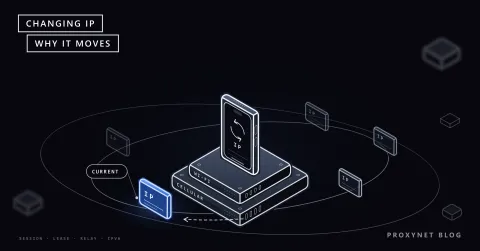
So on cellular you can only see one of the two numbers without special tools: the shared public address. That is also why it can change when you move, restart the phone or toggle airplane mode. How shared addresses work, and how to tell if your line uses one, is covered in What Is CGNAT?
How do you find your iPhone's public IP address?
Ask a website, because the public IP is by definition the address websites see. Open Safari, search for "what is my IP" and open a lookup page. The number shown first is your public address, usually followed by the provider's name and an estimated location.
Three things affect what the page shows:
- The network you are on. On home Wi-Fi your iPhone shows the same public IP as your laptop, because both leave through one router. On mobile data it shows the carrier's address.
- Two formats. Some pages show an IPv4 address (four numbers with dots) and an IPv6 address (longer, with colons). Your connection has both.
- Anything in between. With iCloud Private Relay, a VPN or a proxy on, the page shows that service's address instead of yours.
When someone asks for "your IP" for an allowlist, a firewall rule or a support ticket, they nearly always mean this public address, on the network you will actually use.
Why does your iPhone's IP address show the wrong location?
Because the location on a lookup page comes from a database about the address, not from your iPhone. Companies build IP location databases from the address blocks providers register, routing data and other signals, and estimate a country and city for each block. Your phone's GPS plays no part.
The country is usually right. The city is often where your provider manages its addresses, which can be a large city hours away, and on cellular data the error tends to be larger because one block of carrier addresses can serve a whole region. A wrong city does not mean someone is using your connection.
Apps that need your real position, such as Maps, ask for Location Services, which uses satellite positioning, nearby Wi-Fi networks and cell towers. That is a separate permission under Settings > Privacy & Security > Location Services, unrelated to your IP address. Why IP locations drift is explained in Why Is My IP Location Wrong?
IPv4 or IPv6: why does your iPhone show two addresses?
Because most networks now run both formats side by side, and the iPhone uses whichever works for each connection. IPv4 addresses look like 203.0.113.45; IPv6 addresses are longer and use colons, like 2001:db8::1a2b.
IPv4 has only about 4.3 billion addresses, which is why routers hide many devices behind one public address and carriers share addresses through CGNAT. IPv6 has enough to give every device its own. Apple's developer guide on the IPv6 transition notes that cellular providers are increasingly deploying IPv6-only networks that still reach IPv4 sites through translation, so on mobile data your iPhone may have no IPv4 address of its own at all.
If a lookup page shows an IPv6 address, that is still your public IP, just in the other format. If an allowlist accepts only IPv4, ask for the IPv4 address on the lookup page or check from a network that has one.
What changes the IP address your iPhone shows?
Several iPhone features change what websites see, so check which is on before you read a lookup page.
iCloud Private Relay. Part of the iCloud+ subscription, it sends Safari traffic through two relays: Apple sees your IP address, and the second relay gives sites a temporary one. While it is on, a lookup page opened in Safari shows the relay's address.
Limit IP Address Tracking. This switch sits in each Wi-Fi network's info screen and, for mobile data, under Settings > Cellular. It is meant to keep your IP address away from known trackers. With Private Relay on, turning it off for a network also turns Private Relay off on that network.
Private Wi-Fi Address. Despite the name, this is not about your IP. It changes your MAC address, the hardware address of the Wi-Fi chip that the router sees. Your local and public IP work the same either way.
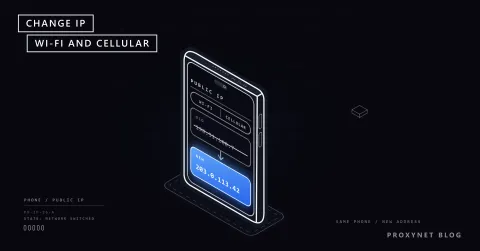
A VPN or a proxy. Both make sites see a different public IP. If you want to change your address rather than read it, the options on Wi-Fi and cellular are compared in How to Change Your IP Address on iPhone.
What does your iPhone's IP address look like with a proxy on?
The public IP becomes the proxy's exit IP: the address of the server that forwards your traffic, in the country or city you chose. The IP Address row in Settings stays the same; only the address the internet sees changes.
The iPhone's own proxy setting (Configure Proxy in the Wi-Fi network's info screen) covers that Wi-Fi network only and has nothing for mobile data. Our iOS app, Proxynet.io on the App Store, uses Apple's Network Extension framework to send all of the device's traffic, on Wi-Fi and cellular, through the gateway you pick. Once connected, it shows the assigned exit IP with a country flag and location details, the latency (ping) and live upload and download usage, so you can read your new public IP without a lookup page.
You choose the exit by country, state and city, and switch between rotating (a new address per connection) and sticky (the same address for 1-60 minutes). A Residential Proxy gives an address from a home internet connection, which suits checking what a site shows to people in another city.
A Mobile Proxy gives an address from a carrier's mobile network, the closer match when you test how an app behaves for phone users on mobile data.
Three honest limits. While connected, iOS shows the standard "VPN" indicator because of how the tunnel works, although the app is a proxy, not a VPN service. The app changes your IP-based location only; your GPS position and Location Services stay as they are. And its interface is in English.
Is it safe to share your iPhone's IP address?
Usually yes. Your local Wi-Fi address (192.168.x.x or 10.x.x.x) works only inside your own network, and countless other homes use the same number, so sharing it carries almost no risk.
Your public IP is more personal, but it is not a home address. It shows your provider and a rough area, and websites see it on every visit anyway. Giving it to your IT team or a support line you trust, so they can allowlist it or troubleshoot, is normal.
Be careful in two cases. Do not post it publicly next to your name, where it can be combined with other details about you. And ignore anyone who contacts you unprompted about "a problem with your IP"; that is a common opening for scams.
Where do you need your iPhone's IP address?
Most people never need it until an everyday situation comes up. A company or school administrator may ask for your public address to let your device through a firewall. A support agent may ask for your local address when your phone cannot reach a printer, a smart TV or a network drive on the same Wi-Fi.
You also meet it when a remote service or a proxy uses IP allowlisting. A phone on mobile data changes address often, so the public address of a fixed network, such as your home or office, makes a better entry.
Common mistakes
- Sending the local address when the public one was needed.
192.168.1.23means nothing outside your Wi-Fi. For an allowlist or a server, send the address from a lookup page. - Checking on the wrong network. The public IP on home Wi-Fi and on mobile data differ. Check on the network the other side will see.
- Taking the lookup page's city as your location. It is an estimate about the address block, unrelated to GPS.
- Forgetting Private Relay or a proxy is on. The lookup page then shows the relay's or the proxy's address.
- Confusing Private Wi-Fi Address with the IP. That setting changes the MAC address, not the IP.
- Expecting a cellular address to stay the same. Carrier addresses change with restarts, airplane mode and movement.
Decision guide
| What you need | Where to look |
|---|---|
| Local IP on Wi-Fi | Settings > Wi-Fi > (i) > IP Address |
| Router's address | Same screen, Router row |
| Public IP on Wi-Fi | A "what is my IP" page on that Wi-Fi |
| Public IP on cellular | The same page with Wi-Fi off |
| An address for an allowlist | Public IP of a fixed network |
| An IP in another city | A proxy app; it shows the exit IP |
Frequently asked questions
Where is the IP address on my iPhone?
The local IP is under Settings > Wi-Fi: tap the info button next to your network and find the IP Address row in the IPv4 address section. The public IP is not in Settings; a "what is my IP" page shows it.
Can I see my iPhone's IP address on mobile data in Settings?
No. iOS shows IP details only for Wi-Fi networks. On mobile data, open a lookup page with Wi-Fi off; it shows the public address your carrier uses, which may be shared with other customers.
Is my iPhone's IP address the same on Wi-Fi and cellular?
No. On Wi-Fi your public IP belongs to your router and internet provider; on cellular it belongs to your carrier. Your local Wi-Fi address and the carrier's internal address are different again.
Why does my iPhone's IP address show another city?
Lookup pages estimate the location from a database about the address block, not from your phone. The city is often where your provider manages its addresses. Your GPS position is not involved.
What does Limit IP Address Tracking mean on iPhone?
It is a switch in each Wi-Fi network's info screen and in the cellular settings that keeps your IP address away from known trackers. With iCloud Private Relay on, turning it off for a network also turns Private Relay off there.
Can someone track my iPhone from its IP address?
Not to your door. A public IP shows your provider and a rough area, often only the region. Your exact location comes from GPS and Location Services, which apps can use only with your permission.
Summary
Your iPhone has a local address on Wi-Fi, an address on the carrier's network on cellular, and a public address that websites see. Settings shows only the first, under Settings > Wi-Fi > (i). For the public address, open a "what is my IP" page on the network you want to check, and treat the city it shows as an estimate. Private Relay, a VPN or a proxy replace the public address with their own. If you need the internet to see your iPhone from a chosen country or city, on Wi-Fi and mobile data alike, a residential or mobile proxy through our iOS app does that and shows the exit IP on screen.