






























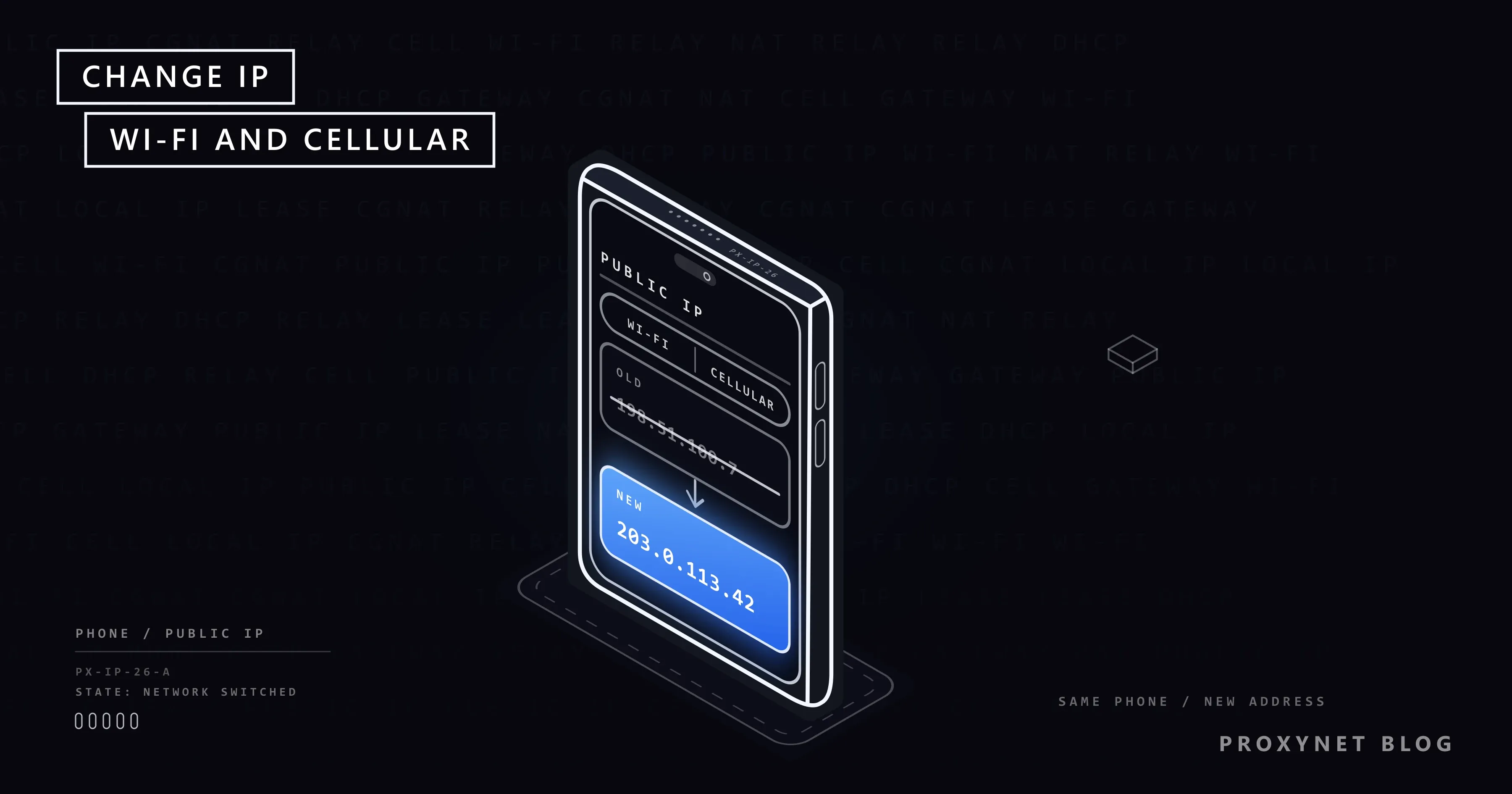
You open a "what is my IP" page on your iPhone, note the address, switch airplane mode on and off, reload the page and see exactly the same address. You try again after a restart and still nothing changes. The reason is usually simple: the phone was on Wi-Fi the whole time, and on Wi-Fi the address websites see belongs to the router, not to the iPhone.
This post explains which IP address an iPhone has and which one you can change. It then covers each method that works: switching networks, airplane mode, reconnecting Wi-Fi or restarting the router, iCloud Private Relay, and a proxy app for an address in another country or city. It ends with how to check the result and what an IP change leaves untouched.
Which IP address does your iPhone have?
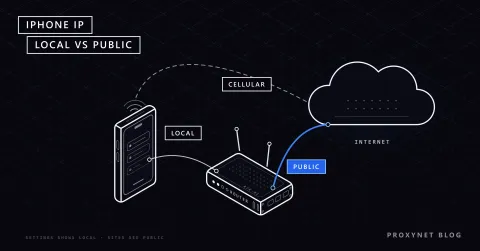
An iPhone usually has two kinds of IP address at the same time, and most confusion comes from mixing them up. An IP address is the number that tells the network where to send replies for your device.
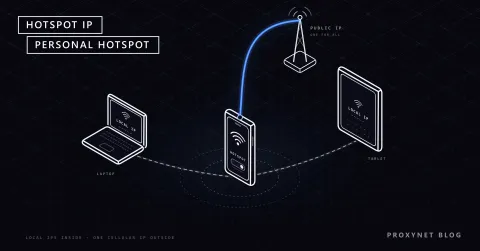
The local IP is the address your home router gives the iPhone inside your Wi-Fi network. It usually starts with 192.168. or 10., it is shown in the network's details screen in Wi-Fi settings, and no website ever sees it. The public IP is the address your connection has on the internet. On Wi-Fi it belongs to the router and is shared by every device at home; on cellular it is assigned by your mobile carrier.
When people search for "change IP address on iPhone", they almost always mean the public IP, the address websites and apps see. That is the address this post is about.
Can you change your IP address on an iPhone?
Yes, but not by typing a new address into a setting. The public IP comes from the network, so every method that works changes the network path, not a field on the phone.
There are two kinds of change. Switching networks, airplane mode and restarting the router get you a different address from the same provider, still in the same country and usually the same area. iCloud Private Relay, a proxy or a VPN send your traffic out through another server, so websites see that server's address. Only the second kind can put you in another country, and only a proxy here lets you pick the city.
How to change your IP on iPhone: the methods at a glance
| Method | What changes | Another country? | Works on |
|---|---|---|---|
| Switch Wi-Fi ↔ cellular | Public IP, right away | No | Both |
| Airplane mode | Public IP from the carrier, often | No | Cellular |
| Rejoin Wi-Fi | Local IP only, sometimes | No | Wi-Fi |
| Restart the router | Public IP of the whole home, sometimes | No | Wi-Fi |
| iCloud Private Relay | Address seen in Safari | No, same region | Both |
| Proxy app | Address of all traffic | Yes, with city choice | Both |
The first four methods are free and enough when you only need "a different address". The last two matter when the location of the address matters.
Does switching between Wi-Fi and cellular change your IP?
Yes, every time. Wi-Fi and cellular are two separate networks run by two separate providers, so the moment the iPhone moves from one to the other, websites see a different public IP.
- Open a "what is my IP" page in Safari and note the address.
- Go to Settings > Wi-Fi and turn Wi-Fi off. The iPhone switches to cellular data if it is turned on.
- Reload the page. The address is now one from your mobile carrier.
- Turn Wi-Fi back on. You get the router's public IP again, the same one as before.
This is the quickest way to get a different address, but it only flips between two addresses, and cellular data counts towards your plan.
Does airplane mode change your IP address on cellular?
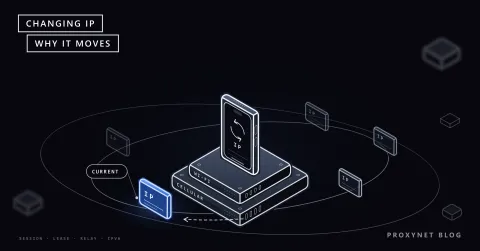
Often, but not always. Airplane mode drops the iPhone's connection to the mobile network; when you turn it off, the phone registers again and the carrier assigns an address for the new session.
- Make sure Wi-Fi is off or out of range, so the iPhone is on cellular data.
- Open Control Center and tap the Airplane Mode button.
- Wait ten to twenty seconds.
- Tap the button again and wait until the cellular signal and data icon are back.
- Reload the "what is my IP" page and compare.
If the iPhone is on Wi-Fi when you do this, Wi-Fi reconnects through the same router and websites see the same address. That is the most common reason the trick "does not work".
Even on cellular, the result varies. Many carriers share public addresses between subscribers with carrier-grade NAT (CGNAT): your phone gets an internal address, and a carrier device translates it to a public address that many customers use at once. RFC 6598 reserves the 100.64.0.0/10 block for those internal carrier links. After airplane mode you may land on another shared address, or on the same one again.
We explain how to recognise this setup in What Is CGNAT and How Do You Detect It?.
Restarting the iPhone has the same effect on cellular; it just takes longer.
How do you get a new IP address on Wi-Fi?
On Wi-Fi, the iPhone can only change its local IP; the public IP belongs to the router. Each address has its own action.
To get a new local IP, leave the network and join it again: in Settings > Wi-Fi, tap the More Info button next to your network, choose to forget it, then join again with the password. The router hands out an address again, maybe the same one. This helps with local problems such as an address conflict, not with what websites see.
To get a new public IP, restart the router. On many home connections the provider assigns the address dynamically, and a reconnect can bring a different one. It is not guaranteed: some lines keep the same address for days, some have a fixed address, and some sit behind the provider's CGNAT. Router admin pages, waiting times and the difference between a restart and a factory reset are covered in How to Change Your IP Address: Phone, PC and Router.
One setting is often mistaken for an IP change: Private Wi-Fi Address. It changes the hardware (MAC) address your iPhone shows to the Wi-Fi network, not the IP address websites see. Apple's private Wi-Fi address page lists the options on iOS 18 and later as Off, Fixed and Rotating, where Rotating changes the private address every two weeks. Your public IP stays the router's either way.
Does iCloud Private Relay change your IP address?
Partly. iCloud Private Relay is an iCloud+ feature that sends your Safari traffic through two separate relays, so websites see a temporary address instead of yours and cannot see your exact location.
You turn it on in Settings > [your name] > iCloud > Private Relay. Under IP Address Location there are two options: Maintain General Location, which keeps local content in Safari working, and Use Country and Time Zone, which makes the location broader. Apple's Private Relay guide also notes that the feature is not available in all countries or regions.
If your goal is a different IP, three limits matter. You cannot choose the country; even the broader option keeps you in your own country and time zone. It is built for browsing in Safari, so most other apps keep your normal address. And some websites ask for extra sign-in steps when they cannot see your real address.
You will also meet Limit IP Address Tracking under each Wi-Fi network's details and under Settings > Cellular > Cellular Data Options (on a phone with two lines, choose the line first). It is the per-network switch for the same privacy protection: in earlier iOS versions this spot was labelled "iCloud Private Relay", and turning it off for a Wi-Fi network turns Private Relay off for that network on all your devices. It is a privacy setting, not a way to get a new address.
How do you change your iPhone's IP to another country or city?
You need your traffic to leave from a server in that place. iOS has its own proxy setting, the Configure Proxy field of each Wi-Fi network, but it covers only that network, takes only an HTTP proxy and does nothing on cellular data. An app fills that gap.
Our app, Proxynet.io on the App Store, uses Apple's Network Extension framework to send all traffic on the device through the gateway you pick, on Wi-Fi and cellular alike. It runs on iPhone and iPad with iOS or iPadOS 15.1 or later, and it is a free download; you top up a wallet through Apple In-App Purchase, the credit does not expire and there are no recurring charges.
- Install the app and sign in to your Proxynet account.
- Top up your wallet in the app.
- Create a new gate (residential, mobile, ISP or datacenter) or pick one you already have.
- Choose the location: country, then state and city where you need them.
- Choose rotating or sticky (see below).
- Tap to connect. iOS shows the standard "VPN" indicator while the tunnel is up.
- Read the assigned exit IP, its country flag and location, and the latency (ping) on the connection screen.
- Tap again to disconnect, and your normal address is back.
Rotating or sticky decides how often the address changes. With rotating, new connections leave from a new exit IP, which suits checking how a page looks from many addresses; the setup is described on our Rotating Proxy page. With sticky, you keep the same exit IP for a session of 1-60 minutes, which suits anything with a login.
For addresses of real home connections in 190+ countries, the gates come from our Residential Proxy pool.
Honest limits: the app's interface is in English only, and it changes the location of your IP address, not your GPS location. The "VPN" label is how iOS marks any app that tunnels device traffic; the app connects you to proxy gateways and is not a VPN service. The step-by-step walk-through of every screen is in iPhone Proxy App: How to Use a Proxy on Your Whole Device.
How do you check that your IP address changed?
Open the same "what is my IP" page in Safari before and after the change and compare the two addresses; different lookup services can show different cities for one address.
Three things often confuse people. On cellular many carriers use IPv6, so the page may show a long address with colons; that is still your public IP. The city shown is an estimate from a database, so the address can be right while the city is wrong. And the address under the Wi-Fi network's details is the local one, so it will not match the page.
When the Proxynet.io app is connected, its connection screen shows the exit IP it assigned you, and a "what is my IP" page should show the same address.
What does changing your IP address not change?
An IP change only changes the network address of your traffic; everything that identifies you above the network stays.
- Accounts: you are still signed in as the same person; a new address does not make you a new user.
- Cookies and app data: websites still recognise Safari's cookies, and apps keep their stored data.
- GPS location: Maps, Find My and apps with location permission use the phone's location services, not your IP, so the blue dot does not move.
- Apple Account region and App Store country: these belong to your account settings and payment method.
- Your carrier: on cellular, the carrier still carries your traffic and bills your data use, even when a proxy changes the exit address.
So an address change is the wrong tool for an account restriction, and using it to get around a platform's rules can break its terms.
Common mistakes when changing the IP on iPhone
- Toggling airplane mode while on Wi-Fi. Wi-Fi reconnects through the same router and the public IP does not change. Turn Wi-Fi off first.
- Checking the local IP instead of the public one. The address in Wi-Fi settings is the internal one; use a "what is my IP" page.
- Expecting Private Wi-Fi Address to change the IP. It changes the hardware address the router sees, not the address websites see.
- Expecting Private Relay to pick a country. It hides your address in Safari and keeps you in your own region.
- Forgetting the proxy app is still connected. If your IP looks foreign the next day, check whether the tunnel is still on.
Decision guide: which method should you use?
| You need… | Use |
|---|---|
| Any different address, right now | Switch Wi-Fi ↔ cellular |
| A new address on cellular | Airplane mode, then check |
| A new address for the whole home | Restart the router |
| Less tracking in Safari | iCloud Private Relay |
| An address in a chosen country or city | Proxy app |
| A new address on every connection | Proxy app, rotating |
| The same foreign address for a login | Proxy app, sticky |
Frequently asked questions
Can you change your IP address on iPhone without an app?
Yes, within your own provider. Switching between Wi-Fi and cellular, airplane mode on cellular or a router restart can all give you a different public IP. Without an app, though, you cannot choose the country or city of the new address.
Does restarting your iPhone change your IP address?
On cellular it often does, because the phone registers with the carrier again, just like after airplane mode. On Wi-Fi it does not, since the public IP belongs to the router.
Why didn't my IP change after airplane mode?
Usually the iPhone was on Wi-Fi, or the carrier gave you the same shared address again. Turn Wi-Fi off and try once more, waiting a little longer; with CGNAT, getting the same address back is normal.
What does Limit IP Address Tracking mean on iPhone?
It is the per-network switch for iCloud Private Relay's protection of your IP address. You find it in each Wi-Fi network's details and under the cellular settings, and turning it off for one network turns that protection off there. It does not give you a new address or a different location.
Does changing your IP change your location on iPhone?
It changes the location websites estimate from your IP address, not your GPS location. Maps, Find My and apps with location permission keep showing where you really are. A proxy app moves only the IP-based location.
Does changing your IP log you out of Instagram or other apps?
No, the apps keep you signed in, because your account and stored login are not tied to the address. Some services may ask you to confirm a login from a new location, which is a normal security check. A new address does not reset anything on the account itself.
Summary
The IP address websites see on your iPhone comes from the network, so you change it by changing the network: switch between Wi-Fi and cellular, toggle airplane mode on cellular, or restart the router. iCloud Private Relay hides your address in Safari but keeps you in your region, and Private Wi-Fi Address does not touch your IP at all. When the address has to come from a chosen country or city, on Wi-Fi and cellular alike, a device-wide proxy app such as Proxynet.io does the job: rotating for a new address on new connections, sticky for anything with a login.