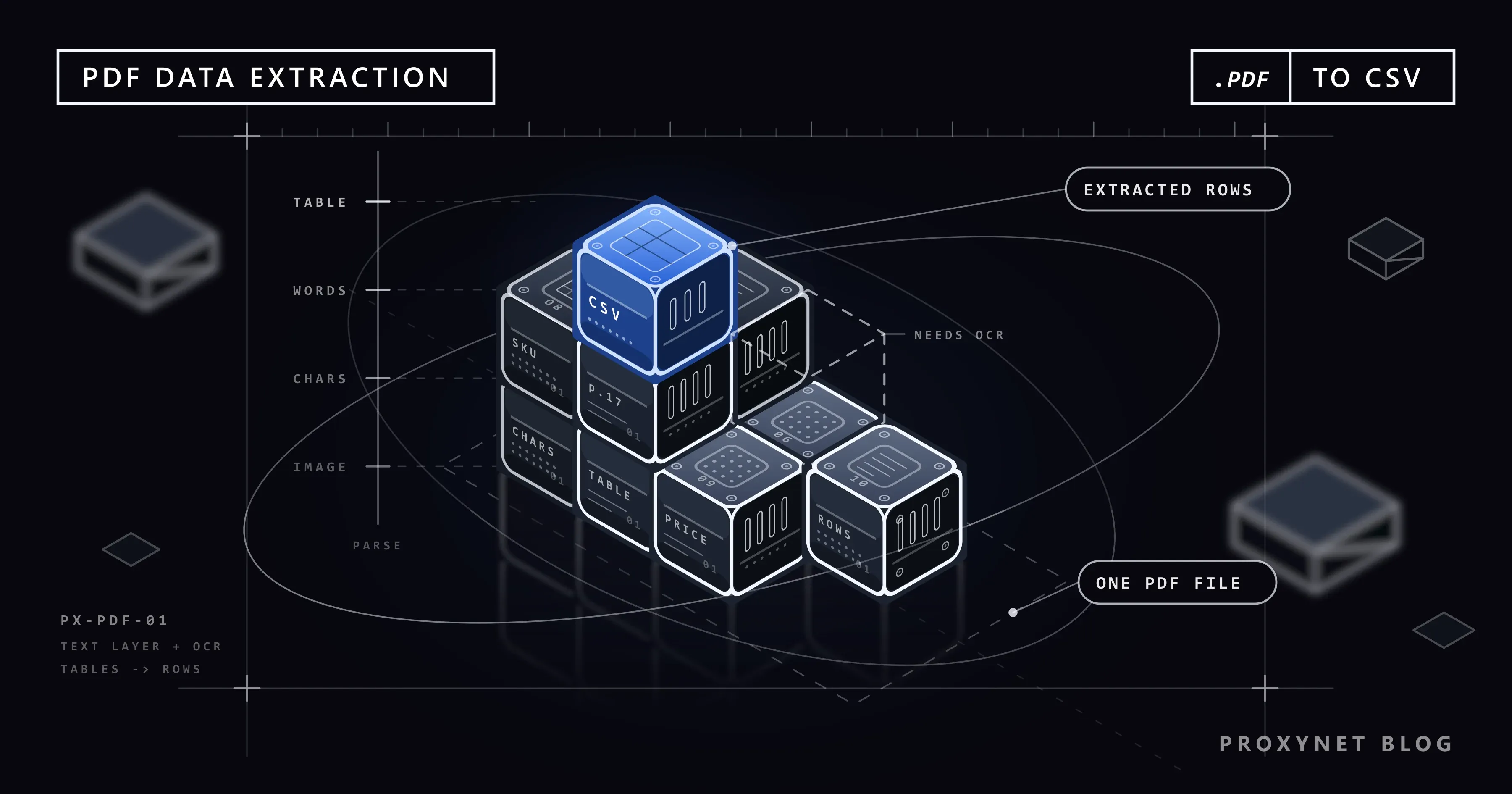
A supplier sends its price list as a 40-page PDF every month. The finance team gets bank statements the same way, and the market report you bought last week has its best table on page 17. You need those rows in a spreadsheet, and copying them by hand breaks the columns, drops the minus signs and takes an hour you will spend again next month.
This post starts with the question that decides the method, whether the file has a text layer, then covers Excel's PDF connector, pdfplumber, Camelot and tabula-py, OCR with Tesseract for scans, and a batch script that turns a folder of PDFs into one CSV. Every example was run on sample PDFs we generated with ReportLab.
What does extracting data from a PDF mean?
Extracting data from a PDF means turning content laid out for printing into rows and fields you can sort and load elsewhere. A PDF does not store "a table with four columns". It stores instructions such as "draw 1,007.50 at this position in this font" and "draw a line from here to there". Every extraction tool rebuilds the table from those coordinates, which is why one file can come out clean in one tool and scrambled in another.
It is the same job as pulling fields out of a web page (How to Extract Data From a Website), with positioned characters instead of HTML tags. Collecting PDFs from websites at scale is part of a broader data scraping pipeline.
Text PDF or scanned PDF: how do you tell?
- Text (digital) PDF. Exported from Word, an accounting system or a reporting tool. The characters are stored as text, so extraction reads the exact numbers in the file.
- Scanned (image) PDF. Each page is a picture of paper. There is no text until OCR (optical character recognition) guesses the characters from the pixels.
The quick test: press Ctrl+F and search for a word you can see. If it is found, there is a text layer. In code, an empty page.chars list in pdfplumber means that page is a scan. Some files mix both (a digital report with a scanned signature page), so check per page, not per file.
How does PDF table extraction work?
Whether you use Excel, pdfplumber or Camelot, the same steps run in the background:
- The page is parsed. Every character is read with its position, font and size, plus the drawn lines and rectangles.
- Characters become words and lines. Close characters on one baseline form words; words at the same height form a line.
- Table areas are found. From ruling lines that form a grid, or from columns of words aligned with white space between them.
- Cells are built. Line crossings or column gaps define cell boundaries, and each word goes to the cell that contains it.
- Rows are returned. A list of rows (or a DataFrame) that you clean and save.
Step 3 causes most problems. A full grid is easy; a borderless table forces the tool to guess columns from white space, and one long product name can shift every column.
PDF extraction methods side by side
| Method | Code needed? | Handles scans? | Best for | Where it gets stuck |
|---|---|---|---|---|
| Copy and paste | No | No | One small table, once | Columns collapse into one cell, multi-page tables |
| Excel, Get Data > From PDF | No | No | A few files a month, analysis in Excel | Borderless tables, many files with different layouts |
| pdfplumber (Python) | Yes | No | Text plus tables, batch jobs, fine control | Needs tuning for borderless tables |
| Camelot (Python) | Yes | Optional extra | Ruled tables, per-table accuracy report | Free text around the tables |
| tabula-py (Python) | Yes | No | Quick DataFrames from table-heavy files | Requires Java on the machine |
| Tesseract via pytesseract | Yes | Yes | Scanned pages, photos of documents | Accuracy depends on scan quality; tables lose structure |
No-code options: copy and Excel
Copying. For one small table, select it in the viewer and paste. If each row lands in one cell, use Data > Text to Columns. It breaks as soon as a product name contains spaces.
Excel's PDF connector. Excel for Microsoft 365 on Windows can read PDF files through Power Query:
- Open a blank workbook and go to Data > Get Data > From File > From PDF.
- Select the PDF and click Open.
- The Navigator lists what Power Query found: each detected table (Table001, Table002…) and each whole page (Page001…). Click an item to preview it.
- Choose Load to put the table on a sheet, or Transform Data to clean it first in the Power Query Editor (remove repeated header rows, change the type of the price column to a number).
- Next month, replace the file and click Data > Refresh All; the same steps run again.
Microsoft's PDF connector documentation lists the options behind it: Pdf.Tables accepts StartPage and EndPage for large files and a MultiPageTables option that joins a table continuing across pages. The connector does not run OCR, and Power Query in Excel for Mac does not list PDF as a source. The Folder connector combines PDFs with the same layout; once layouts differ, a script is easier to maintain.
Extracting text and tables with pdfplumber
pdfplumber is a Python library built on pdfminer.six with its own table finder. The current release is 0.11.10 (June 2026); its README says it works best on machine-generated PDFs and does not do OCR. Install it in a virtual environment:
python -m venv .venv
.venv\Scripts\activate        # macOS/Linux: source .venv/bin/activate
pip install pdfplumber pandas
The basics fit in a few lines:
import pdfplumber

with pdfplumber.open("pdfs/price-list-2026-08.pdf") as pdf:
    page = pdf.pages[0]
    print(page.extract_text())          # all text, line by line
    table = page.extract_table()        # the largest table on the page
    print(table[:2])
# [['SKU', 'Product', 'Unit', 'Price'], ['B-001', 'Cable set 1', 'box', '13.40']]
extract_tables() returns every table on the page as lists of cell strings. By default pdfplumber looks for drawn lines; for a borderless table, switch to the text strategy:
settings = {"vertical_strategy": "text", "horizontal_strategy": "text"}
rows = page.extract_tables(table_settings=settings)
Match the strategy to the table. On our ruled price list, the text strategy split "Cable set 1" into two columns and merged "Unit" and "Price", because it guessed from word gaps what the lines already showed. When only part of a page is a table, crop first with page.crop((x0, top, x1, bottom)).
A complete script: a folder of PDFs to one CSV
The script below reads every PDF in a folder, takes the document number from the first page's text, pulls table rows from every page, skips repeated headers, converts prices to numbers and writes one CSV. Pages without a text layer are logged for OCR, and one broken file does not stop the batch.
import csv
import logging
import re
from pathlib import Path

import pdfplumber

logging.basicConfig(level=logging.INFO, format="%(levelname)s %(message)s")

IN_DIR = Path("pdfs")
OUT_CSV = Path("price_lists.csv")
HEADER = ["SKU", "Product", "Unit", "Price"]
DOC_NO = re.compile(r"price list (\S+)", re.IGNORECASE)


def to_number(text):
    """'1,007.50' -> 1007.5; returns None for empty or broken cells."""
    if not text:
        return None
    try:
        return float(text.replace(",", "").strip())
    except ValueError:
        return None


def rows_from_pdf(path):
    with pdfplumber.open(path) as pdf:
        first_text = pdf.pages[0].extract_text() or ""
        match = DOC_NO.search(first_text)
        doc_no = match.group(1) if match else path.stem

        for page in pdf.pages:
            if not page.chars:  # no text layer: probably a scan
                logging.warning("%s p.%d has no text layer, needs OCR", path.name, page.page_number)
                continue
            for table in page.extract_tables():
                for row in table:
                    cells = [(c or "").strip() for c in row]
                    if cells == HEADER:  # header repeated on every page
                        continue
                    if len(cells) != len(HEADER):
                        logging.warning("%s p.%d skipped row %r", path.name, page.page_number, cells)
                        continue
                    sku, product, unit, price = cells
                    yield {
                        "file": path.name,
                        "doc_no": doc_no,
                        "page": page.page_number,
                        "sku": sku,
                        "product": product,
                        "unit": unit,
                        "price": to_number(price),
                    }


def main():
    fields = ["file", "doc_no", "page", "sku", "product", "unit", "price"]
    count = 0
    with OUT_CSV.open("w", newline="", encoding="utf-8-sig") as f:
        writer = csv.DictWriter(f, fieldnames=fields)
        writer.writeheader()
        for path in sorted(IN_DIR.glob("*.pdf")):
            try:
                for row in rows_from_pdf(path):
                    writer.writerow(row)
                    count += 1
            except Exception as exc:  # one broken file should not stop the batch
                logging.error("%s failed: %s", path.name, exc)
    logging.info("wrote %d rows to %s", count, OUT_CSV)


if __name__ == "__main__":
    main()
On our test folder (a 70-row price list spanning two pages, an 8-row price list and a scanned copy) the output was:
WARNING price-list-scan.pdf p.1 has no text layer, needs OCR
INFO wrote 78 rows to price_lists.csv
utf-8-sig makes Excel show accented names such as "Café" correctly, and file, doc_no and page on every row trace each number back to its page. Where to store the rows next is covered in Save Scraped Data to CSV, JSON and SQLite; the cleaning pass is in Clean Scraped Data With pandas.
Camelot and tabula-py: when to use them
Two other libraries focus on tables only.
Camelot reached 2.0.0 in June 2026. read_pdf() defaults to the lattice flavor for ruled tables; stream and network handle borderless ones, and auto picks per page. Each table has a parsing_report with an accuracy score for flagging bad pages. See the Camelot documentation.
tabula-py is a Python wrapper around tabula-java, so it needs Java installed. tabula.read_pdf() returns a list of pandas DataFrames directly.
import camelot
import tabula

PDF = "pdfs/price-list-2026-09.pdf"

tables = camelot.read_pdf(PDF, pages="1-end", flavor="lattice")
for t in tables:
    print(t.page, t.shape, t.parsing_report["accuracy"])
tables[0].df.to_csv("camelot_page1.csv", index=False)

dfs = tabula.read_pdf(PDF, pages="all", lattice=True)
print(len(dfs), [df.shape for df in dfs])
On our two-page price list, both found one table per page. Camelot reported 100.0 accuracy and kept the header as the first row; tabula used it as column names. All three libraries got the ruled table right, so choose by the rest of the job: pdfplumber for free text too, Camelot for a per-table score, tabula-py for DataFrames with the least code if Java is installed.
Scanned PDFs: OCR with Tesseract
When a page has no text layer, you have to recognise the characters from the image. Tesseract is the common open-source OCR engine, and pytesseract is its Python wrapper. The wrapper does not include the engine: install Tesseract itself first (if it is not on PATH afterwards, set tesseract_cmd as shown below), then:
pip install pytesseract pypdfium2The script renders each page at 300 DPI in grayscale, runs OCR and prints the mean word confidence, which shows which pages need a human look:
import sys

import pypdfium2 as pdfium
import pytesseract

# On Windows, point pytesseract at the binary if it is not on PATH:
# pytesseract.pytesseract.tesseract_cmd = r"C:\Program Files\Tesseract-OCR\tesseract.exe"


def ocr_pdf(path, lang="eng", dpi=300):
    pdf = pdfium.PdfDocument(path)
    pages = []
    for i, page in enumerate(pdf, start=1):
        image = page.render(scale=dpi / 72).to_pil().convert("L")  # grayscale helps
        text = pytesseract.image_to_string(image, lang=lang, config="--psm 6")
        pages.append(text)
        # Word-level confidence: -1 means "not a word", 0-100 otherwise.
        data = pytesseract.image_to_data(image, lang=lang, output_type=pytesseract.Output.DICT)
        confs = [float(c) for c in data["conf"] if float(c) >= 0]
        if confs:
            print(f"page {i}: mean confidence {sum(confs) / len(confs):.1f}")
    return pages


if __name__ == "__main__":
    try:
        for text in ocr_pdf(sys.argv[1] if len(sys.argv) > 1 else "scans/price-list-scan.pdf"):
            print(text)
    except pytesseract.TesseractNotFoundError:
        sys.exit("Tesseract is not installed or not on PATH")
The 300 DPI figure comes from Tesseract's guide to improving quality. --psm 6 treats the page as one uniform block of text. The same guide notes that tables need custom segmentation and that scan borders can be misread as characters.
OCR confuses 0 and O, 1 and l, and a comma and a full stop in a price; faint or skewed scans make it worse. For numbers that matter, check that line items add up to the total and have a person review low-confidence pages. OCR returns text, not table structure: rebuild columns with a regular expression per line, or try Camelot's optional ocr extra.
Where PDF data extraction is used
- Supplier price lists. Monthly PDFs turned into a price history you can compare over time, the input for price monitoring.
- Market and industry reports. Tables from public reports feeding a market research model instead of being retyped.
- Invoices and statements. Totals, dates and reference numbers pulled into accounting or reconciliation, a common job in finance teams.
- Public filings and statistics. Many agencies still publish tables only as PDF; a script turns years of them into one dataset, a typical first step before data mining.
- ETL pipelines. PDF parsing is the "extract" in a larger flow; What Is ETL explains how the transform and load steps fit around it.
Downloading many PDFs from websites
The PDFs often start on a supplier portal or a regulator's publication page. Downloading hundreds of them is a scraping job: use the official download or API if there is one, read robots.txt and the terms, and pace the requests. The downloader below skips files it already has, does not retry 4xx errors, honours Retry-After on HTTP 429 and checks that the response really is a PDF:
import os
import time
from pathlib import Path
from urllib.parse import urlparse

import requests

PROXY = os.environ.get("PROXY_URL", "http://user:pass@pr.proxynet.io:8000")
URLS = os.environ.get("PDF_URLS", "https://example.com/reports/price-list.pdf").split()
OUT = Path("pdfs")
OUT.mkdir(exist_ok=True)

session = requests.Session()
session.proxies = {"http": PROXY, "https": PROXY}
session.headers["User-Agent"] = "price-list-archiver/1.0 (contact: data@example.com)"


def download(url, retries=3):
    target = OUT / Path(urlparse(url).path).name
    if target.exists():  # already fetched on an earlier run
        return target
    for attempt in range(1, retries + 1):
        try:
            r = session.get(url, timeout=30)
            if r.status_code == 429:
                time.sleep(int(r.headers.get("Retry-After", 30)))
                continue
            if 400 <= r.status_code < 500:  # 403, 404...: retrying will not help
                print(f"{url} returned {r.status_code}, skipped")
                return None
            r.raise_for_status()
            if not r.content.startswith(b"%PDF"):  # an HTML error page, not a PDF
                print(f"{url} did not return a PDF, skipped")
                return None
            target.write_bytes(r.content)
            return target
        except requests.RequestException as exc:
            print(f"attempt {attempt} failed: {exc}")
            time.sleep(2 ** attempt)
    return None


for url in URLS:
    print(url, "->", download(url))
    time.sleep(2)  # be gentle with the host
Through a local test proxy with user:pass, a valid PDF was saved, a fake .pdf and a 404 were skipped, and a second run fetched nothing again. A proxy helps when a source serves different documents by country (a Residential Proxy with a target country) or when a long archive download hits per-IP limits (a Rotating Proxy). Slowing down still comes first, as HTTP 429 Too Many Requests explains.
Common problems and how to fix them
- Merged cells come back as
None. pdfplumber fills only the first row of a merged cell;ffill()in pandas copies it down (example below). - The table continues on the next page. Extract page by page, drop the repeated header rows (as the script above does) and concatenate. In Excel, the
MultiPageTablesoption does this for you. - Numbers arrive as text.
"1,007.50","(250.00)"for negatives,"1.007,50"in a German file. Normalise per format; never guess the decimal separator from one value. - Accented letters look broken. Usually the viewer is wrong, not the text: a Windows console, or Excel opening UTF-8 without a BOM (see Python Unicode encoding errors). If
extract_text()itself returns odd symbols, the font has no Unicode mapping and OCR is the reliable route. - Columns shift in borderless tables. Switch to the text strategy, crop to the table area, or pass explicit column positions with
"vertical_strategy": "explicit"and"explicit_vertical_lines". - Zero rows, no error. The page is a scan, the table is an image, or the file is password-protected (
pdfplumber.open(path, password="...")for files you may open).
Here is the merged-cell fix in full, tested on a table where "North" spans two rows:
import pandas as pd
import pdfplumber

with pdfplumber.open("merged.pdf") as pdf:
    rows = pdf.pages[0].extract_table()

df = pd.DataFrame(rows[1:], columns=rows[0])
df["Region"] = df["Region"].ffill()  # a merged cell comes back as None below its first row
df["Price"] = pd.to_numeric(df["Price"].str.replace(",", ""), errors="coerce")
print(df)
Which method should you choose?
| Need | Recommendation |
|---|---|
| One table from one file, once | Copy and paste, then Text to Columns |
| A few text PDFs a month, analysis in Excel | Excel, Data > Get Data > From File > From PDF |
| Text and tables from a folder, repeated monthly | pdfplumber script writing CSV |
| Ruled tables with a quality score per table | Camelot, lattice flavor |
| DataFrames with minimal code, Java available | tabula-py |
| Scanned pages or photos | pypdfium2 render at 300 DPI + Tesseract, with human review of numbers |
| Hundreds of PDFs from a website | Official download or API first; otherwise a paced downloader, with a proxy if the source is regional |
Frequently asked questions
Can I extract data from a PDF for free?
Yes. pdfplumber, Camelot, tabula-py and Tesseract are open source, and the PDF connector is part of Excel for Microsoft 365 on Windows. Paid tools mostly add template editors and better OCR on poor scans.
How do I extract a table from a PDF to Excel?
In Excel for Microsoft 365 on Windows, use Data > Get Data > From File > From PDF, pick the table in the Navigator and click Load. In Python, extract the rows with pdfplumber and write them with pandas to_excel() or as a CSV that Excel opens.
Why does my PDF extraction return empty text?
The page most likely has no text layer. Check page.chars in pdfplumber or try Ctrl+F in a viewer; if nothing is found, run OCR.
Is pdfplumber better than PyPDF for tables?
For tables, yes. pypdf is good at splitting, merging and reading plain text, but it has no table finder. pdfplumber keeps each character's position and rebuilds cells from lines or alignment, which is what table extraction needs.
How accurate is OCR on scanned PDFs?
It depends on the scan. Clean 300 DPI printed pages usually come out well; skewed, faint or low-resolution scans, handwriting and small fonts do not. Check confidence scores and verify totals.
Is it legal to extract data from PDFs I download?
Extracting data from files you are entitled to use (your own invoices, public reports) is normally fine, but the content may still be copyrighted and personal data in it stays subject to laws such as the GDPR. Read the source's terms before you download in bulk; our data scraping legality post covers the general framework. This is not legal advice.
Summary
Every PDF job starts with one check: is there a text layer? If there is, Excel's PDF connector handles occasional tables and a pdfplumber script turns a folder into one CSV, with Camelot or tabula-py for table-only work. If there is not, render at 300 DPI, run Tesseract and verify the numbers. Keep the source file and page on every row, and treat bulk PDF downloads like any other scraping job. When those downloads come from regional or rate-limited sources, our proxy plans give the pipeline the addresses it needs.