

































You are filling in a long form on your laptop. You plug in the network cable, or your VPN app finishes connecting, and the page turns into a grey screen: "Your connection was interrupted", under it "A network change was detected.", and ERR_NETWORK_CHANGED at the bottom. You click Reload and the page comes straight back, which makes the error more puzzling, not less.
Below: what the error means, how Chrome notices a change, which changes trigger it, the fixes on Windows, Mac, Android and iPhone, and what to do when a script keeps hitting it.
What does ERR_NETWORK_CHANGED mean?
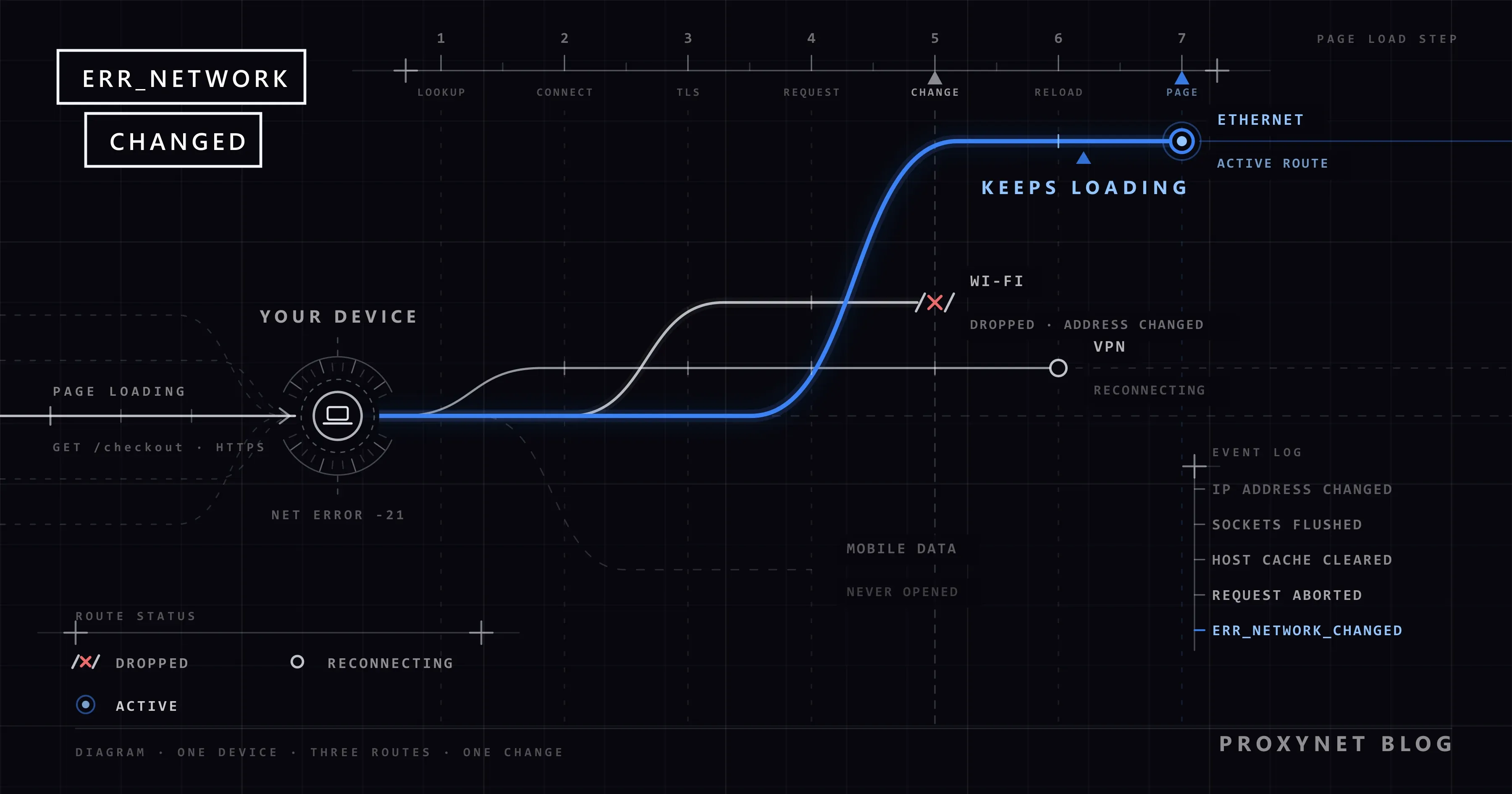
Chrome gave up on the page because the network it was using changed underneath it. Chromium's list of network errors gives the code the number -21 and a three-word description: "The network changed." Chrome, Edge, Brave and Opera are built on Chromium and show the same code.
The screen text comes from Chromium's error page strings: the heading "Your connection was interrupted", the line "A network change was detected." and one button, "Reload". The developers' note on the heading says it covers "an interrupted network connection such as the device sleeping"; there is no "Try:" list, because nothing on the site's side needs checking.
ERR_INTERNET_DISCONNECTED means no network at all; ERR_CONNECTION_RESET means one connection was cut by the site or something on the way. ERR_NETWORK_CHANGED means your device reported a change and Chrome dropped everything on purpose, so the site never saw a failure. The other codes are compared in This Site Can't Be Reached.
How does Chrome notice a network change?
Chrome does not watch the cable or the Wi-Fi signal itself. It listens to the operating system and acts in a fixed order:
- The system reports a change. Chromium's network change notifier counts a connection appearing or going away (a cable plugged or unplugged, Wi-Fi or a mobile modem connecting or disconnecting, a VPN tunnel going up or down), an active connection getting a new IP address, and a change to the routing table, the list that decides which connection a packet leaves by. On Windows, Chrome waits a moment so that one switch produces one notification.
- Chrome closes every open connection. The pools that keep HTTP and HTTP/2 connections alive flush them all with this code; the reason in Chrome's own log is simply "Network changed". A page halfway through loading fails.
- Name lookups are thrown away. Chrome clears its host cache, the list of site names it has already turned into addresses, and abandons lookups in progress, because the new network may answer differently.
- The error page is shown and nothing is retried. Chrome retries a few connection errors by itself, such as a connection a server closed just before reuse; a network change is not on that list. The page offers a Reload button and waits.
Two details explain why some people see it often and others rarely: Chrome treats the rotation of IPv6 temporary addresses, the privacy addresses a device renews by itself, as a change it can ignore, and QUIC connections (HTTP/3) can migrate to the new network instead of closing when that option is enabled.
Which changes trigger the error?
| Change | Typical moment | How it shows | First step |
|---|---|---|---|
| Wi-Fi to cable, or back | Plugging in or pulling a cable, docking | Once, at that moment | Let the switch finish, then reload |
| VPN connecting or dropping | The app connects, loses its server or renews its keys | Each time the VPN icon changes | Wait for "connected"; test without it |
| A new IP address | Router restart, address lease ending | Every device at home, same minute | Restart the router once if it repeats |
| Two connections at once | Cable and Wi-Fi both on; virtual adapters from VMs, Docker, Hyper-V | At random, often as a program starts | Switch one connection off |
| Phone leaving Wi-Fi | Weak signal, Connectivity Assist, mobile data hand-off | Walking away from the router | Stay on one network for that page |
| Weak or roaming Wi-Fi | Jumping between access points or between 2.4 and 5 GHz | Every few minutes, in one spot | Forget and rejoin, move closer, pick one band |
A VPN tunnel going up or down is by definition a routing change, which is why a client that reconnects every few minutes produces the error each time; virtual adapters are the network cards that Docker Desktop, VirtualBox, VMware and Hyper-V add and remove as they start and stop, and a laptop waking from sleep counts once too. To find your own trigger, remember the second before the error: a cable went in, the VPN icon changed, the Wi-Fi symbol flickered. If nothing was touched and it returns every few minutes, a Wi-Fi link, a VPN or a router is switching by itself, and the Wi-Fi icon or the VPN app's log shows which.
How do you fix ERR_NETWORK_CHANGED on Windows 10 and 11?
Reload after each step. The menu paths are from Microsoft's page on fixing Wi-Fi connection issues in Windows.
- Reload once the change is over. After plugging in a cable or connecting a VPN, give Windows a few seconds to settle.
- Use one connection at a time. With the cable in, turn Wi-Fi off: select the Network, Sound or Battery icons at the right of the taskbar and switch Wi-Fi off; the same switch is under Settings > Network & internet > Wi-Fi.
- Stop the VPN and test. If the error appears the moment the VPN connects or drops, the VPN is the switch: check its reconnect and "always-on" settings, or update it. If it says connected but no site loads at all, see VPN Connected but No Internet.
- Forget and rejoin the Wi-Fi network. Open Settings > Network & internet > Wi-Fi > Manage known networks, select the network, select Forget, then connect again with the password.
- Restart the router. Unplug it for at least 30 seconds; do not press the reset pinhole, which restores factory settings. If every device at home gets the error in the same minute, the router is restarting or handing out new addresses by itself.
- Check virtual adapters. If the error lines up with starting a virtual machine, Docker or a "game booster" tool, look in that program's network settings.
- Network reset, last. Open Settings > Network & internet > Advanced network settings > Network reset, then Reset now and Yes (Windows 10: Settings > Network & Internet > Status > Network reset). This removes every network adapter and its settings and restarts the PC; VPN clients and Hyper-V virtual switches may need setting up again.
- Leave IPv6 on. Microsoft's IPv6 guidance does not recommend disabling IPv6 or its components, because some Windows components might stop working, and suggests "Prefer IPv4 over IPv6" instead. Chrome also ignores the IPv6 address changes that happen on their own.
On a Mac
When both Wi-Fi and Ethernet are connected, macOS tries the service at the top of its list first, so put the cable first: open System Settings > Network, select the Action pop-up menu, choose Set Service Order, drag Ethernet above Wi-Fi and select OK. Or turn Wi-Fi off from the menu bar while the cable is in.
To forget a Wi-Fi network that keeps dropping, open System Settings > Wi-Fi, scroll down to Advanced, select the More Options button next to the network, choose Remove From List and confirm with Forget. VPN apps behave as on Windows.
On Android and iPhone
On a phone the usual cause is the switch between Wi-Fi and mobile data. Reload after a few seconds; for a long form or a payment, stay on one network until it is done.
On an iPhone, Apple's Connectivity Assist adds mobile data when Wi-Fi is slow or unusable; it replaces the older Wi-Fi Assist under Cellular. If pages keep breaking on weak Wi-Fi at home, fix the Wi-Fi, or turn the feature off under Settings > Wi-Fi, scrolling down to Connectivity Assist.
To forget a network on an iPhone, open Settings > Wi-Fi, tap Edit, tap the More Info button next to the network, choose Forget This Network, then Forget. On Android 12 and later, open Settings > Network & internet > Internet, touch and hold the saved network and tap Forget. VPN apps and ad blockers that run as a VPN profile cause the same switch.
In Chrome itself
- Extensions. A VPN or proxy extension changes the route Chrome's requests take. Test in More > New Incognito window, where extensions are off unless you allowed them; if the error stops there, open More > Extensions > Manage extensions and turn them off one at a time.
- Host cache. Chrome clears it by itself on a change. If a site keeps opening at an address from the old network, type
chrome://net-internals/#dnsin the address bar and select Clear host cache; the page is in English in every Chrome. - Update Chrome. It takes a minute and rules out a browser-side bug.
Advanced: watch the change in Chrome's own log
You can skip this section. Type chrome://net-export in the address bar, select Start Logging To Disk, reproduce the error in another tab while the net-export tab stays open, then select Stop Logging. The file is JSON; search it for Network changed, the reason Chrome writes when it flushes its connections. The file can contain the addresses you visited, so keep it to yourself.
If a script or a long job keeps hitting it
Tools that drive Chrome, such as Puppeteer and Playwright, report the same event as net::ERR_NETWORK_CHANGED: the network of the machine running the browser changed. The fix starts with the steps above, on that machine, and a wired server beats a laptop on Wi-Fi.
Long sessions have a second problem: after a VPN reconnect or a new router address, the site sees you from a different public address and may end a session tied to the first one. With a sticky session on a Sticky Proxy, the proxy keeps the same exit address for a time you choose between 1 and 60 minutes, so a request after a reconnect on your side still reaches the site from the address it knows.
A job that must run for hours from one address belongs on a ISP Proxy: one fixed IP address that does not change with your laptop's Wi-Fi.
A proxy extension that switches profiles mid-page is the mirror image: your network does not change, so Chrome shows no code, but the site sees the rest of the requests arrive from a different address and may sign you out. Change profiles between pages, never during one.
Where people run into it
- Laptops docked and undocked at work several times a day.
- Home offices with a VPN that reconnects whenever the line hiccups.
- Phones at the edge of Wi-Fi range.
- Developers whose Docker or virtual machine starts in the background.
- Browser automation on a machine whose Wi-Fi drops now and then.
Common mistakes
- Clearing cache and cookies. The page was abandoned mid-load; nothing stored caused it.
- Disabling IPv6. Microsoft advises against it, and Chrome already ignores the IPv6 changes that happen on their own.
- Network reset first. It removes saved networks and VPN clients for a problem that is usually one toggle away.
- Installing a "network repair" tool or a free VPN. Each adds another adapter that can switch.
- Reinstalling Chrome. The message comes from the system; Chrome only reports it.
- Writing to the website. It never saw the request end.
Decision guide
| Situation | What to do |
|---|---|
| Once, right after a cable or the VPN connecting | Reload; nothing else |
| Every time the VPN connects or drops | The VPN's reconnect settings; test a day without it |
| Every few minutes, nothing touched | Wi-Fi flapping: forget and rejoin, one band, restart the router |
| Whenever a VM, Docker or Hyper-V starts | That program's virtual adapter, not Chrome |
| On the phone when leaving home | Stay on one network; on iPhone check Connectivity Assist |
| On every network, nothing helps | Network reset as the last step |
| A script breaks at random | Wired machine; sticky session or a fixed-IP exit |
Frequently asked questions
Is ERR_NETWORK_CHANGED caused by the website or by me?
By your device. The operating system reported a network change and Chrome dropped the page; the site never saw anything. If it happens on every site at the same moments, that confirms it.
Why does Chrome show ERR_NETWORK_CHANGED on Windows 11?
Most often because cable and Wi-Fi are active at once, or because a VPN or a virtual adapter from a VM or Docker came up. Turn Wi-Fi off while on the cable and test with the VPN stopped.
Why does the error appear when my VPN connects?
Because setting up a tunnel changes the route your traffic takes, which Chrome treats as a network change. Wait until the VPN says it is connected, then reload; if it reconnects by itself every few minutes, its reconnect setting is the problem.
Why does Chrome on Android show "A network change was detected"?
The phone switched between Wi-Fi and mobile data while the page was loading, usually because the Wi-Fi signal got weak. Reload, stay on one network for anything long, and test with VPN and ad-blocking apps off.
Does clearing the cache, changing DNS or disabling IPv6 fix ERR_NETWORK_CHANGED?
No. None of them stops a network from changing: the cache has nothing to do with the connection, another DNS server only matters for lookup errors, and Microsoft advises against disabling IPv6.
Is ERR_NETWORK_CHANGED the same as ERR_CONNECTION_RESET?
No. A reset is one connection cut by the other side or by a device in between, and it can be the site's doing; a network change is your own device closing every connection at once. How to Fix err_connection_reset covers the first.
Summary
ERR_NETWORK_CHANGED means your device told Chrome that its network changed mid-page, so Chrome closed every connection and asked you to reload. Once is normal after a cable, a VPN or a wake from sleep. Repeated, it points at whatever keeps switching: a reconnecting VPN, two active connections, weak Wi-Fi or a virtual adapter, and the fix is on the device, not in Chrome or on the site. Our proxy page explains which proxy types keep an address fixed through your own reconnects, and for how long.