Your internet stops working, or the network icon on the taskbar shows a small warning sign. You run Windows' network troubleshooter, it searches for a while and then reports a single finding: "Windows could not automatically detect this network's proxy settings." It sounds as if your network needs a proxy and Windows has lost it. Usually neither is true.
Below: what the message really reports, the fixes in order for Windows 11 and 10, what changes on a work computer, and how to set a proxy correctly if you use one on purpose.
What does "Windows could not automatically detect this network's proxy settings" mean?
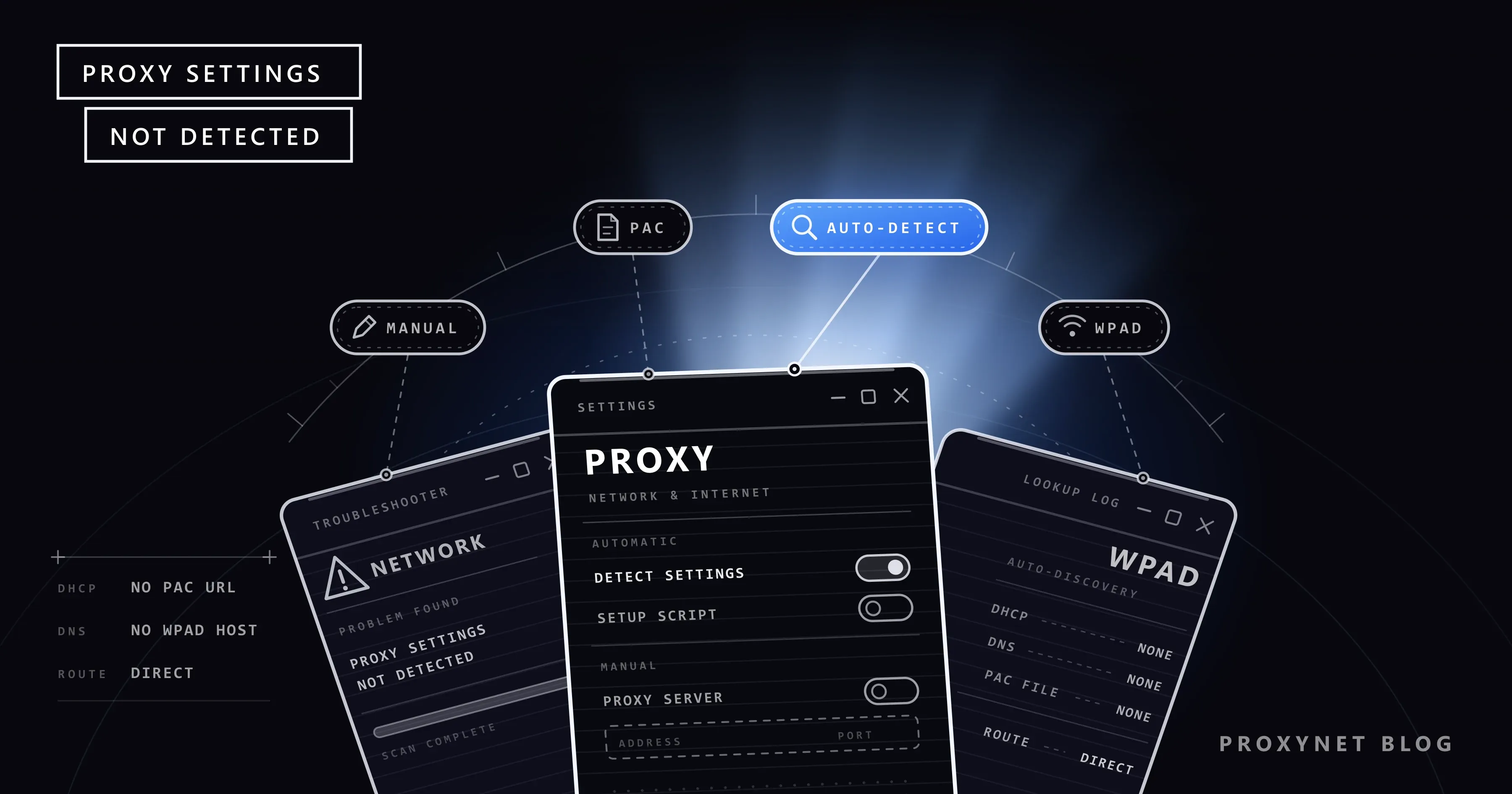
A proxy is a server that passes your web traffic on to the internet for you. Offices and schools often use one; most homes do not. Windows can learn which proxy to use in three ways, all on one settings page, as Microsoft's proxy guide describes:
- Automatically detect settings: Windows asks the network whether it publishes proxy instructions.
- Use setup script: someone entered the address of a small instruction file, a PAC file, that tells Windows which proxy to use for which site.
- Use a proxy server: a proxy address and port were typed in by hand, or written there by an app.
The message says the troubleshooter got no working answer from this part of the connection. Microsoft does not publish the exact test behind it, so separate two cases: "there was nothing to find", which is normal at home, and "something is set but does not work", which breaks web pages.
Microsoft's developer documentation describes the first case plainly: a network may have no proxy instructions because the computer has a direct internet connection and needs no proxy. That is almost every home.
Where does the message appear?
The sentence comes from Windows' built-in network troubleshooter, the tool that tests a connection and tries to repair it; many people open it by right-clicking the network icon on the taskbar.
| Windows version | Where to run the network troubleshooter |
|---|---|
| Windows 10 | Settings > Network & Internet > Status > Network troubleshooter; a window titled "Troubleshoot Problems" opens |
| Windows 11 | Settings > System > Troubleshoot > Other troubleshooters > Network and Internet; newer versions open it in the Get Help app |
Microsoft began moving the older troubleshooters to the Get Help app in 2023; the fixes are the same either way.
How does Windows look for proxy settings?
When Automatically detect settings is on, each network connection starts with a short search called WPAD (Web Proxy Auto-Discovery):
- Your computer joins a Wi-Fi or wired network and receives its address from the router, through a service called DHCP.
- Windows asks DHCP whether it also hands out the address of a proxy instruction file.
- If not, Windows looks for a server named
wpadthrough DNS, the system that turns names into addresses. - If either step finds a file, Windows downloads it and follows it: this site direct, that site through the proxy.
- If neither finds anything, Windows connects directly. At home this is the normal ending, and it can still appear as a finding in the troubleshooter.
- Separately, a setup script address or a manual proxy is used exactly as written. If it points to a server that no longer answers, pages fail even though the Wi-Fi itself is fine.
Step 5 gives the harmless version of the message; step 6 holds the real problems.
Harmless or a real problem: what is behind the message?
| What you notice | Likely cause | What to do |
|---|---|---|
| Pages load; the message only appears in the troubleshooter | Nothing to detect on a home network | Nothing |
| Chrome and Edge fail, other devices on the same Wi-Fi work | A leftover manual proxy | Turn off Use a proxy server |
| Fails at home, worked at the office | A work setup script that cannot be reached | Turn off Use setup script |
| Fails only while a VPN is connected | The VPN connection's own proxy | Check the VPN's proxy settings |
| The proxy setting returns after a restart | A program or adware rewriting it | Remove the program, run a scan |
| Every device on the network is offline | The router or the internet provider | Restart the router, contact the provider |
| The proxy switches are greyed out | Set by your organisation | Ask your IT team |
When the whole network is down, the proxy check fails along with everything else, so the troubleshooter may name it even though no proxy is involved. Check a second device before you change anything.
How do you fix it in Windows 11 and Windows 10?
Work through the steps in order and open a web page after each one. The proxy page has the same name and switches in both versions.
1. Test before you change anything
Open two or three websites you use every day. If they load, the message is harmless and you can stop here. If this PC is offline but a phone on the same Wi-Fi works, the problem is on the PC. If every device is offline, restart the router first; a proxy setting on one PC cannot cut off a phone.
2. Open the proxy page
Select Start, open Settings and select Network & internet > Proxy. Write down any address you see before you change it: an address you do not recognise points to the program that set it.
3. Turn off a manual proxy you did not set
Under Manual proxy setup, select Set up next to Use a proxy server. In the Edit proxy server box, turn Use a proxy server off and select Save.
Free VPN apps, "unblock this site" tools and some ad-injecting programs write their own address here and leave it behind. An address that begins with 127.0.0.1 points to your own computer: a program on the PC was meant to receive the traffic, and once it is gone, every page fails.
4. Turn off a setup script you do not recognise
Under Automatic proxy setup, look at Use setup script. If it is on and you are not on a work or school network, select Set up next to it, turn Use setup script off in the Edit setup script box and select Save. A laptop from the office often carries a script address that exists only inside the company network.
5. Decide about Automatically detect settings
At home, either position works if you never use a proxy; on a work network that relies on it, leave it on. On a personal laptop that uses café or hotel Wi-Fi, off is safer: Windows trusts whatever answers the wpad search, so a stranger's machine there could answer with its own instructions and route your browsing through it. Our guide to PAC files and WPAD explains how this happens and how companies prevent it.
6. Check VPN connections and proxy apps
A VPN connection added in Windows can carry its own proxy. Open Network & internet > VPN, select the connection, then Advanced options, and check Proxy settings for this VPN connection; Edit changes it. If you use a VPN app instead, disconnect and close it, then test again. Uninstall VPN and "unblock" apps you no longer use.
7. Restart and run the troubleshooter again
Restart so every program reads the new setting, then run the troubleshooter again. If pages load, you are done, even if the message is still listed.
8. Last resort: network reset
Network reset removes your network adapters and their settings, then reinstalls them with defaults after a restart; Microsoft calls it the last step you should try. On Windows 11 open Settings > Network & internet > Advanced network settings > Network reset; on Windows 10, Settings > Network & Internet > Status > Network reset. Select Reset now, then Yes.
Afterwards you may need to reinstall VPN software, and Windows may mark your known networks as public, which hides the PC from other devices until you set your home network back to private.
Why does the proxy setting keep coming back?
If the proxy is on again after a restart, something on the computer writes it back: a program that starts with Windows, a scheduled task, or unwanted software that routes your traffic to show ads. Uninstall programs you do not remember choosing, check which apps start with Windows, and run a full scan with Windows Security.
A proxy can also sit outside the Windows page, in a browser extension or on the Chrome shortcut. Our guide to removing a proxy from Chrome and Windows covers every place it can hide.
On a work or school computer
Companies set proxies centrally, by policy or by WPAD on their own network. If the switches on the proxy page are greyed out, the setting is managed for you: do not work around it; send the message to your IT team with the network name and the time. A work laptop at home is the classic case, because the company's script cannot be reached from outside; many companies expect you to connect their VPN first.
For administrators: from Windows 10 version 1809, the DisableWpad registry value under HKLM\SOFTWARE\Microsoft\Windows\CurrentVersion\Internet Settings\WinHttp switches WPAD off for the machine. Microsoft advises turning off detection in Settings too, because browsers read that switch.
Advanced: check the proxy Windows uses for its own services
For readers comfortable with a command line: Windows keeps a second proxy setting, WinHTTP, for background services; Windows Update, for example, uses it to check for updates. The Settings page does not show it, so check it if updates fail after you fixed the browser.
Select Search on the taskbar and type command prompt. Next to Command Prompt, select Run as administrator, then Yes, and run:
netsh winhttp show proxy
netsh winhttp reset proxy
The first line only displays the setting; "Direct access (no proxy server)." means there is nothing to change. Run the second line only if the first shows a proxy address you do not need; Microsoft's netsh winhttp reference describes it as resetting WinHTTP to direct access. It does not touch the setting Chrome and Edge use.
If you use a proxy on purpose
Some people do want a proxy: to see a site as a visitor from another country, to keep an account on one fixed address, or because a tool requires one. The Windows setting works when it is exact:
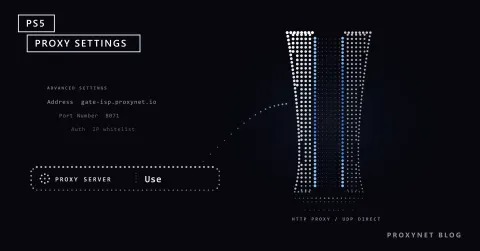
- In Edit proxy server, the host goes into Proxy IP address and the port into Port, for example
pr.proxynet.ioand8000. - Windows has no username and password fields, so the browser asks for them and apps that cannot show a prompt fail. Authorising your own IP address with the provider (an IP whitelist) avoids the prompt.
- Tick Don't use the proxy server for local (intranet) addresses, as Microsoft recommends, so your router and printer stay reachable.
- If only one browser or tool needs the proxy, set it there and leave Windows on a direct connection.
The full walkthrough is in How to Set Up Proxy Settings in Windows and Chrome.
For everyday browsing, an HTTPS Proxy takes a host and a port exactly as the Windows boxes ask for them.
To see sites as a visitor in another country or city would, a Residential Proxy routes requests through home internet connections, with country and city targeting and sessions that keep one address for up to 60 minutes.
Who usually sees this message
- Home users whose internet stopped working, even when the router is the real cause.
- People who once used a free VPN or an "unblock" app and later removed it.
- Employees who take a work laptop home or to a café.
- Anyone who set a proxy for one task and forgot to turn it off.
Common mistakes
- Treating the message as the cause when every device on the network is offline.
- Turning off only the manual proxy and leaving an old setup script on.
- Expecting
netsh winhttp reset proxyto change Chrome; it covers background services only. - Starting with a network reset, which also removes VPN adapters, before looking at the proxy page.
- Removing a company proxy on a work laptop; it returns with the next policy update, and internal sites stop working until then.
Decision guide
| Your situation | What to do |
|---|---|
| Pages load, the troubleshooter still shows the message | Nothing |
| Pages fail on this PC only | Turn off Use a proxy server and Use setup script |
| The proxy address returns after a restart | Remove unknown programs, check startup apps, run a scan |
| Fails only with a VPN connected | Check Proxy settings for this VPN connection |
| Every device is offline | Restart the router; contact your provider |
| Browsers work, Windows Update fails | Check the WinHTTP proxy with netsh |
| The switches are greyed out | Ask your IT team |
| You need a proxy for one task | Set it in that browser or app, not system-wide |
Frequently asked questions
Is this message a sign of a virus or hacking?
Usually not. An unfamiliar address in the manual proxy box that returns after you remove it is the one sign worth a full security scan.
Should "Automatically detect settings" be on or off?
At home, either works if you do not use a proxy. Turn it off on a laptop that uses public Wi-Fi, and leave it on at work if your IT team relies on it.
Do I need a proxy server for my home Wi-Fi?
No. Windows connects directly when it finds no proxy instructions. You need proxy settings only when your workplace, school or a service you chose gives you an address.
Why does the message appear on one network only?
The search runs separately on each network, and a VPN connection can carry its own proxy, so one network can trigger it while your home network does not.
Will a network reset delete my files?
No. It removes and reinstalls network adapters and their settings, not your documents. You may need to reinstall VPN software and set your home network back to private.
Does netsh winhttp reset proxy make the message go away?
Not by itself. It clears the separate WinHTTP setting used by services such as Windows Update; the setting your browsers follow is on the Settings page.
Summary
"Windows could not automatically detect this network's proxy settings" means the troubleshooter found no working proxy setup. At home that is normal, so if pages load, leave it alone. If they do not, check Settings > Network & internet > Proxy for a forgotten manual proxy or setup script, look at VPN connections and leftover apps, restart, and keep network reset for last. On a work computer, ask IT. If you need a proxy for a specific job, set it exactly and only where you need it; our proxy page compares the types.