

































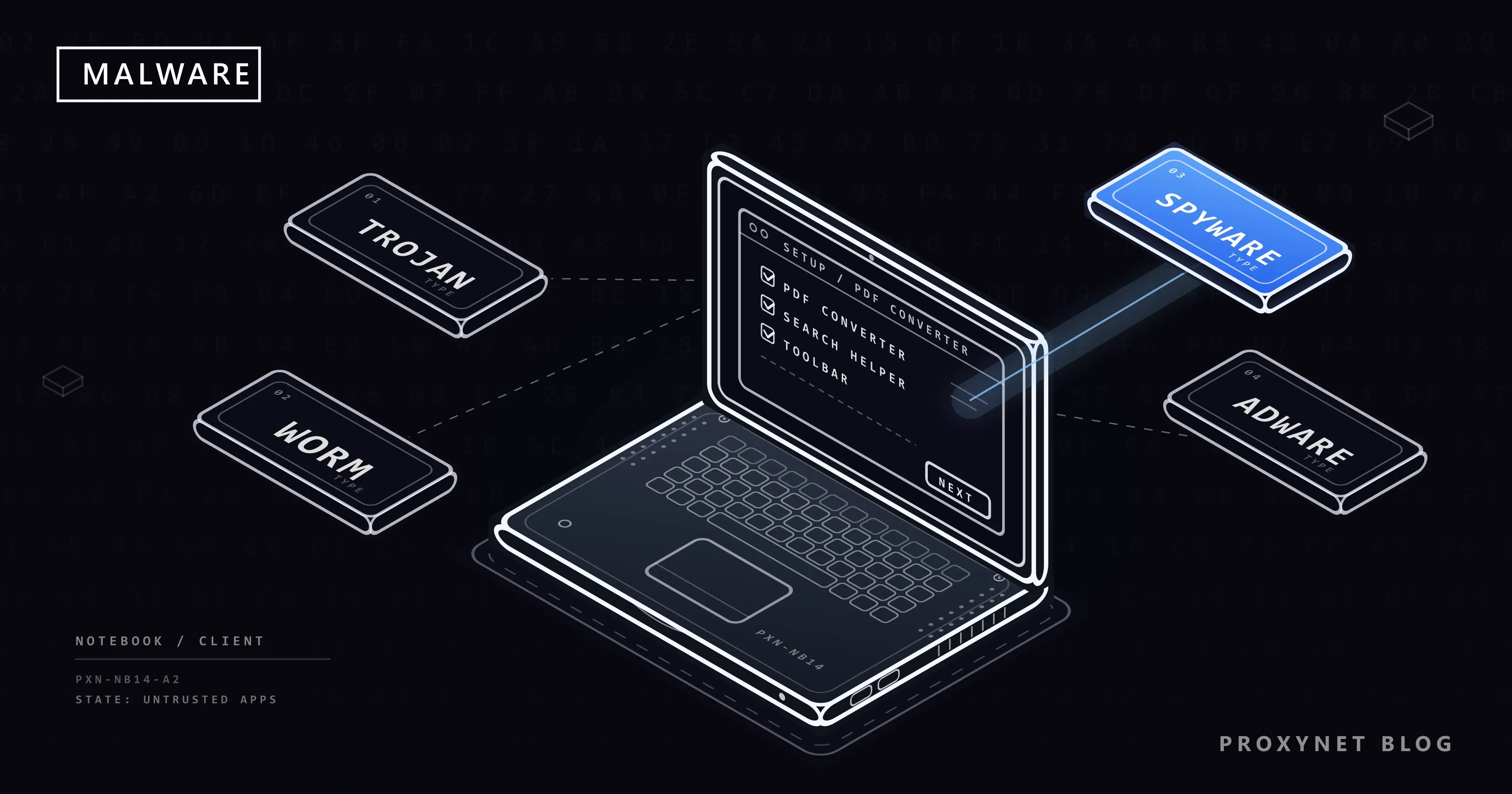
You install a free PDF converter, and a week later the browser opens a search page you never chose, ads appear on sites that never had them, and a toolbar you removed is back the next morning. Nothing is broken in the usual sense. Something you installed is working for someone else, and it has a name: malware.
This post explains what malware is, how an infection runs, the main types, how it gets onto computers and phones, the signs to look for, and how to remove it on Windows, Mac, Android and iPhone with the tools already built in. It is written for the person whose device it is; there is no attacker recipe here.
What is malware?
Malware is software written to act against the person who runs it: to damage files, steal information, show unwanted ads or hand control of the device to someone else. The word blends "malicious" and "software". NIST, the US standards institute, defines it as software or firmware intended to carry out an unauthorised process that harms the confidentiality, integrity or availability of a system (your secrets, your data and your access to it), and names viruses, worms, Trojan horses, spyware and some forms of adware as examples.
Intent separates malware from a badly written program: a buggy app fails by accident, malware does harm on purpose. And a virus is only one type of malware; people often say "virus" for all of it, which is why security software is still called antivirus.
How does a malware infection work?
Whatever the type, most infections pass through five stages:
- Delivery. The malware arrives as a file, an app, a browser extension or a link.
- Running. Malware does nothing until it runs. Usually the user starts it, believing it is something else; sometimes a flaw in outdated software, such as an old browser, lets it start on its own.
- Settling in. It arranges to start after every reboot, hides from the list of running programs or changes settings. Some malware edits the hosts file, the small system file that maps site names to addresses, so that your bank's name leads to the wrong server; Hosts File: Where It Is and How to Edit It shows how to check and reset it.
- Doing its job. It copies passwords and files, shows ads, records keystrokes, encrypts files for ransom or waits for instructions.
- Spreading. Some types copy themselves to other computers on the network, or send the same lure from your accounts to your contacts.
What types of malware are there?
Malware types are named either by how they spread or by what they do, so one program can be two types at once: a trojan can carry spyware.
| Type | What it does | How you might notice |
|---|---|---|
| Virus | Inserts a copy of itself into other programs or files | Files that change or stop opening |
| Worm | Spreads across a network on its own | Many devices slow down at once |
| Trojan | Poses as a useful program and hides a harmful one | Trouble starts right after an install |
| Spyware | Secretly collects information and sends it away | Usually nothing; accounts misused later |
| Keylogger | Records what you type, passwords included | Sign-ins from places you have never been |
| Adware | Fills the screen with unwanted ads | Pop-ups, new tabs, a changed homepage |
| Ransomware | Encrypts or steals files and demands payment | A ransom note, files you cannot open |
| Rootkit | Hides itself and other malware deep in the system | Nothing visible; found by an offline scan |
| Botnet malware | Makes the device a remote-controlled "bot" | Slowness, traffic you cannot explain |
Viruses and worms differ in how they move. NIST describes a virus as code that needs its host program to be started, and a worm as a self-contained program that spreads through networks without a host program or anyone's help, so one worm can reach many machines without anyone opening a file.
Trojans take their name from the wooden horse of the Greek legend: the program seems to do what it promises while a hidden part does something else. CISA, the US cybersecurity agency, notes that free software sometimes contains them.
Spyware and keyloggers aim to stay invisible, collecting what you do and type without your knowledge. Ransomware is the opposite, because it announces itself with a demand for payment; What Is Ransomware and How Do You Protect Against It? covers what to do if it hits you.
Rootkits work below the level where ordinary programs look, hiding an attacker's activity after they take full control. You may also see the term fileless malware: Microsoft uses it for threats that live in memory or misuse built-in Windows tools instead of dropping a normal file, and notes that the term has no single definition.
How does malware get onto your computer or phone?
Malware nearly always needs your help to get in, so it travels where it looks like something you wanted:
- Fake and cracked downloads: "free" versions of paid software, key generators, download buttons on file-sharing sites.
- Email attachments and links: an invoice or a shared document that asks you to enable content or install a "viewer".
- Fake updates and alerts: a web page claiming your browser is out of date or your device is infected.
- Browser extensions: many can read and change the sites you visit, and a harmful one can insert ads or collect what you type.
- Apps from outside the official stores: an Android app installed from a website or a message link skips Google Play's checks.
- USB drives found in a car park or passed around an office.
Free VPN and proxy apps deserve their own line. An app you cannot trace to a known company is still software running on your device, and the server behind it handles your traffic. Researchers who measured free open proxies in 2018 found servers that added cryptocurrency-mining code to pages and planted remote access trojans in programs downloaded through them; Are Free Proxies and Web Proxy Sites Safe? goes through those findings.
What are the signs of malware?
The clearest sign is a warning from your system's own security tool; without one, look for changes you did not make. No single sign proves an infection, so treat two or three together as a reason to scan.
On a computer, Google's Chrome help lists the first four as signs of unwanted software, and the NCSC, the UK's National Cyber Security Centre, adds the last two:
- Pop-up ads and new tabs that won't go away.
- A homepage or search engine that keeps changing without your permission.
- Extensions or toolbars that come back after you remove them.
- Searches and links that redirect to unfamiliar sites or ads.
- A computer that suddenly runs slowly, restarts unexpectedly or opens and closes programs by itself.
- Friends receiving odd emails or money requests from your account.
On a phone, Google's Android help names restarting by itself, freezing, crashing and running slowly as typical signs of a problem app, and apps you do not remember installing are a warning too. The NCSC adds one more: an app warning that the phone is rooted or jailbroken, meaning its built-in restrictions were removed, when you never did that.
How do you remove malware?
Start with the protection your system already has; it needs no download from a site you found in a hurry. If you think something is sending your data right now, disconnect from the internet first, as CISA advises for home computers. On a work device, call your IT team before you touch anything.
Windows: run a Microsoft Defender offline scan
Windows 10 and 11 include Microsoft Defender Antivirus in the Windows Security app, which scans in the background. For malware that hides while Windows is running, use the offline scan:
- Open Windows Security from the Start menu and select Virus & threat protection.
- Select Scan options, choose Microsoft Defender Antivirus (offline scan) and select Scan now.
- Save your work first: the PC restarts, scans for about 15 minutes outside Windows and restarts again.
- See what was found under Protection history in Windows Security.
Microsoft explains that this scan runs without loading Windows, which makes it harder for persistent malware to hide. Afterwards, remove programs you do not recognise in Settings > Apps > Installed apps. If the browser still misbehaves, remove unknown extensions and reset it; in Chrome that is Settings > Reset settings.
Mac: built-in protection
Every Mac has a built-in malware scanner, XProtect, that needs no setup. Apple's platform security guide says it blocks known malware, moves it to the Trash, alerts you in the Finder and removes infections when Apple sends new information, which macOS checks for daily by default.
Your part is to keep macOS updated and move apps you do not recognise from the Applications folder to the Trash. Under System Settings > Privacy & Security, the Allow applications from menu decides which apps may open; Apple calls App Store the most secure choice.
Android: Google Play Protect
Android phones with Google Play have Play Protect, which checks apps when you install them and regularly scans the phone, including apps from other sources. Open the Play Store, tap your profile icon, then Play Protect, and check that Scan apps with Play Protect is on in its settings. When it finds a harmful app it sends a notification: tap it, then Uninstall. Google's Play Protect help adds that it may also remove a harmful app on its own.
If the phone still misbehaves, restart it in safe mode, which switches off the apps you downloaded, and remove recently installed apps one at a time. The way into safe mode differs by manufacturer.
iPhone and iPad
Malware on an iPhone is uncommon, and Apple's advice to all users is short: install software updates, install apps from the App Store, use two-factor authentication for your Apple Account and do not open links or attachments from unknown senders. The exception is mercenary spyware, costly attacks on a very small number of people such as journalists and activists. Apple warns them directly and recommends Lockdown Mode (Settings > Privacy & Security > Lockdown Mode), which strictly limits some apps, websites and features.
After the clean-up
Removing the malware does not undo what it already took. CISA advises changing your passwords, including those saved in the browser, and watching your accounts for activity you did not make; do it from a clean device, starting with email and banking. If the scanner cannot clean a computer, the NCSC's guidance on hacked devices is to wipe it and reinstall everything, starting with the operating system; for a phone, it calls a factory reset the safest fix. Restore files from a backup made before the trouble began, because copying data off a device that is still infected can carry the infection along.
How do you protect yourself from malware?
Most protection is habit rather than extra software:
- Keep the system, browser and apps updated, ideally automatically.
- Install software only from the official store or the maker's own site, never cracked versions.
- Leave the built-in protection on; an installer that asks you to turn it off is a warning in itself.
- Never install a program because a pop-up or a caller told you to.
- Remove browser extensions you no longer use; in Chrome they are under Extensions > Manage extensions.
- Use a standard user account for everyday work, so a program cannot change the system without an administrator password.
- Keep an offline backup of files you cannot lose; malware on the computer cannot reach it.
Does a proxy or VPN protect you from malware?
No. A proxy or a VPN changes the route your traffic takes and the IP address websites see; it does not check the files you download or the programs you run. Blocking known malicious sites is the job of the browser's warning lists and your security software.
Security teams use proxies for a different reason: to study malicious pages without exposing their own network. A malicious download page can show its payload only to visitors who look like the intended victims, such as home connections in one country, and a harmless page to everyone else. Analysts therefore open such links on isolated machines, never with real accounts, through a Residential Proxy exit in that country, so the page can be documented and reported.
Where you meet malware
In "free" copies of paid software. In email attachments dressed up as invoices. In browser extensions with few reviews or a new owner. In apps installed from message links. In pop-ups saying your device is infected. On office networks, where one infected computer can reach the others.
Common mistakes
- Downloading a "malware remover" from a pop-up. The pop-up is usually the problem; use the tool your system already has.
- Installing several antivirus programs. Windows turns Defender Antivirus off when you install a compatible third-party one; keep one product, updated.
- Changing passwords on the infected device. A keylogger records the new password too.
- Restoring a backup made after the infection. It brings the malware straight back.
- Cleaning the system but not the browser. Leftover extensions keep redirecting you.
- Assuming a Mac or an iPhone cannot get malware. Rare is not never.
Decision guide
| Your situation | What to do first |
|---|---|
| Pop-ups, new tabs, a changed homepage | Remove unknown extensions and programs, reset the browser, then scan |
| A web page says your device is infected | Close the tab; do not call the number or install anything |
| Windows misbehaves after an install | Uninstall the program, then run an offline scan |
| macOS moved a file to the Trash with an alert | Leave it there and empty the Trash |
| Play Protect flagged an app | Tap the notification, then Uninstall |
| Contacts get messages you never sent | Scan the device, then change that password from a clean device |
| Files are encrypted and there is a ransom note | Disconnect the device and follow ransomware guidance first |
| The scan cannot remove the malware | Wipe and reinstall, or factory reset a phone; restore an older backup |
Frequently asked questions
Can malware infect a phone?
Yes. On Android the usual route is an app installed from outside Google Play or a harmful app that slipped into a store; Google's own help calls such apps malware. On an iPhone, malware is rare and mostly limited to costly spyware aimed at specific people.
Does a factory reset remove malware?
Almost always: the NCSC calls a factory reset the safest fix for an infected phone, and wiping and reinstalling does the same for a computer. Restoring a backup made after the infection, or reinstalling the same app, brings it back. Malware hidden in a device's firmware can survive a reinstall, but Microsoft describes such threats as uncommon.
Can you get malware just by visiting a website?
Rarely, if your browser and system are up to date. Most malware from websites needs you to download and open something, such as a fake update, a "video player" or a document. An outdated browser can be attacked by the page itself, which is why automatic updates matter.
Is a "your device is infected" pop-up real?
Not when it appears on a web page. Real alerts come from Windows Security, macOS or your security app, and Microsoft states that its real error messages never include a phone number to call. Google lists such alerts among the signs of unwanted software, and the NCSC advises hanging up on anyone who calls to say your device is infected.
What is anti-malware software, and do you need to buy it?
Anti-malware is another name for antivirus software; modern products look for every type of malware, not only viruses. Windows includes Microsoft Defender Antivirus, Macs include XProtect and Android phones with Google Play include Play Protect, so most home users already have one running. A third-party product is a choice, not a requirement.
Can malware steal your passwords?
Yes. Spyware and keyloggers exist for that: they read passwords saved in the browser or record them as you type. After an infection, change your passwords from a clean device, starting with email, because email can reset almost everything else.
Summary
Malware is software that works against you, and most of it gets in because it looks like something you wanted. Watch for changes you did not make, use the protection your system already has and change your passwords from a clean device afterwards. Updates, official app stores and fewer extensions prevent most infections. Teams that study malicious pages will find how they use proxies for that work on our data security page.