

































Your website has moved to a new server and you want to see it there before the rest of the world does. Or a setup guide tells you to "add a line to your hosts file", and you cannot find the file, or Notepad refuses to save it. All three lead to the same small text file that every Windows, Mac and Linux computer keeps.
This post shows where the file is, how your computer uses it and how to edit it on Windows 11 and 10, macOS and Linux, then covers the line format, malware, Microsoft's reset steps and why proxied traffic ignores it.
What is the hosts file?
The hosts file is a local lookup table: each line says "this name lives at this IP address", and your computer believes it without asking anyone else. An IP address is the number computers use to find each other, such as 203.0.113.10.
Normally that job belongs to DNS (Domain Name System), the internet's directory service that turns names such as example.com into addresses; the full lookup is explained in What Is DNS?. The hosts file is older than DNS. RFC 1034, the 1987 DNS standard, recalls that every computer on the early network fetched one shared list of names, HOSTS.TXT, and that the list could not keep up as the network grew. Today's hosts file works the same way, except that the list is yours and only your computer reads it.
Where is the hosts file?
The path is fixed on every desktop system, and the file is protected so that only an administrator can change it.
| System | Location | Who can change it |
|---|---|---|
| Windows 11 and 10 | C:\Windows\System32\drivers\etc\hosts | An administrator |
| macOS | /etc/hosts | An administrator, with sudo |
| Linux | /etc/hosts | The root user, with sudo |
| Android | The read-only system partition | Nobody, unless the phone is rooted |
Microsoft writes the Windows folder as %WinDir%\System32\drivers\etc, which also works when Windows sits on another drive; typing it into the Start search box opens the folder. The file is called hosts, with no extension. On a Mac the default file already holds localhost lines that Apple's copy says not to change, so add yours below them.
How does your computer use the hosts file?
Whenever a program needs the address of a name, the operating system works through its sources in order and stops at the first answer:
- A program asks for a name, for example the browser for
test.example.com. - The hosts file is checked. Windows loads its lines into the DNS client cache in advance, as Microsoft's ipconfig documentation explains.
- Recent DNS answers in the cache are checked, so a name looked up a minute ago needs no new question.
- The DNS server is asked, usually your router or your internet provider's resolver.
- The first answer wins. If the hosts file has a line for the name, steps 3 and 4 never happen for it.
On Linux the hosts: line in /etc/nsswitch.conf sets the order, and files there means the hosts file. Secure DNS in the browser does not bypass the file either: Chromium, the engine of Chrome and Edge, checks the hosts file before its encrypted lookup, and Firefox's documentation says names listed there are never sent to its DNS over HTTPS resolver.
How do you edit the hosts file on Windows 11 and 10?
Use Notepad started as administrator; without that step Windows will not let you save. The steps are the same on Windows 11 and 10:
- Open Start, type
Notepad, right-click Notepad in the results and select Run as administrator. - Approve the User Account Control prompt that asks whether the app may make changes to your device.
- In Notepad press Ctrl+O, paste
C:\Windows\System32\drivers\etc\hostsinto the File name box and press Enter. If you browse to the folder instead, set the file type list to All files (*.*); the hosts file is hidden among text documents because it has no.txtending. - Go to the end of the file and add your line, for example
203.0.113.10 test.example.com. - Press Ctrl+S to save under the same name, then close and reopen the browser.
If Notepad says you do not have permission or offers to save a copy elsewhere, it was not started as administrator. Close it and begin again at step 1: a copy in Documents or on the desktop is never read.
A graphical alternative: PowerToys Hosts File Editor
Microsoft's free PowerToys collection includes a Hosts File Editor that shows the file as a list. Open it from the PowerToys icon in the system tray, select New entry and fill in the address, the host name and an optional comment; the Active switch turns an entry on or off. It runs as administrator by default and saves a dated backup before you edit.
How do you edit the hosts file on a Mac?
On macOS you edit the file in Terminal with sudo, which runs one command with administrator rights:
- Open Terminal: click Spotlight in the menu bar and type
Terminal, or open /Applications/Utilities in Finder and double-click Terminal. - Type
sudo nano /etc/hostsand press Return. - Enter your Mac login password. Nothing appears on screen while you type; that is normal.
- Use the arrow keys to move below the existing lines and type your entry.
- Press Control-O and then Return to save, and Control-X to leave the editor.
If the browser keeps using the old address, run sudo killall -HUP mDNSResponder, the command Apple's archived support article gives for clearing the DNS cache on OS X 10.10.4 and later, then reopen the browser. Restarting the Mac clears the cache too.
How do you edit the hosts file on Linux?
The steps match the Mac: open a terminal, run sudo nano /etc/hosts, add the line, save with Ctrl+O and exit with Ctrl+X. Leave the lines your distribution created, such as the ones for localhost, and restart any program that still uses the old address.
How do you write a hosts file entry?
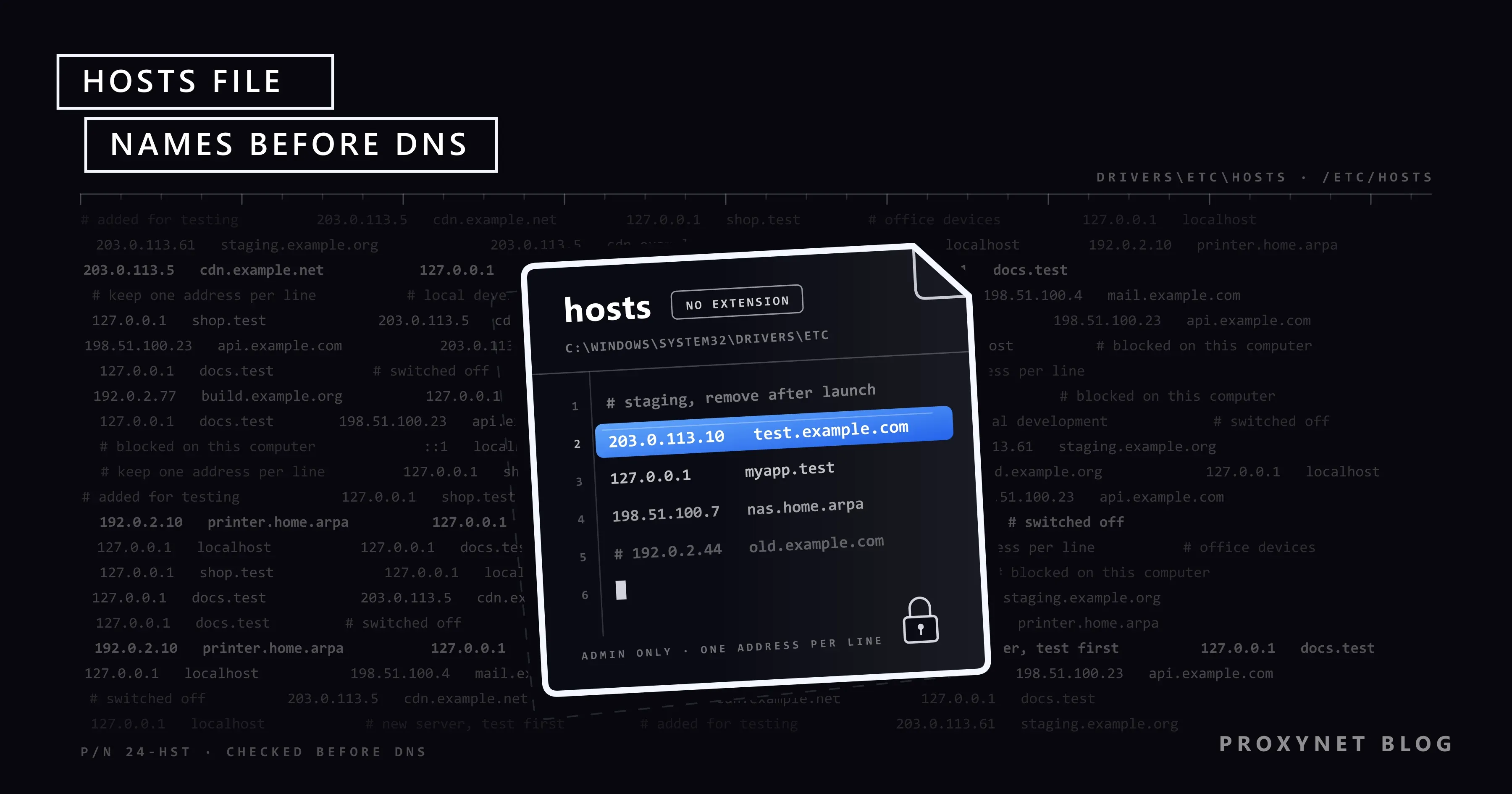
Each active line is an IP address, then at least one space or tab, then one or more names. The Linux hosts(5) manual page gives the format as IP_address canonical_hostname [aliases...] and treats everything from a # to the end of the line as a comment; Windows reads the same format. An example with addresses and names reserved for documentation:
# Staging copy of the shop, remove after launch
203.0.113.10    test.example.com    shop.example.com

# Local project
127.0.0.1       myapp.test

# Switched off
# 198.51.100.7  old.example.com
The first entry sends two names to one server, and the last does nothing because the # switches it off. 127.0.0.1 is the loopback address, which always means "this computer"; what runs there is explained in What Is Localhost?.
Three limits catch people out. Names must match exactly, so a line for example.com does not cover www.example.com, and wildcards such as *.example.com do not work. The file holds addresses only: no http://, no paths, no port numbers. And each line takes one address, so a name with both an IPv4 and an IPv6 address needs two lines.
How do you make a change take effect?
Save the file, then close and reopen the browser, which keeps a short cache of its own. If the old address still answers, clear the Windows DNS cache: type cmd in the Start search box, right-click Command Prompt, select Run as administrator and run:
ipconfig /flushdnsUse the administrator window. On the Windows 11 (version 25H2) computer we tested, a normal Command Prompt refused the command with the elevation-required message, which reads "The requested operation requires elevation." on an English system. Microsoft describes /flushdns as clearing the answers Windows collected from DNS, failed lookups included; it does not touch the hosts file itself.
What is the hosts file used for?
- Testing a website on a new server before the domain's DNS records are switched, a case Microsoft's PowerToys documentation names.
- Giving local development projects short names such as
myapp.test, pointed at your own computer. - Blocking ad and tracker domains on your own computer by pointing them at an address where nothing answers.
Can malware change the hosts file?
Yes, which is why the file is protected. Because it wins over DNS, one hidden line can send your bank's name to an attacker's address while the address bar still shows the right name. Microsoft Defender may flag an edited file as SettingsModifier:Win32/PossibleHostsFileHijack, and Microsoft gives the reason plainly: malware often edits the file to redirect people to malicious sites.
HTTPS limits the damage: a fake server normally cannot show a valid certificate for the real name, so the browser warns you. To check the file, open it in Notepad (reading needs no administrator rights) and look for lines that do not start with #. A default Windows 10 or 11 file has none; the one on our Windows 11 test machine had 22 lines, all comments. If you find entries you never added, run a full scan with your security software, then reset the file.
How do you reset the hosts file to default?
Microsoft's reset guide for Windows 11 and 10 replaces the file and keeps the old one as a backup:
- Open Notepad and paste the default text from Microsoft's page.
- Select File > Save as, type
"hosts"with the quotation marks in File name, set Save as type to All files (*.*) and save to the desktop. - Open the
%WinDir%\System32\drivers\etcfolder, right-click the current hosts file, select Rename and name ithosts.old. - Move the new file from the desktop into the folder and select Continue if Windows asks for administrator permission.
In that default text even the localhost lines are comments, because Windows handles localhost itself. On a Mac or Linux, a reset means deleting the lines you added and keeping the original localhost lines.
Why does the hosts file not apply when you use a proxy?
The hosts file only works when your own computer looks the name up, and with a proxy it often does not. A proxy is a server that opens connections to sites on your behalf, so the site sees the proxy's IP address instead of yours.
With an HTTP or HTTPS proxy, the browser hands the site's name to the proxy (for HTTPS sites in a CONNECT test.example.com:443 request), and the proxy looks it up with its own DNS. With SOCKS5 it depends on the program: curl's manual says --socks5 (or socks5://) resolves the name locally, while --socks5-hostname (or socks5h://) lets the proxy resolve it. We checked this with curl 8.22 and a local test proxy: with socks5h:// the proxy received the name itself, and with socks5:// curl looked the name up first and stopped with curl: (6) Could not resolve host: test.example.com.
So when a hosts change does nothing, look for a proxy or VPN, and for a staging test switch it off or add the name to the proxy's bypass list. The same remote lookup keeps DNS queries from leaking outside a proxy connection, as described in WebRTC and DNS Leaks.
For programs beyond the browser, our SOCKS5 Proxy service supports remote DNS, so the lookup happens at the exit.
A Residential Proxy with a country and city you choose resolves names at its exit too, so the server a site picks for you matches that location.
Common mistakes
- Saving the file as
hosts.txt. In File Explorer, turn on View > Show > File name extensions to see the real name, then remove the.txt. - Editing without administrator rights and saving a copy in another folder, which Windows never reads.
- Writing
http://, a path or a port in the line, or expectingexample.comto coverwww.example.com. - Forgetting a test line, so weeks later the site looks broken on that one computer only.
- Downloading a ready-made hosts file from an unknown site. It decides where your computer sends every name it lists, banks included.
Decision guide
| Your need | What to do |
|---|---|
| See your site on a new server before DNS switches | Add an IP name line, test, then delete it |
| A short local name for a project | Point a .test name at 127.0.0.1 |
| Notepad will not save the file | Reopen Notepad with Run as administrator |
| A change has no effect | Check name and extension, reopen the browser, flush DNS, switch off the proxy or VPN |
| Lines you never added | Scan for malware, then reset with Microsoft's steps |
| Block ads on every device at home | A filtering DNS resolver on the router |
Frequently asked questions
Where is the hosts file in Windows 11?
It is C:\Windows\System32\drivers\etc\hosts, the same place as in Windows 10. Typing %WinDir%\System32\drivers\etc in the Start search box opens the folder on any drive.
Why is my hosts file not working?
Usually the file was saved as hosts.txt or in the wrong folder, the name does not match exactly (www included), the browser or Windows still holds the old answer, or a proxy or VPN resolves names for you. Check them in that order.
Why can't I save the hosts file?
Because only an administrator may change it. Close Notepad, start it again with Run as administrator and open the file from inside it. If security software blocks the change, make sure the line is one you added.
What is the file extension of the hosts file?
It has none. The file is named hosts, and adding .txt turns it into a different file that Windows ignores.
Can I block websites with the hosts file?
On your own computer, yes: point the site's names at an address where nothing answers. It is easy to undo, covers only exact names on that one computer and stops working whenever a proxy or VPN resolves names, so it is not a parental control or a policy tool.
Can I edit the hosts file on Android?
Not on a normal phone. Android keeps the file on its system partition, which is read-only and checked by Verified Boot, so changing it requires rooting the phone. To filter ad or tracker domains, use Private DNS with a filtering provider instead.
Summary
The hosts file is a short local list of names and IP addresses that your computer reads before it asks a DNS server. It lives at C:\Windows\System32\drivers\etc\hosts on Windows and /etc/hosts on macOS and Linux, has no extension and needs administrator rights to edit. Write one address and its names per line, reopen the browser or flush the DNS cache after a change, and check the file now and then for lines you never added. A proxy resolves names itself, so your entries do not apply to proxied traffic; if your work needs connections from other countries and networks, compare the options on our proxy products page.