

































You open a folder of family photos and none of them will open. Next to them sits a text file you never created: your files have been encrypted, a key can be bought, and the price rises after a deadline. The same morning, a small company finds every shared drive in that state, with an extra threat: pay, or the customer records go public.
Both are ransomware. This post explains what it is, how an attack unfolds, the main types and signs, what to do in the first hour, how to get files back without paying, and how to prevent it at home and at work. It is written for the people on the receiving end, not for attackers.
What is ransomware?
Ransomware is malware that makes your files or your device unusable until a ransom is paid. CISA, the US cybersecurity agency, describes it as malware designed to encrypt files on a device, leaving the files and the systems that rely on them unusable. The UK's National Cyber Security Centre (NCSC) puts it from the victim's side: it stops you from reaching your device and its data.
Encryption itself is ordinary technology that protects your online banking and your phone's storage; it becomes ransomware when the attacker holds the only key. Ransomware is one family of malware, the umbrella term for software built to harm, spy on or take control of a device; What Is Malware? covers the other families.
Many attacks now pull a second lever. The attackers copy data out before they encrypt anything and threaten to publish it if no one pays, a tactic CISA calls double extortion. Some skip the encryption and only threaten to publish what they took.
How does a ransomware attack work?
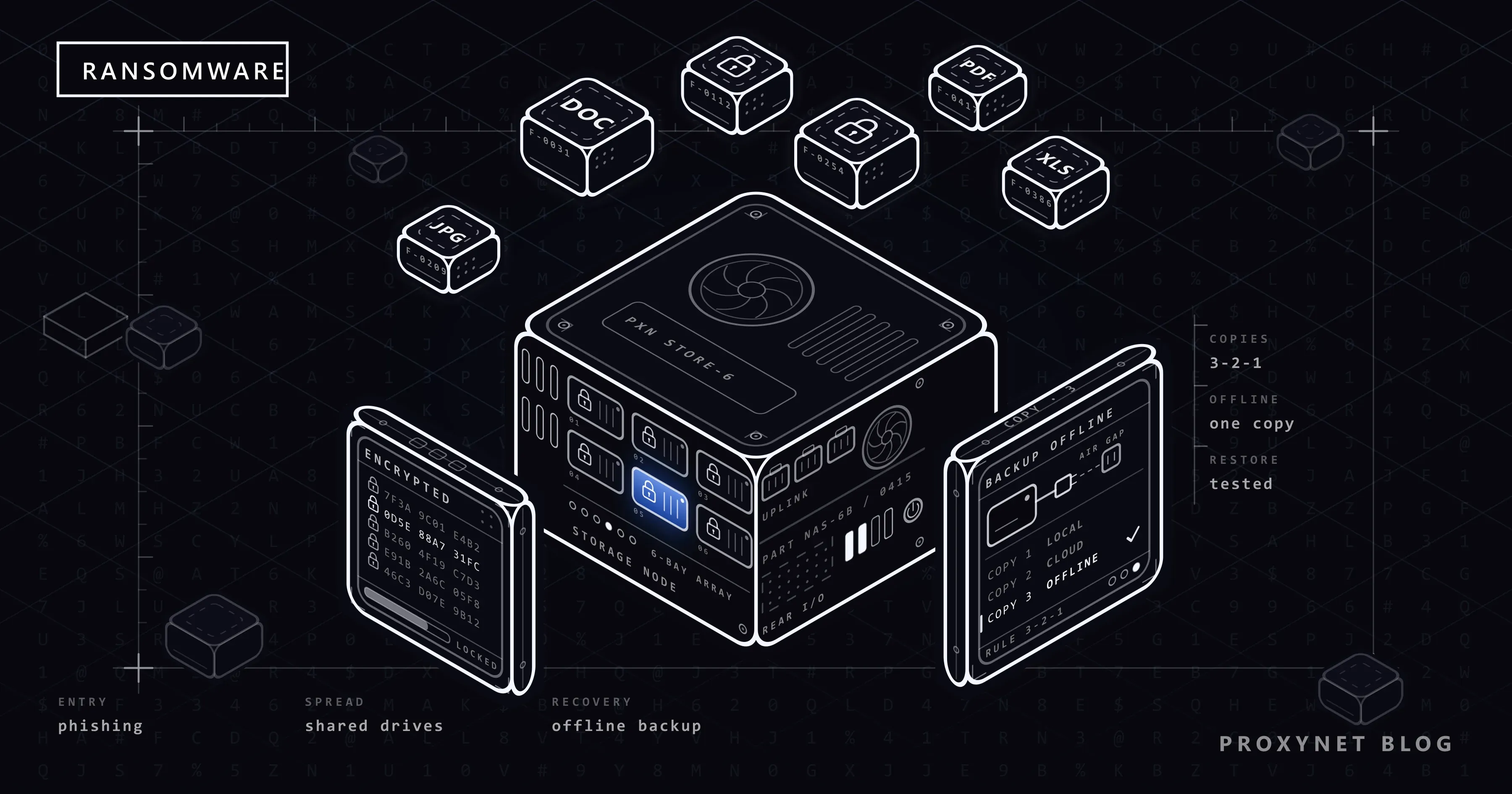
- Getting in. The usual doors are a phishing email with a harmful attachment or link (What Is Phishing? shows how to spot one), a stolen or reused password, remote desktop (the tool for controlling a computer over the network) left open to the internet, an unpatched internet-facing device such as a VPN gateway, or a fake software download.
- Spreading. On a company network the attackers move from the first computer to others and hunt for administrator accounts; CISA calls this lateral movement. On a home PC the malware reaches whatever the computer can reach: a plugged-in USB drive, a network drive, shared folders.
- Going after the backups. Many ransomware variants look for backups they can reach and delete or encrypt them, and attackers misuse built-in Windows tools to remove restore points.
- Copying data out. In a double-extortion attack, documents, customer records and email go to the attackers' servers before anything is locked.
- Encrypting and demanding. Files are encrypted and the originals deleted. A note appears in each folder or across the screen, with payment instructions and a deadline.
The demand is often the last step of an intrusion that began earlier. CISA's guide says a ransomware event "may be evidence of a previous, unresolved network compromise", which is why companies find out how the attackers got in before they rebuild.
What types of ransomware are there?
| Type | What it does | What you see | Can a backup fix it? |
|---|---|---|---|
| Crypto ransomware | Encrypts files | Files that will not open, a note in each folder | Yes, if the backup was offline |
| Locker ransomware | Locks the screen | A full-screen demand that blocks everything | Files may be intact; clean the device |
| Boot-level ransomware | Alters the disk's startup record | A demand instead of Windows starting | Yes, after wiping the disk |
| Double extortion | Copies data out, then encrypts | Encrypted files and a threat to publish | Files yes, the leak no |
| Data extortion | Copies data out only | A demand with samples of your data | No; it is a data breach |
Crypto ransomware is what most people mean by the word: the No More Ransom project notes that the originals are deleted once the encrypted copies exist, and that a text file with payment instructions usually sits in the same folder. Double extortion and data extortion turn lost files into a data breach, because even a perfect backup cannot take back what was copied. Ransomware also exists for web servers and for phones, mostly Android.
How do you know if you have ransomware?
Usually the first sign is the demand itself. Microsoft notes that an infection rarely shows until a window, an app or a full-screen message asks for money, often after the files are already encrypted.
Signs that point to ransomware:
- Files that will not open, in many folders at once.
- A text or web file you did not create with payment instructions, in those folders.
- A full-screen message that names a price and a deadline.
- Backups, restore points or earlier file versions that are missing or encrypted too.
- On a network, shared drives in the same state and colleagues seeing the same message.
A browser page that claims your computer is locked and shows a phone number is usually a tech-support scam, not ransomware. Microsoft advises closing the browser (Alt+F4 if the mouse does not respond) or restarting; real Microsoft error messages never include a phone number.
What should you do if ransomware hits your computer?
Disconnect the device from the network first: the response checklist in CISA's #StopRansomware Guide begins with isolating affected systems immediately. Then:
- Disconnect. Unplug the network cable, turn off Wi-Fi and unplug USB and backup drives. Leave the device switched on unless you cannot disconnect it; CISA advises powering down only then, because switching off erases evidence held in memory.
- Photograph the message. Use your phone to record the note, any web address in it and a few encrypted file names. They help the police and help identify the ransomware.
- Do not pay or contact the attackers. The FAQ below gives the official advice on payment.
- At work, phone IT or the security team. CISA advises coordinating by phone, because attackers may be reading email.
- Report it. In the US to CISA (cisa.gov/report) or the FBI's Internet Crime Complaint Center (ic3.gov); in the UK through gov.uk/report-cyber; elsewhere to your national cybersecurity agency, CERT (computer emergency response team) or the police.
- Clean or rebuild the device. Run a full scan with your security software. If it cannot clean the device, the NCSC advises wiping it and reinstalling everything, starting with the operating system.
- Restore and change passwords. Restore files only onto the cleaned device; the NCSC warns that restoring onto an infected one can bring the infection back. From a clean device, change the passwords for email, banking and every account used on the infected computer.
Can you get your files back without paying?
Often, yes: from a backup taken before the infection, from a cloud service's version history, or with a free decryption tool. None of these works every time, and the NCSC warns that most encrypted files cannot be decrypted by anyone but the attacker, which makes a disconnected backup the real safety net.
No More Ransom, started by the Dutch police's National High Tech Crime Unit and Europol's European Cybercrime Centre with security companies, collects decryption tools that are free for anyone. Its Crypto Sheriff tool identifies the ransomware from details you give it and checks whether a decryptor exists. Keys appear when attackers make mistakes or police seize their servers, so check back if nothing fits today.
How do you protect yourself from ransomware?
Keep an offline backup, install updates promptly, protect sign-ins with multi-factor authentication and close easy doors such as remote desktop open to the internet. The table sorts the main measures by what they stop:
| Measure | What it stops or limits | Who |
|---|---|---|
| Offline backup, tested | Lost files, paying for a key | Everyone |
| Updates for system, apps and router | Break-ins through known flaws | Everyone |
| MFA on email and remote access | Entry with a stolen password | Everyone |
| No remote desktop open to the internet | A common way in | Home and office |
| Daily account without admin rights | How far the malware reaches | Everyone |
| Email filtering, Office macros blocked | Harmful attachments | Companies |
| Network segmentation | Spread between computers | Companies |
| Controlled folder access | Unknown apps changing your files | Windows users |
A common rule of thumb for backups is 3-2-1: three copies of important files (the original and two backups), on two kinds of storage, one of them kept elsewhere. Against ransomware, the copy that counts is one the infected computer cannot reach, such as an external drive you unplug after each backup. The NCSC's ransomware guidance adds two points people skip: keep the backup device disconnected, and test a restore now and then.
Updates close the flaws attackers already know about; CISA asks organisations to patch internet-facing systems and known exploited vulnerabilities first. A flaw with no fix yet is a different case, which What Is a Zero-Day Vulnerability? explains.
Multi-factor authentication (MFA) adds a second step to the password, so a stolen password alone does not open your email or a remote-access login. CISA recommends phishing-resistant MFA, such as passkeys or security keys, starting with email and VPN access.
How do you turn on ransomware protection in Windows?
Windows 10 and 11 include Controlled folder access, which stops unknown or untrusted apps from changing files in protected folders. Microsoft's Windows Security help page gives the path:
- Open Windows Security from the Start menu.
- Select Virus & threat protection > Manage ransomware protection.
- Turn on Controlled folder access.
- Under Protected folders, add folders beyond the defaults (Documents, Pictures, Videos, Music and Desktop).
If a program you trust is stopped, Windows shows App is blocked; select the notification, then Add an allowed app. Add only programs you know: Microsoft warns that an allowed app that is later compromised can change the protected files. The trade-off suits a home PC well, an occasional blocked app in return for folders unknown software cannot rewrite.
How is ransomware different for home users and companies?
At home, ransomware usually hits one computer and the files it can reach; at a company, it is often a planned intrusion aimed at servers, backups and data at once. At home the defences are simple: an unplugged backup, updates and a standard account for daily use.
Companies face attackers who may spend time inside before anything is encrypted. CISA asks organisations to keep an incident response plan, segment the network, keep offline, encrypted backups and ready-made system images for rebuilding, and involve law enforcement. If personal data was encrypted or copied, it is also a personal data breach: the European Data Protection Board counts data made unavailable by ransomware encryption as one, and where notification is required, the regulator must hear within 72 hours.
A proxy or a VPN does not protect against ransomware: both change the IP address your traffic comes from, and neither checks what you download or run. Proxies appear on the defending side instead. Threat-intelligence teams that watch public sources for a company's leaked documents work from isolated machines and route that research through residential proxies, keeping their own network out of sight, as our data security page describes.
Where you meet ransomware
In email attachments posing as invoices, delivery notes or CVs. In fake software downloads and cracked programs. On company networks entered through remote access or a supplier's account. On web servers running outdated software. On Android phones through fake apps. In the news, when a company or a public service cannot work for days.
Common mistakes
- Keeping the only backup plugged in. Ransomware encrypts every drive it can reach.
- Treating a sync folder as a backup. Encrypted files sync to the cloud like any other change.
- Wiping the computer before recording the note. The note and file names help identify the ransomware and a possible decryptor.
- Restoring onto a device that is still infected. Clean or rebuild it first.
- Paying and assuming it is over. The key may not work, copied data may still be published, and the NCSC warns that payers are more likely to be targeted again.
Decision guide
| Your situation | What to do first |
|---|---|
| A note says your files are encrypted | Disconnect, photograph the note, do not pay |
| A browser page says your PC is locked and gives a phone number | Close the browser; it is a scam page |
| Files encrypted, offline backup available | Clean or rebuild the device, then restore |
| Files encrypted, no backup | Check No More Ransom; keep the encrypted files in case a key appears |
| A work computer shows a demand | Disconnect it and phone IT or the security team |
| Files in OneDrive were encrypted | Clean the PC, then restore OneDrive to an earlier point |
| You already paid | Contact your bank and report it to the police |
Frequently asked questions
Should you pay the ransom?
No, according to every official source. The NCSC and UK law enforcement do not encourage, endorse or condone payment, the FBI does not support paying, and No More Ransom advises never paying. Payment guarantees neither a working key nor that copied data stays private. If you have already paid, Microsoft advises contacting your bank and the local authorities at once; a card payment can sometimes be blocked.
Can antivirus remove ransomware?
It can usually remove the ransomware program, but it cannot undo the encryption. Microsoft advises cleaning the PC fully with Windows Security before you recover files, and the NCSC says to wipe and reinstall if the security software cannot clean the device. The files come back from a backup or, for some types, a free decryption tool.
Can phones get ransomware?
Yes, mostly Android phones. No More Ransom says mobile ransomware arrives through fake apps and drive-by downloads, files that start downloading when you visit a page, so install apps only from the official store and keep the phone updated. If an app has locked the phone, the NCSC calls a factory reset the safest fix, followed by restoring from a backup.
Can ransomware encrypt OneDrive or other cloud storage?
Yes, if the files sit in a folder that syncs: the encrypted versions upload like any other change, and the FBI has warned that ransomware can lock cloud backups that sync continuously. Version history lets you go back; Microsoft 365 subscribers can restore their whole OneDrive to a point within the last 30 days.
Can ransomware spread to other computers on my network?
Yes. Microsoft notes that ransomware may spread from a networked computer to other computers and storage devices on that network, and on company networks attackers move between machines on purpose. Devices on the same Wi-Fi share one local network, so this applies at home too.
Is ransomware a virus?
Not exactly. People say "virus" for any malware, but strictly a virus is one type that copies itself into other files. Ransomware is named for what it does, locking or encrypting for money, and it can arrive inside a trojan (a program posing as something useful) or be launched by attackers already inside a network.
Summary
Ransomware turns your own files into a hostage: it encrypts or locks them, often copies them first, and asks for money. A disconnected backup, prompt updates and multi-factor sign-in take away most of its leverage. If it happens, disconnect, photograph the note, report it, check No More Ransom and restore from a clean backup rather than paying. A proxy changes the address your traffic comes from, not what runs on your computer; what proxies are actually for is explained on our proxy page.