






















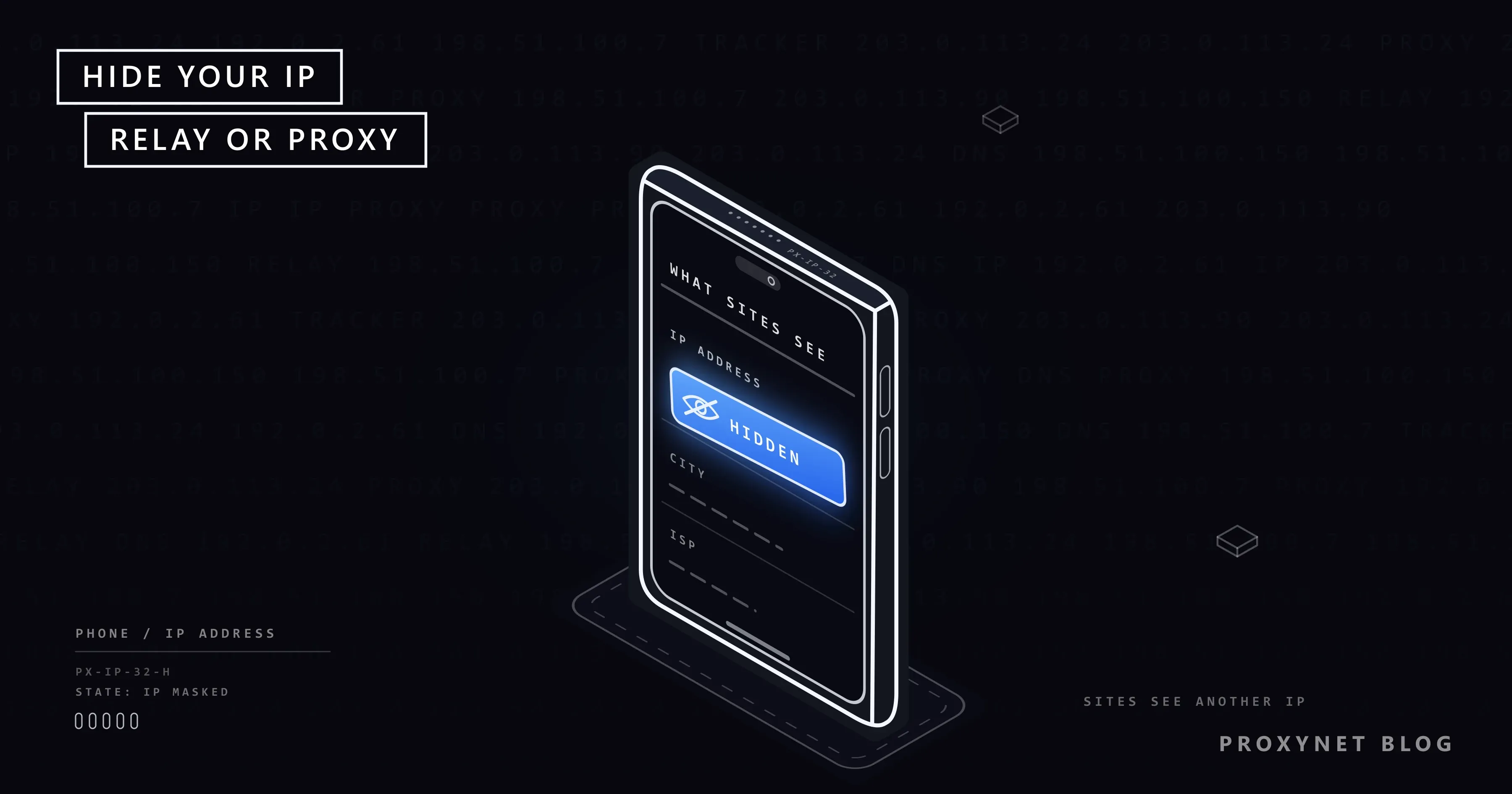
You are on hotel Wi-Fi, you open a "what is my IP" page in Safari, and it shows your address, your internet provider and a city close to where you are sitting. Then you open Settings, find an option called Hide IP Address under Safari, and wonder whether it already does what you want. It does part of it, and which part depends on a subscription most people do not know they have or lack.
This post explains what hiding your IP address on an iPhone actually means, what Safari's setting, iCloud Private Relay, Limit IP Address Tracking and Mail Privacy Protection each hide and from whom, and how a proxy app or a VPN covers the apps those settings do not reach. It ends with what no setting hides, common mistakes, a decision table and answers to the questions people search for most.
What does it mean to hide your IP address on iPhone?
Hiding your IP address means the website or app you connect to sees the address of another server instead of yours. An IP address is the number replies are sent to when your phone talks to the internet. At home it belongs to your router; on mobile data it belongs to your carrier's network. Sites use it to guess your country and city, to count visits and to recognise you between sessions.
Your address cannot simply be switched off, because every connection needs a return address. What you can do is send your traffic through a middle server, so that the site sees that server's address. Every option in this post works this way. They differ in who stops seeing your real address, which apps are covered, and who runs the middle server. That server always sees your real address, because it has to send the replies back to you.
What does Safari's Hide IP Address setting do?
It hides your IP address from known trackers in Safari, and from the websites themselves only if you have iCloud+ with Private Relay on. A tracker is a company whose code is embedded in many sites, such as ad and analytics services, so it can follow you from one site to the next. Apple's Safari guide describes the setting in those terms: Safari protects your address from known trackers automatically, eligible iCloud+ subscribers get protection from trackers and websites, and with the option off your address is not hidden.
To check it:
- Open Settings.
- Tap Apps, then Safari.
- Scroll to the privacy section and tap Hide IP Address.
- Choose the level you want. Without iCloud+ you can hide it from trackers only; with iCloud+ and Private Relay on, you can also hide it from websites.
The setting only applies to Safari. Chrome, Instagram or a banking app on the same phone use your normal connection, which is why a test in another browser shows no change.
How do you turn on iCloud Private Relay on iPhone?
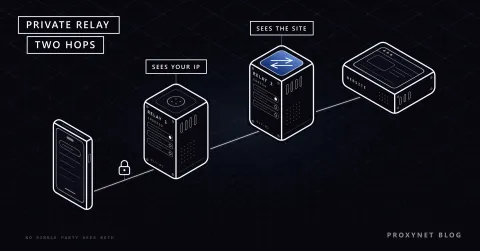
Go to Settings > [your name] > iCloud > Private Relay and turn on Private Relay; it needs an iCloud+ subscription and works per device. Apple's Private Relay guide for iPhone describes the design: traffic leaving the phone is encrypted and sent through two separate relays. The first relay, run by Apple, sees your IP address but not the site. The second, run by a partner company, gives you a temporary address and connects to the site without knowing who you are.
On the same screen you choose IP Address Location:
- Maintain General Location keeps a relay address in your general area, so local results and content still make sense.
- Use Country and Time Zone gives sites only your country and time zone, which makes your location harder to narrow down.
Neither option lets you pick another country or a specific city. Private Relay is built to hide who you are, not to place you somewhere else.
What it covers. According to Apple's developer notes on Private Relay, it protects web browsing in Safari, DNS lookups (the step that turns a site name into an address) and unencrypted http:// traffic from apps. Most apps today use encrypted connections, so their traffic still leaves with your normal address.
What can stop it. Private Relay is not available in every country or region. School and company networks may block it, and iOS then tells you to turn it off for that network or choose another network. Some websites ask for extra sign-in steps when they cannot see your real address. For a single site, Apple's page on managing Private Relay for sites and networks shows the Show IP Address option in Safari's page menu; your network provider can then see which site you visit.
For the full design, the two relays and how Private Relay compares with a proxy and a VPN, read What Is iCloud Private Relay?.
What do Limit IP Address Tracking and Mail Privacy Protection hide?
Limit IP Address Tracking hides your IP address from known trackers, and Mail Privacy Protection hides it from the people who send you email. Both are narrower than they sound.
Limit IP Address Tracking is a switch per Wi-Fi network and per cellular line:
- Wi-Fi: Settings > Wi-Fi, tap the info (i) button next to the network, then Limit IP Address Tracking.
- Mobile data: Settings > Cellular, then Cellular Data Options if you have one line, or select the line under SIMs if you have more.
If you have iCloud+, this switch is also where Private Relay is turned off for one network. Turning it off for a Wi-Fi network on your iPhone turns Private Relay off for that network on every device signed in to the same Apple Account.
Mail Privacy Protection is in Settings > Apps > Mail > Privacy Protection > Protect Mail Activity. Emails often contain invisible images that report your address and the moment you opened the message. With this setting on, the sender sees neither. It needs Limit IP Address Tracking turned on, and it does not cover links or attachments you open.
Private Wi-Fi Address, in each network's settings, is often mixed up with these. It changes the hardware (MAC) address your phone shows to the Wi-Fi router, not the IP address websites see.
Which iPhone setting hides your IP address from whom?
Each built-in setting covers one app or one kind of observer; only a device-wide proxy or VPN covers every app.
| Option | Hides your IP from | Covers | Needs |
|---|---|---|---|
| Safari Hide IP Address | Known trackers | Safari | Nothing, on by default |
| Same, with Private Relay | Trackers and websites | Safari | iCloud+ |
| iCloud Private Relay | Websites; Safari browsing hidden from your network | Safari, DNS, unencrypted app traffic | iCloud+, supported region |
| Limit IP Address Tracking | Known trackers | Per Wi-Fi network or cellular line | Nothing |
| Mail Privacy Protection | Email senders | Mail app, not links or attachments | Limit IP Address Tracking on |
| Private Wi-Fi Address | Nothing (changes the MAC address) | Wi-Fi network | Nothing |
| Proxy app | Websites and apps | All apps, Wi-Fi and mobile data | A proxy account |
| VPN app | Websites and apps | All apps, Wi-Fi and mobile data | A VPN subscription |
How do you hide your IP address in every app on iPhone?
Use an app that routes all of the phone's traffic through another server: a VPN app or a proxy app. iOS has no built-in way to do this. Its own proxy field sits in each Wi-Fi network's settings, works only on that network, accepts only an HTTP proxy and is not used on mobile data. Apps that need all traffic use Apple's Network Extension framework instead, which lets them route the whole device through their server.
Our iOS app, Proxynet.io on the App Store, works this way with your Proxynet proxies. The app is free to download; you top up a wallet through Apple's in-app purchase, and the credit does not expire. In practice:
- Install the app and sign in to your Proxynet account.
- Pick a gateway from your proxies, or create a new residential, mobile, ISP or datacenter gate in the app.
- Choose the exit location by country, state and city, and choose rotating (a new address for new connections) or sticky (the same address for a while).
- Tap connect. The screen shows the connection state, the ping, and the exit IP the internet now sees, with its country flag and location.
- Open any app or site. They see the exit IP, on Wi-Fi and on mobile data. Tap again to disconnect.
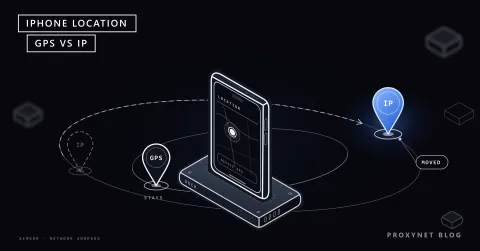
Three honest notes. While the app is connected, iOS shows its standard VPN indicator in the status bar. That is how iOS marks any app using the Network Extension framework; the app is a proxy tunnel, not a VPN service. Second, the app's interface is in English only. Third, it changes the location sites guess from your IP address. It does not change your phone's GPS, so Maps and apps that ask for Location Services still see where you really are.
Which proxy type to choose depends on the job. A Residential Proxy gives you an address from a home internet connection in the city you pick, which looks like an ordinary visitor to most sites.
A Mobile Proxy gives you an address from a mobile carrier's network, the same kind of address your phone has on mobile data. Our pool has 140M+ residential and 20M+ mobile IPs in 190+ countries.
Should you use a proxy app or a VPN to hide your IP on iPhone?
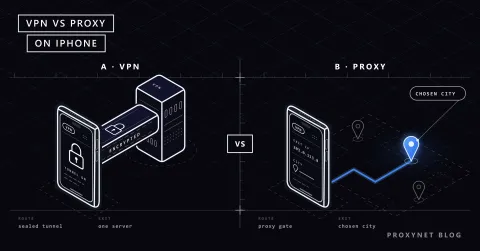
Use a VPN when your main concern is an untrusted network, and a proxy app when you need a specific location or type of address. Both hide your IP from the sites and apps you open, and both make iOS show the VPN indicator. The difference lies in what else they do.
A VPN encrypts all traffic between your phone and its server, so the café or hotel network sees only an encrypted connection to the VPN. The VPN provider then sees what your internet provider used to see.
A proxy forwards your traffic with its own address and does not add encryption by itself; sites you open over HTTPS (the padlock) stay encrypted as usual. What a proxy gives you is control over the address: a residential or mobile IP, a chosen country and city, a new address per connection or the same one for up to 60 minutes. The longer comparison is in Proxy vs. VPN. If you try several tools, test one at a time, or the results are hard to read.
What does hiding your IP address not hide?
It does not hide who you are once you sign in, and it does not remove the other signals that identify a phone. These are the gaps people forget:
- Accounts. If you are signed in to Google, Instagram or a shop, the site knows it is you, whatever address you come from.
- Cookies and site data. A site that stored a cookie on your last visit recognises your browser again. Private Browsing in Safari or clearing website data handles this, not an IP setting.
- Browser fingerprint. Screen size, language, time zone, fonts and other details form a profile that can recognise a browser without cookies; What Is Browser Fingerprinting? explains how it works.
- GPS location. Location Services use GPS, Wi-Fi and cell towers, not your IP address. An app with location permission sees where you are.
- Your carrier or Wi-Fi owner. They still see that your phone connects to Apple's relay, a VPN or a proxy server, and how much data you use.
When is hiding your IP address on iPhone useful?
It helps most on networks you do not control and when you want sites to stop linking your visits by address. Typical cases:
- Using public Wi-Fi in a café, airport or hotel without showing your exact area.
- Reading without being profiled by trackers that follow you across sites.
- Opening newsletters without telling senders when and where you opened them.
- Checking how a website, a shop or your own app looks from another country or city.
- Security and research work, where analysts look at suspicious pages without showing their company's address. Our data security page describes how teams do this on public sources, within legal limits.
It is not a way around rules. A school or workplace network that blocks Private Relay, a service that limits content by region, or an account lock should be handled through the owner of that network or service, not by hiding your address.
Common mistakes when hiding your IP on iPhone
- Testing in the wrong browser. Safari's setting and Private Relay do not change what Chrome or other browsers show.
- Assuming iCloud+ is on. Without iCloud+, Hide IP Address only hides you from trackers, and websites still see your address.
- Expecting a new country from Private Relay. It keeps your general location or your country and time zone; it does not move you abroad.
- Confusing Private Wi-Fi Address with your IP. It changes the MAC address on the local network, not the address websites see.
- Forgetting mobile data. A proxy set in Wi-Fi settings stops working the moment the phone switches to mobile data.
- Reading the VPN indicator as a problem. With a proxy app connected, the VPN indicator is normal; check the exit IP on the app's screen instead.
- Testing several tools at once. Private Relay, a VPN and a proxy app together make it unclear which one sets the address you see.
Decision guide
| What you need | Use this |
|---|---|
| Fewer trackers following you in Safari | Hide IP Address (on by default) |
| Websites in Safari not seeing your address | iCloud+ with Private Relay |
| Senders not knowing when you open email | Mail Privacy Protection |
| Every app hidden on public Wi-Fi, traffic encrypted | A VPN app |
| Every app, on Wi-Fi and mobile data, with a chosen country and city | A proxy app with a residential or mobile proxy |
| The same address for a while | A sticky proxy session |
| No one recognising you at all | Not possible with an IP setting; sign out and clear site data too |
Frequently asked questions
What does Hide IP Address mean on iPhone?
It is a Safari setting that hides your IP address from known trackers, the ad and analytics services built into many websites. With iCloud+ and Private Relay on, it also hides your address from the websites you visit in Safari. It does nothing for other apps or browsers.
Should I turn on Hide IP Address on iPhone?
Yes, for most people it is worth keeping on; it is on by default and costs nothing. If a website stops working properly while Private Relay is on, use Show IP Address for that one site in Safari's page menu rather than turning the protection off everywhere.
Does Hide IP Address work without iCloud+?
Partly. Without iCloud+, Safari hides your address only from known trackers. The websites you open still see your real IP address and the location they guess from it.
Does hiding my IP address hide my location on iPhone?
It hides the location that websites guess from your IP address, not your GPS location. Private Relay keeps a general or country-level location on purpose. Apps with Location Services permission still see where you are.
Can I hide my IP address on iPhone for free?
Partly. Safari's tracker protection, Limit IP Address Tracking and Mail Privacy Protection are free. Hiding your address from websites in Safari needs iCloud+, and hiding it in every app needs a VPN or proxy service, which are paid in most cases.
Is it legal to hide your IP address on iPhone?
In most countries, using Private Relay, a VPN or a proxy is legal, and Apple builds these options into iOS. What you do through them still has to follow the law and the rules of each site or network. This is general information, not legal advice; some countries restrict VPN services.
Summary
To hide your IP address on iPhone, start with what iOS already offers: Hide IP Address against trackers, iCloud+ with Private Relay against websites in Safari, and Mail Privacy Protection against email senders. When every app must be covered, on Wi-Fi and mobile data, use a VPN for an encrypted tunnel or a proxy app to choose the country, city and type of address. None of them hides your accounts, cookies, fingerprint or GPS location. For a device-wide proxy with residential and mobile addresses, the Proxynet.io app connects your Proxynet proxies in one tap.