

































You put a pair of shoes in an online shop's cart, close the tab and come back the next day. The shoes are still in the cart, you are still signed in and the site still shows your language. The shop did not guess any of that: your browser kept a few small pieces of text for that site, called cookies, and handed them back when you returned.
This post covers how a site sets and reads a cookie, the main types, where third-party cookies stand in Chrome today, why sites ask for consent, and how to delete cookies in Chrome, Safari, Firefox and Edge.
What is a cookie on a website?
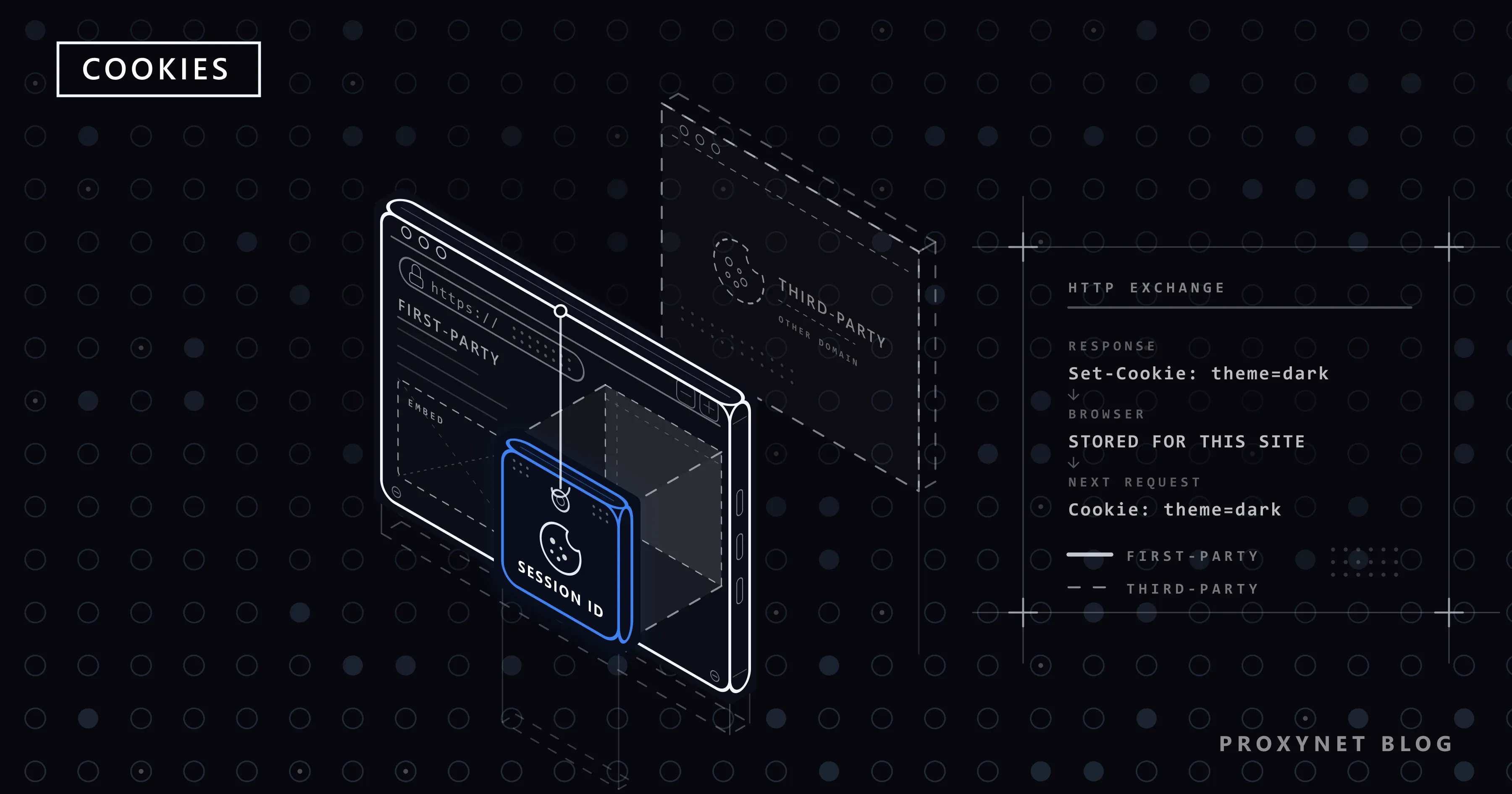
A cookie is a small piece of data that a website's server sends to your browser, which stores it and sends it back with later requests to the same site. Each cookie has a name and a value, such as theme=dark or a long random sign-in code, plus settings that say how long it lives and where it may be sent.
Cookies exist because HTTP, the protocol your browser uses to fetch pages, is stateless: each request reaches the server with no memory of the previous one. The cookie standard, RFC 6265, describes cookies as the way servers "maintain a stateful session" over that protocol. Without them, a site would forget you between two clicks.
Cookies are tiny by design: RFC 6265 asks browsers to support at least 4,096 bytes per cookie and 50 cookies per domain, enough for an identifier or a setting, not a document. The standard dates from 2011; its revision, RFC 6265bis, was in the RFC Editor's queue and not yet published when we checked on 12 November 2026.
How do cookies work?
Cookies travel in HTTP headers, the lines of metadata sent before the page itself:
- You open a page. Your browser asks the site's server for it, with no cookie for that site yet.
- The server answers with a
Set-Cookieheader, for exampleSet-Cookie: theme=dark; Max-Age=2592000, which asks the browser to keeptheme=darkfor 30 days (2,592,000 seconds). - The browser stores the cookie with the site's domain, path and expiry time.
- On the next request to that site, the browser adds a
Cookieheader:Cookie: theme=dark. - The server reads it and responds accordingly, here with the dark version of the page. Sign-in works the same way: the server sets a cookie holding a random session ID, and every later request proves who you are by carrying it.
- The cookie expires or is deleted, and the browser stops sending it.
We ran this exchange against a small test server on our own computer with curl, a command-line HTTP client. Trimmed to the request, status and cookie lines, the first response set the cookie and the second request sent it back:
< HTTP/1.1 200 OK
< Set-Cookie: theme=dark; Max-Age=2592000; Path=/; SameSite=Lax

> GET / HTTP/1.1
> Cookie: theme=dark
Lines starting with < came from the server, lines starting with > from the client. If you write scripts that sign in to your own accounts, Sessions and Cookies in Python shows how a script keeps these cookies between requests.
What are cookies used for?
Cookies keep you signed in, remember your choices, measure how a site is used and help target ads. MDN's guide to HTTP cookies groups these jobs as session management, personalization and tracking.
- Signing in: a cookie with a long random ID is why you are not asked for your password on every page.
- Shopping carts: a cookie ties your browser to the cart kept on the shop's server.
- Preferences: language, currency, dark mode and your answer to the cookie banner.
- Analytics: a random visitor ID lets a site count returning visitors and see which pages they read.
- Advertising: ad companies embedded in many sites use their own cookies to recognise the same browser on all of them.
What types of cookies are there?
Cookies are sorted by how long they live, by who sets them and by what they are for, so every cookie belongs to one group in each.
| Type | What it means | Example |
|---|---|---|
| Session cookie | No expiry date; deleted when the browser session ends | A shop's cart ID |
| Persistent cookie | Kept until a set date or for a set number of seconds | "Remember me" sign-in |
| First-party cookie | Set by the site shown in the address bar | Your sign-in on that site |
| Third-party cookie | Set by another site whose content is embedded in the page | An ad network's visitor ID |
| Essential | Needed for a feature you asked for | Sign-in, cart, security |
| Functional | Remembers choices that are nice to have | Language, region |
| Analytics | Counts visits and measures page use | A random visitor ID |
| Advertising | Builds an interest profile to target ads | A cross-site tracking ID |
The browser decides when a session ends: MDN notes that browsers which restore your tabs on restart can keep session cookies alive indefinitely.
What do Secure, HttpOnly and SameSite mean?
They are attributes, settings attached to each cookie that limit how long it lives and where the browser may send it:
- Expires and Max-Age set the lifetime, as a date or a number of seconds. A cookie with neither is a session cookie.
- Domain and Path set where the cookie goes. A cookie for
shop.example.comis never sent to another site. - Secure lets the cookie travel only over encrypted HTTPS connections.
- HttpOnly hides the cookie from scripts in the page, so a script injected into the site cannot read it.
- SameSite decides whether the cookie goes along on requests that start on another site:
Strictnever,Laxonly when you follow an ordinary link into the site,Nonealways, and only together withSecure.
A well-built sign-in cookie uses all of them: a long random value, Secure, HttpOnly and SameSite=Lax or Strict.
What can cookies do, and what can't they?
Cookies can identify a browser and carry whatever a site stored in them; they cannot run code or look around your computer. A cookie cannot install anything or carry a virus, read your files or the cookies of other websites, or learn your name unless you typed it into the site.
What cookies can do is link visits together. A sign-in cookie connects everything you do while signed in, and a third-party cookie lets an ad company connect visits across every site that embeds it. The real danger is theft: whoever copies a sign-in cookie can use your session without your password, which is exactly what infostealer malware looks for. What Is Session Hijacking? explains how cookies get stolen and how to stop it.
What are third-party cookies, and does Chrome still allow them?
Third-party cookies are set by a site other than the one in your address bar, through content embedded in the page. Chrome still supports them and leaves the choice to you, except in Incognito, where they are blocked by default.
A news site embeds an ad. To show it, your browser fetches the ad from the advertising company's server, which can set a cookie under its own domain. When another site embeds ads from the same company, the browser sends that cookie back, and the company sees the same browser on both sites. RFC 6265 already called third-party cookies "particularly worrisome" in 2011.
- Chrome offers Allow third-party cookies and Block third-party cookies under Settings > Privacy and security > Third-party cookies. Google planned for years to phase them out, then said in April 2025 that it would keep this user choice and add no separate prompt; in October 2025 it retired most of the Privacy Sandbox ad technologies meant to replace them.
- Safari has blocked cookies from cross-site content by default since March 2020.
- Firefox gives every website its own cookie jar by default (Total Cookie Protection), so an embedded company cannot follow you from site to site with one cookie.
Blocking them can break an embedded comment box or chat window; Chrome lets you allow single sites under Sites allowed to use third-party cookies.
Why do websites ask you to accept cookies?
Websites ask because privacy laws in many places require consent for cookies that are not essential. In the European Union, the ePrivacy Directive, applied together with the GDPR, allows storing or reading information on your device only with informed consent, unless it is strictly necessary for a service you asked for.
Accept all lets the site set every category it listed. Reject all or Necessary only keeps the essential cookies, so sign-in and the cart still work. Customise lets you switch categories on one by one. Your answer is itself saved in a cookie, which is why the banner returns when you clear cookies or open a private window.
How do you view and delete cookies?
You delete cookies in your browser's privacy settings, all at once or for one site. On a Windows computer, Ctrl + Shift + Delete opens the clearing window directly in Chrome, Edge and Firefox. The paths below come from each vendor's help page, checked on 12 November 2026:
- Chrome on a computer: More > Delete browsing data, choose a time range such as All time, tick Cookies and other site data and select Delete data. For one site: Settings > Privacy and security > Third-party cookies > See all site data and permissions. Both routes are on Google's cookie help page.
- Chrome on Android: More > Settings > Privacy and security > Delete browsing data, tick Cookies and site data and tap Delete data.
- Safari on iPhone: Settings > Apps > Safari > Clear History and Website Data. To keep your history, use Advanced > Website Data > Remove All Website Data instead, as Apple's help page shows.
- Safari on a Mac: Safari > Settings > Privacy > Manage Website Data, then Remove or Remove All.
- Firefox: for the current site, click the shield icon left of the address bar and choose Clear cookies and site data. For all sites: menu button > History > Clear Recent History…, set When to Everything, tick Cookies and site data and click Clear.
- Microsoft Edge: Settings and more > Settings > Privacy, search, and services > Clear browsing data > Choose what to clear, tick Cookies and other site data and select Clear now.
Developers can inspect each cookie, with its expiry and flags, in Chrome DevTools under Application > Storage > Cookies.
Deleting cookies signs you out of most sites and resets your preferences; saved passwords stay unless you tick them too. Blocking all cookies, for example with Block All Cookies on iPhone, is possible, but Apple warns that some pages might not work and you may not be able to sign in.
Cookies vs cache vs local storage: what is the difference?
Cookies are small values sent to the server with every request; the cache is a copy of downloaded files that makes pages open faster; local storage is a larger store used by the site's own scripts and never sent automatically.
| Cookies | Cache | Local storage | |
|---|---|---|---|
| What it holds | Small name-value pairs | Copies of pages, images, scripts | Data saved by site scripts |
| Sent to the server | With every request to that site | No | No |
| Size | About 4 KB per cookie | Many files | Much more than a cookie |
| Clearing it | Signs you out | Pages load slower once | Resets data such as drafts |
That is why "cookies" and "cache" are separate tick boxes: clearing only the cache fixes stale page files without signing you out.
Why do sites check your cookie and your IP address together?
Because a sign-in cookie proves you logged in, and the network it arrives from helps the site judge whether the cookie is still in your hands. Few sites tie a session to one IP address, since phones switch between Wi-Fi and mobile data all day, but a session that suddenly jumps to another country or network can trigger a new sign-in or a security check.
This matters when you work in your own accounts through a proxy or a VPN: if the exit address changes mid-session, the site sees one cookie arriving from two places and may log you out. A Sticky Proxy session holds the same IP for 1 to 60 minutes.
For an account you use every day, an ISP Proxy keeps one address, registered to an internet provider, for as long as you rent it. The goal is a stable session on an account you are allowed to use, not a way past a site's checks.
Common mistakes
- Clearing every cookie to fix one site. Delete that site's cookies first; it often fixes a sign-in loop without logging you out everywhere.
- Assuming "Reject all" breaks the site. Essential cookies stay, so sign-in and the cart keep working.
- Blocking all cookies, then wondering why sign-in fails. A site needs at least its own cookie to keep you signed in.
- Leaving a shared computer signed in. Sign out, or the sign-in cookie lets the next person into your account.
Decision guide
| Your goal | What to do |
|---|---|
| Fewer ads that follow you between sites | Block third-party cookies; reject advertising cookies |
| One site keeps logging you out | Delete that site's cookies only |
| Leave nothing behind on a shared computer | Use a private window and close it when done |
| Stay signed in on your own devices | Keep first-party cookies |
| Keep a work account stable through a proxy | One sticky or static exit per session |
Frequently asked questions
Should I accept cookies?
Accepting essential cookies is fine, and EU rules do not even require consent for them; the real choice is about analytics and advertising. If you do not want your visits measured or used for ads, choose Reject all. The site works either way.
Are cookies dangerous?
No, a cookie cannot harm your computer: it is text, not a program. The risks are privacy, when third-party cookies build a profile across sites, and theft, when malware copies a sign-in cookie.
Does incognito mode delete cookies?
Yes. A private window starts a separate session, and its cookies are deleted when you close the last private window; Chrome also blocks third-party cookies there by default. It does not change your IP address, as explained in Does Incognito Mode Hide Your IP Address?
What happens if I reject or block cookies?
Rejecting optional cookies changes little you can see: ads become less personal. Blocking all cookies is different: you cannot stay signed in, carts stop working and many sites behave oddly.
Will deleting cookies log me out?
Yes, from most sites, because the proof that you signed in lives in a cookie. Deleting one site's cookies logs you out of that site only.
Why do websites ask about cookies every time I visit?
Because your answer is stored in a cookie. If you clear cookies, use a private window or the consent cookie expires, the site no longer knows you answered and shows the banner again.
Summary
A cookie is a small piece of text that a website asks your browser to keep and send back, so it remembers your sign-in, cart and settings. Third-party cookies come from embedded companies and can follow you between sites, which is why Safari and Firefox restrict them by default and Chrome lets you block them. Cookies cannot run code or read your files, but a stolen sign-in cookie can open your account. Accept the essential ones, reject the rest if you prefer, and clear one site's cookies when it misbehaves. If you work in your own accounts through a proxy, keep each session on a steady address with our proxy services.