































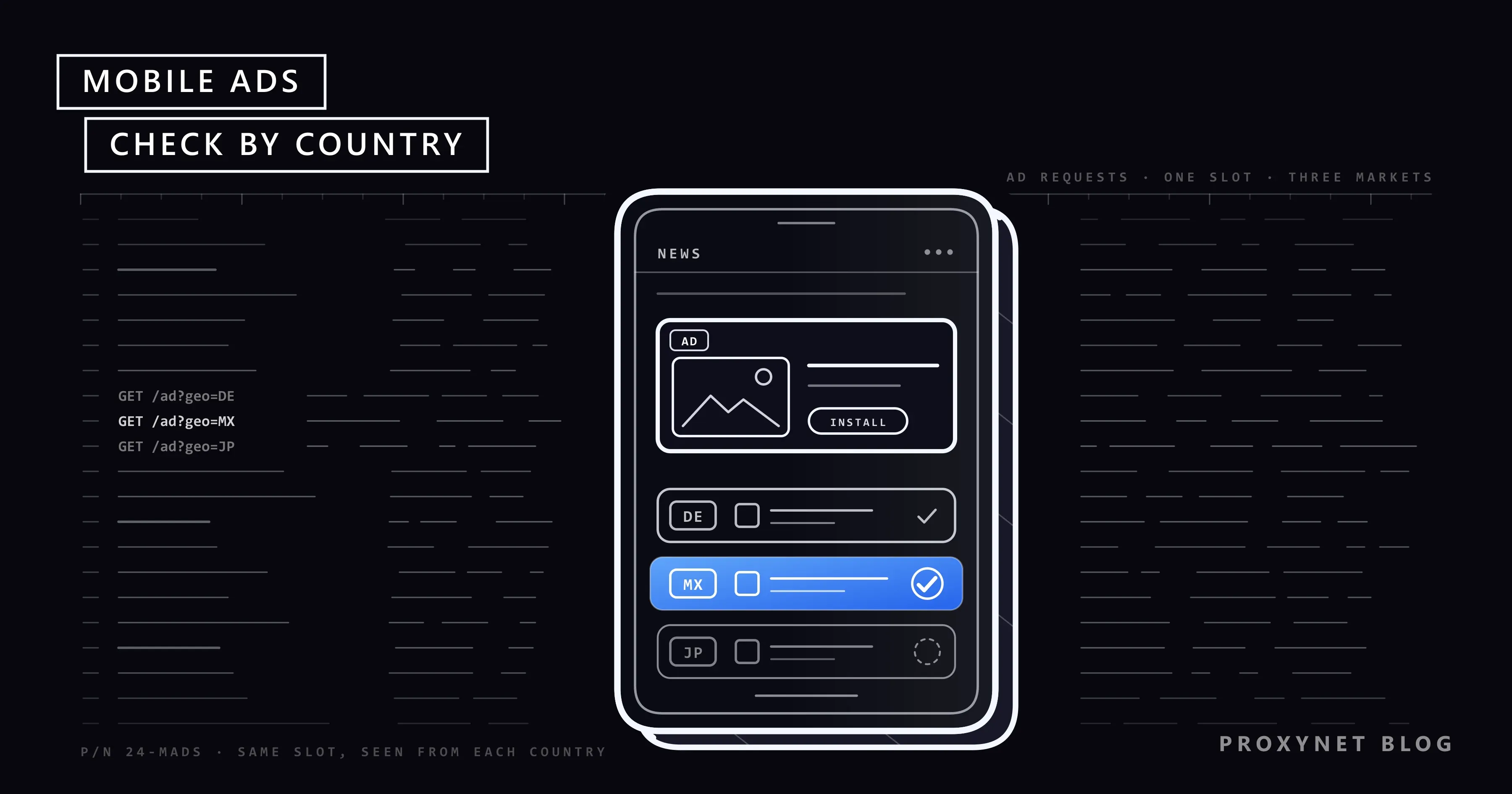
Your client's app-install campaign went live this morning in Germany and Mexico, mobile only. The dashboard shows impressions coming in, but in the news app the campaign is bought on, your own phone shows an ad for a mattress shop in your city. The client wants a screenshot of their ad, in Spanish, inside that app, as a reader in Mexico City sees it. Your phone cannot produce it, because every ad server it talks to can see where it connects from.
This guide covers why mobile ads change by country, city and network, what to check on each ad, which preview tools to try first, and how to see the live ad on a real iPhone through an exit IP in the target country. It ends with what to record, the limits of the method and the mistakes that make a correct campaign look broken.
Why do mobile ads differ by country and city?
Mobile ads differ because the ad server picks each ad from the details of the request, and location is one of the first it reads. When an app or mobile page loads an ad slot, it asks an ad server for an ad; the server compares the request with each campaign's targeting and runs an auction among the matches.
- IP location. The server looks up the country, and often the city, of the public IP address. A campaign for Mexico is not a candidate for a request from Madrid.
- Network type. Platforms can tell cellular from Wi-Fi. In Google's Display & Video 360, for example, carrier and ISP targeting can reach users by wireless carrier, which covers only cellular data, or by internet provider, read from the public IP.
- Device and system. A campaign can be limited to iPhone, Android, tablets or a minimum OS version.
- Language. A phone set to English in Mexico may get a different version than one set to Spanish.
- Account and identifiers. Signed-in accounts, the ad identifier and past activity feed audiences and frequency caps.
- Time and budget. Scheduling and budget pacing change what wins the slot at 9:00 and at 21:00 local time.
A check from your desk changes at least the first two inputs, often all of them. That is why your ad can run exactly as planned and still not be on your screen.
What should you check on a mobile ad?
A mobile ad check confirms that the right ad appears in the right place and form, for the right audience, and that the tap leads where it should.
- Placement. Is the ad inside the app or site you bought, in the expected slot: banner, native card in a feed, interstitial between screens, rewarded video?
- Creative. Is it the approved version and size? On a phone, look for cropping, cut-off text and buttons hidden behind the app's own controls.
- Language and currency. A Mexican campaign should show Spanish copy and prices in pesos, not the master English creative.
- Local notices. Some markets need a disclaimer, an "ad" label or different offer wording.
- Destination. Does the ad lead to the right App Store page or localized landing page, through the expected tracking links? The final URL can usually be read in the ad manager.
- Signs of fraud or misplacement. An ad that opens the App Store without a tap, a creative stacked under another ad, or a placement in an app you never bought. These schemes are explained in What Is Ad Fraud?.
One in-app check needs no phone. Under the app-ads.txt standard from IAB Tech Lab, an app's developer lists the companies authorized to sell its ad space, in a file on the developer website linked from the store page. A seller in your report that is missing from that file is worth a question.
Which official preview tools should you try first?
The platform's own preview tools come first: they are free, spend no impressions and show the ad as the platform built it. Use a real phone only for what a preview cannot show.
For Google Search ads, the Ad preview and diagnosis tool shows how your ad appears on a results page and why it might not appear. You set the location, language and device, including mobile, and Google notes that it avoids accumulating ad impressions, which a search on your own phone would add.
Meta, TikTok and most other ad managers preview each ad by placement while you build it. Those previews show the creative in a frame. They do not show which ad wins a live auction, the app around the ad, placements on third-party apps, or the redirect chain a real tap follows.
How do you check a mobile ad on a real iPhone from another country?
You route the iPhone's traffic through an exit IP in the target country or city, so the ad server treats the phone as a local visitor. iOS has no built-in way to do this on cellular data, because its proxy setting belongs to each Wi-Fi network. The steps below use our iPhone app, Proxynet.io on the App Store, which routes all device traffic through the gateway you choose.
- Prepare a test device and test accounts. Use an iPhone that is not your personal phone, signed in to test accounts in the apps you will open. Fix the ad-related settings once and write them down.
- Install the app and open your proxies. The app is free to download and lists the residential, mobile, static ISP and datacenter proxies on your account; you can also create a new gateway in it.
- Choose the location. Pick the country and, for local campaigns, the state and city. For a campaign bought on cellular traffic, choose a mobile gateway.
- Switch to a sticky session. A sticky session keeps the same exit IP for 1-60 minutes, so the IP does not change between loading the ad and following its link. A rotating session changes the IP more often.
- Connect with one tap and confirm the exit. While connected, the app shows the assigned exit IP with its country flag and location, the active gateway and the latency. Compare the location with the media plan before you open anything.
- Open the placement. Launch the app or mobile site, go to the screen where the ad runs and let it load. Take a screenshot, or a screen recording for video and interstitial ads.
- Read the destination without tapping, where you can. A tap on a live paid ad is a real click. Take the final URL from the ad manager; tap only when you must see the redirect on the device, and log that you did.
- Record, disconnect, move on. Write the log row, disconnect and connect again in the next location.
While the app is connected, iOS shows its standard VPN indicator. iOS labels every app that routes device traffic through Apple's Network Extension framework this way; the app is a proxy tunnel to your gateway, not a VPN service. The full setup is in the iOS proxy app guide.
How do the checking methods compare?
Each method answers part of the question, and a full check usually uses two of them.
| Method | What it shows | What it misses |
|---|---|---|
| Platform preview tool | Rendering by placement; eligibility by location and device | The live auction, the app around the ad |
| Your own phone at home | The live ad for your location and account | Any other country or city |
| iPhone, residential exit | The live ad for a home Wi-Fi user in the chosen city | The cellular view |
| iPhone, mobile exit | The live ad for a cellular user in the chosen country or city | A chosen carrier; carriers cannot be selected |
Mobile or residential exit: which one fits?
A mobile exit fits campaigns bought on cellular traffic and in-app inventory; a residential exit fits mobile web campaigns and campaigns with no network filter. The difference is what the ad server reads from the IP.
With Mobile Proxy, the exit IP belongs to a mobile carrier network in the chosen country or city, which is how a phone on 4G or 5G looks to an ad server. The mobile pool has 20M+ IPs with country and city targeting. You cannot pick the carrier, so a campaign targeted to one carrier may not be eligible on your exit; look up the exit IP in an IP lookup service and note its network in the log.
With Residential Proxy, the exit IP belongs to a home broadband line, which is how a phone on home Wi-Fi looks. The residential pool has 140M+ IPs in 190+ countries, with country and city targeting, and it is the default for mobile web placements.
What does the iPhone app change, and what does it not?
The app changes the IP address that apps and websites see, on Wi-Fi and on cellular data, and with it the IP-based country and city. That is what the ad server's location lookup reads. Other inputs stay as they are.
- GPS location does not change. An app with Location Services permission can still read where the phone really is.
- The Apple Account's country or region does not change, and it decides which App Store you see. Neither do the phone's language and region settings; set them yourself if the campaign targets them.
- Your accounts do not change. A signed-in account carries its own history, interests and frequency counters.
The app's interface is in English only. It needs iOS or iPadOS 15.1 or later and runs on iPhone and iPad; it is not a Mac app.
How do account and privacy settings change what you see?
The accounts and ad settings on the test phone change which ads you get, so set them on purpose and record them. Otherwise two testers in the same city get different ads and both are right.
Apple's tracking permission settings are under Settings > Privacy & Security > Tracking, with the "Allow Apps to Request to Track" switch. If you choose "Ask App Not to Track", or the switch is off, an app cannot access the system advertising identifier (IDFA), and campaigns that use it for audiences or frequency caps behave differently. Use one state on all test phones.
Settings > Privacy & Security > Apple Advertising holds the Personalized Ads switch. It affects only ads Apple delivers in the App Store, Apple News and Stocks, so keep it in a known state if you check App Store ads.
Accounts weigh more than either switch. A personal account with years of history is matched to audiences your campaign may exclude, so use one test account per market. Do not reload the same placement many times in a row either: the frequency cap fills and later loads show other campaigns.
What should you record for each check?
Record enough that someone else can repeat the check and get the same answer.
- Time in UTC, with the market's local time.
- Exit IP, country and city as the app shows them, and the gateway type.
- Network name of the exit IP, for carrier-targeted campaigns.
- Device and software: iPhone model, iOS version, app name and version.
- Account and settings: test account, tracking permission state, language and region.
- Placement and result: app or site, screen, slot, file name of the screenshot, and a verdict (correct, wrong creative, wrong language, not shown, wrong destination).
A spreadsheet with one row per check is enough for a few markets. For dozens of cities and daily checks the same workflow is usually automated with headless browsers, as described in How Ad Verification Works with Proxies.
Where is this kind of check used?
Agencies use it to show clients that a campaign runs in each market as sold, and to answer "I can't see my ad" before it becomes a dispute.
App developers who sell their own ad space use it to see what users in each country see, including ads that should not be there.
Brand and localization teams use it to confirm that the local creative, language, prices and legal wording reached each market. Affiliate managers use it to check that partners send mobile users abroad to the approved landing pages.
Common mistakes
- Searching for your own ad again and again. Google warns that repeatedly searching for your own ad without clicking can stop it from showing to you. Use the preview tool.
- Tapping live ads to test them. Each tap is a real click that may be billed.
- Using a residential exit when the campaign targets cellular users. The ad is not eligible and the report says "not delivered".
- Letting the IP rotate mid-check. A new IP between ad load and redirect looks like a second visitor.
- Forgetting language settings. The exit is in Mexico, the phone is in English, the campaign targets Spanish speakers.
- Using a personal account. Your history decides the slot, not the campaign's targeting.
- Reporting one missing ad as a fault. Budgets, schedules and auctions mean an ad does not appear on every load; repeat at another hour first.
Decision guide
| Need | Recommendation |
|---|---|
| Search ad text and eligibility in another location | The platform's preview tool; no proxy needed |
| Creative rendering per placement before launch | The ad manager's placement preview |
| Live in-app ad bought on cellular traffic | iPhone app with a mobile exit, sticky session |
| Live mobile web ad in a specific city | iPhone app with a residential exit in that city |
| Carrier-targeted campaign | Mobile exit, then check its network in an IP lookup |
| Daily checks in dozens of cities | An automated ad verification workflow |
Frequently asked questions
How can I see Google ads from another country without a proxy?
For Search ads, use the Ad preview and diagnosis tool in Google Ads and set the location, language and device. It shows whether your ad is eligible there and how it looks, without spending impressions. It does not show live display or in-app placements.
Does a VPN work for checking ads in another country?
A VPN also changes the IP location, so it can work for a rough look. Many VPN exits sit on hosting company networks, which some ad platforms treat differently from home and mobile users, so the slot may show other ads. A residential or mobile exit looks like the audience you bought.
Why don't I see my ad even with an IP in the right country?
The IP is only one input. The campaign may target another city, a carrier, a language, an audience or a time of day; the daily budget may be spent; or the frequency cap may be full for your account. Check the targeting, then repeat at another hour.
Is it allowed to check ads through a proxy?
Checking your own campaigns and the placements you pay for, as the audience sees them, is a normal part of media buying. Generating clicks or impressions on any ads, including your own, is not. Follow each ad platform's terms.
Does changing my IP on iPhone change my location for apps?
No. It changes the IP-based location that websites and ad servers read. GPS location stays the same, and apps with Location Services permission can still read it.
Can I choose a specific mobile carrier for the check?
No, carrier selection is not offered. A mobile exit gives you an IP on a carrier network in the country or city you pick. If the campaign targets one carrier, look up which network the exit belongs to before you judge the result.
Summary
Mobile ads change by country, city, network type, device, language and account, so your own phone shows only your own view. Start with the platform's preview tool, which spends no impressions. For the live ad, connect a test iPhone to a mobile or residential exit in the target location, hold the IP with a sticky session, record the placement with the exit IP, location and time, and keep accounts and settings the same across checks. When the checks outgrow one phone, the ad verification page shows how proxies support the full workflow.