

































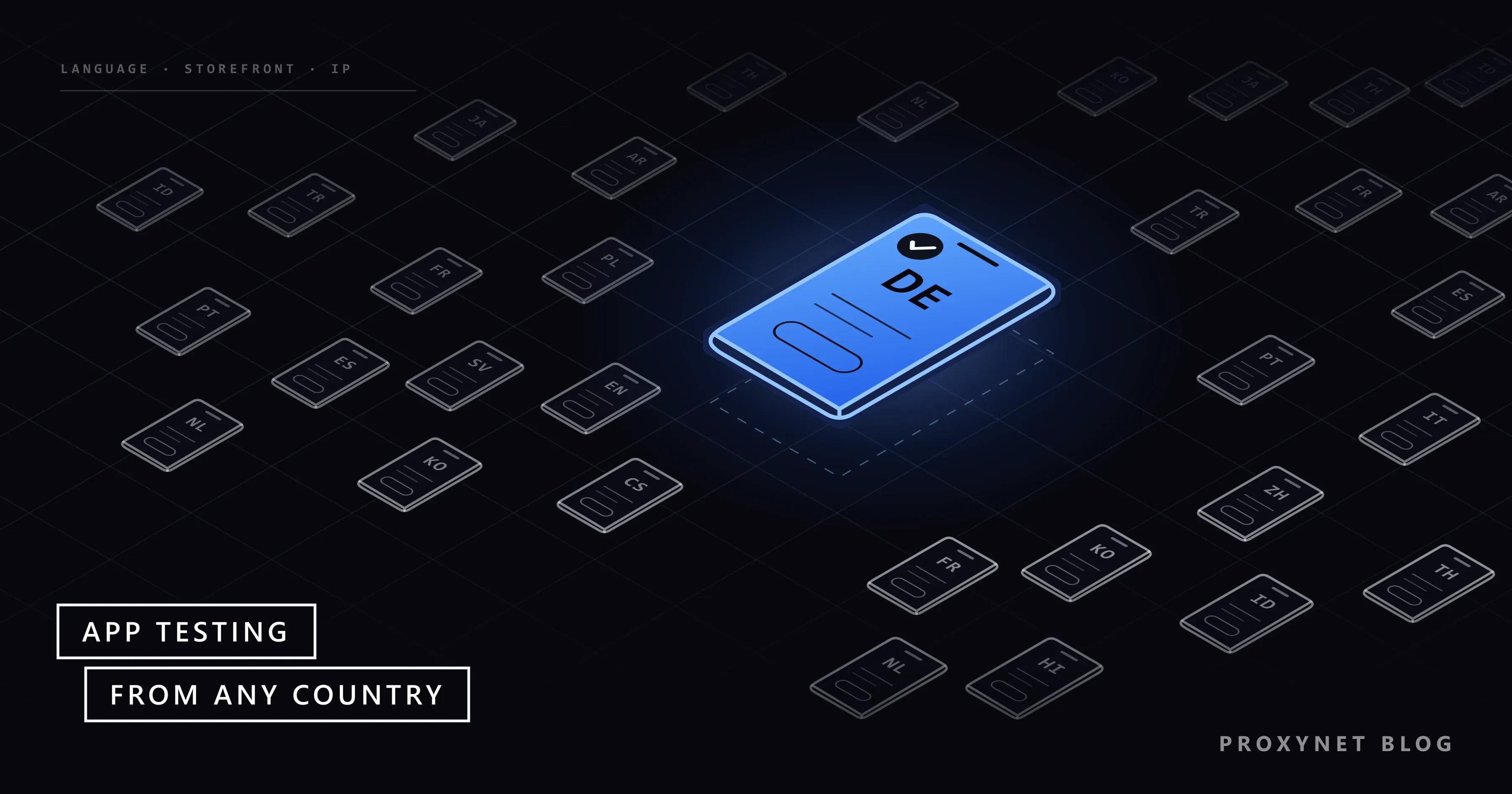
Your app goes live in Germany and Brazil next week. The translations are in, the screenshots look right, and the build passed every test in the office. Then the first report arrives from a user in São Paulo: the sign-up screen asks for a field nobody on your team has ever seen, and the price on the upgrade screen is not the one in your launch plan. Your testers could not have seen either, because the app decided both from where the phone connects, and every test phone was connected from your office.
This guide explains what changes in an app from one country to another and which signal decides each change: the device's language and region settings, the App Store account's country, or the phone's IP address. It then covers a test setup on a real iPhone, a test plan you can reuse for every market, when to choose sticky or rotating sessions, and what to write in a bug report so a developer can reproduce it.
What is localization testing?
Localization testing checks that an app works and reads correctly for users in a specific language and market. It goes beyond the translation itself: a German label that runs much longer than the English one can push a button off the screen, a date written day-first can be read as a different date, and a price shown in the wrong format looks like a mistake even when the amount is right.
Internationalization testing comes first and checks that the code can handle any language at all. Localization testing then checks each market you ship to, including the part most teams skip: what the app shows when it runs in that country, not only in that language.
What changes in an app from one country to another?
More than the language changes. In a typical consumer app, a user in another country may see a different set of things:
- Text and layout: the language, text length, line breaks and right-to-left mirroring.
- Formats: dates, times, numbers, units of measurement and the first day of the week.
- Store and prices: whether the app is offered at all, and the price of each in-app purchase in that store.
- Prices and offers from your own backend: introductory offers, regional discounts, which plans exist.
- Legal and consent screens: cookie or tracking consent prompts, terms, age checks and local notices.
- Content: catalogues, news, music or video that is licensed only for some countries.
- Feature flags: features switched on by country through remote configuration.
- Sign-up and payment: phone number formats, local sign-in options, payment methods your provider supports there.
Some of these follow the device, some follow the store account and some follow the network. A test that sets only the language checks the first two rows and misses everything below them.
Which signal decides each change?
Each change is controlled by one signal, and an IP address controls only some of them. The table shows where each usually comes from and whether a proxy exit in the target country changes it.
| What changes | Usually decided by | Does a country IP change it? |
|---|---|---|
| UI language | Device or per-app language | No |
| Date, number and unit formats | Device region | No |
| App Store availability | Apple Account country or region | No |
| In-app purchase prices | App Store storefront of the account | No |
| Prices and offers from your server | Your backend, often by IP | Yes, if it reads the IP |
| Consent and legal screens | Your backend or an SDK, often by IP | Often |
| Licensed content, feature flags | Backend geolocation, remote config | Yes, if keyed on IP |
| Map and "near me" features | Location Services (GPS) | No |
The middle rows are the ones a desk test misses. Apple's StoreKit documentation describes the storefront as the App Store region for the device and tells developers to read it right before showing products, so in-app prices follow the account, not the network. Your own server is different: if it looks up the caller's IP in a geolocation database, a phone in the office will always get the office's country.
What can a country IP exit not simulate?
An IP exit changes only the address your servers and third-party services see. It does not touch any of these:
- The App Store country. Store availability and storefront prices follow the Apple Account's country or region, as our guide to why an app is not available in your country explains in detail. A proxy or VPN does not change it.
- The device's language and region. These stay as they are set in Settings, so a German exit on an English-language phone still shows English text.
- GPS location. Location Services work from GPS, Wi-Fi and cell signals on the device, not from the IP. An IP exit changes IP-based location only, and this guide does not cover faking GPS.
- The SIM and its home network. The phone keeps its own SIM card and operator; only the path its traffic takes to the internet changes.
- TestFlight access. Testers get beta builds through the TestFlight app with an invitation or public link, and each build can be tested for up to 90 days. Which builds a tester can install does not depend on their IP.
So a useful test sets all three signals for the same market. A German storefront with an English phone and an office IP is three countries at once, and its bugs may never reach a real user.
How do you set the device and store side?
Start with the parts that need no network change, because they are free and repeatable.
- Run the app in another language and region from Xcode. Apple's guide to testing localizations when running your app shows the route: Product > Scheme > Edit Scheme, then Run > Options, where the App Language and App Region menus change only your app. Changing the device's own settings changes the whole system.
- Set the device itself when you need the full picture. On the iPhone, open Settings > General > Language & Region, add the language and set the region, as Apple's iPhone User Guide describes. Region controls the date, number and measurement formats and the first day of the week.
- Point a sandbox account at the target storefront. Each sandbox test account is tied to one App Store storefront, and Apple lets you change a sandbox account's country or region in App Store Connect under Users and Access > Sandbox. Sign out of the sandbox account on the device and sign in again to complete the change.
- Check the market list. Confirm the app is actually released in that country or region in App Store Connect; a test for a market you do not ship to only finds false bugs.
After these steps, only the network still says "office".
How do you test from another country with the iPhone app?
The Proxynet.io app for iPhone and iPad changes the network side: it routes all of the device's traffic through a proxy gateway in the country, state or city you choose. It uses Apple's Network Extension framework, so it covers every app on the phone, on Wi-Fi and on cellular, which iOS's own proxy setting cannot do (that one is HTTP only and per Wi-Fi network). Our guide to the iPhone proxy app walks through every screen; for a test session the steps are short.
- Install the app. Proxynet.io on the App Store is a free download for iOS and iPadOS 15.1 or later. Sign in with your Proxynet account.
- Top up the wallet if needed. Top-ups go through Apple's In-App Purchase, the balance does not expire and there are no recurring charges.
- Create or pick a gate. You can create a residential, mobile, static ISP or datacenter gate in the app and see your active orders, remaining days and data quotas.
- Choose the location. Pick the country, and the state or city if your backend makes decisions at that level.
- Choose the session type. Sticky keeps the same exit IP for the session; rotating gives a new IP per connection. For testing, sticky is almost always right (see below).
- Connect and read the screen. Connect with one tap. The app shows the connection state, the active gateway, latency (ping), the assigned exit IP with its country flag and location, and live upload and download usage.
- Run the test, then disconnect. Work through your checklist, note the exit IP, and disconnect so the next test starts clean.
Two things surprise testers the first time. While the tunnel is on, iOS shows its standard "VPN" indicator, because that is how iOS labels any Network Extension tunnel; the app is a proxy tunnel, not a VPN service. And the app's interface is in English only, which does not affect the language your own app shows.
Should a test session use a sticky or a rotating IP?
Use sticky for almost every test. A sticky session keeps one exit IP for 1-60 minutes, so sign-up, login, the paywall and checkout all happen from the same address, the way a real user's session would. With rotating, the IP can change between two screens, and a fraud check or a session check on your own server may treat that as suspicious and log the tester out. That bug is real, but it is not the bug you were looking for.
Rotating answers a narrower question: whether the app behaves the same for many different IPs in one country. Geolocation databases do not always agree on where an address is, and a rotating run shows whether your backend handles that edge case.
The proxy type matters too. Our app testing page sums up the usual split:
- Mobile: carrier IPs, for checking the app the way most phone users reach it, on a mobile network.
- Residential: home broadband IPs, for apps that are used mostly on Wi-Fi at home.
- Static ISP: one fixed address, for test runs you want to repeat on exactly the same exit next week.
How do you build a country test plan?
A test plan is a grid: the markets you ship to across the top, the checks down the side, and every cell set up with all three signals for that market. Write it once and reuse it for every release.
| Check | Germany | Brazil | Japan |
|---|---|---|---|
| Longest labels fit buttons | German UI | Portuguese UI | Japanese UI |
| Dates and numbers | Day first, comma decimal | Day first, comma decimal | Year first |
| Store price on paywall | Sandbox, German storefront | Sandbox, Brazilian storefront | Sandbox, Japanese storefront |
| Server offers and consent | German exit | Brazilian exit | Japanese exit |
| Sign-up and payment options | German exit | Brazilian exit | Japanese exit |
Run the rows in the same order in every market and keep a screenshot of each screen. When a market fails a row, retest it once on a fresh sticky session before you file the bug; one odd IP is not a pattern.
If your app's text is still being translated, our localization page covers the network side of reviewing translated screens and region-specific content before launch.
What should a bug report from another country include?
A good report lets a developer reproduce the exact state the tester was in. That state has more parts than an ordinary bug report:
Build:        2.4.0 (318), TestFlight
Device:       iPhone, iOS 18.6
Language:     German (device) / Region: Germany
Storefront:   Sandbox account, Germany
Exit:         Germany, Berlin, mobile gate, sticky
Exit IP:      203.0.113.24 (as shown in the app)
Time:         2026-11-22 14:05 UTC
Steps:        Open app > Upgrade > Monthly plan
Expected:     Introductory offer shown
Actual:       Full price shown, no offer
The exit IP is the most important line: your developer can look it up in the geolocation database your backend uses and see whether the server really placed the user in Berlin. If not, the bug is in the lookup, not in the offer logic. Write the time in UTC, because offers and flags often switch on at a set hour.
Where does this kind of testing come up?
Product teams run it before a launch in a new country, and pricing teams use it to confirm that a regional offer appears only where it should. Privacy reviewers check each market's consent prompt and notices before release.
Support teams use it to reproduce a report from a user abroad: the same language, storefront and exit country often turns "cannot reproduce" into a fix. Store listing work is different, because listings follow the storefront and are checked with the store's own tools.
What are the common mistakes?
- Testing the language only. A translated build on an office connection tests half the market.
- Expecting an IP to change the App Store. Storefront prices follow the account; use a sandbox account set to that country.
- Rotating mid-flow. A new IP between login and checkout can trigger your own security checks. Use sticky.
- Forgetting your own firewall. If your staging server only accepts office IPs, it will refuse the test exit; test a build that talks to a reachable environment, or ask your team to allow the gate.
- Treating city results as exact. City-level geolocation is an estimate; if a city check fails, compare the exit IP's location in more than one database before filing it.
- Leaving the tunnel on. The next tester, or your next task, inherits the foreign exit. Disconnect when the session ends.
Decision guide
| Your need | What to use |
|---|---|
| See the app in another language | Xcode App Language, or Language & Region on the device |
| Check date, number and unit formats | App Region in Xcode, or the device region |
| Test in-app purchase prices for a market | Sandbox account set to that storefront |
| See offers, consent and content your server sets by country | A country exit on the iPhone with the Proxynet.io app |
| Check the app as phone users reach it | Mobile gate, sticky session |
| Repeat the same test on the same IP next week | Static ISP gate |
| Test features that use GPS | Location tools in your development setup; an IP exit does not change GPS |
Frequently asked questions
What is localization testing in software testing?
Localization testing checks that an app works and reads correctly for one language and market: translations, text length, date and number formats, prices, legal notices and the content that market should see. It is done for each market you ship to, after the code has been made ready for many languages.
Does a VPN or proxy change my App Store country?
No. The App Store country follows the Apple Account's country or region, not the network. To test another storefront, use a sandbox test account and change its country or region in App Store Connect.
Can I test in-app purchase prices for another country?
Yes, with a sandbox account. Set the sandbox account to the target storefront in App Store Connect, sign out and back in on the test device, and the app's storefront and in-app purchase prices change to that market. A country IP is not needed for this part.
Does the iOS Simulator change my IP location when I set another region?
No. Xcode's App Region option changes the formats your app uses, not your network. The Simulator uses your Mac's internet connection, so your servers see your own location until the traffic goes through an exit in the target country.
Why does my server think the test exit is in a different city?
IP geolocation databases estimate locations, and they do not always agree, especially below country level. Look the exit IP up in the database your backend uses; our guide to IP geolocation accuracy explains why results differ and how to verify one.
Can TestFlight testers use a country exit?
Yes. A TestFlight build is installed like any other app, and while the Proxynet.io app is connected, the build's traffic goes through the chosen exit. The exit does not change which builds a tester can install, and each build expires after 90 days.
Summary
An app decides "where the user is" from three signals: the device's language and region, the App Store account's storefront, and the IP address. Set the first in Xcode or Settings, the second with a sandbox account in App Store Connect, and the third with a country exit on the iPhone, all for the same market. Keep one sticky exit per session, run the same checklist in every country, and write the exit IP in every bug report. For the network side on a real device, a Mobile Proxy gate in the Proxynet.io app gives you the carrier view of each market.